Xbox One Not Reading Disc? Try 5 Useful Solutions
If your Xbox One is having trouble reading discs, it may be due to a problem with the disc drive or a software issue. The 0x80820003 error is often associated with this problem. To resolve the issue, try cleaning the disc drive with a soft cloth and gentle soap, and ensure the disc is properly inserted. If the problem persists, try restarting the Xbox One or updating the console's software. If none of these solutions work, it may be necessary to reset the console to its factory settings or seek further assistance from Microsoft support. Additionally, you can try checking the Xbox One's disc drive for any physical damage or dust accumulation, and consider cleaning or replacing the drive if necessary.
Note: This article applies to all Xbox One series products, including the standard Xbox One and Xbox One X, as well as the Xbox Series, and addresses an issue where the console fails to read discs. The problem is not exclusive to any specific model and can affect any Xbox One console, including the high-end Xbox One X. If you're experiencing this issue, it may be due to a hardware or software problem, and troubleshooting steps can be taken to resolve the issue.
How to Fix Xbox One Not Reading Disc
Xbox One not reading disc issues can be frustrating, as it means your game disc is not playable and not recognized by the console. Fortunately, there are some effective solutions to fix this problem, which will be outlined in this section to help resolve the issue and get your games running smoothly again.
Option 1. Quick Solution:
1. Check the disc and the console for damage:
- Inspect the hard disk for any physical damage, such as scratches, stains, cracks, or chips on both sides, and also listen for any unusual noises coming from the disc.
- Check the subject for spills, dirt, or dents.
2. Clean the components:
- To prepare your device, you'll need a few simple tools: a microfiber cloth, a soft brush, a can of compressed air, and a bottle of alcohol for external use.
- Use a microfiber cloth to wipe the area around the disc drive, then gently clean around the opening with a soft bristle brush or blow off dust with compressed air.
3. Test the disc for problems:
To troubleshoot the issue, try inserting a different game disc into your Xbox One to see if the problem is with the console itself. Then, test the original disc on a different console to determine if it's the disc or the console that's causing the issue.
4. Change the orientation of the Xbox
The Xbox One console should be placed horizontally on a stable and flat surface, or at an angle.
If these options don't work, go ahead and try the other step-by-step guides, and if you like this tutorial, click the buttons and share it with others who may need it.
Option 2. Change Power Mode
Try changing the power mode and restarting the console to see if the game disc is recognized. If the issue persists, follow these steps: change the power mode, restart the console, and check if the game disc is recognized. If not, try cleaning the disc and the disc drive, and if the issue continues, consider contacting the game developer or the console manufacturer for further assistance.
Step 1. Press and hold the Xbox button and select System>Settings>Power& Startup.
Step 2. Continue under Power & Startup and select Energy-saving.
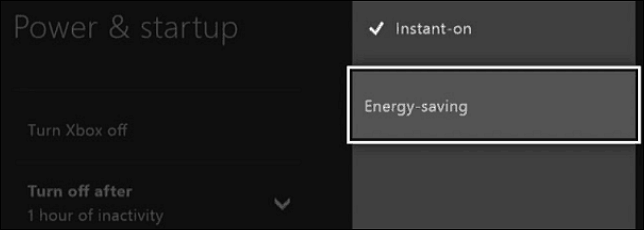
Step 3. To resolve the issue, press the Xbox button, then perform a hard reboot by shutting down the host computer and continuing to boot. This should resolve the problem.
Step 4. Re-insert the CD-ROM to see if the problem is resolved.
Option 3. Clear Persistent Storage
Clearing persistent storage may resolve the issue. To do this, go to Settings > General > iPhone Storage, then select the app that's causing the problem and tap "Offload App" and wait for it to finish. If that doesn't work, try deleting the app and then reinstalling it.
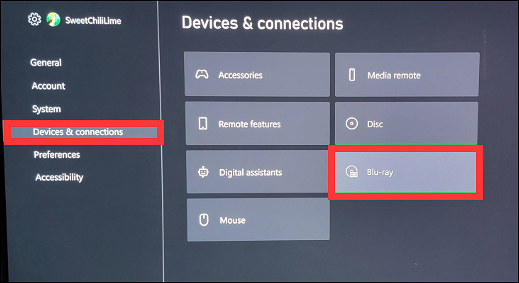
Step 1. To access the Persistent Storage settings for Blu-ray on your Xbox One, go to Devices & Streaming > Blu-ray > Persistent Storage in the Xbox One settings.
Step 2. Select the Clear Persistent Storage option and restart the console.
Option 4. Reset the Xbox OS
If the above methods don't solve the issue with your Xbox One not reading discs, you can try resetting the console's operating system. This process won't delete your games and apps, and it's a relatively quick process. To do this, go to Settings > System > Console Reset, and follow the on-screen instructions. This should resolve the issue with your Xbox One not reading discs.
Step 1. Open the guide on the Xbox console by pressing the Xbox button on the home screen.
Step 2. To reset your console, go to Settings, then All Settings, followed by System, Console Information and Updates, and finally Reset Console.
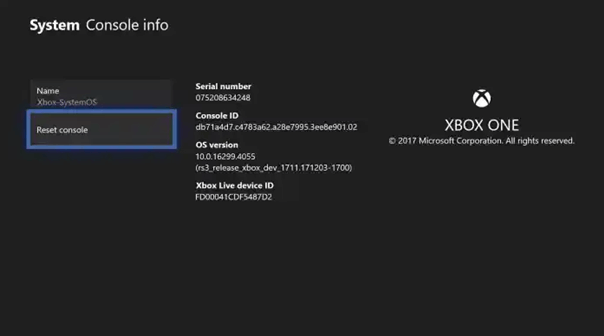
Step 3. If you want to keep your data, on the Reset Console screen, select the Reset and keep my games and Apps option.
If the issue persists, it may be a hardware problem, such as a faulty CD drive or a problem with the computer's ability to read CDs. In this case, it may be necessary to consult a professional for further assistance.
Option 5. Replace the hardware
If there's a problem with the hardware, you can opt to replace it.
To fix the disk reader, you'll need to find a spare disk reader, remove the laser lens and rotary motor, and replace them with the new ones.
If your Xbox One controller isn't working, you can contact the Xbox One support team for assistance.
If you want to replace the hard disk of your Xbox, you can check it out by clicking on the link below.
How to Perform Xbox One SSD Upgrade
Upgrading your Xbox One's hard drive to a solid-state drive (SSD) can be done without losing data or reinstalling, allowing you to enhance your gaming experience.

Why Xbox One Not Reading Disc
The Xbox One may not read discs if the disc drive is faulty or dirty, or if the console is not properly updated. To resolve the issue, try cleaning the disc drive with a soft cloth, updating the console to the latest software, and checking for any physical damage to the disc. If the issue persists, it may be necessary to contact Microsoft support or visit a authorized repair center.
A variety of things can cause this problem:
- Excessive Dust: Dust buildup inside the Xbox One console or on the laser lens can cause issues with game loading, freezing, or disc reading problems. Regular cleaning with compressed air and a soft cloth can help remove dust and prevent these problems.
- Disc Failure: A damaged or scratched Xbox One disc can cause an ear-splitting noise and prevent the console from reading the disc.
- Drive Failure: If the levers, rollers, and screws inside the optical disk drive are damaged, neither Xbox will work properly.
- Incorrect settings: Xbox power settings may interfere with the optical disk drive, potentially causing issues such as preventing consoles from reading discs or recognizing when a disc is inserted.
Don't panic if you encounter problems with your disc, as there are quick fixes available. If the issue is minor, you can try the solutions provided in this article. However, if the disc has a serious problem, it may be best to seek the help of a professional for a proper repair.
If your Xbox One hard drive is not reading a disc, try restarting the console, checking the disc for damage, or using a different disc drive. If the issue persists, try updating the console's software, resetting the console, or using a different external hard drive. If none of these solutions work, you can contact Xbox support for further assistance.
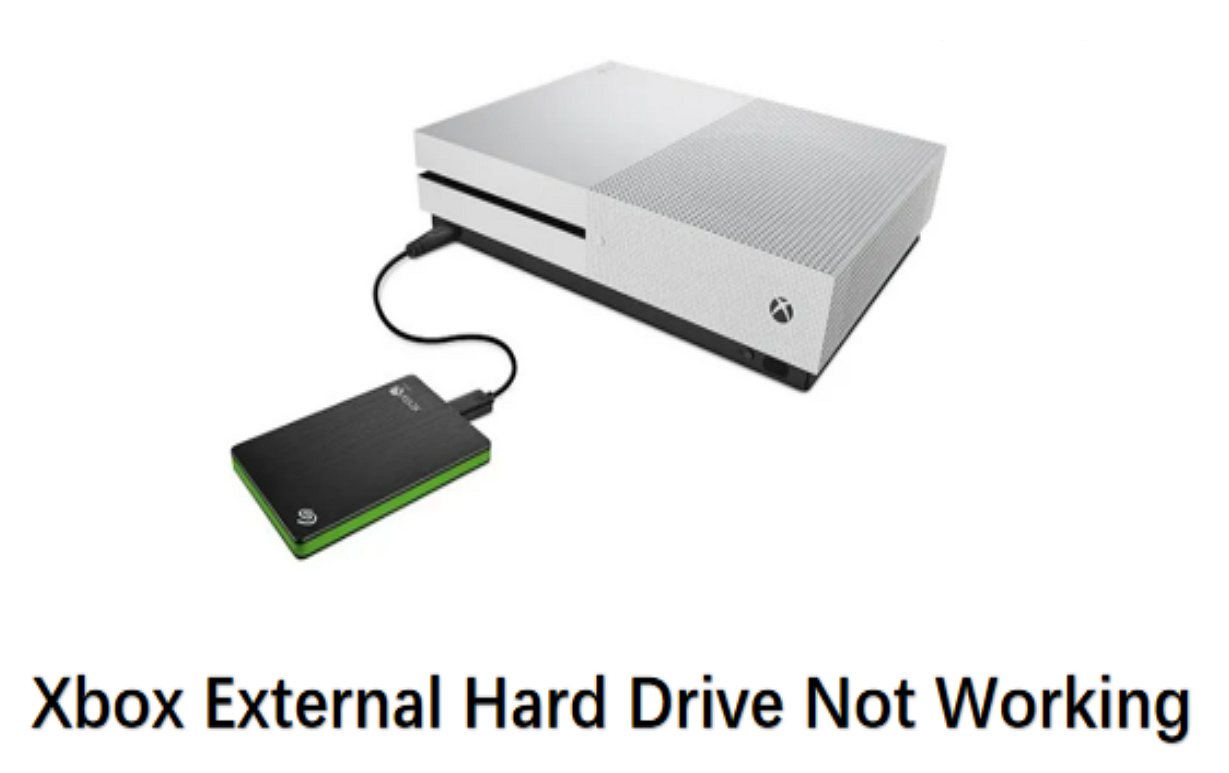
If your Xbox external hard drive is not working, try restarting the console and the drive, checking the drive's power cord and USB connection, and ensuring it's formatted for Xbox use. If the issue persists, try using the Xbox's built-in diagnostic tool, checking for firmware updates, and running a system file check.
If you're experiencing hard drive issues, you'll need to troubleshoot on your PC. However, if the problem lies with your Xbox, you can resolve the issue directly on the console. We'll provide a comprehensive, step-by-step guide to assist you in both scenarios.
Conclusion
If your Xbox One is having trouble reading a disc, don't panic. Before trying to troubleshoot the issue, check if the disc and console are damaged. If not, try changing the incorrect power settings, resetting the Xbox One system, and other options to resolve the problem.
You may also be interested in the following topics:
FAQs About Xbox One Not Reading Disc
This section addresses common questions about Xbox One not reading discs, providing answers to frequently asked concerns. By reading on, users can find solutions to their worries and get back to enjoying their gaming experience.
1. How to know if my Xbox One is damaged?
You can check if the Xbox One disc is damaged by looking at the back of the game disc. If it has scratches, nicks, or other visible damage, the laser will have trouble reading it, making the disc unplayable for your console.
If the disc's exterior is undamaged, it's possible that the issue lies with the disc drive, causing the Xbox One to fail reading the disc.
2. How to clean my Xbox One disc reader?
To clean the Xbox One disc reader, use a professional cleaning tool to remove dirt, hair, or debris that may have accumulated. For a more thorough cleaning, use a microfiber cloth to wipe the area around the disc drive, ensuring a smooth and clean surface for optimal disc reading performance.
To blow off any hard-To clean around the opening or the compressed air canister, use a soft-bristled brush or gently blow compressed air.
3. Why my Xbox One won't read the disc and makes noise?
If your Xbox One disc is making strange noises, it could be that the disc drive is worn out due to loose gears, preventing the disc from being read.
Related Articles
- How to Solve Samsung Smart TV USB Not Working [Updated 2023]
- Create Mac Bootable USB from Windows [Full Guide in 2023]
- 3 Steps: How to Fix PCL XL Error in Printer Windows 10/11
- Fix There Are No Free MBR Slots on the Disk [2023 Best Solution]
- Why is Google Drive Not Working and How to Solve It
If you're experiencing issues with Google Drive not working, - it's a common problem that can be easily resolved. - What Is the Best GoPro SD Card Format? [Best Choice and Tutorial Guide]
Learn the best GoPro SD card format, when to use FAT32 or exFAT, and how to format a card for reliable recording.
Products
Articles & Tutorials
- Data Recovery
- Data Backup
- File Recovery
- File Backup
- System Backup and Restore
- Disk and Partition Clone
- Technical articles
- Mobile articles
- Disk Master Help
- Windows Data Recovery Tutorials
- Windows Secure Delete Tutorials
- Windows Partition Management Tutorials
- Windows File Backup and Restore Tutorials
- Windows System Backup and Restore Tutorials
- Windows Disk Backup and Restore Tutorials
- Windows Clone Tutorials