3 Steps: How to Fix PCL XL Error in Printer Windows 10/11
Background Introduction
When taking out a printout of your document, you may encounter a "PCL XL Error in Printer" due to issues with communicating with the printer, often caused by sending too many pages to the queue, which can hinder the printing process.
The printer's driver may become outdated or corrupted due to OS updates or conflicts with third-party software, causing the message to appear on the screen. This issue can be resolved by taking proper measures, which will be discussed in depth.
What is the PCL XL Error?
HP has developed Printer Command Language (PCL) for its inkjet printers, a powerful driver for printing optimized for GUI interfaces like Windows and compressed for efficiency.
The PCL XL error occurs when printing multiple documents at once, often caused by a corrupt printer driver or faulty printer settings.
What Causes the PCL XL Error?
The PCL XL Error in Printer occurs when the printer encounters characters in the print stream that it cannot understand, regardless of the operating system being used, including Windows, Mac, or Linux. This error is caused by the printer's inability to process specific data characters.
There may be various causes that lead to the issue as:
- The system font needs to be interpreted correctly by the printer.
- The competing apps like antivirus software running on the system, print management suites, etc., may interfere with the print data stream, making the characters not translatable.
- The printer driver has become outdated or corrupted, causing issues with printing due to incompatibility with the required modules.
- To resolve this issue, you can try resetting the user profile. This can be done by going to Settings > Accounts > Your email, phone, or Skype (Windows 10) or Settings > Users (Windows 11), and then clicking on the "Sign out" button.
Solution 1. Rebooting the Service for Print Spooler
To resolve the PCL XL Error in Printer, try restarting the spooler service, which may resolve the issue.
Useful Steps:
Step 1. To run the Task Scheduler as an administrator, tap on Windows, click on "Services", right-click on Task Scheduler, and select "Run as administrator".
Step 2. If you get a UAC prompt, tap on "Yes" and then make a right click on "Print Spooler".
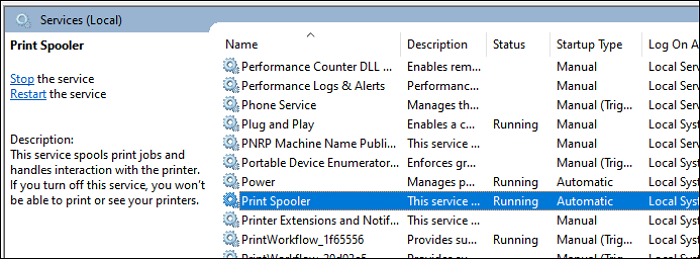
Step 3. Once you restart the printer, check if the issue is resolved or still persists.
Solution 2. Performing a Cold Restart
Temporary communication issues between the printer and the system can cause PCL XL Error in Printer, which may be resolved by restarting the printer, the equipment used for networking, and the system.
Useful Steps:
Step 1. Turn off the printer, networking equipment such as extenders, routers, etc., and the computer.
Step 2. The devices you mentioned are likely electronic devices, such as computers, televisions, or other appliances. Removing the power cables from these devices is a safety precaution to prevent any accidental power-ons or electrical shocks.
Step 3. After reconnecting the devices, turn the router on.
Step 4. Before you make a system reboot, let the lights get settled. This is a reminder to ensure that all lights are turned off or set to a low level before initiating a system reboot.
Step 5. Once the system is booted, turn the printer on and wait until it's fully operational.
Step 6. Check whether the working of the printer is resumed.
- Notice:
- If the previous solution doesn't work for you, try checking if the printer works properly on another system. Also, see if the issue is caused by a specific file and if you can print it using another method. If you still can't print, check the file for other issues.
Solution 3. Rename the File in Association With Your Printer
If you're experiencing the PCL XL Error in Printer, try renaming the file to see if it resolves the issue. This might help resolve the problem.
Useful Steps:
Step 1: Press the "Windows key + E" from your keyboard to launch File Explorer.
Step 2: Then, by navigating, reach the location: C:\Windows\System32\spool\drivers\x64\3
Step 3: After that, you have to filter your files showing only some specific ones with the .gpd extension. Locate "Type" and tap on the arrow given alongside, then select the .gpd files.
Step 4: Make a selection for the GPD file.
Step 5: Before making any changes, ensure you have created a successful backup of your files. Once you've done that, you can rename them with new words to suit your preferences.
Step 6: Now save the amendments you made and get your PC started again.
Once your system gets booted, try to print the required documents again and see if the solution works for you.
Conclusion
Printers are essential office devices that bring imagination to life. However, when an HP laserjet printer encounters issues, it can hinder productivity. Problems with printer drivers or printing preferences can cause frustration. Fortunately, with the right troubleshooting steps, the PCL XL Error in Printer can be resolved quickly, getting your work back on track.
Related Articles
- 3 Proven Ways to Download & Install macOS 12 Monterey for Free [2023 Tips]
- How to Stop Finder Action on Mac in 5 Ways | MacBook Air/Pro/iMac
- How to Uninstall Dell Backup and Recovery on Windows 10 [Full Guide]
- You May Not Install to This Volume Because It Is Currently Being Encrypted
- Can I Use My SD Card as RAM on Android and Windows?
You can use your SD card as RAM on both Android and Windows devices, but it's not a straightforward process. This article explains how to do it correctly, providing a step-by-step guide on how to utilize your SD card as a makeshift RAM to improve your device's performance. - Can SSD Overheat? Full Explanation and Reasons Here!
Learn whether SSDs can overheat, what temperatures are risky, and how to cool an SSD to protect speed, lifespan, and data. - Fix Windows 11 Printer Not Working (2026 Guide)
Products
Articles & Tutorials
- Data Recovery
- Data Backup
- File Recovery
- File Backup
- System Backup and Restore
- Disk and Partition Clone
- Technical articles
- Mobile articles
- Disk Master Help
- Windows Data Recovery Tutorials
- Windows Secure Delete Tutorials
- Windows Partition Management Tutorials
- Windows File Backup and Restore Tutorials
- Windows System Backup and Restore Tutorials
- Windows Disk Backup and Restore Tutorials
- Windows Clone Tutorials