Xbox 360 Hard Drive Upgrade: Step-by-Step Guide
If you're experiencing slow performance on your Xbox 360 due to a full hard drive, upgrading to a larger capacity hard drive may be the solution. Deleting games might not be enough to resolve the issue, and upgrading can provide more storage space and improve your gaming experience.
To upgrade your Xbox 360 hard drive, you can follow the detailed guide provided by Qiling, which offers a solution for a successful upgrade. This will allow you to fully control the storage on your Xbox 360 console and clone all of your data to the new drive without any data loss.
View the Necessary Information for Xbox 360 Hard Drive Upgrade:
| ⏱️Duration | About half an hour |
| ✍️Difficulty | Easy for beginners |
| ⛏️Preparations |
✔️Prepare hard drive ✔️Toolkit ✔️Qiling Disk Master |
| 👣Steps |
To start the process, remove the old drive from the computer and connect it to the PC using a USB cable. This will allow you to access the drive's contents and prepare it for the next steps. |
How to Perform Xbox 360 Hard Drive Upgrade
To upgrade the hard drive on an Xbox 360, you can replace the original 20-60 GB hard drive with a larger one, allowing for more storage space and potentially improving performance. This process typically involves purchasing a compatible hard drive, removing the original drive, and installing the new one, which can be done with some technical skill and the right tools. Many users have successfully made this upgrade to enjoy more storage and potentially improved performance from their Xbox 360.
If you need an Xbox hard drive replacement or an Xbox One SSD upgrade, this guide can help. A detailed step-by-step guide is available to help you through the process.
Preparations for Xbox 360 Hard Drive Upgrade
To upgrade your Xbox 360 hard drive, start by shutting down your console and unplugging the power cord. Next, locate the hard drive, which is usually found on the front of the console, and gently pull it out. If it doesn't come out easily, you may need to remove the screws that hold it in place.
1️⃣Choose the suitable Xbox 360 hard drive: Choose a hard drive that is compatible with your Xbox 360 console and meets your storage needs to ensure smooth performance.
2️⃣Initialize or format the hard drive: The hard disk is recognized with the correct file format and prepared for use by formatting it in FAT32, which can be done using Disk Management.
3️⃣Download a clone tool: To download a free and reliable clone tool, consider using Qiling Disk Master, a trustworthy option for the task.
The program simplifies and enhances the data migration process from an old Xbox 360 hard drive to a new, upgraded one, making the cloning process more effective.
4️⃣Prepare other tools: such as a screwdriver, to remove the Xbox 360 drive
To remove the old hard drive from an Xbox 360 console, you'll need a specialized toolkit that includes a screwdriver and a pry bar tweezers. These tools allow for safe and careful removal of the drive from the console, helping to prevent damage to either the drive or the console itself.
To upgrade the Xbox 360's hard drive, first, you'll need to prepare the necessary tools and materials, such as a replacement hard drive and a screwdriver. Next, you'll need to back up your data and shut down the console. Then, you'll need to remove the hard drive from the Xbox 360, disconnect the power and data cables, and remove any screws that hold the hard drive in place.
Steps for Xbox 360 Hard Drive Upgrade
To upgrade the Xbox hard disk, first, you need to purchase a compatible hard drive, then back up your data to the new drive, and finally, replace the old hard drive with the new one. You'll need to purchase a compatible hard drive, back up your data to the new drive, and replace the old hard drive with the new one. This process will help you upgrade your Xbox hard disk to a new one.
Stage 1. Take Out the Old Drive and Connect It to the PC
To upgrade the Xbox 360's storage, start by removing the old drive from the console. You may need tools such as a Torx screwdriver, a flathead screwdriver, and a plastic spudger to safely remove the drive. Once the old drive is out, you can install a new one, such as a 250GB or 320GB hard drive, to increase the console's storage capacity.
- A heatsink and a screwdriver to open the Xbox case
- A pry bar to separate the clips
- Tweezers to remove the cable and panel
- A PC or laptop with USB connectivity
For a more detailed guide, refer to the iFixit tutorial on replacing the Xbox 360 hard drive.
- Notice:
-
Be gentle when handling the components to avoid causing any damage. Apply minimal force to prevent harming them.
1) Connect the old hard drive to your PC once it has been removed, allowing you to access and transfer data to the new hard drive.
2) Connect the Xbox 360 hard drive to a PC using the Xbox 360 transfer cable, which is specific to the console model.
Stage 2. Upgrade 360 Hard Drive or Clone It to Bigger HDD
Check all connections carefully and consider hiring a professional to upgrade the 360's hard drive or clone it to a target HDD. I recommend using Qiling Disk Master to smoothly and securely clone the old hard drive to a new or larger one without losing data.
The Qiling Disk Master tool simplifies the Xbox 360 hard drive upgrade process by allowing you to copy your preferred sector data, making it a user-friendly interface that saves time and effort. By downloading and following the given steps, you can upgrade your Xbox 360 hard drive with ease.
- Notice:
- To clone a SD/USB/external hard drive with data to a new device, connect the external storage device you want to clone and a new removable device (SD/USB/external hard drive) with bigger capacity to your PC in advance.
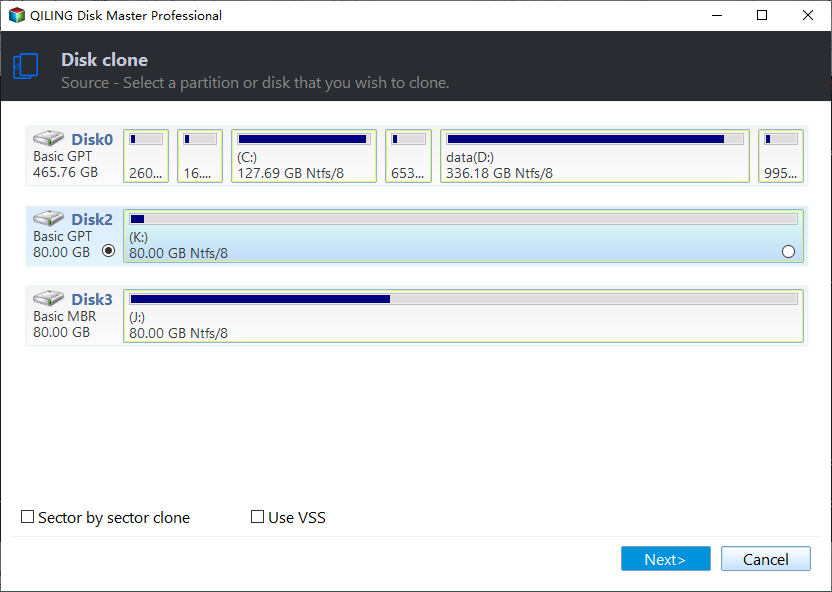
Step 1. Clone external storage device (SD/USB/external hard drive)
- 1. To clone a data disk, click on the "Clone" tab, then select the "Clone Data Disk" option, and proceed by clicking "Next".
- 2. Choose a source disk and select a target disk, then click "Next".
Step 2. Keep all changes
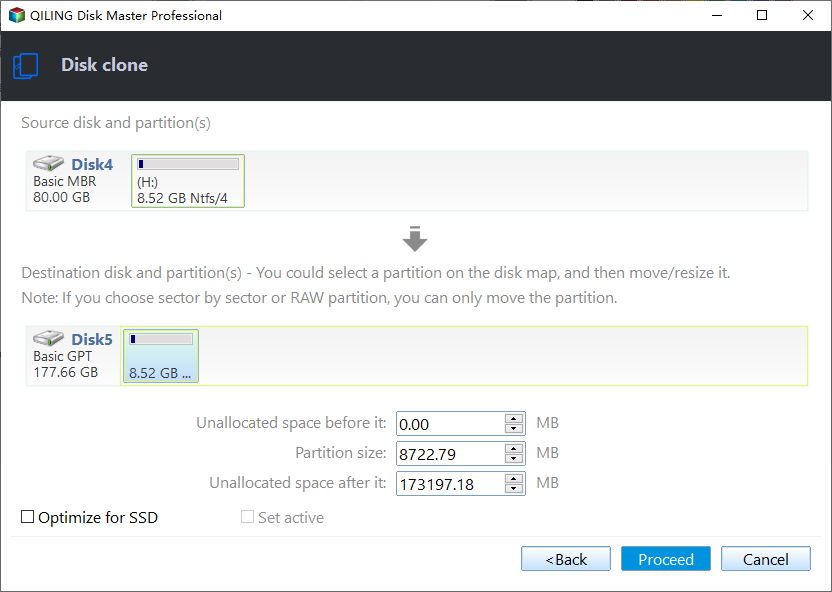
- 1. Check the source disk layout by clicking "Autofit the disk" or "Clone as the source" to edit the disk.
- 2. Click the "Start" to start cloning.
- 3. Wait for the cloning process complete.
After using Qiling Disk Master to upgrade your Xbox 360 hard drive, its job is not yet completed. It provides a variety of disk management functions to guarantee consistent disk performance, including disk defragmentation, disk cleaning, disk backup, disk restore, disk clone, and disk wipe, among others. These features help to maintain the health and longevity of your hard drive, ensuring it continues to run smoothly and efficiently.
- To fix Xbox 360 slow error and improve read and write speed, try clearing the system cache, updating the console's software, and checking for any loose connections. Additionally, you can try running a diagnostic test, checking for any overheating issues, and cleaning the console's vents to ensure proper airflow.
- Test Xbox hard drive health and keep its performance
- Analyze disk space and free up Xbox hard drive space
- And more
Download this powerful tool, and you can enjoy its benefits and the conveniences it brings to you.
Stage 3. Replace the Old Xbox 360 Hard Drive
To replace the old Xbox 360 hard drive with the new one, simply remove the old hard drive from the Xbox 360 console and insert the new one in its place. Make sure the new hard drive is securely fastened to the console to prevent it from coming loose during use. Once the new hard drive is installed, you can begin to transfer your data from the old hard drive to the new one.
Step 1. To resemble your Xbox 360 and install the new HDD, follow the dissembling process mentioned in Stage 1.
Step 2. Start up your Xbox 360.
To replace the Xbox 360 hard drive, you can follow the instructions provided by MrMario2011 in their video, which offers detailed guidance on the process.
If you're experiencing issues with your Xbox 360 hard drive after upgrading, you can try using Qiling Disk Master for assistance. If you're planning to upgrade to an SSD, you can find helpful information at the provided link.
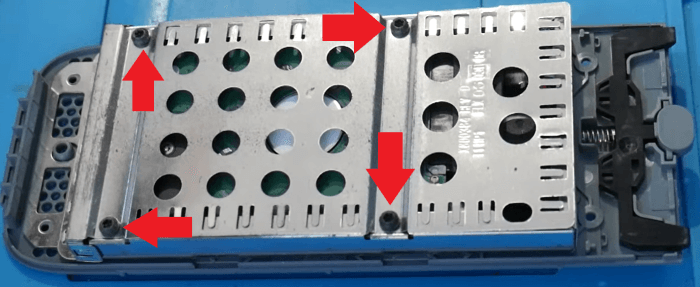
Upgrading your Xbox 360's hard drive to an SSD (solid-state drive) is a relatively easy process that can greatly improve your gaming experience. To do this, you'll need to purchase an SSD that matches your Xbox 360's specifications, which typically means a 2.
Upgrading the Xbox 360 hard drive to an SSD involves replacing the original hard drive with a solid-state drive, providing a significant performance boost. This process requires a compatible SSD, a screwdriver, and basic technical skills. The upgrade involves removing the original hard drive, installing the SSD, and configuring the console to use the new drive. This upgrade can improve game loading times, overall system responsiveness, and potentially extend the lifespan of the console.
Conclusion
Upgrading an Xbox 360 hard drive without data loss can be done easily by following a three-stage procedure that requires basic computer knowledge. The upgrade process involves completing the preliminary steps outlined in the prior section, and this tutorial can be shared with others if it meets your needs.
FAQs About Xbox 360 Hard Drive Upgrade
If you have any further questions about the topic discussed on this page, you can find answers here.
1. Can I replace Xbox 360 hard drive with an SSD?
You can replace the Xbox 360 hard drive with an SSD, but it requires additional elements such as a PC or laptop with SATA and a USB-to-SATA adapter specifically designed for this purpose, and you must choose one compatible with the Xbox hardware configuration.
2. What size is suitable for an Xbox 360 hard drive?
The Xbox 360 supports various hard drive storage capacities, including 20GB, 60GB, 120GB, 250GB, and 320GB. The choice of size depends on your budget and storage needs, and larger drives may require initialization or formatting before use.
3. How to run Xbox 360 Slim hard drive upgrade?
To replace the hard drive in an Xbox console, start by disconnecting the console from the power source and turning it off. Then, remove the hard drive cover from the side of the console. Take out the old hard drive and insert the new one in its place, ensuring it connects properly. This should be a straightforward process, but if you're unsure, consult the Xbox documentation or seek assistance from a professional.
Related Articles
- How to Format HDD/External Hard Drive to FAT32 [Your Step-by-Step Guide Is Here]
- 8 Fixes: Can't Install Windows on GPT or Windows Cannot Be Installed to This Disk Error
- Guide on Checking Disk Speed in Windows 10 Using CMD [2023 Tutorial]
- Sleep vs Hibernate on Windows 10/8/8.1/7 (Complete Guide)
- How to Format Read Only Disk to Normal Windows 11
This article will explore how to format a read-only disk to normal in Windows 11, providing a step-by-step guide to achieve this. Let's get started. - Format SanDisk SD Card|How to Format SanDisk SD Card on Windows 10 and Mac
To format a SanDisk SD Card, you can use various methods depending on your operating system. On Windows 10, you can use the SD card format tool, Windows File Explorer, Windows Disk Management, or CMD, while on Mac, you can use Disk Utility to format the SD card to FAT32.
Products
Articles & Tutorials
- Data Recovery
- Data Backup
- File Recovery
- File Backup
- System Backup and Restore
- Disk and Partition Clone
- Technical articles
- Mobile articles
- Disk Master Help
- Windows Data Recovery Tutorials
- Windows Secure Delete Tutorials
- Windows Partition Management Tutorials
- Windows File Backup and Restore Tutorials
- Windows System Backup and Restore Tutorials
- Windows Disk Backup and Restore Tutorials
- Windows Clone Tutorials