How to Analyze Disk Space on Windows 10 [Step-by-Step Guide]
When your disk space is full, it's essential to identify what's consuming a lot of space. Analyzing your disk usage can help you pinpoint and delete unnecessary files, freeing up space and improving your computer's performance.
To free up disk space on your Windows 10 computer, you can use a disk space analyzer to identify the main files consuming memory and determine if any files are too large for your file system. There are two ways to analyze disk space, which will be outlined in this article along with detailed steps on how to do it.
How to Analyze Disk Space on Windows 10
Analyzing disk space is not a difficult task, as Windows provides built-in methods to view storage information. For a more accurate view of space utilization, I recommend using Qiling Disk Master Free, a reliable disk space analyzer.
Follow the table below and check the comparison.
| Supported Features | ||
|---|---|---|
| 🧑💻Calculate the size of the hidden space? | Yes | No |
| ⛏️ Find duplicate files | Yes | No |
| ❎ Delete files directly? | Yes | No, you need to turn to File Explorer |
| 📖 Show the percentage of occupied space? | Yes | No |
| 💴 Free to use? | Yes | Yes |
Qiling Disk Master is a more versatile tool than the other, making it one of the best disk space analyzers for Windows 10. It offers a range of features, allowing users to analyze disk space on Windows 10 with ease.
Read Also:
7 Ways to Fix 99% Disk Usage on Windows
Discover effective solutions to resolve 99% disk usage issues on Windows. To optimize your system's performance efficiently, follow seven methods.
Analyze Disk Space on Windows 10 via Space Analyzer
Qiling Disk Master Free is a comprehensive disk management tool that offers a Space Analyzer feature to track disk space usage, a more integrated interface, and various options for users to choose from, enabling operations such as modifying or deleting files directly after analyzing disk space.
To view the disk space on Windows 10, simply click on the Start button, then type "This PC" in the search bar and press Enter. This will open the File Explorer, where you can see the available disk space for each drive on your computer.
Step 1. Launch Qiling Disk Master and navigate to the Discovery tab, where you can find and download the Space Analyzer tool from the Frequently Used Tools section.
Step 2. Select the target disk to be analyzed and click "Analyze" in the upper right corner of the Space Analyzer pop-up window.
Step 3. You can wait a while and see detailed data, or click on "Folder/File" to view different data types, and click on the small folder icon to see more information inside the file.
With Qiling Disk Master, you can view the disk usage percentage of each folder, and make file modifications or deletions directly by double-clicking on them.
What Else Can Qiling Disk Master Do
As a full-Qiling Disk Master is a featured tool that offers a range of functionalities to help users effectively manage their disks and disk space. It provides a comprehensive disk management system, allowing users to easily create, delete, and format disk partitions.
- Test hard drive speed
- Check hard drive health
- Check the hard drive temperature
- Delete/resize/extend partitions
If you encounter any disk-Qiling Disk Master is a powerful tool that can help you recover data from corrupted or damaged partitions, as well as fix partition errors. It can also help with related problems, such as recovering data from deleted or lost partitions, repairing boot sectors, and more.
Analyze Disk Space on Windows 10 via Windows Storage
Windows has various tools to check disk space, but only Windows Storage can provide a detailed analysis of disk usage. Unlike the command line, which can only display the total disk space, Windows Storage shows how much space each disk occupies and breaks down the space used by different types of files. However, users cannot delete files directly from Windows Storage, and any deletion actions are redirected to File Explorer.
Windows Storage is a built-To analyze disk space with Windows Storage, go to Settings, and you don't have to download it again to use it.
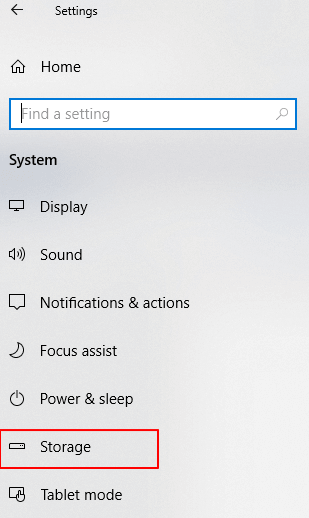
Step 1. Right-click on the Windows icon and select Settings.
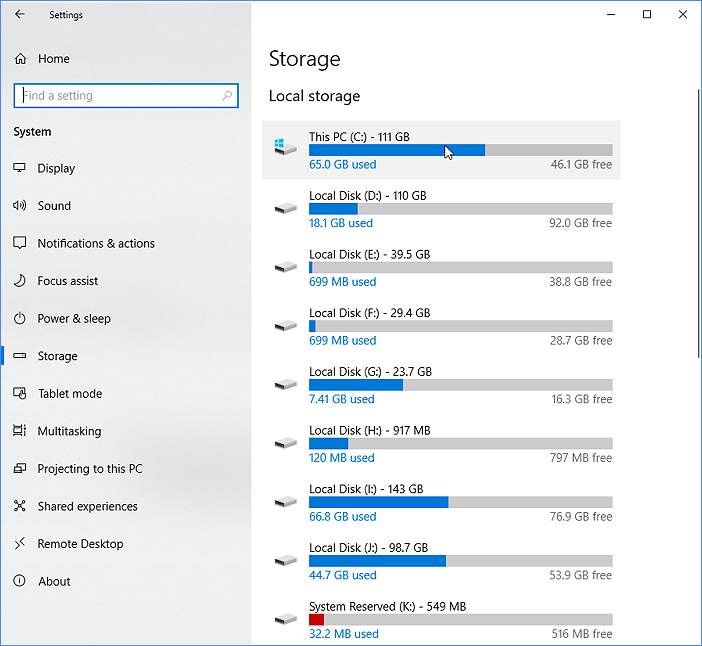
Step 2. To view the available space on each drive, select System > Storage in the pop-up window. This will display the amount of space available on each drive.
Step 3. Double-click the target drive to view the details.
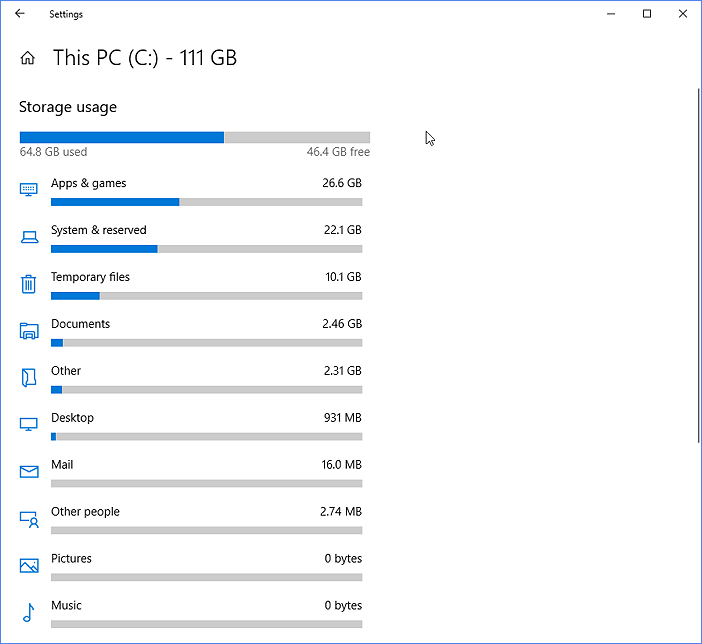
Step 4. To see what's taking up space on your computer, click on each type of file or folder in File Explorer, which shows you what's occupying the storage space, and you can take action from there.
Windows 10 Storage can be analyzed using Qiling Disk Master, which provides detailed information and operations on disk space.
Further Reading: How to Free Up Hard Drive Space in Windows 10/11
Conclusion
To analyze disk space on Windows 10, you can use Windows Storage for a rough estimate, or Qiling Disk Master for a quicker and more accurate guide that includes hidden space usage.
The tool allows you to check your computer's storage, expand your disks, and solve low disk space issues by adjusting partitions, expanding them, cleaning up files, and other operations. If you're unsure how to check your storage, you can download the tool and try it out.
FAQs About How to Analyze Disk Space on Windows 10
Analyzing disk space on Windows 10 is a straightforward process. You can easily determine which files and folders are taking up the most space on your computer. If you're unsure about how to do this, keep reading for further guidance.
1. How to analyze disk space on Mac?
Mac offers a built-To view the used and available storage space on your Mac, you can use the Disk Utility tool. Here's how: Open the Disk Utility app, which can be found in the Applications/Utilities folder, or by searching for "Disk Utility" in Spotlight. Select the drive you want to analyze from the list on the left, and then click on the "Info" button at the top right corner of the Disk Utility window.
Step 1. Click the Apple menu on your Mac.
Step 2. Choose the System Settings and click General in the sidebar.
Step 3. Click Storage and view all Volumes.
Then, you can move the pointer to see how much room each category takes up.
2. What is a good amount of disk space?
500GB-1TB of disk space is generally sufficient for general use, providing enough space for common file storage needs.
3. Which is the best free disk space analyzer on Windows?
For a more detailed analysis of your Windows disk space, you can use a built-in tool or consider third-party options. While Windows' built-in tool provides some information, it's limited. If you're looking for a more comprehensive view of your disk space usage, there are several free disk space analyzers available that can help you identify what's taking up space and free up some room.
- Qiling Disk Master
- SpaceSniffer
- TreeSize
- GetFoldersize
- JDiskReport
Related Articles
- Easy VHD to Physical Disk Solution
- 7 + Fixes: Missing Operating System or Operating System Not Found
- How to Tell If a Hard Drive Is Failing or Not [Step-by-Step Guide]
- 5 Methods to Fix Bootrec /Fixboot Access Is Denied Windows 11
- How to Fix HP Stream Factory Reset Not Enough Space
The HP Stream's low disk space issue can be frustrating, but there are practical solutions to manage and optimize your device's storage. Additionally, you can also try uninstalling unused apps, clearing browser cache, and enabling the 'Compact OS' feature to free up space. - Fixed: HP Stuck in Boot Loop | 5 Efficient Ways
If your HP laptop is stuck in a boot loop, We've can help with step-by-step solutions to get your laptop up and running smoothly again. From troubleshooting to fixing the issue, we'll guide you through the process to ensure your HP laptop is back on track in no time.
Products
Articles & Tutorials
- Data Recovery
- Data Backup
- File Recovery
- File Backup
- System Backup and Restore
- Disk and Partition Clone
- Technical articles
- Mobile articles
- Disk Master Help
- Windows Data Recovery Tutorials
- Windows Secure Delete Tutorials
- Windows Partition Management Tutorials
- Windows File Backup and Restore Tutorials
- Windows System Backup and Restore Tutorials
- Windows Disk Backup and Restore Tutorials
- Windows Clone Tutorials