5 Methods to Fix Bootrec /Fixboot Access Is Denied Windows 11
If the boot sector, boot configuration data, and master boot record on your Windows 11 computer are missing or corrupted, you can fix these issues with the Microsoft built-in program - Bootrec.exe. However, if you encounter the "bootrec /fixboot access is denied Windows 11" error, you can try running the command prompt as an administrator, checking the drive letter of the system drive, and ensuring that the system drive is not a removable drive. Additionally, you can try running the command prompt from the Windows installation media and then use the Bootrec.exe to fix the boot sector.
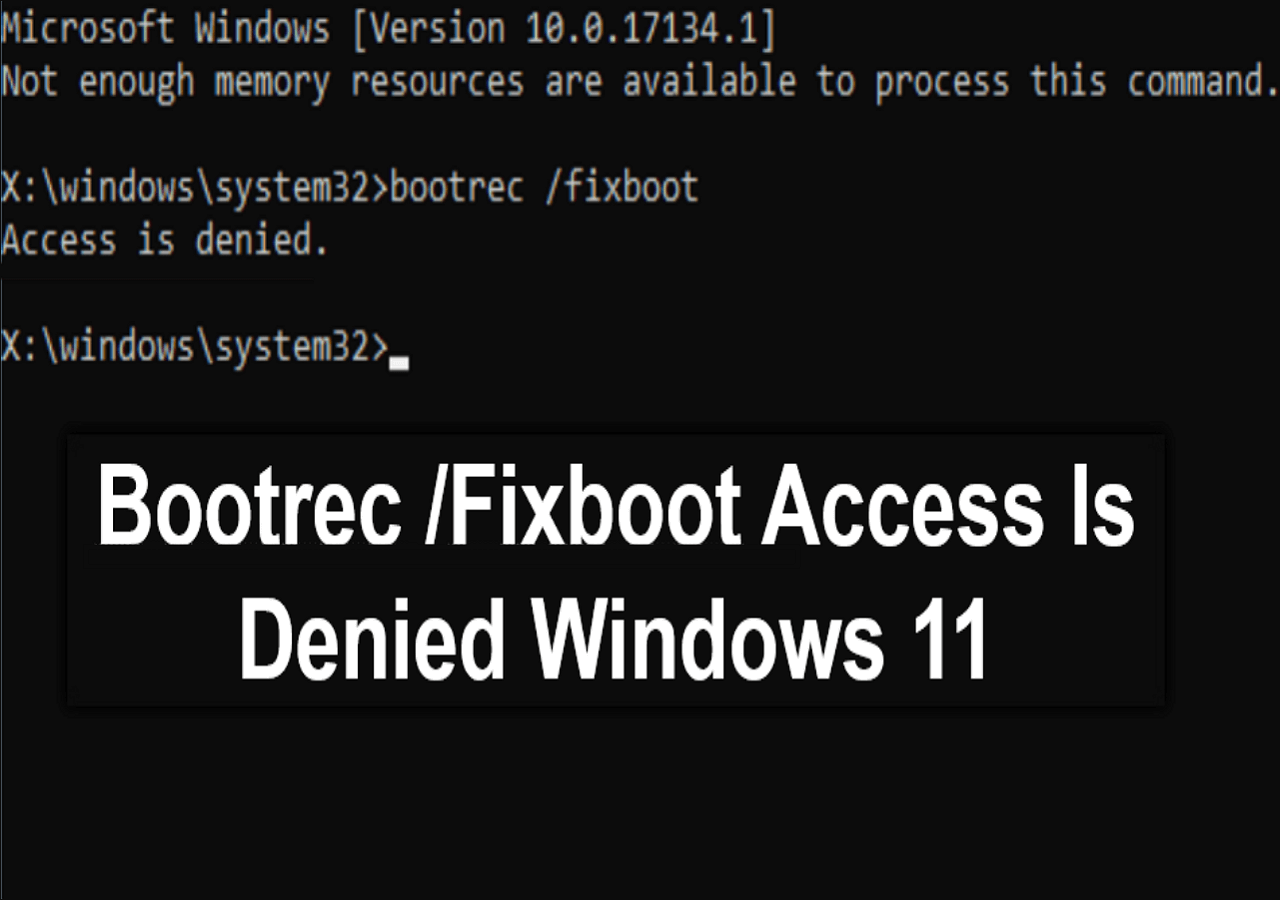
There are certain solutions to this problem. Read on and learn how to resolve the error in this informative article from Qiling.
How to Fix Bootrec /Fixboot Access Is Denied Windows 11
Bootrec.exe is a powerful program that can fix various startup issues, but running the bootrec /fixboot command may result in an "access is denied" error. If this occurs, you'll need alternative solutions to fix your computer and get Bootrec.exe back to normal. Fortunately, there are 11 methods available to resolve this issue.
Way 1. Rebuild BCD via Qiling Disk Master
To resolve the "bootrec /fixboot access is denied" error, the most efficient solution is to utilize reliable software like Qiling Disk Master Professional, which can quickly and effectively address the issue.
If your computer can't boot into Windows 11, this tool has a feature called Boot Repair that can fix a corrupted BCD file and resolve most boot errors. It can also rebuild the BCD and restore Bootrec.exe to their previous states. To use it, download Qiling Disk Master on a working computer and use it to create a bootable USB drive.
Now, check the detailed steps here:
Step 1. Connect a USB drive/external drive to a working computer, select the Tools tab, and click "Create Bootable Media".
Step 2. Select Qiling Boot Toolkits and other components you need.

Step 3. Select your movable device and click "Proceed" to create an image on your USB drive or external drive, or you can burn the Windows ISO file to the storage media.

Step 4. The system has been successfully created and is now ready for use. The system has been successfully created and is now ready for use.
Step 5. Connect a bootable drive to the faulty computer, reboot it by pressing F2/Del to enter BIOS, set the bootable drive as the boot disk and exit BIOS by pressing F10.
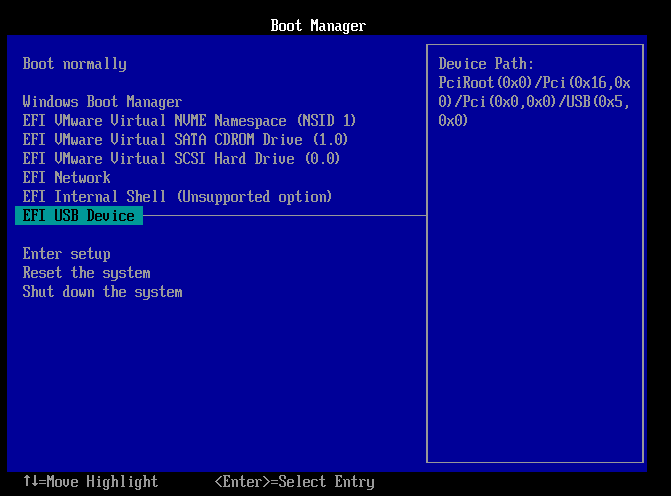
Step 6. The computer will then enter the WinPE desktop. To repair the system, click on "Fix Boot" in the tools tab, select the system you want to repair, and then click "Proceed".

Step 7. The system has been successfully repaired. You can now proceed with your tasks.
Since this feature has the ability to fix multiple BCD-related problems, this one should be fixed by now.
If you find this method helpful and easy to follow, consider sharing it on your social media to help others who may be experiencing the same issue. This can be a great way to spread knowledge and help more people troubleshoot their problems.
Way 2. Repair Bootloader in Command Prompt
If you're encountering a "bootrec /fixboot access denied" issue, which is related to the EFI system partition on your PC, you can try resolving it by reassigning a drive letter to the partition and reformatting it using the DiskPart utility. To do this, follow the guide provided to repair the Bootloader in Command Prompt. This process involves using the DiskPart utility to reassign a drive letter to the EFI system partition, and then reformatting it.
Step 1. To enter the Windows Recovery Environment, navigate to "Repair your computer" > "Troubleshoot" > "Advanced options" > "Command Prompt".
Step 2. Reassign the drive letter. Separately type in the following commands and hit "Enter" each time.
- diskpart
- list disk
- select disk 0 (Replace 0 with the target disk number)
- list volume
- select volume 1 (Replace 1 with the EFI volume number)
- assign letter=z (Replace Z with the unused volume letter)
- exit
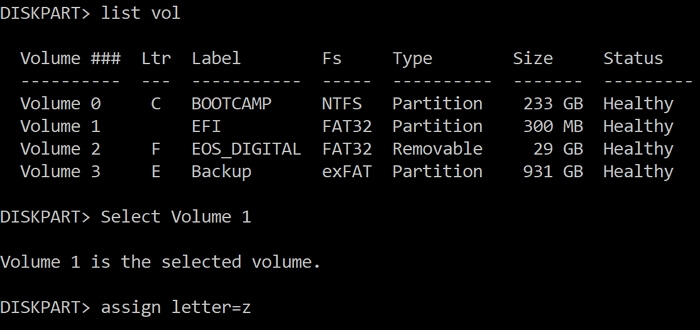
Step 3. Reformat this volume. Separately type in the following commands and press "Enter" each time.
- z:
- format z: /fs:fat32
- bcdboot c:\windows /s z: /f uefi
Step 4. You can't perform that action on this page. Please try again on the other page. If you're still having trouble, contact support.
- cd /d
- bootrec /FixBoot
- ren BCD BCD.bak
- bcdboot C:\Windows /l en-us /s x: /f ALL
- bootrec /rebuildbcd
Run the command "bootrec /fixboot" in the Command Prompt, then restart the Command Prompt and try running the command again to see if the Bootloader is fixed. If not, try running the commands "bootrec /rebuildbcd" and "bootrec /fixmbr" in the Command Prompt to attempt to repair the Bootloader. If these commands don't work, restart the Command Prompt and try running the command "bootrec /fixboot" again to see if it works this time.
Way 3. Rebuild MBR
If Bootrec.exe fails to fix a damaged Master Boot Record, you can try using Qiling Disk Master to rebuild the MBR, which may also resolve the "bootrec /fixboot access is denied" error. To do this, you'll need to create a bootable media from a working computer and run Qiling Disk Master on your unbootable computer.
Step 1. Create a WinPE bootable disk
- Launch Qiling Disk Master, click "Tools" tab page, and select "Create bootable media".
- Click "Next" to finish the process.
Step 2. Boot Qiling Disk Master Bootable USB
- Connect the bootable USB or CD/DVD to your PC.
- To access the BIOS screen, press F2 or Del when restarting the computer. Once in the BIOS, set the computer to boot from the "Removable Devices" or "CD-ROM Drive". This will allow Qiling Disk Master to run automatically upon boot-up.
Step 3. Rebuild MBR
- Right-click the disk and choose "Rebuild MBR".

- Select the disk and the type of MBR. Then, click "Proceed".

- The system successfully rebuilt the Master Boot Record (MBR) on the specified disk, Disk X. This indicates that the process was completed without any errors.
Way 4. Execute Startup Repair
As a built-When Bootrec.exe has trouble working normally, you can try to execute automatic repair using Startup Repair, a tool commonly used by Windows users to fix various problems on their computers.
Step 1. Enter the Windows Recovery Environment.
Step 2. To access the Startup Repair tool, go to the "Repair your computer" option, then select "Troubleshoot", followed by "Advanced options", and finally "Startup Repair".
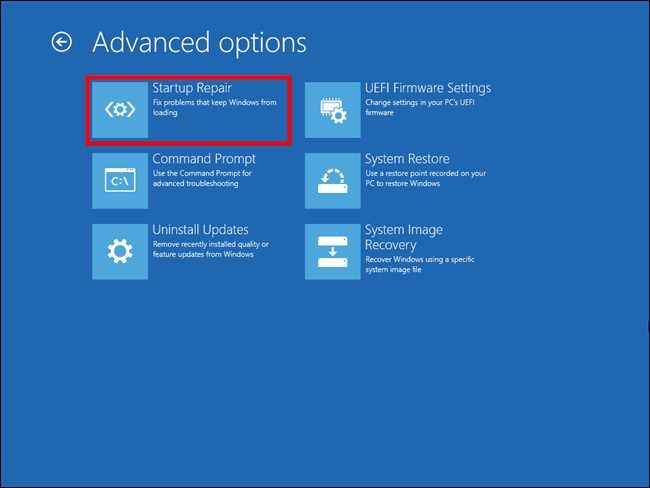
Step 3. If you run the scan, it will detect any issues and provide the result. If any problems are found, you'll receive the result and can then follow the instructions provided to solve the issues.
Way 5. Run CHKDSK in Command Prompt
CHKDSK utility is designed to automatically analyze and repair system errors. It can also be used to test disk speed, check disk usage, and more. To perform it, simply enter a few commands in the Command Prompt.
Step 1. To enter the Windows Recovery Environment, navigate to "Repair your computer" > "Troubleshoot" > "Advanced options" > "Command Prompt" from the Windows Recovery Environment.
Step 2. The command `chkdsk c: /r` is used to check the C drive for errors and fix them. The `/r` option is used to repair the drive, which means it will attempt to fix any errors it finds.
To fix the issue, you can try to update the drivers for your Intel graphics card. You can do this by going to the Intel website, downloading the latest drivers for your specific graphics card, and following the installation instructions. If this doesn't work, you can try to update the drivers for your graphics card through the Device Manager.
Step 3. The system will automatically run a diagnostic test to check for any issues. If any problems are found, it will report them and require repair. After that, it will wait for the process to finish.
Why Bootrec /Fixboot Access Is Denied Windows 11
The "bootrec fixboot access is denied" error occurs when users run the bootrec/fixboot command but are denied access. This can happen due to the boot partition being in a different drive letter than expected, or the boot partition being in a different drive letter than the one being fixed, or the boot partition being in a different drive letter than the one being fixed, or the boot partition being in a different drive letter than the one being fixed, or the boot partition being in a different drive letter than the one being fixed, or the boot partition being in a different drive letter than the one being fixed, or the boot partition being in a different drive letter than the one being fixed, or the boot partition being in a different drive letter than the one being fixed, or the boot partition being in a different drive letter than the one being fixed, or the boot partition being in a different drive letter than the one being fixed, or the boot partition being in a different drive letter than the one being fixed, or the boot partition being in a different drive letter than the one being fixed, or the boot partition being in a different drive letter than the one being fixed, or the boot partition being in a different drive letter than the one being fixed, or the boot partition being in a different drive letter than the one being fixed, or the boot partition being in a different drive letter than the one being fixed, or the boot partition being in a different drive letter than the one being fixed, or the boot partition being in a different drive letter than the one being fixed, or the boot partition being in a different drive letter than the one being fixed, or the boot partition being in a different drive letter than the one being fixed, or the boot partition being in a different drive letter than the one being fixed, or the boot partition being in a different drive letter than the one being fixed, or the boot partition being in a different drive letter than the one being fixed, or the boot partition being in a different drive letter than the one being fixed, or the boot partition being in a different drive letter than the one being fixed, or the boot partition being in a different drive letter than the one being fixed, or the boot partition being in a different drive letter than the one being fixed, or the boot partition being in a different drive letter than the one being fixed, or the boot partition being in a different drive letter than the one being fixed, or the boot partition being in a different
- Corrupted BCD file. The BCD file is responsible for booting the Windows OS, and a corrupted or missing BCD file is a common cause of this error.
- Damaged EFI structure. If the Windows UEFI bootloader is damaged, it may cause errors on your computer. The bootloader is responsible for loading the Windows OS and initializing other devices.
- Boot Manager issues. If you're trying to remove or avoid a startup setting using the Boot manager's bootrec/fixboot command, you might see an "access is denied" error on your screen.
- Unsuitable Windows version. Reports from Windows 10 users suggest that the Windows 10 1707 or 1709 update, as well as some Windows 11 updates, have a high risk of causing an error, with many experiencing issues.
With your clicks on the sharing buttons, this article can help more people by providing detailed information on this error, making it easier for them to understand and resolve the issue.
Conclusion
If you're experiencing the bootrec /fixboot access denied error on Windows 11, This article presents 5 practical methods to help you fix the issue with Bootrec.exe, including a user-friendly solution from Qiling Disk Master that offers a simple interface and easy-to-follow instructions to resolve the problem with minimal effort.
FAQs on Bootrec /Fixboot Access Is Denied Windows 11
1. What are the Bootrec commands?
Bootrec is a Windows built-in utility that helps troubleshoot startup problems in the Windows RE. It can fix errors in the Boot Configuration Data Store, boot sector, and Master Boot Record, making it a useful tool for resolving issues with the Windows boot process.
2. Can you run Bootrec while Windows is running?
To run Bootrec.exe, you need to access Windows Recovery Environment (WinRE) by booting from the original Windows installation disc, and then use the Command Prompt within WinRE.
3. What is Fixboot command?
The Fixboot command is used to rebuild or repair the boot sector of the active partition, which contains essential information for starting up the computer and loading the operating system.
Related Articles
- Can't Delete Partition on USB? Time to Fix it!
- Top 5 Best HDD to SSD Cloning Software [Your 2024 Best Choice]
- How to Format SD Card to NTFS on Android and PC [2024 Step-by-Step Guide]
- How Do I Format Disk to exFAT in Command Prompt
Want to format your disk to exFAT easily? Discover how to do it using CMD or the user-friendly Qiling Disk Master and select the method that suits your requirements. - Seagate Hard Drive Repair Tool Free [Fix Seagate Errors Quick & Easy]
If you're searching for a Seagate hard drive repair tool, this article provides can help. You'll learn everything you need to know about Seagate hard drive repair tools and can even download a Seagate hard drive repair tool for free. - Setup Was Unable To Create a New System Partition or Locate an Existing System Partition Windows 7
Error! Setup was unable to create a new system partition or locate an existing system partition in Windows 7. Read on to see four quick fixes.
Products
Articles & Tutorials
- Data Recovery
- Data Backup
- File Recovery
- File Backup
- System Backup and Restore
- Disk and Partition Clone
- Technical articles
- Mobile articles
- Disk Master Help
- Windows Data Recovery Tutorials
- Windows Secure Delete Tutorials
- Windows Partition Management Tutorials
- Windows File Backup and Restore Tutorials
- Windows System Backup and Restore Tutorials
- Windows Disk Backup and Restore Tutorials
- Windows Clone Tutorials