Fixed: HP Stuck in Boot Loop | 5 Efficient Ways
HP stuck in a boot loop is a frustrating issue where the laptop repeatedly restarts without loading the operating system, leaving the user stuck in a loop. To fix this, follow the steps below.
This guideline will discuss efficient ways to resolve HP laptop boot loops, as well as the common causes behind this issue.
View the Necessary Information to Fix HP Stuck in Boot Loop:
| ⏲️Duration | 3-6minutes of reading |
| 🚩Goal | If your HP laptop or desktop, including HP Stream, HP Prodesk, and HP Elitebook, is stuck in a boot loop, try the following fixes. First, disconnect all peripherals and boot in safe mode. |
| 🧑💻Causes |
✔️Malicious drivers ✔️Memory failure ✔️MBR corruption |
| ⭐Solutions |
Fix 3: Repair the Boot Sector - Most Efficient Way |
A user's device, a Samsung Galaxy S21, was experiencing boot loops. The issue started after installing an update. The device would continuously restart, and the user couldn't access the recovery mode or perform a factory reset. The user tried various troubleshooting methods, including booting in safe mode, but nothing seemed to work.
The insights presented here aim to address a concern that was recently raised by a Reddit user, and as we move forward, the pathways to resolving this issue will become clearer.
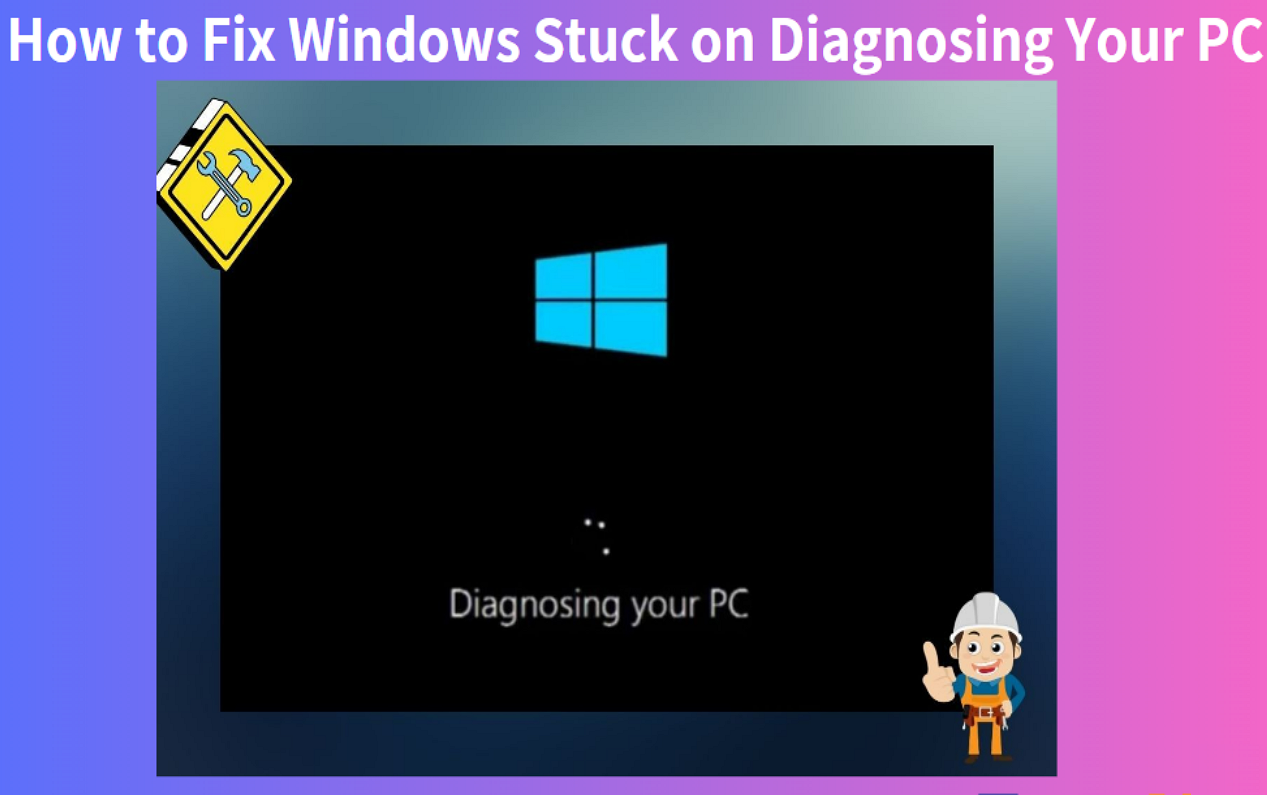
If you encounter other issues while troubleshooting your computer, like Windows 11/10 getting stuck on the "Diagnosing your PC" screen, you can find additional information by clicking on the provided link.

How to Fix Windows Stuck on Diagnosing Your PC
If your PC is stuck on the 'Diagnosing Your PC' screen on Windows 10/11, don't worry, there are fixes available. Follow this guide to learn all the solutions for this issue, and get your PC up and running smoothly again.
How to Fix HP Stuck in Boot Loop?
If your laptop is stuck in a loop of powering on and off, don't worry, we've got solutions. You can try booting from a bootable USB, or follow step-by-step instructions to fix the issue. This can be done by checking for loose connections, updating BIOS, or running a system file check. If none of these work, you may need to seek further assistance or contact HP support.
Fix 1: Auto Fix
When your HP laptop is stuck in a boot loop, you can use the "Automatic Repair" feature to resolve the issue. Let the auto repair system of your HP laptop run its course to return to a normal state.
Follow the steps:
Step 1. Restart your computer using the Windows installation CD and press the random key.
Step 2. Go to Computer Repair > Troubleshoot > Advanced Options > Startup Repair.
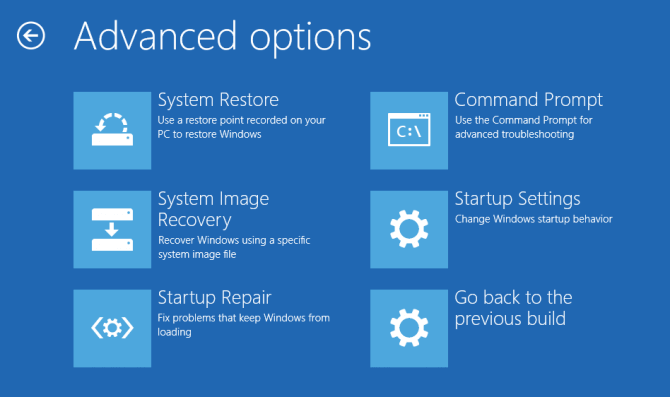
Step 2. Once the "Startup Repair" option is displayed, choose it and let the system start the process.
Step 3. After the repair process is completed, the laptop will automatically restart.
Step 4. If the issue persists, check the following: Ensure the bootable USB drive is properly inserted and recognized by the system. Check for any loose connections or damaged hardware. Try booting from a different USB port or a different computer to rule out any issues with the current system.
📖Read Also: HP Laptop Running Slow, Asus Laptop Black Screen
Fix 2: Boot in Safe Mode
If Auto Fix doesn't solve the issue, you can continue to troubleshoot with the help of your laptop's Safe Mode, which lets you turn on the laptop with only essential services and drivers, helping you diagnose and rectify the issue immediately. To turn on Safe Mode, follow the steps:
Step 1. Restart your laptop.
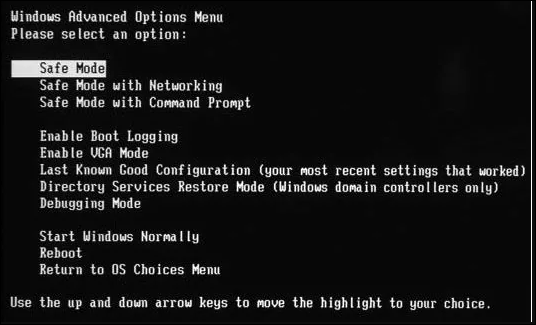
Step 2. Keep tapping F8 until you see the Boot Options menu.
Step 3. Choose "Safe Mode."
Read Also: Asus Stuck on Logo Screen
Fix 3: Repair the Boot Sector
If the Master Boot Record (MBR) is corrupted and causing a boot loop, you can use Qiling Disk Master to rebuild the MBR and potentially resolve the issue. This tool offers a user-friendly interface and step-by-step instructions to help you repair the MBR, even if you're not tech-savvy.
Follow these simple steps:
Step 1. Create a WinPE bootable disk
- Launch Qiling Disk Master, click "Bootable Media" on the toolbar, and select "Create bootable media".
- Click "Next" to finish the process.

Step 2. Boot Qiling Disk Master Bootable USB
- Connect the bootable USB or CD/DVD to your PC.
- To access the BIOS screen, press F2 or Del when restarting the computer. Then, set the computer to boot from a removable device or CD-ROM drive, which will automatically run Qiling Disk Master.
Step 3. Rebuild MBR
- To fix a disk, click on the "Disk Management" tab page, right-click on the disk you want to repair, and select "Rebuild Master Boot Record" (MBR) from the context menu. This will initiate the process of rebuilding the MBR, which can resolve issues related to boot problems or disk errors.

- Select the disk and the type of MBR. Then, click "Proceed".

- The message indicates that the Master Boot Record (MBR) of Disk X has been successfully rebuilt. This means that the process of rebuilding the MBR has completed without any issues, and the disk is now functional.
Qiling Disk Master is a computer maintenance software that provides various features to solve common hard disk problems, including disk errors, disk corruption, and disk space issues. It can also help with disk partitioning, disk formatting, and disk recovery, making it a comprehensive tool for computer maintenance.
- Default Boot Device Missing or Boot Failed
- Can't delete files from SD card
- The computer has rebooted from a bugcheck
Qiling Disk Master can help users solve various problems related to disk management, such as disk partitioning, formatting, and cloning. It allows users to explore more functions by downloading it.
🚩See Also: Windows 10 Stuck on Welcome Screen
Fix 4: Perform a Hard Reset
To perform a hard reset on your laptop, you can use the Qiling Disk Master to back up your data first, and then proceed with the reset. This will erase all data on the laptop. If you don't want to back up your data, you can also perform a hard reset. However, be aware that this will result in data loss.
To try this solution, follow these steps:
Step 1. Turn off your laptop, disconnect the power cable, and remove the battery.
Step 2. Press and hold the power button for 20 seconds to discharge any remaining electrical charge. This helps prevent damage and ensures a safe shutdown.
Step 3. Attach the battery/power source and reconnect it, then proceed to start your computer.
Step 4. Upon startup, choose the "Start Windows normally" option if prompted.
You May Also Like: Windows 10 Boot Loop
Fix 5: Reinstall Windows
To reinstall Windows on your laptop, start by creating a Windows installation media (such as a USB drive or CD/DVD) from a valid copy of Windows. Then, save any important files and data, as they will be deleted during the reinstallation process. Next, boot your laptop from the installation media and follow the on-screen instructions to begin the installation process.
Step 1. Get a DVD or USB with Windows installation media.
Step 2. Boot the media from the drive.
Step 3. To reinstall Windows on your laptop, follow the on-screen instructions. The process will guide you through the steps to delete the existing operating system and install a fresh copy of Windows.
For more detailed steps: Install Windows 10 from USB
Why HP Stuck in Boot Loop?
HP laptops can get stuck in a boot loop due to various reasons, making it frustrating to use. Some common causes include corrupted BIOS, outdated or incompatible drivers, faulty RAM or storage, overheating, or a malfunctioning power adapter. To prevent this issue, it's essential to keep your drivers and BIOS up-to-date, monitor your laptop's temperature, and ensure proper airflow. Additionally, running a virus scan and disk cleanup can also help prevent boot loop issues. By being aware of these potential causes, you can take proactive steps to maintain your HP laptop's health and avoid the inconvenience of a boot loop.
- Malicious drivers: Incompatible or corrupted device drivers can cause a boot loop by creating conflicts during the startup process.
- Memory failure: A faulty RAM module can cause a computer to repeatedly restart or get stuck in a boot loop, as the system is unable to properly initialize and load the operating system and other essential components, leading to an infinite loop of attempting to boot.
- MBR corruption: Corruption in the Master Boot Record (MBR) can cause the system to loop, preventing the operating system from loading properly.
- Hard disk failure: If the hard disk containing the operating system becomes damaged or unreadable, the system will not be able to boot and will get stuck in a loop.
- Windows Update Error: A Windows update that fails or gets interrupted can cause the system to enter an infinite loop of boot attempts, preventing it from loading properly.
- Operating System Corruption: If key system files are corrupted, the OS may get stuck in a boot loop, unable to start properly.
We hope your problem is solved at this stage. Please share this guide with others so that they can also brighten the path to solving this issue.
Conclusion
An HP laptop stuck in a boot loop can be a frustrating issue, but with the right tools and knowledge, you can tackle it. If you're looking for a quick fix, Qiling Disk Master can be a helpful solution.
To revive your HP laptop, follow these steps patiently: check if it's simply turned off, try charging it, and then attempt to boot it up. If it still doesn't work, try unplugging it, pressing the power button for 30 seconds, and plugging it back in. If that doesn't work, try the Windows key + X, and then Power, to restart it.
FAQs About HP Stuck in Boot Loop
Now that we have provided you with all the important information, let's look at a series of questions that may pop up in your head while dealing with HP stuck in a boot loop.
1. How to fix an HP laptop stuck on the startup screen of Windows 10?
If you're facing a problem with your computer, you can try a hard reset, repairing the boot sector, booting from a USB drive to reinstall Windows, or starting up in Safe Mode.
2. Why HP stuck on the black loading screen?
A black loading page on an HP laptop can be caused by several factors, including memory issues, faulty drivers, or problems with the laptop's operating system.
3. What to do when the laptop stuck in boot loop?
If your laptop keeps restarting, you can try automated repair, fixing the boot sector, starting in Safe Mode, conducting a hard reset, or reinstalling Windows.
Related Articles
- [2024 Fix] How to Activate Qiling Disk Master | Full Guide
- How to Convert MBR to GPT Using CMD in Windows 11
- How to Use Clonezilla on Windows 10/11 [2024 Guide] 💡
- Full Guide to Fix Windows 11 Slow Startup Error
- How to Combine Multiple Hard Drives into One Volume [Two Tricks for You]
Here you can learn two ways to combine multiple hard drives into one volume or partition in Windows 10/9/8. The two ways are Qiling Partition Master and Windows Disk Management. - How to Copy Installed Windows 11 to USB as Portable
You can easily create a portable Windows 11 USB drive by copying installed Windows 11 to USB using Qiling OS2GO, a simple yet powerful Windows To Go creator that works with Windows 11 and all other Windows operating systems.
Products
Articles & Tutorials
- Data Recovery
- Data Backup
- File Recovery
- File Backup
- System Backup and Restore
- Disk and Partition Clone
- Technical articles
- Mobile articles
- Disk Master Help
- Windows Data Recovery Tutorials
- Windows Secure Delete Tutorials
- Windows Partition Management Tutorials
- Windows File Backup and Restore Tutorials
- Windows System Backup and Restore Tutorials
- Windows Disk Backup and Restore Tutorials
- Windows Clone Tutorials