How to Fix ASUS Stuck on Logo | 7 Efficien Solutions💡
Key Takeaways:
- If your ASUS laptop is stuck on the logo screen, don't worry, there are practical methods and advanced tools that can help you troubleshoot the issue. You can try pressing the F2, F12, or Del keys to enter the BIOS settings, where you can reset the BIOS to its default settings.
- To resolve the issue of ASUS not booting to Windows, start by removing any external devices such as USB drives, SD cards, or external hard drives that may be interfering with the boot process. Next, update the BIOS to the latest version, as outdated BIOS can cause compatibility issues.
- To ensure a healthy computing experience, it's essential to identify and address the root issues that may be causing problems. This involves taking a step back to understand the underlying causes of system crashes, freezes, or other performance issues, rather than just treating the symptoms.
If your ASUS laptop is stuck on the ASUS logo screen and won't boot to Windows, you're not alone. Several users have encountered this issue. The problem is likely due to a software glitch or a hardware issue. To resolve this, try booting in safe mode, disabling any recently installed software, or running a system file checker. If the issue persists, it may be necessary to reset your laptop to its factory settings.
If your Asus desktop or laptop is stuck in a boot loop, don't worry, Qiling can help with the best solutions to fix the issue. You can proceed to explore each of these solutions to get your device up and running again.
How to Fix ASUS Stuck on Logo
Many people experience a frustrating issue with their ASUS laptops getting stuck on the ASUS logo screen, a problem that can occur randomly and not always on every boot. While a simple reboot may resolve the issue in some cases, it can persist in others, requiring more advanced solutions. Fortunately, there are several fixes for the Asus stuck-on boot loop problem, which are listed below.
- Method 1. Removal of External Equipment
- Method 2. Run Windows Boot Repair
- Method 3. Update BIOS
- Method 4. Load BIOS Optimization Defaults
- Method 5. Perform a CMOS Reset
- Method 6. Boot the ASUS PC into Safe Mode
- Method 7. Reset the Computer
Next, We provide step-by-step troubleshoot your ASUS getting stuck, start by trying to restart it in Safe Mode. To do this, press the Power button to turn off your ASUS, then press and hold the Power button again until the device turns back on. Immediately release the Power button and start tapping the F2 key to enter the BIOS settings. Navigate to the Boot Order menu and select the Safe Mode option. Save the changes and exit the BIOS settings.
Method 1. Removal of External Equipment
Removing external devices like USB drives, external hard drives, and other accessories from the ASUS laptop can help resolve the issue of the laptop getting stuck on the logo screen. This is because these external devices can sometimes interfere with the boot process, causing the laptop to get stuck. By unplugging them, you can potentially remove any barriers to a smooth start.
To remove internal equipment, you can try the following steps:
Important: The instructions below are only suited to professionals. So, if you don't know anything about computer hardware, it's advised to follow the methods below or take it to a technician.
Step 1. To open up the case of your computer, start by locating the screws on the back of your desktop or the bottom panel of your laptop. These screws are usually held in place by a small plastic or metal clip. To remove them, you'll need a screwdriver that matches the type of screw head you're working with.
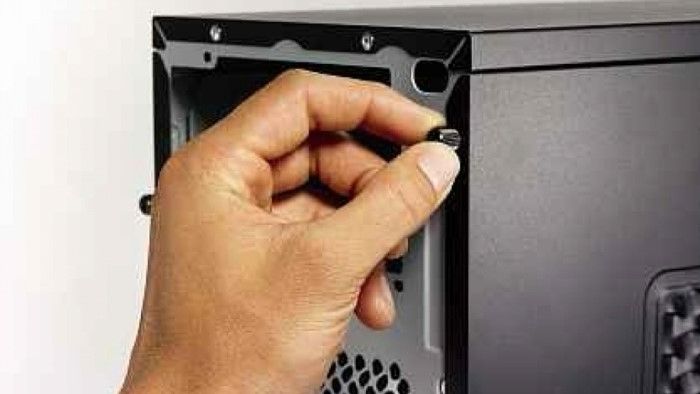
Step 2. Unplug the power cord and all other cables from the motherboard. Carefully lift the motherboard out of the case, taking care not to touch any of the components. Remove the GPU, CPU, and RAM from the motherboard, setting them aside in a safe place.
Note: The CPU and GPU are not removable on a laptop, but the RAM might be.
Step 3. Insert them again and see if everything works.
Method 2. Run Windows Boot Repair
Windows Boot Repair is essential for fixing ASUS stuck on logo screen difficulties, as it can resolve all boot faults, system failures, and other serious issues that prevent standard starting.
Qiling Disk Master is a powerful tool that can repair various hard disk and system boot issues, including system failure, blue screen, black screen, and system stuck on logo screen. Its "Boot Repair" feature provides a complete solution to get your system up and running efficiently.
To fix the issue, simply download Qiling Disk Master and follow the steps provided, which will guide you through the process.
Step 1. After connecting the external drive/USB to your computer, start Qiling Disk Master, go to the "Tools and utilities" tab page, and click "Create bootable media".

Step 2. Insert a USB drive or CD/DVD and click "Proceed" to continue the installation process. Alternatively, you can burn the Windows ISO file to the storage media.

Step 3. Connect a bootable drive to a new computer, reboot by pressing F2/Del, enter the BIOS, set the drive as the boot disk, and exit with F10.
Step 4. Boot the computer again and enter the WinPE interface. In the WinPE interface, open Qiling Disk Master and click "Fix Boot" under the "Tools and utilities" tab page.

Step 5: Select the system you want to repair and click "Proceed".

Step 6. The system will automatically repair the corrupted boot sector and then restart. You will receive an alert once the repair is complete, and you can click "OK" to finish the process.
Qiling Disk Master is the most efficient solution to address ASUS won't boot to Windows issues, offering a powerful boot repair feature and additional tools for disk management and system optimization in one efficient package.
Other problems that Qiling Disk Master can fix:
Method 3. Update BIOS
Updating the BIOS can help resolve issues with the ASUS logo screen by providing compatibility repairs and improvements, which can enhance the laptop's efficiency and resolve boot-related problems.
To ensure your system's stability and security, it's essential to backup your critical data and update your BIOS. Start by backing up all important files, documents, and programs to an external hard drive, cloud storage, or both.
Step 1. To update the BIOS on your ASUS laptop, download the latest BIOS version from the ASUS website and copy it to a USB disk.
Step 2. Restart, then launch BIOS (often with F2 or Del).
Step 3. Choose the BIOS file from the USB.
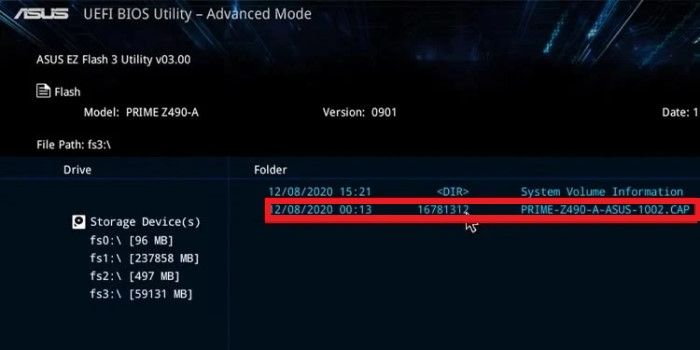
Step 4. Now, follow the directions on-screen and update the BIOS.
Check the issue has been resolved by restarting your computer.
Further Reading: Boot Drive Not Showing Up in BIOS
Method 4. Load BIOS Optimization Defaults
To resolve the ASUS laptop logo screen issue, you can try loading the BIOS optimization defaults, which will reset the BIOS settings to their optimal configurations. This may help resolve the problem by restoring the system to its default settings.
Here are the steps:
Step 1. Turn on the laptop and press the designated BIOS access key (often F2) until the BIOS screen appears.
Step 2. Go to the Save & Exit screen in BIOS.
Step 3. To load BIOS optimization defaults, choose "Restore Defaults".
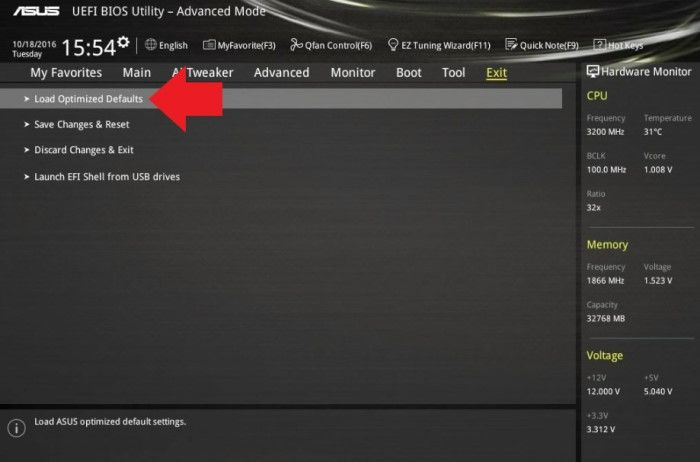
Step 4. Make sure the proper boot option is selected.
Step 5. Exit BIOS after saving modifications.
The problem may be resolved if you restart your laptop. This is because restarting your laptop can resolve many issues due to the temporary nature of some problems.
Further Reading:
How to Fix Computer Stuck on Restarting
If your computer is stuck on restarting, don't worry, it's an easy fix. Follow these simple steps and you'll be up and running again in no time. Just follow the methods and start using your PC again.
Method 5. Perform a CMOS Reset
A CMOS reset can help to resolve BIOS setup conflicts or issues that may be causing problems with the ASUS laptop logo screen by clearing the BIOS settings and providing a clean slate.
To perform a CMOS reset, follow the steps given below:
Step 1. Unplug the AC adapter from your laptop, and then turn it off.
Step 2. To remove the CMOS battery, you'll need to locate it inside the computer. It's usually a small coin-sized battery located near the motherboard or on the back of the motherboard.
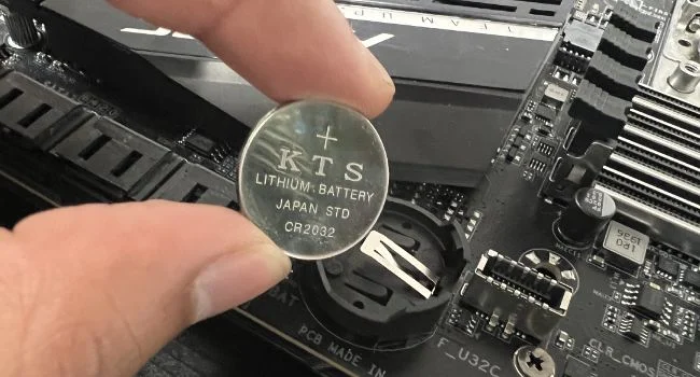
Step 3. Press and hold the Power button for 15 seconds to force a shutdown.
Step 4. Hold the Power button for 40 seconds to reset the CMOS.
Step 5. After reinstalling the battery, connect the AC adapter and restart the computer.
Method 6. Boot the ASUS PC into Safe Mode
If your ASUS laptop won't boot into Windows, try booting into Safe Mode to troubleshoot the issue. This mode allows you to identify and resolve problems in a controlled environment, helping you pinpoint the cause of the boot issue, which may be due to a third-party program or driver.
To fix an Asus laptop that's stuck in a boot loop by booting into safe mode, start by pressing the power button to turn it off. Then, press the power button again to turn it back on.
Step 1. Using a Windows ISO file, make a bootable USB device.
Step 2. To boot from the USB drive and access Windows Recovery Environment (WinRE), select the option to "Repair your computer".
Step 3. To restart WinRE, go to Troubleshoot, select Advanced Settings, and choose Startup Settings.
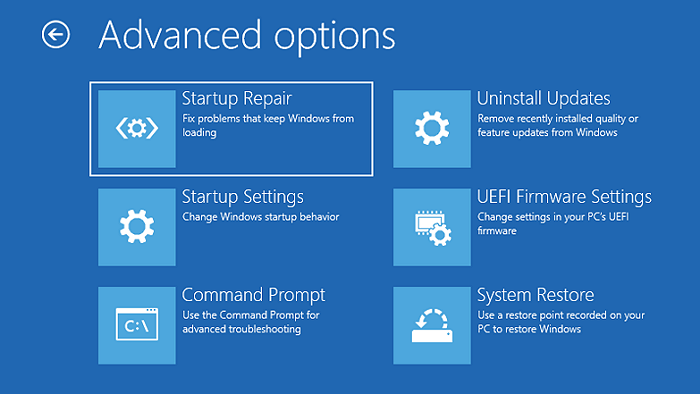
Step 4. To activate Safe Mode, press F4, F5, or F6.
Step 5. Install an antivirus software to remove malware or viruses, and delete troublesome programs in Safe Mode.
After troubleshooting, restart your computer to see if the issue has been resolved.
Further Reading: Boot ASUS Laptop from USB
Method 7. Reset the Computer
In extreme situations, if all other solutions fail, resetting the machine can be the last resort to resolve the ASUS stuck-on logo screen issue, essentially restoring the system to its default settings.
Here is how you can reset the computer:
Step 1. To access Windows Recovery Environment (WinRE), you can use the Automatic Repair page or a bootable USB. This allows you to gain access to a recovery environment where you can troubleshoot and repair issues with your Windows installation.
Step 2. Select "Reset this PC."
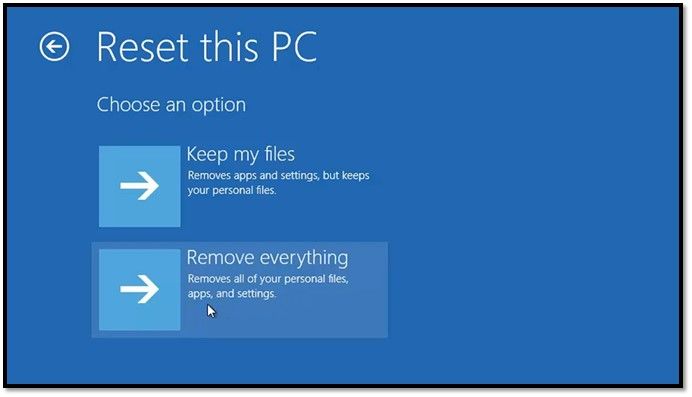
Step 3. Choose "Keep my files" or "Remove everything."
Step 4. Confirm the reset and adhere to the on-screen directions.
The post provided a step-by-step guide on how to access the system after getting stuck at the Asus logo screen. It suggested checking the boot order, trying the safe mode, and using the bootable USB drive or CD/DVD to troubleshoot the issue. The post also recommended resetting the BIOS settings to their default values and checking for any loose connections or hardware issues.
The best thing is that it is not just available to ASUS users. Other laptops and desktops can be repaired if stuck on the logo screen.
Further Reading:
How to Fix Windows 10 Boot Loop
If you're experiencing a Windows 10 boot loop, don't panic! This Qiling troubleshooting guide is here to help you fix the error and get your PC up and running securely.
Why ASUS Stuck on Logo
To resolve the ASUS stuck-on logo screen issue, it's crucial to understand its root causes. The problem often arises due to various reasons such as a faulty BIOS, corrupted system files, or a malfunctioning motherboard. Sometimes, outdated or incompatible drivers can also cause the issue.
- Connection Issues. Faulty or loose hardware connections can prevent a computer from starting.
- Setup file or BIOS issues. Corrupt setup files or incorrectly configured BIOS settings might cause your ASUS to get stuck on the logo screen.
- Faulty Hardware Device. A laptop may become stuck on the logo screen due to various hardware issues, such as a faulty display, a malfunctioning keyboard, or a problem with the boot sequence.
The article's methods effectively address the causes of hard disk issues and adopting Qiling Disk Master can also ensure hard disk security and daily usage.
To ensure a smooth overall computing experience, use Qiling Disk Master to manage partitions, repair boot issues, and optimize system performance.
Conclusion
Solving the annoying ASUS stuck on logo screen problem is not a difficult process. You can fix the issue and recover access to your system by trying a few practical fixes, such as uninstalling any external devices, upgrading the BIOS, or performing a CMOS reset. This guide offers several solutions to help you restart your ASUS laptop.
Qiling Disk Master offers a complete solution for solving ASUS logo screen issues and provides additional tools for managing partitions, enhancing system efficiency, and ensuring ongoing hard disk security.
FAQs About ASUS Stuck on Logo
What is the ASUS Stuck on Logo issue? The ASUS Stuck on Logo issue occurs when your ASUS laptop or device gets stuck on the logo screen during boot-up, preventing it from loading the operating system. This can be caused by various factors such as hardware issues, software glitches, or corrupted system files.
1. Why does ASUS BIOS Utility EZ mode keep popping up?
Due to BIOS settings or hardware issues, ASUS BIOS Utility EZ mode may repeatedly occur. To resolve this, check and reset the BIOS settings and ensure all hardware components are securely attached.
2. How do I fix my ASUS laptop's black screen on startup?
Here are some methods to address an ASUS laptop's black screen on startup:
- Disconnect external devices.
- Perform a hard reset.
- Update graphics drivers.
- Check for hardware issues.
3. Why my ASUS laptop is not booting?
ASUS laptops may experience boot issues due to various reasons, such as hardware difficulties, faulty BIOS settings, or software problems.
Related Articles
- Qiling Disk Master VS DiskgGenius: See What Are Differences and Which Is Better
- ASUS Laptop Won't Turn On: 6 Easy Fixes with Guide🔥
- How to Format SD Card on Windows 10 [Easy & Efficient]
- How to Expand RAID 5 Array Partitions in 2026 [New]
- How to Install M.2 SSD [Beginner's Guide⭐]
Discover the step-Installing an M.2 SSD is a straightforward process that can be completed in a few simple steps. First, locate the M.2 slot on your motherboard, which is usually labeled as an M. - How to Install Windows 10 on Raspberry Pi 4 [Step-by-Step]
Knowing how to install Windows 10 on Raspberry Pi 4 is a significant skill, as it enables you to access most Windows programs using your gadget.
Products
Articles & Tutorials
- Data Recovery
- Data Backup
- File Recovery
- File Backup
- System Backup and Restore
- Disk and Partition Clone
- Technical articles
- Mobile articles
- Disk Master Help
- Windows Data Recovery Tutorials
- Windows Secure Delete Tutorials
- Windows Partition Management Tutorials
- Windows File Backup and Restore Tutorials
- Windows System Backup and Restore Tutorials
- Windows Disk Backup and Restore Tutorials
- Windows Clone Tutorials