How to Fix HP Laptop Stuck on HP Screen | 10 Efficient Ways
"My HP Pavilion laptop worked fine for over a year, but today it got stuck on the HP logo screen and won't boot up properly, freezing every time I try to restart it."
Many HP laptop owners face the problem of their laptop getting stuck on the HP logo screen when turned on. If you're experiencing this issue, this article offers 10 practical fixes to resolve it. Additionally, it highlights the most common causes of this problem, providing a comprehensive solution for those affected.
- Tip
- If your HP computer is stuck at the HP screen, you can click "Boot from USB" to access the system.
How to Fix HP Laptop Stuck on HP Screen
This section provides ten workable fixes and step-by-step instructions to make the process easier, accompanied by real-time images for better understanding.
- Fix 1: Remove All Connected Devices
- Fix 2: Try A Power Reset
- Fix 3: Perform Windows Startup Repair
- Fix 4: Reset Graphics Card Drivers
- Fix 5: Repair System Files
- Fix 6: Perform HP Hardware Diagnostic Tests
- Fix 7: Reinstall RAM
- Fix 8: Restore BIOS
- Fix 9: Boot in Safe Mode
- Fix 10: Try the Boot Repair Tool
Next, We provide the step-by-step write a letter to a friend, start by getting a pencil and a piece of paper. Next, take a few moments to think about what you want to say to your friend. Then, write down your thoughts in a clear and legible handwriting.
Fix 1: Remove All Connected Devices
To resolve the issue of your HP laptop getting stuck on the HP logo screen, disconnect any external storage devices. This can sometimes cause the operating system to recognize the external device as a boot source, leading to the laptop becoming stuck. Remove all connected devices and reboot your laptop to resolve the issue.
🚩See Also: Windows 10 Stuck on Welcome Screen
Fix 2: Try A Power Reset
A power reset could help you to clean the unnecessary file to refresh the memory. It clears the bugs preventing the laptop from booting. Here are the steps:
Step 1: Shut down your laptop and remove the charging adapter.
Step 2: Remove all the detachable accessories, including battery (if removable).
Step 3: Hold the "Power" button for 12 to 15 seconds.
Step 4: Insert all the peripheral devices and turn on the laptop.
See if you can turn on the laptop.
Fix 3: Perform Windows Startup Repair
Boot Repair may cause potential data loss, so please perform the procedure carefully using the boot repair tool.
Step 1: Press the power button to force shut down your laptop. Repeat the process until the system takes you to the boot repair page.
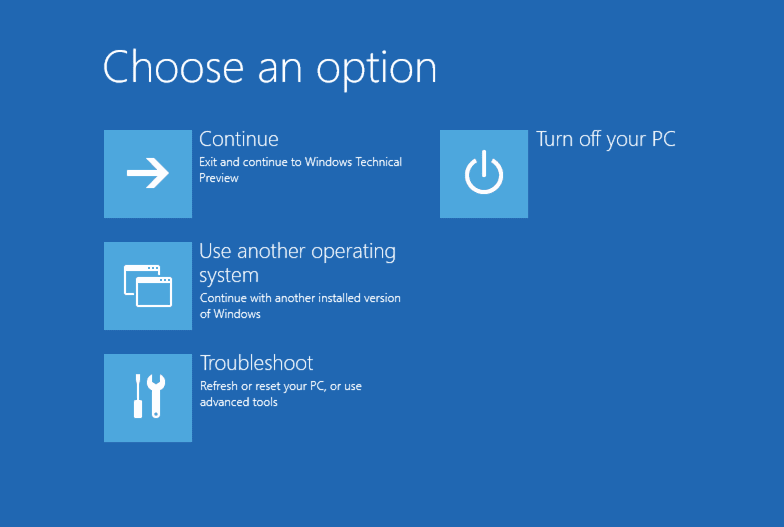
Step 2: To resolve the issue, select the "Troubleshoot" option and click "Refresh PC or Reset PC."
Follow the on-To reset your laptop, start by clicking on the Start menu and selecting the "Settings" option. From there, navigate to the "Update & Security" section and click on "Recovery". Next, click on "Get started" under the "Reset this PC" option.
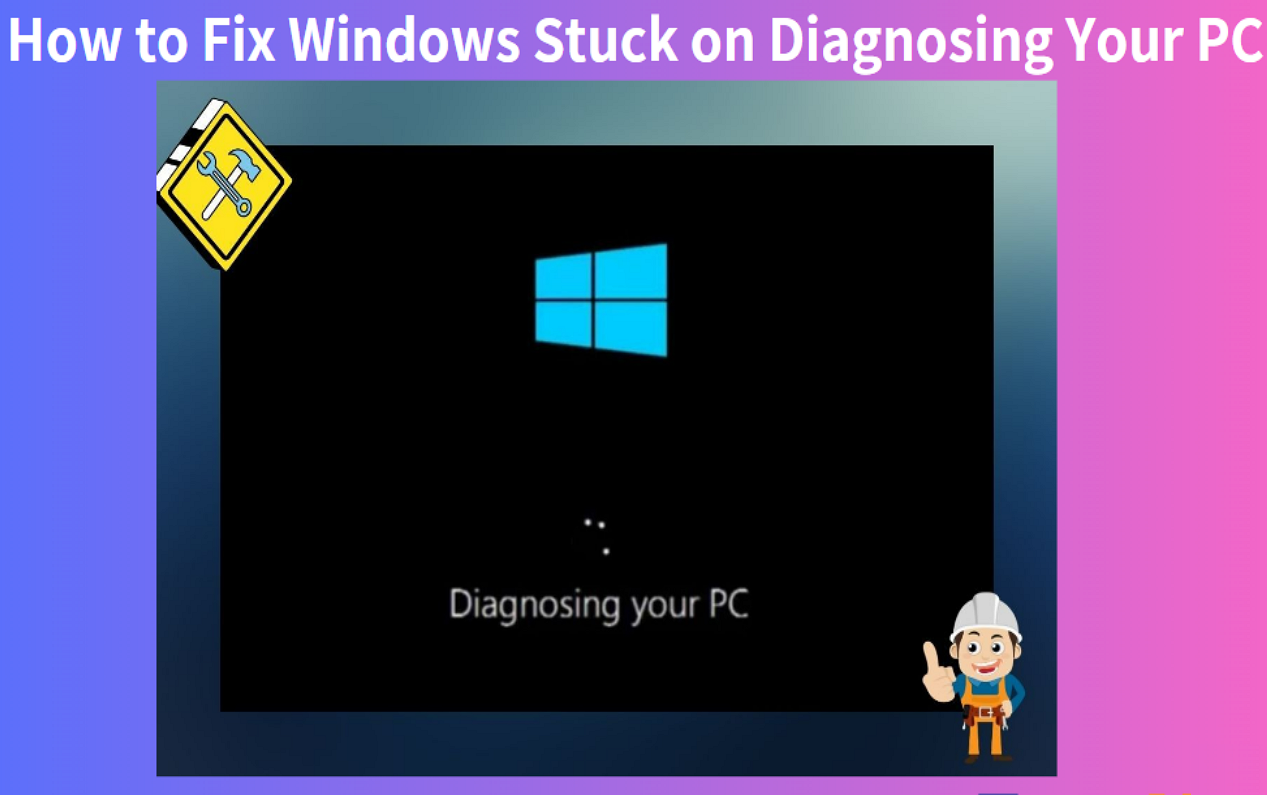
If you encounter issues while troubleshooting your computer, such as Windows 11/10 getting stuck on the "Diagnosing your PC" screen, you can find additional information and solutions by clicking on the provided link.

How to Fix Windows Stuck on Diagnosing Your PC
If your PC is stuck on the 'Diagnosing Your PC' screen, don't worry - there are fixes for this issue on Windows 10/11. Follow this guide to troubleshoot and resolve the problem, and get your PC up and running smoothly again.
Fix 4: Reset Graphics Card Drivers
If your HP laptop gets stuck on the HP logo, it might be due to issues with the graphics card drivers. To resolve this, try resetting the graphics driver by pressing the "Windows + Ctrl + Shift + B" keys when you see the HP logo. This should automatically initiate the OS to reset the graphics card.
Fix 5: Repair System Files
If you have basic knowledge of CMD commands, performing Boot Repair can be helpful. You can run the System File Checker (SFC) command to repair corrupted and missing system files, which can resolve issues with your system.
Step 1: While holding down the "Windows" key, enter "Command Prompt."
Step 2: Open the Command Prompt app from the list.
Step 3: The command `sfc /scannow` should be typed or pasted, then hit "Enter" to initiate a system file check, which scans and restores corrupted system files.

This process will repair any missing or corrupt system files on your HP Laptop. It will scan your system for any issues and replace any damaged files with fresh ones from the Windows installation media.
- Notice:
- If the SFC Scannow process gets stuck at verification, you can either repair it using the built-in methods or use a third-party tool to fix corrupted system files.
Fix 6: Perform HP Hardware Diagnostic Tests
The Stuck on Screen Error can be caused by hardware problems on your laptop, and Windows allows users to perform hardware diagnostic tests in two ways, which can help identify and potentially resolve the issue.
Fast Test
Step 1: To access the diagnostics menu on your laptop, restart it and press the "Esc" key repeatedly until the menu is displayed.
Step 2: To access the BIOS boot mode, press the "F2" key, and from there, select the "Diagnostics" option.
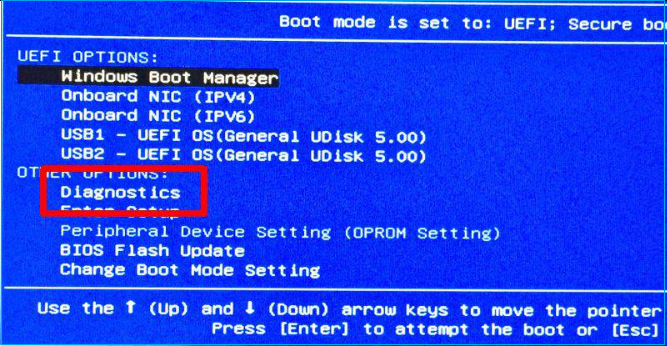
Step 3: Select "System Tests," then click the "Fast Test" option.
Step 4: Click "Run once" to initiate the test and view the detailed diagnostic report that follows.
Extensive Test
The second diagnostic test is the "Extensive Test." They are similar till you see the "System Tests" option. Then follow the steps here:
Step 1: Click "System Tests" then "Extensive Test."
Step 2: Select the "Run once" or "Loop until error" options.
If the hardware fails to perform the test, please share its 24-digit ID with HP customer support.
If the drive is too damaged to repair, you can fix the problem by upgrading your HP drive. For example, if you have an HP Omen, you can follow the steps to upgrade and replace the hard drive. This will resolve the issue and get your device running smoothly again.
How to Perform HP Omen SSD Upgrade [Efficient Ways]
this guide provides valuable information on upgrading the HP Omen SSD, including compatibility and steps for the process, which can be applied to various HP Omen computers.
Fix 7: Reinstall RAM
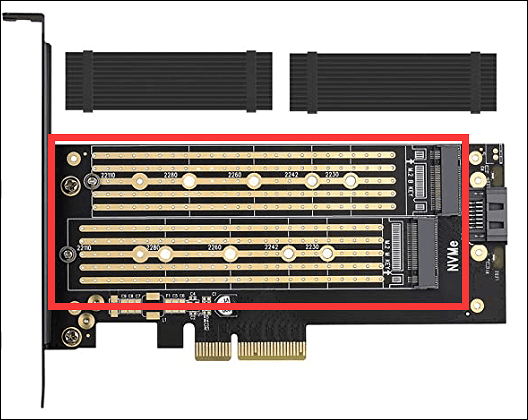
Reinstalling the RAM may resolve the issue of being stuck on the HP screen. To do this, hold your laptop upside down and remove the back panel. Locate the RAM slot, check if the RAM is in working condition, and then reinstall it. This simple troubleshooting step may resolve the issue.
Note* You should not remove the RAM from your laptop if it's still under warranty, as this could void the warranty.
Fix 8: Restore BIOS
If your laptop is stuck on the HP screen, it might be due to BIOS errors. To resolve this, try the following steps to restore BIOS:
Step 1: Turn off your laptop.
Step 2: Press and hold the Windows + B keys while holding down the power button. This should turn off your computer.
Step 3: Hold down the Windows key + B keys for 2-3 seconds, then release the power button while still holding down the Windows key + B keys until you hear a beep.
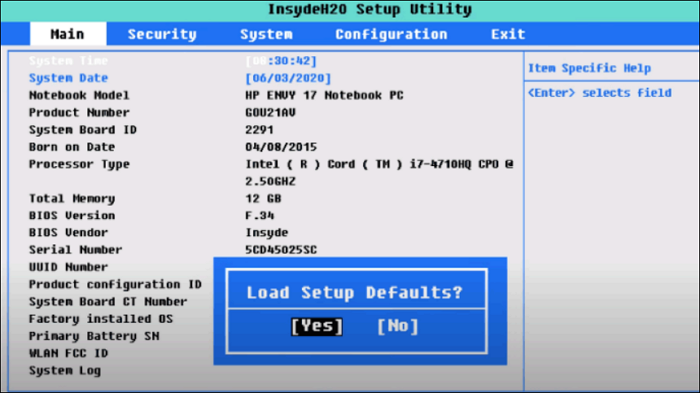
You will see the HP BIOS update screen, and the OS will automatically start the recovery process.
Further reading: Boot drive not showing up in BIOS
Fix 9: Boot in Safe Mode
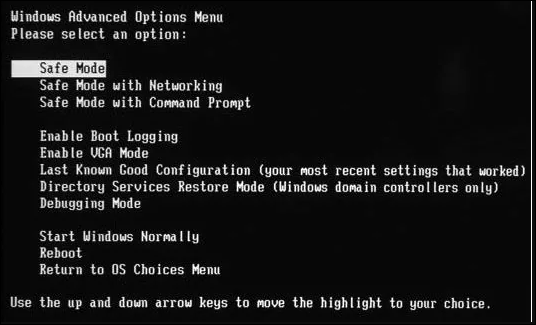
Here are the steps to boot your HP laptop in Safe Mode: To boot your HP laptop in Safe Mode, press the Windows key + X and select Restart. Immediately start tapping the F8 key. This will take you to the Advanced Boot Options menu where you can select Safe Mode. Alternatively, you can press the Windows key + I, select Update & Security, then Recovery, and finally Restart now.
Step 1: Turn on your laptop and repeatedly press the F8 key until you encounter the interface to choose the "Troubleshoot" option.
Step 2: Click "Advanced Boot Options" and "Startup Settings."
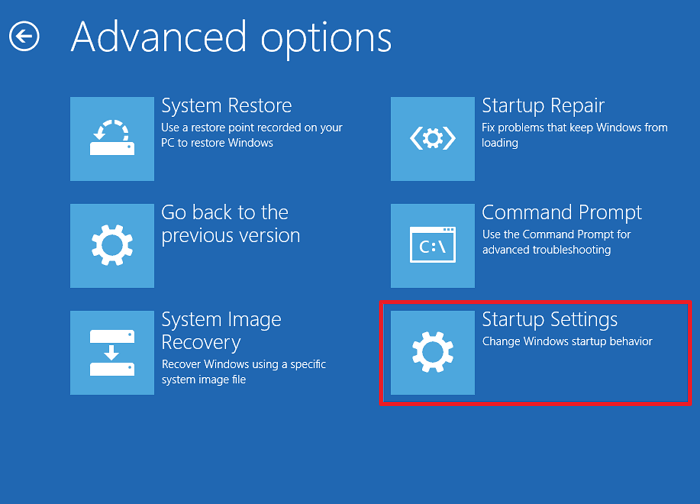
Step 3: Press the "Safe Mode" option using the arrow keys and then press the "Restart" button.
If your laptop boots in Safe mode, the problem is likely due to a recent driver or software update. To resolve this, try uninstalling the most recent updates you've installed.
Fix 10: Try the Boot Repair Tool
To resolve boot issues, you can try using Qiling Disk Master, a certified boot repairing tool that offers a dedicated "boot repair" feature to tackle possible boot-related problems in one click. Its algorithm has undergone considerable testing and research to address various boot issues, making it ideal for managing common boot errors.
Download the trial version of Qiling Disk Master to easily perform automatic boot repair in just one click.
Step 1. After connecting the external drive/USB to your computer, start Qiling Disk Master and navigate to the "Bootable Media" section. From there, click on "Create bootable media" to proceed with the process.

Step 2. Insert a USB drive or CD/DVD and select it to create a bootable Windows installation media. You can also burn the Windows ISO file to the storage media.

Step 3. To set up a new computer, connect a bootable drive to it, reboot the computer by pressing and holding F2/Del to enter the BIOS, and set the bootable drive as the boot disk by pressing F10 to exit.
Step 4. To resolve the issue, boot the computer again and enter the WinPE interface. From there, open Qiling Disk Master and click on "Boot Repair" under the "Toolkit" option. This should help resolve the problem.

Step 5: Select the system you want to repair and click "Repair."

Step 6. After running the boot repair tool, you will be prompted to restart your computer. Once you've restarted, you should see the login screen. You can then log in to your account as usual.
If your HP laptop is running slow, Qiling Disk Master can help improve its performance, so you can download and use it to fix the issue.
⭐Chat With Us
Users can contact Qiling support for professional advice and help:
Qiling experts offer 1-on-1 manual services 24/7 to fix Windows boot errors, BSOD, and boot loops. They provide free evaluation services and efficiently diagnose and resolve system boot failures, Windows stop codes, and OS lagging issues using their decades of experience.
- 1. To fix a BSOD error due to Windows update or other reasons, start by restarting your computer in safe mode. This will prevent any non-essential programs from running and help you troubleshoot the issue.
- 2. To resolve Windows boot errors like "no bootable device found" or BCD file corruption, start by booting from a Windows installation media (USB or CD) and selecting the "Repair Your Computer" option. Then, navigate to the Troubleshoot > Advanced Options > Command Prompt.
- 3. To fix 0X000_error codes on Windows system or OS boot loop issues, you can try running the System File Checker (SFC) tool to scan and replace corrupted system files, or use the Deployment Image Servicing and Management (DISM) tool to scan and fix issues with your Windows image. If these tools don't resolve the issue, you can try booting in Safe Mode, checking for malware, or running a System Restore to a previous point when the system was working properly.
Why HP Laptop Stuck on HP Screen
Here are the most common causes of an HP laptop getting stuck on the HP screen:
- Computer overheating: Severe heating issues may cause boot problems during startup.
- Virus attack: Uncertified or malicious software may hinder the machine from booting up.
- Hardware failure: A malfunctioning hardware can prohibit a computer from starting up.
- System file corruption: Corrupted files prevent the regular booting process of the system.
- RAM Failure: Faulty/damaged RAM can cause booting issues.
- BIOS error: Outdated or incorrect BIOS settings can be the culprits.
- Graphics Card Driver Error: Corrupt or incompatible drivers may cause startup problems.
If you're experiencing issues with your HP laptop, such as being stuck on a boot loop, you can try troubleshooting steps like resetting the BIOS settings, checking for loose connections, or running a system file check. If these steps don't resolve the issue, you can try booting in safe mode or using a system repair tool to fix any corrupted system files.
Fixed: HP Stuck in Boot Loop | 5 Efficient Ways
Don't let your HP laptop get stuck in a boot loop! This guide provides step-by-step essential solutions to fix the issue and get your HP laptop back on track. By following the instructions thoroughly, you can resolve the problem and have your laptop up and running in no time.
Conclusion
This page provides solutions to fix HP Laptop Stuck on the HP Screen issue, with step-by-step guides for each fix. If you don't want to risk your data integrity, we recommend using the advanced boot repair tool Qiling Disk Master.
FAQs About HP Laptop Stuck on HP Screen
If your HP laptop is stuck on the HP screens, refer to the FAQs section for answers to further queries.
1. How to fix an HP laptop stuck on a black screen?
If an HP laptop is stuck on a black screen, it may be due to software or hardware issues. A hard reset is a good starting point, followed by checking the hardware connections. If the problem persists, trying Safe Mode or system recovery options can be a more advanced solution.
2. Why is an HP laptop stuck on the startup screen of Windows 10?
Corrupted system files, incompatible drivers, or pending system updates could be the culprits behind this issue. To troubleshoot, try starting your computer in safe mode, removing any recent updates, or using system restore to roll back your system to a previous point.
3. How to reset my frozen HP laptop?
If your laptop is unresponsive, try to force a shutdown first, then attempt a power reset. If it's still unresponsive, you may need to run a system restore or use advanced recovery options. Additionally, try to restore the BIOS settings. This should help resolve the issue.
Related Articles
- How to Reset Windows 7 Password with USB Drive - 3 Ways
- MBR or GPT for SSD, Which Is Better and How to Choose?
- C Drive is Full in Windows 11
- Fix 'The Format Did Not Complete Successfully' Error With Fast & Efficient Guide
- Windows 11 Boot Repair [Step by Step Guide with Pictures]
Windows 11 boot issues are a common problem for users who have recently updated their systems. If you're experiencing this issue, we've can help. - How Can I Fix Windows 11 NVMe Slow Error 2023
If you're experiencing slow NVMe performance on your Windows 11 device, there are effective solutions to fix the issue in 2026. By following expert tips and troubleshooting steps, you can optimize your system's performance and resolve the NVMe slow error, ensuring a smooth operation on your device.
Products
Articles & Tutorials
- Data Recovery
- Data Backup
- File Recovery
- File Backup
- System Backup and Restore
- Disk and Partition Clone
- Technical articles
- Mobile articles
- Disk Master Help
- Windows Data Recovery Tutorials
- Windows Secure Delete Tutorials
- Windows Partition Management Tutorials
- Windows File Backup and Restore Tutorials
- Windows System Backup and Restore Tutorials
- Windows Disk Backup and Restore Tutorials
- Windows Clone Tutorials