How to Fix Toshiba Laptop Black Screen
Encountering glitches is inevitable in the tech world, and a black screen on startup can be frustrating, especially on a Toshiba laptop. Qiling can help demystify this issue, providing straightforward solutions that empower users to resolve the problem, whether they're tech-savvy or not. By the end, users will understand why their Toshiba laptop screen goes black on startup and be equipped to revive their laptop's screen. Let's navigate this together and uncover the secrets to resolving the issue.
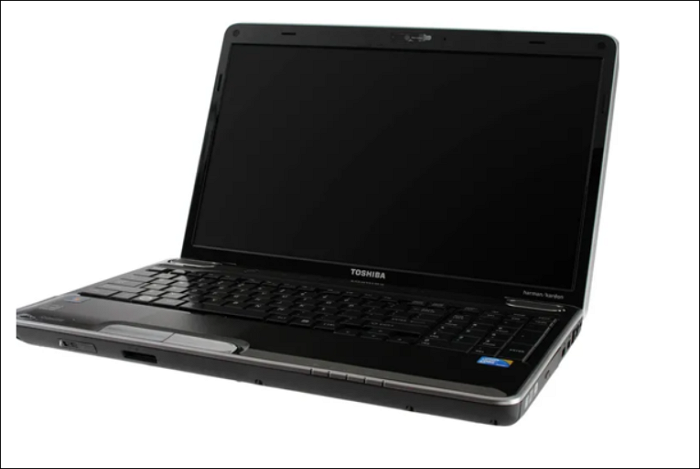
How to Fix Toshiba Laptop Black Screen
To revive the screen on your Toshiba laptop, try pressing the power button for 30 seconds to discharge the system, then press and hold the power button for 30 seconds to recharge it. If that doesn't work, try pressing the Windows key and the volume down button at the same time for 30 seconds. If none of these steps work, try resetting the laptop's BIOS to its default settings.
- Method 1. Reset Toshiba Laptop Power Supply
- Method 2. Try the Power, F9, and F10 keys
- Method 3. Use Windows Boot Repair Tool
- Method 4. Update Graphics Card Drivers
- Method 5. Check for Hard Disk Errors
- Method 6. Check for Viruses and Malware
- Method 7. Reboot the Toshiba Laptop in Safe Mode
- Method 8. System Restore Toshiba Laptop
Let's explore each solution one by one, and if you find them helpful, click the social buttons to share this tutorial with others.
Method 1: Reset Toshiba Laptop Power Supply
Resetting your Toshiba laptop's power supply can be a surprisingly effective solution for resolving issues. This approach involves a few simple steps and can be a good starting point for troubleshooting.
- Shut down your Toshiba laptop completely.
- Disconnect the power supply cable.
- Take out your laptop's removable battery.
- Hold the power button for 15-20 seconds.
- To turn on your laptop, simply reattach the battery and plug in the power adapter. Once you've completed these steps, turn on your laptop.
Method 2: Try the Power, F9, and F10 Keys
If the first method didn't work, don't worry. Our second method involves using a combination of keys that might kick-start your Toshiba laptop's display.
Step 1. To reset a Dell laptop, press and hold the F9 and F10 keys for 10-15 seconds while the laptop is on. This will initiate the system recovery process, which will restore the laptop to its original factory settings.
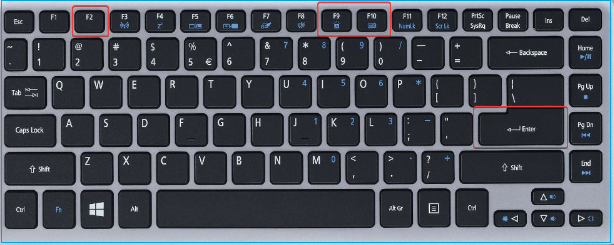
Step 2. If the screen responds, it's likely the problem was with the keyboard. If the screen doesn't respond, it's likely the problem is with the screen itself. In that case, you may need to replace the screen.
Step 3. If the screen remains the same, repeat the process several times to ensure it's not a temporary glitch, and then consider consulting a professional for further assistance.
Method 3. Use Windows Boot Repair Tool
In this advanced method, we'll explore the powerful "boot repair" feature of Qiling Disk Master Professional, a tool designed to fix various hard disk and system boot errors, including system failure, blue screen errors, and the black screen problem, making it a lifesaver when conventional methods fall short.
Follow this step-by-step guide to revive your laptop to its optimal state.
Step 1. After connecting the external drive/USB to your computer, start Qiling Disk Master, go to the "Tools and utilities" tab page, and click on "Create bootable media".

Step 2. Insert a USB drive or CD/DVD and click "Proceed" to continue with the installation. Alternatively, you can burn the Windows ISO file onto the storage media.

Step 3. Connect a bootable drive to a new computer, reboot by pressing F2/Del, set the drive as the boot disk, and exit the BIOS by pressing F10.
Step 4. Boot the computer again and enter the WinPE interface. Then, open Qiling Disk Master, navigate to the "Tools and utilities" tab, and click on "Fix Boot" to resolve the issue.

Step 5: Select the system you want to repair and click "Proceed".

Step 6. The system has been successfully repaired. Click "OK" to complete the boot repair process.
With the help of the Qiling Disk Master's boot repair feature, you can potentially tackle even the most stubborn black screen issues on your Toshiba laptop, allowing you to get back up and running quickly.
Method 4: Update Graphics Card Drivers
A black screen on a Toshiba laptop can be caused by outdated or faulty graphics card drivers, and updating them can resolve the issue and improve performance.
Step 1. To find your graphics card in Device Manager, go to Device Manager, find the "Display adapters" section, and locate your graphics card within that section.
Step 2. Right-click on the graphic and select "Update Driver".
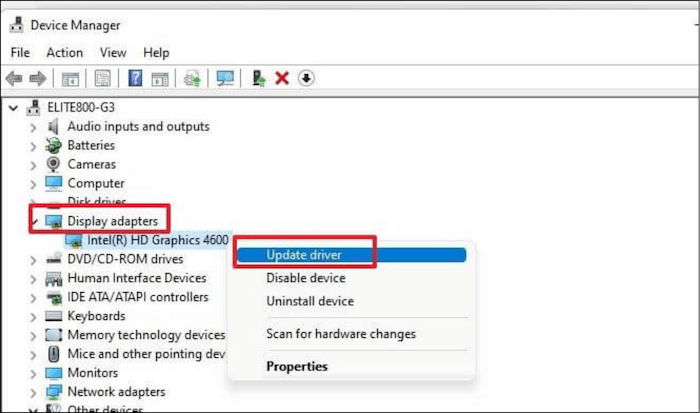
If you can't update your drivers on your computer, check the official website of your graphics card manufacturer (NVIDIA, AMD, or Intel) and go to their drivers section.
Step 3. Enter the operating system and the model of your graphics card. Download the most recent driver for your card.
Step 4. Launch the downloaded file and follow the on-screen directions to install the latest driver.
Step 5. After installing the updates, restart your Toshiba laptop to apply the changes.
Method 5: Check for Hard Disk Errors
If your Toshiba laptop displays a black screen, it may be due to issues with your hard disk. To diagnose and fix these problems, we recommend using the 'Check File System' feature of Qiling Disk Master, a powerful tool that can help identify and correct hard disk errors. To do this, you'll need to create a bootable USB using this tool, which can then be used to thoroughly check your laptop's hard disk for errors.
Step 1. Right-click the target partition that has a problem.
Step 2. Choose "Advanced" > "Check File System".
Step 3. Confirm if you want to hide the partition or not.
Step 4. The "Fix the error on the disk" option in the Check File System window should be checked.
Step 5. Click "Proceed" to check errors on your partition.
By using the Check File System feature from Qiling Disk Master, you can take proactive steps to ensure your Toshiba laptop's overall health and functionality.
Method 6: Check for Viruses and Malware
Viruses and malware can cause a Toshiba laptop to malfunction, including displaying a black screen, and removing them can help resolve the issue and secure the device.
Step 1. Use reliable antivirus software to perform a full system scan, checking all files and directories for malware.
Step 2. If a scan detects any viruses or malware, remove them promptly to prevent further harm to your system.
Method 7: Reboot Toshiba Laptop in Safe Mode
To troubleshoot issues like the black screen problem on your Toshiba laptop, you can reboot it in Safe Mode, a diagnostic mode that starts with only essential processes. This allows you to identify and resolve problems in a secure environment. By booting in Safe Mode, you can isolate the issue and take steps to resolve it, making it easier to get your laptop up and running smoothly again.
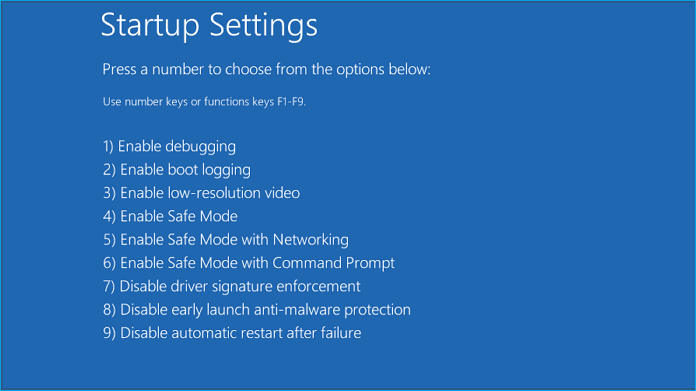
Step 1. To restart your Toshiba laptop and access the Advanced Boot Options menu, press the "F8" key repeatedly after turning it back on. This should display a menu with various options, including Safe Mode, Safe Mode with Networking, and Last Known Good Configuration.
Step 2. To troubleshoot the black screen issue, boot your laptop in Safe Mode by highlighting "Safe Mode" with the arrow keys and pressing Enter. This will allow you to determine if the problem persists in a simplified environment.
Method 8: System Restore Toshiba Laptop
System Restore is a feature that allows you to revert your Toshiba laptop's system files and settings to a previous point in time, potentially resolving issues like a black screen that started after recent changes.
Step 1. In the Advanced options, click on the System Restore and open the tool.
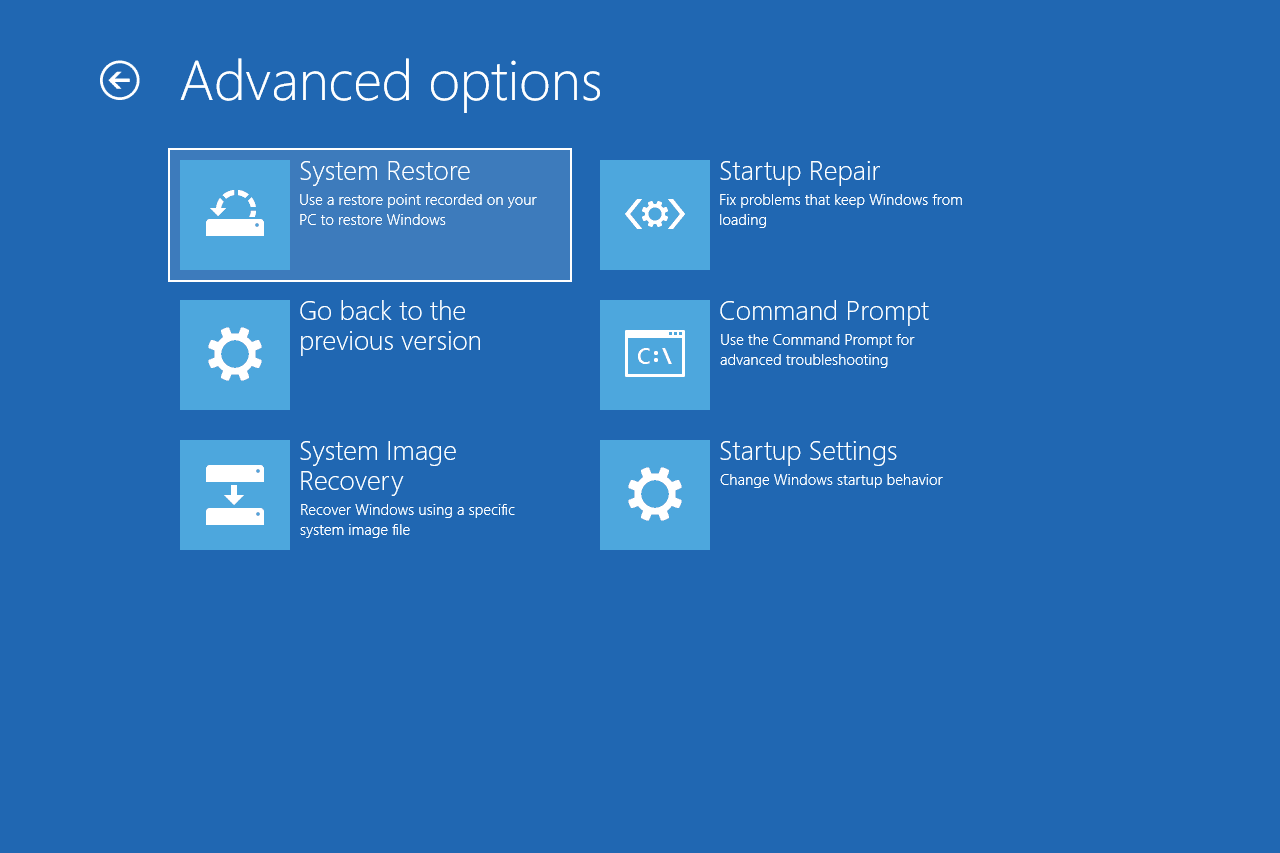
Step 2. To resolve the black screen issue, select a restore point before the problem occurred and follow the on-screen instructions to initiate the restoration process.
Further Reading:

To fix a Windows 11 black screen with a cursor, try booting in Safe Mode, then enable the "Show Windows Protection" option in the BIOS settings. If that doesn't work, disable any recently installed drivers, and if the issue persists, run a System File Checker (SFC) scan to replace any corrupted system files.
To fix the Windows 11 black screen with a cursor, start by pressing the Windows key + X and selecting the Power option. Then, hold the Shift key and click on Restart. This will boot your system in a safe mode.
What Caused the Toshiba Laptop Black Screen?
The frustrating Toshiba laptop black screen issue is often caused by a combination of factors, including a faulty power adapter, a malfunctioning battery, a loose or damaged connection between the screen and motherboard, a corrupted operating system, a failing hard drive, overheating, or a software conflict. Understanding these potential causes is the first step towards effective troubleshooting.
- Hard Disk Errors: When a hard drive fails to communicate with the system, it can cause a laptop to display a black screen, rendering it unusable and leaving users unable to access their data.
- Graphics Card Driver Errors: Outdated or faulty graphics card drivers can disrupt the communication between a Toshiba laptop and its display, causing a black screen issue.
- Malware Attacks: Malware attacks, such as viruses and malicious software, can potentially destroy system files and disrupt routine laptop operations.
- Computer Overheating: Overheating can cause a laptop to automatically shut down or display issues, resulting in a black screen with a lit power indicator. This occurs when the laptop's internal components become too hot.
If your Toshiba laptop is experiencing issues like a black screen, cursor, or won't turn on despite the power light being on, don't panic. Armed with the knowledge from our troubleshooting guide, you can swiftly resolve the problem by addressing the root causes and implementing the solutions provided earlier, restoring your laptop's functionality.
You May Also Like:
Conclusion
Glitches are inevitable in technology, but overcoming them shouldn't be daunting. We've explored the 'Toshiba laptop black screen' issue in-depth, identifying root causes such as hard disk errors, outdated drivers, malware attacks, and overheating.
With the help of power reset methods and advanced tools like Qiling Disk Master, you can revive your Toshiba laptop and restore seamless computing. Share this guide to help others achieve the same. Your laptop, revitalized, is ready for your command.
FAQs About Toshiba Laptop Black Screen
Do you have more questions about the Toshiba laptop black screen issue? Find your answers here.
1. How do I reset my Toshiba laptop screen?
To reset the screen on a Toshiba laptop, follow these steps:
- Power it down completely.
- Unplug the laptop and remove the battery.
- Hold it down for 15-20 seconds to drain residual power.
- Reattach the battery and plug in the power adapter. Turn on your laptop.
2. Why is my laptop power light on but not turning on?
If your laptop's power light is on, yet the screen remains black, it may be due to a hardware or software problem. The possible causes include a faulty display, a malfunctioning graphics card, a dead battery or power adapter, or issues with the operating system or drivers. In such cases, you may need to troubleshoot the problem by checking the display, graphics card, and power sources, or reinstalling the operating system.
- Faulty Hardware
- Loose Connections
- Battery Issues
- Failed Display
- Software Glitches
- BIOS/UEFI Problems
3. How to fix a laptop's black screen with no cursor?
A black screen with no cursor suggests a deeper issue. Try the following steps:
- To resolve the issue, simply restart your laptop and press the F8 key as soon as it starts booting up. This will take you to the Advanced Boot Options menu, where you can select the option to boot in safe mode or troubleshoot other issues.
- Select Safe Mode to diagnose potential software conflicts.
- Ensure all cables and external devices are properly connected.
If the issue occurred after an update or software installation, you can try to resolve it by reverting your system to a previous state using System Restore. This feature allows you to go back to a point in time when the problem didn't exist, essentially undoing any changes made since then.
Related Articles
- How to Create and Format exFAT Partitions in Windows 11/10/8/7 (Free Methods)
- Windows 11 Shrink Partition: 3 Ways to Shrink Windows Partition
- 3 Best Windows Server Partition Tool/Software Free Download [Free & Paid]
- Fix "We could not complete the Updates/Undoing changes" Error Windows 11
- Easy and Step-by-Step Guide to Use SSD for OS Only
Using a Solid-State Drive (SSD) only for the Operating System (OS) is a popular setup that offers improved performance and reliability. - How Do I Use Unallocated Free Space in Disk Management | 2026 Windows Tutorial
The unallocated space in Disk Management refers to a section of the hard drive that is not assigned to a specific partition or drive. This space can be utilized in various ways, such as creating a new partition or drive, expanding an existing partition, or even recovering lost data.
Products
Articles & Tutorials
- Data Recovery
- Data Backup
- File Recovery
- File Backup
- System Backup and Restore
- Disk and Partition Clone
- Technical articles
- Mobile articles
- Disk Master Help
- Windows Data Recovery Tutorials
- Windows Secure Delete Tutorials
- Windows Partition Management Tutorials
- Windows File Backup and Restore Tutorials
- Windows System Backup and Restore Tutorials
- Windows Disk Backup and Restore Tutorials
- Windows Clone Tutorials