How to Fix Windows 11 Black Screen with Cursor| 100% Works
When you turn on your Windows 11 computer, you may be greeted by a black screen with a cursor, leaving you wondering what's going on and what to do next. Don't panic, as Qiling offers quick solutions to this issue, and by following this guide, you'll not only be able to fix the problem but also understand the reasons behind it. By following the step-by-step fixes provided, you'll be able to resolve the Windows 11 black screen issue and get back to using your computer with ease.

Quick Guide to Fix Windows 11 Black Screen with Cursor
Try quick fixes like checking physical hardware to resolve the Windows 11 black screen with cursor issue, and if these don't work, consider other solutions.
Guide 1. Check the Physical Hardware and Connections
Before looking into software solutions, make sure to check your hardware for any potential issues, such as damaged or loose cables and connections.
If you suspect a hardware component is causing the issue, try replacing it with a working one to see if that resolves the problem. Also, keep an eye on the monitor as it could be the source of the error.
Guide 2. Use Professional Windows Boot Repair Tool
To quickly resolve Windows boot issues without hassle, use a professional boot repair tool like Qiling Disk Master Pro. Its "boot repair" feature allows you to diagnose and resolve various boot-related problems, making it a valuable asset for troubleshooting issues that prevent your operating system from starting correctly. This tool can help fix problems caused by corrupted boot records, missing system files, or other related errors, providing an accessible solution.
Download Qiling Disk Master to quickly resolve hard disk and system boot errors, such as system failure, blue screen, and black screen issues.
Step 1. After connecting the external drive/USB to your computer, start Qiling Disk Master, go to the "Tools and utilities" tab page, and click "Create bootable media" to proceed with the process.

Step 2. Insert a USB drive or CD/DVD and click "Proceed" to continue the installation process. Alternatively, you can burn the Windows ISO file to the storage media.

Step 3. Connect a bootable drive to the new computer, reboot and enter the BIOS by pressing F2/Del, set the bootable drive as the boot disk and exit the BIOS by pressing F10.
Step 4. Boot the computer again and enter the WinPE interface. Then, open Qiling Disk Master, navigate to the "Tools and utilities" tab page, and click "Fix Boot".

Step 5: Select the system you want to repair and click "Proceed".

Step 6. The system has been successfully repaired. Click "OK" to complete the boot repair process.
Qiling Disk Master is a highly effective Windows boot repair tool that can efficiently fix most boot errors, including those caused by corrupted system files, boot sector issues, and registry problems, among others.
Other Solutions to Fix Windows 11 Black Screen With Cursor Manually
If you're experiencing a black screen on Windows 11, you can try troubleshooting by checking the Event Viewer, Safe Mode, and other programs, or by reinstalling Windows, resetting the system, or running a System File Checker scan. If you're experiencing issues with a specific program, you can try uninstalling and reinstalling it, checking for driver updates, or running a System File Checker scan. Additionally, you can try disabling unnecessary startup programs, checking for malware, or running a disk check.
- Option 1. Boot into Safe Mode
- Option 2. Update/Rollback the Graphics Card Driver
- Option 3. Uninstall Windows Update
- Option 4. Check for File System Errors
- Option 5: Run SFC and DISM
- Option 6. Reinstall Windows 11
If you're experiencing a black screen with a cursor on Windows 11, there are several solutions you can try. We'll outline the detailed steps for each option below. If you find these solutions helpful, you can also share this article with others in need by clicking on the social buttons below.
Option 1. Boot into Safe Mode
If your Windows 11 computer fails to boot completely, you can troubleshoot by booting into Safe Mode, which allows your computer to start with only the necessary processes, drivers, and services, ensuring stability.
Follow the steps:
Step 1. To fix Windows 10, press the Power button, hold it down while Windows loads, and shut off the computer. Repeat this 3 times to enter Startup Repair mode, then select Advanced options.
Step 2. Select "Troubleshoot" and click "Advanced options".
Step 3. Select Startup Settings.
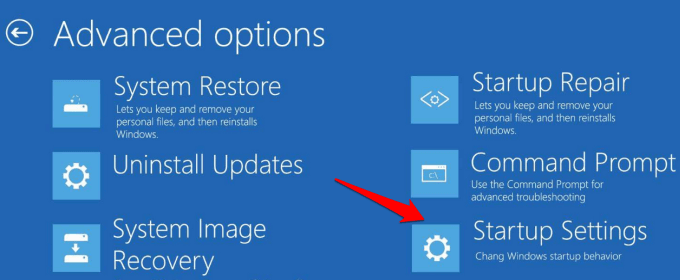
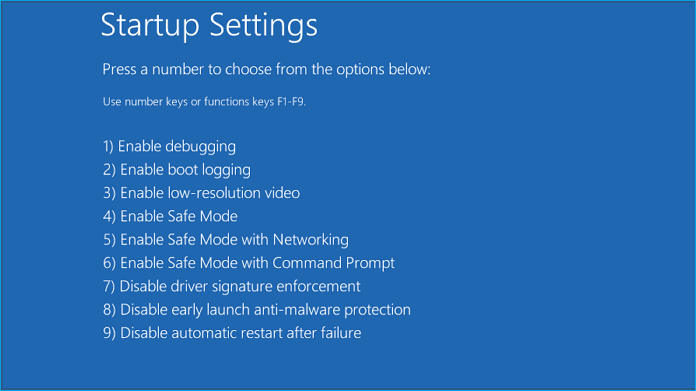
Step 4. Restart the PC.
Step 5. Press F5 or F4 from your keyboard to boot your Windows 11 into Safe Mode or Safe Mode with networking.
To resolve the issue of a computer that keeps restarting, try using the System File Checker (SFC) tool. This tool scans and replaces corrupted system files with a fresh copy from the Windows installation media. You can access the SFC tool by typing 'sfc /scannow' in the Command Prompt as an administrator.
How to Fix Computer Stuck on Restarting
If your computer is stuck on restarting, don't worry, it's an easy fix. Follow the methods outlined and you'll be back to using your PC in no time.
Option 2. Update/Rollback the Graphics Card Driver
Updates are essential for optimal computer performance, but they can sometimes cause errors or bugs, and outdated drivers can also be the culprit. To fix this issue, we can try updating or rolling back the graphics card drivers.
Follow the steps:
Step 1. In the Device Manager, locate the category for the device you want to update drivers for. Right-click on the device and select "Update driver" from the menu that appears.
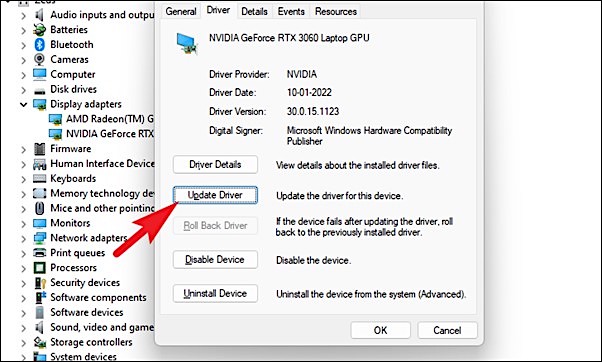
Step 2. Expand "Display adapters" and double-click on the graphics driver.
Step 3. Click the "Driver" tab, and from here, you'll see both options, "Update Driver" and "Roll Back Driver." Perform any action accordingly to fix the issue.
Option 3. Uninstall Windows Update
If you've recently updated your Windows 11 and are now encountering a black screen issue, you may want to consider uninstalling the problematic update to resolve the problem.
Follow the steps:
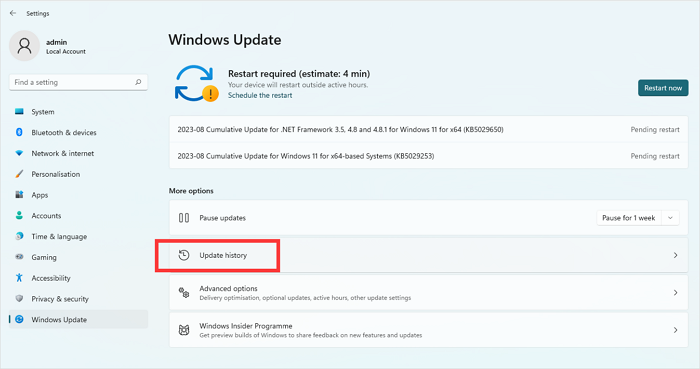
Step 1. To access the Windows Update history, open the Windows Settings, click on "Windows Update", and then select "Update History".
Step 2. Scroll down and go to Uninstall updates.
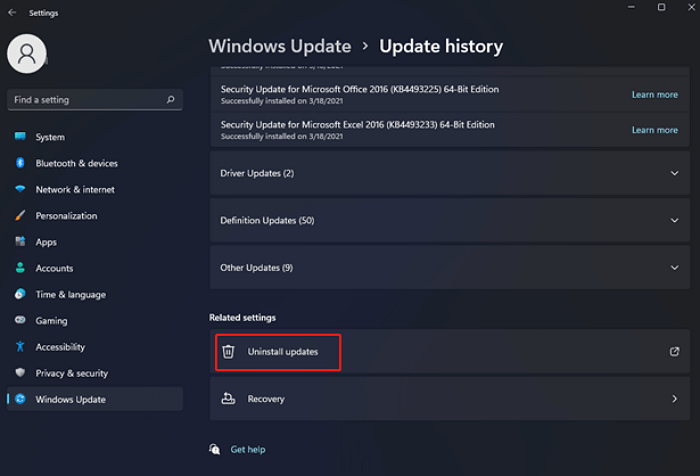
Step 3. Click Uninstall to uninstall each update.
Option 4. Check for File System Errors
File system errors can cause system problems, including the Windows 11 black screen issue. To resolve this, you can use Qiling Disk Master to create a bootable USB drive, which will allow you to thoroughly inspect and repair any file system errors on your computer. This process can help identify and fix issues that may be preventing your system from booting properly.
Stage 1. Create Qiling Bootable USB
Stage 2. Check Hard Drive Errors
Step 1. To create a bootable media with Qiling Disk Master, connect the external drive/USB to your computer, launch the software, navigate to the "Tools and utilities" tab page, and click on "Create bootable media".
Step 2. Insert a USB drive or CD/DVD, select it and click "Proceed" to continue. Alternatively, you can burn the Windows ISO file to the chosen storage media.
Step 3. Connect a bootable drive to a new computer, reboot by pressing F2/Del to enter the BIOS, set the drive as the boot disk, and exit the BIOS.
Step 4. Boot the computer again and enter the WinPE interface. Then, open Qiling Disk Master, click on "Tools and utilities", and select "Fix Boot" from the options.
Step 5: Select the system you want to repair and click "Proceed".
Step 6. The system will be successfully repaired after a short wait. An alert will be displayed, and clicking "OK" will complete the boot repair process.
Option 5: Run SFC and DISM
Running the System File Checker (SFC) and Deployment Image Servicing and Management (DISM) commands can repair Windows images by fixing damaged system and DLL files, which is crucial for maintaining a stable and functional operating system.
Follow the steps:
Step 1. Run Command Prompt as administrator.
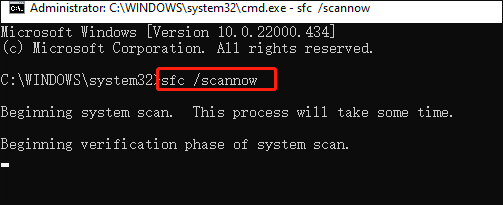
Step 2. Write sfc /scannow and press Enter.
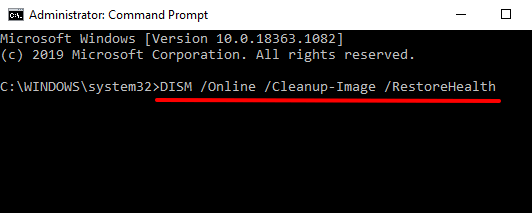
Step 3. If the issue persists, input "DISM.exe /Online /Cleanup-image /Restorehealth" and press Enter.
Step 4. Finally, Restart your computer.
Read Also: SFC SCANNOW Stuck
Option 6. Reinstall Windows 11
If all other troubleshooting methods fail, a final option is to reinstall Windows 11, which may resolve the black screen with a cursor issue.
To reinstall Windows 11, you'll need to create a bootable USB drive with a minimum capacity of 8-16 GB, which will serve as the installation media for the operating system.
Refer to this article: Create Bootable USB from ISO
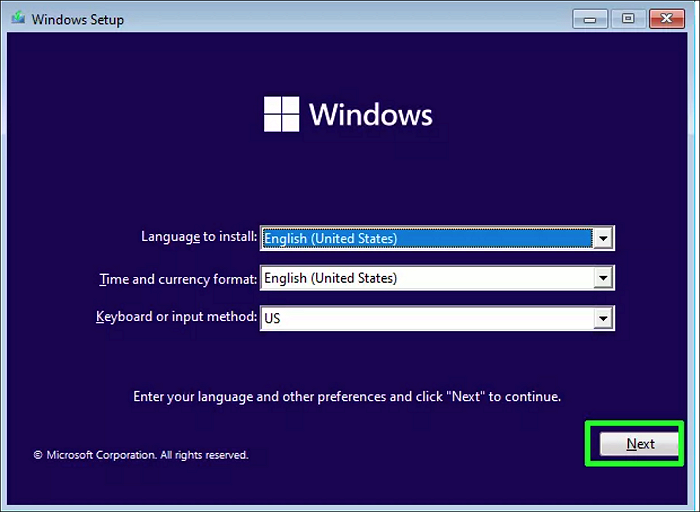
To reinstall Windows 11, start by booting from the USB drive you created, then select your language and other preferences, and click on "Next". Next, choose how you want to install Windows 11, either by keeping your files, removing your files, or fully cleaning the drive.
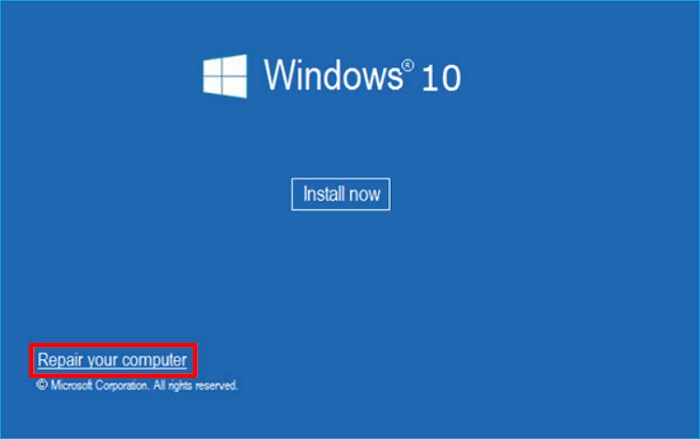
Step 1. Connect a bootable USB to your computer, restart it, and press the Del or F2 button to enter BIOS.
Step 2. Configure your flash drive as the primary boot device and save your settings.
Step 3. Press any key when prompted to access setup and click "Next."
Step 4. Click "Install now".
Step 5. Input your product key or select "I don't have a product key."
Step 6. Choose your preferred Windows 11 version and click "Next".
Step 7. To accept the terms of service, click "Accept" and then click Next.
Step 8. Choose Custom Install.
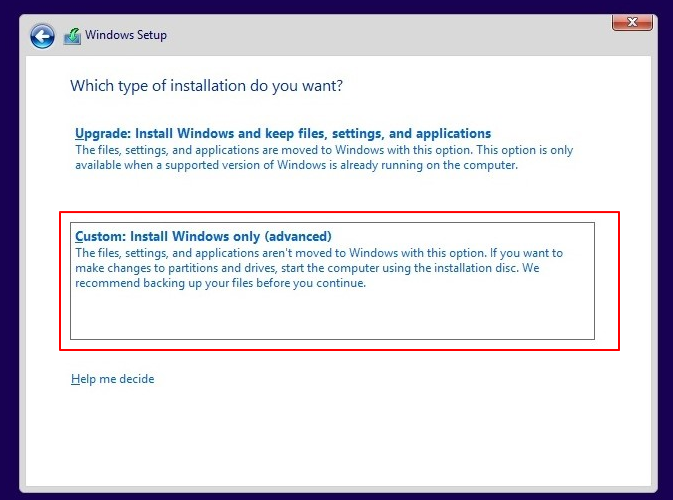
Step 9. Choose your Primary drive and click Next.
Step 10. To finish the procedure, adhere to the on-screen instructions.
Note: This method relocates files to a Windows.old directory, allowing you to restore data from the Windows.old folder. It's essential to act promptly, as these files will be automatically removed after 10 days.
Other topics related to install Windows:
Why Windows 11 Black Screen with Cursor?
The Windows 11 black screen with a cursor issue can arise from various causes, including corrupted system files, driver problems, and issues with the operating system's boot process. To resolve this problem, it's essential to identify the underlying cause, which can be achieved by running system file checks, updating drivers, and checking the Event Viewer logs for any error messages. Additionally, users can try booting in safe mode, running a System Restore to a previous point when the issue wasn't present, or performing a clean installation of Windows 11.
- Graphics Driver Corruption: Problems with graphics drivers can cause a black screen with a cursor, often due to outdated, incompatible, or corrupt drivers disrupting the display.
- System File Corruption: Corruption in critical system files can result in startup issues, including the black screen problem, due to their essential role in Windows 11's functioning.
- Windows Update Error: Windows updates can sometimes go wrong, leading to conflicts or issues that result in a black screen. An error during the update process can leave your system in this state.
- Multi-Monitor Connections: Configuring multiple monitors can occasionally result in a black screen issue due to misconfigurations or driver problems in multi-monitor setups.
- Abnormal Screen Display: Irregular screen resolutions, refresh rates, or other display settings can cause a black screen due to incompatibility with the hardware.
- Application Compatibility: Certain applications may not be compatible with Windows 11, leading to a black screen problem when running older or poorly optimized software.
- Hardware Issues: Hardware issues, such as faulty RAM, a malfunctioning hard drive, or damaged cables, can cause a system to display a black screen with a cursor.
With a clear understanding of the potential causes of the Windows 11 black screen issue, it's essential to explore the solutions and take action to resolve the problem, addressing issues such as corrupted system files, driver problems, and overheating, among others.
You May Also Like:
Conclusion
This tutorial explores the reasons behind the Windows 11 black screen issue with a cursor and provides effective solutions to address it. We aim to help you regain control of your computer and eliminate this frustrating problem. To resolve the issue, consider exploring the solutions outlined in this article and leverage the advanced features of Qiling Disk Master to simplify the troubleshooting process and restore your system to full functionality, ensuring a seamless Windows 11 experience.
FAQs About Windows 11 Black Screen with Cursor
If you're still experiencing issues with Windows 11 or have further questions about the black screen problem, the following FAQs may provide the answers and clarification you need.
1. How do I fix my black screen on Windows 11 after sleep?
If your Windows 11 screen goes black after waking from sleep mode, adjust your power settings by going to "Settings," then "System," and choosing "Power & sleep" to configure your sleep settings and prevent screen blackouts.
2. Why is my Windows 10 black screen with cursor blinking?
A blinking black screen on Windows 10 can occur due to graphics driver issues or system file corruption. You can resolve this by updating or reinstalling your graphics drivers or using tools like System File Checker (SFC) and Deployment Imaging Service and Management Tool (DISM) to fix system file problems.
3. How do I fix the black screen on Windows 11 without a cursor?
If you're experiencing a black screen on Windows 11 without a cursor, the issue might be unrelated to cursor-related black screen problems. To troubleshoot, try checking for system file corruption, updating your graphics drivers, or reinstalling Windows.
Related Articles
- Fixes for (External) Hard Drive Shows Wrong Capacity
- How to Install Windows 10 on Second Hard Drive | 2 Ways🔥
- How to Convert MBR to GPT without Losing Data Windows Server
- How to Find Large Files on Windows 10 | Quick Guide💡
- How to Clone PS4 Hard Drive to SSD Without Losing Data
If you're running out of space on your PS4 hard drive and can't afford a PS5, consider cloning your PS4 hard drive to a larger SSD for increased capacity and improved performance. - Your Best Guide to Clone Windows to M.2 SSD [2024 Tutorial]
Do you want to know the process to clone Windows to M.2? You can find the right ways and complete the steps with the following tutorial.
Products
Articles & Tutorials
- Data Recovery
- Data Backup
- File Recovery
- File Backup
- System Backup and Restore
- Disk and Partition Clone
- Technical articles
- Mobile articles
- Disk Master Help
- Windows Data Recovery Tutorials
- Windows Secure Delete Tutorials
- Windows Partition Management Tutorials
- Windows File Backup and Restore Tutorials
- Windows System Backup and Restore Tutorials
- Windows Disk Backup and Restore Tutorials
- Windows Clone Tutorials