Windows 11 White Screen? Top 9 Ways to Fix It!
Windows 11 white screen of death is a white screen issue triggered by operating system problems, where you can't access any content, and no error message is displayed.
If you're experiencing a white screen issue on Windows 11, the steps below can help! Before we dive into the solutions, let's quickly understand what might have caused this problem. With that in mind, we can explore the various methods to help you fix the white screen issue and get your Windows 11 up and running smoothly again.
What Caused Windows 11 White Screen
Windows 11 white screen issues can be caused by either hardware or software failure, and common culprits include outdated drivers, corrupted system files, faulty RAM, and other hardware malfunctions, making it essential to troubleshoot and identify the root cause to resolve the problem.
- Hardware failure
- Corrupt or outdated graphics card drivers
- Virus or malware attack
- Incorrect OS installation
- Outdated Windows updates
- Corrupt or missing system files
- MBR (Master Boot Record) errors
Considering various possible causes of a Windows 11 white screen, we have compiled a list of the most effective solutions to help you troubleshoot the issue. Whether it's a problem with the display, a corrupted system file, or a faulty driver, this guide can help. Read on and choose the solution that best fits your situation to resolve the white screen problem on your Windows 11 device.
Other Fixes for Windows 11 White Screen
Understanding the basic reasons behind Windows 11's white screen issue is a good starting point. The problem can be caused by a variety of factors, including corrupted system files, faulty drivers, or issues with the display settings.
- Fix 1. Force-Restart Your Windows Computer
- Fix 2. Remove Peripheral Devices
- Fix 3. Uninstall Windows Updates
- Fix 4. Perform Startup Repair
- Fix 5. Enter the Safe Mode
- Fix 6. Rebuild MBR
- Fix 7. Check and Fix File System
- Fix 8. Update Graphic Driver
- Fix 9. Clean Install Windows 11
If you're experiencing a white screen on Windows 11, the solutions outlined in this article may be helpful. You can try running the System File Checker (SFC) tool, checking for corrupted system files, and running the DISM tool to repair any issues with the Component Store.
Fix 1. Force-Restart Your Windows Computer
If Windows 11 shows a white screen at startup, try forcing a restart to resolve memory usage issues caused by running applications, which often solves the problem.
To turn off the gas, press and hold the power button for a few seconds, then press and hold it again to restart. This will temporarily fix the issue, but may not prevent the Windows 11 white screen problem from recurring.
If the WSOD persists, keep reading and try other options.
Fix 2. Remove Peripheral Devices
If your Windows 11 screen is stuck on a white screen with the cursor, try removing all peripherals first, as a faulty device may be the cause.
Step 1. Remove the USB keyboard, mouse, printer, and scanner.
Step 2. Reboot the computer.
If the computer restarts successfully, connect the devices one by one and identify the faulty device. If this doesn't solve the problem, explore other troubleshooting options.
Fix 3. Uninstall Windows Updates
If you meet the Windows 11 white screen after the update, it's likely due to incompatibility issues with your computer, and uninstalling the latest Windows updates may resolve the issue.
Step 1. Force shutdown twice and reboot. Click Troubleshoot.
Step 2. The steps to uninstall updates on Windows 10 are as follows: Go to Settings, then click on "Update & Security", and then click on "Windows Update" and click on "Advanced options" and select "Uninstall Updates" in the upper right corner.
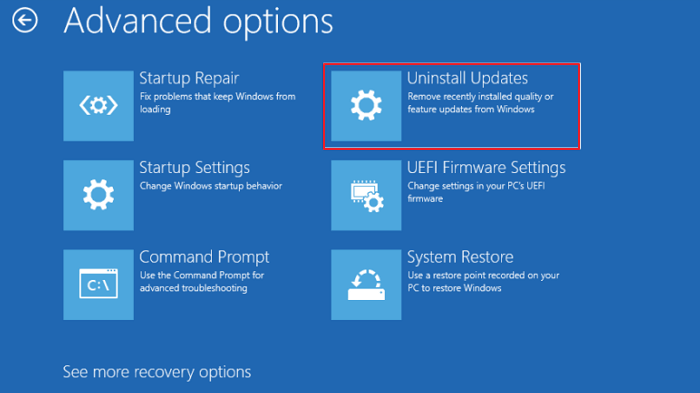
Step 3. Uninstall the latest feature update to reboot your Windows system.
Fix 4. Perform Startup Repair
In the Advanced Options menu, Windows also offers a Startup Repair feature, which can assist with resolving common and complex startup issues.
Step 1. Select Startup Repair in the Advanced options.

Step 2. The Startup Repair tool will run an automatic repair after identifying the cause of the problem.
If the Windows 11 white screen persists after trying the above methods, more complex options can be explored, such as reinstalling Windows 11, running a System File Checker (SFC) scan, or using a bootable USB drive to repair the system. These methods may require more technical expertise and can potentially cause data loss, so they should be approached with caution. However, they may be necessary to resolve the issue if the simpler methods do not work.
Fix 5. Enter the Safe Mode
If you're experiencing a white screen on Windows 11 after logging in, it's possible that a third-party application is causing the issue. To troubleshoot, you can boot into Safe Mode, which allows you to identify and resolve the problem by isolating the responsible program or process.
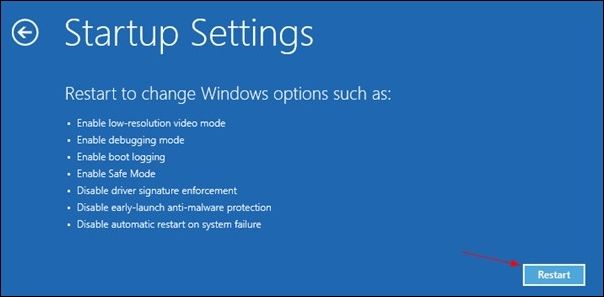
Step 1. In Advanced Options, select Startup Settings.
Step 2. Select F4/F5/F6 to enter Safe Mode as appropriate.
Fix 6. Rebuild MBR
The most common cause of boot failure is MBR errors, which can lead to system loss, failure to load the operating system, and a white screen. To resolve this, you can create a Windows 11 bootable USB and rebuild the MBR.
For a faster and safer solution, I recommend using Qiling Disk Master as a one-stop shop for repairing MBR. It simplifies the steps using Windows commands and ensures data safety, allowing you to complete both tasks in just three simple steps.
If you're experiencing a white screen on Windows 11, don't worry - even as a newbie, you can easily fix the issue with the help of a reliable tool. This tool can help you resolve the problem quickly and efficiently, so you can get back to using your computer without any further hassle.
Note: To repair a faulty Windows 11 PC, start by inserting a USB flash drive into a working Windows 11 PC. Then, insert the bootable USB into the faulty PC to initiate the repair process.
Step 1. Create a WinPE bootable disk
- Launch Qiling Disk Master, click "Bootable Media" on the toolbar, and select "Create bootable media".
- Click "Next" to finish the process.

Step 2. Boot Qiling Disk Master Bootable USB
- Connect the bootable USB or CD/DVD to your PC.
- To access the BIOS screen, press F2 or Del when restarting the computer. Once in the BIOS, set the computer to boot from the "Removable Devices" or "CD-ROM Drive". This will allow Qiling Disk Master to run automatically when the computer boots up.
Step 3. Rebuild MBR
- Click "Tools and utilities" and choose "Fix Boot".
- To proceed with the process, select the disk and the type of Master Boot Record (MBR) that you want to use. This will initiate the installation process. Click "Proceed" to continue.
- The message indicates that the Master Boot Record (MBR) of a disk, identified as Disk X, has been successfully rebuilt. This means the disk's boot sector, which contains essential boot information, has been restored to a known good state.
This tool can perform advanced disk-related functions, including converting MBR to GPT, checking hard drive health, and resolving disk or partition errors, making it a comprehensive solution for various disk-related tasks.
Fix 7. Check and Fix File System
If you've downloaded Qiling Disk Master, you can use it to check and repair your file system once you're in the BIOS environment, which can help fix issues like a white screen caused by a corrupted or missing file system. The tool has a check and repair function that can help you fix the file system.
Step 1. Right-click the target partition that has a problem.
Step 2. Choose "Advanced" > "Check File System".
Step 3. Confirm if you want to hide the partition or not.
Step 4. In the Check File System window, select the "Fix the error on the disk" option.
Step 5. Click "Proceed" to check errors on your partition.
If you haven't downloaded Qiling Disk Master, go to the Command Prompt on the Advanced options page and use the command sfc/scannow.
Fix 8. Update Graphic Driver
Outdated or faulty graphics card drivers may cause Windows 11 white screen problems when using games or applications. To fix this issue, you'll need to upgrade the driver. If you still have access to the system desktop, you can go directly to the update at.
Step 1. Click Device Manager by pressing Windows Key + X.
Step 2. Double-click the display adapter, right-click each driver and select Update Driver.
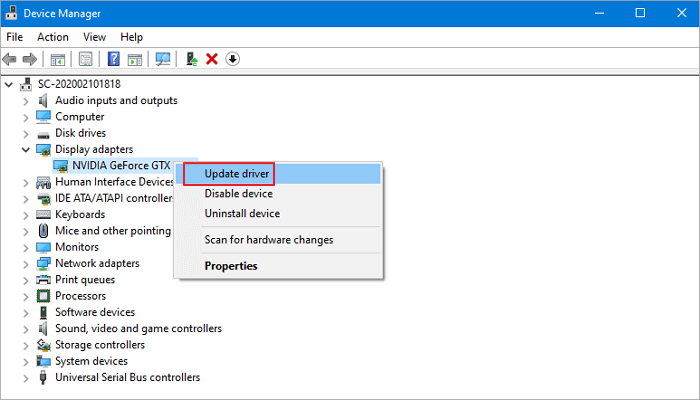
Step 3. Follow the wizard to search for the driver and complete the update.
If you're unsure about your computer system model, you can use a smarter driver updater like Qiling DriverHandy. It can automatically search and update the right drivers for you.
Fix 9. Clean Install Windows 11
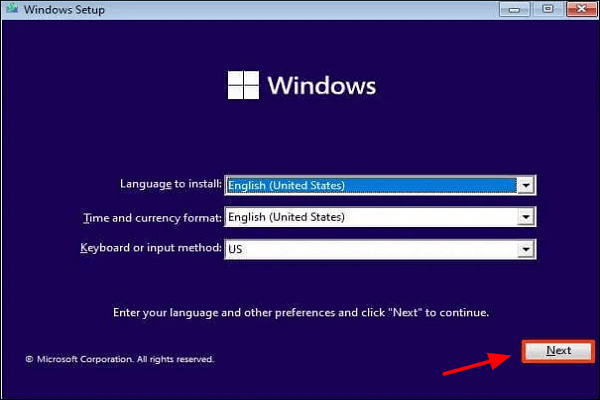
If the above problems do not resolve the Windows 11 white screen, the last resort is reinstalling Windows 11. This will erase everything on your computer, so it's essential to choose this option carefully. If you're still experiencing issues, you can follow the steps in the article to perform a fresh install.
How to Clean Install Windows 11 Safely
Before a clean installation of Windows 11, it's essential to know the process and take necessary precautions. To clean install Windows 11, you can follow a frequently used method that ensures data loss is avoided. By following this process, you can successfully install Windows 11 without losing any important data.
One-Click Remove Windows 11 White Screen
Here, I must mention a reliable third-party tool, Qiling Disk Master, which can fix white screen-related startup issues with one click. You can download it and follow the detailed instructions to fix your current issue.
Step 1. After connecting an external drive or USB to your computer, start Qiling Disk Master and navigate to the "Bootable Media" section. From there, click on "Create bootable media" to proceed.
Step 2. Insert a USB drive or CD/DVD and click "Create" to create a Windows installation media. Alternatively, you can burn the Windows ISO file to the storage media.

Step 3. Connect a bootable drive to a new computer, reboot by pressing F2/Del to enter the BIOS, set the bootable drive as the boot disk, and exit by pressing F10.
Step 4. Boot the computer again and enter the WinPE interface. Then, open Qiling Disk Master, go to the "Tools and utilities" page, and click "Fix Boot".

Step 5: Select the system you want to repair and click "Proceed."

Step 6. The system has been successfully repaired. Click "Finish" to complete the boot repair process.
Conclusion
Windows 11 white screen errors can be frustrating, preventing you from accessing your computer. Fortunately, this article provides comprehensive solutions to help you resolve the issue and restore your computer's functionality. To avoid reoccurrences, be cautious when downloading and installing software. By following the steps outlined in this tutorial, you can easily troubleshoot the problem and get back to using your computer.
Windows 11 White Screen FAQs
This part offers more questions about Windows 11 white screen that people often ask. Hope it can promote your understanding of this error.
1. Is the white screen of death fixable?
The white screen of death is a fixable error caused by various hardware or software failures. Fortunately, there are several solutions available to resolve this issue.
2. What is the white screen of death?
The "White Screen of Death" is an error in the operating system that displays a white screen with no error information, occurring during boot-up or when an application freezes.
3. How to fix the white screen on startup?
If you encounter a white screen at startup and the Windows login page doesn't appear, try rebooting your computer. This can resolve issues caused by minor application or operating system problems, allowing you to access the login page.
Related Articles
- How to Solve "No Usable Free Extent Could Be Found" [Efficient Solutions]
- What Happens When You Format an SD Card? [2023 Ultimate Answer]
- 6 Solutions to Fix Unmountable Boot Volume Windows 10/8/7
- 5 Ways to Fix a Corrupted User Profile in Windows 10/8/7
- Working on Updates 100% Complete Don't Turn Off Your Computer [6 Fixes]
When your computer freezes on the “Working on updates 100% complete” screen. There are 6 fixes to safely complete updates without shutting down. Read on to learn how to troubleshoot and resolve this issue. - How to Fix Xbox External Hard Drive Not Working [Full Guide in 2023]
Xbox external hard drive not working can be a frustrating error, but fortunately, this guide explores eight effective solutions to fix this issue.
Products
Articles & Tutorials
- Data Recovery
- Data Backup
- File Recovery
- File Backup
- System Backup and Restore
- Disk and Partition Clone
- Technical articles
- Mobile articles
- Disk Master Help
- Windows Data Recovery Tutorials
- Windows Secure Delete Tutorials
- Windows Partition Management Tutorials
- Windows File Backup and Restore Tutorials
- Windows System Backup and Restore Tutorials
- Windows Disk Backup and Restore Tutorials
- Windows Clone Tutorials