How to Fix Xbox External Hard Drive Not Working [Full Guide in 2023]
This Guide applies to the following situations:
- Supported Xbox models: Xbox One, Xbox Series X, and other Xbox
- Applicable hard drives: Seagate, WD, and Toshiba external hard drives are compatible with Xbox consoles, offering a range of storage options for gamers to expand their console's storage capacity. These external hard drives can be easily connected to the Xbox, allowing users to store and play games, as well as access other digital content, without the need for a separate internal storage upgrade.
- Goal: To resolve the issue of an Xbox external hard drive not working or being detected, try restarting your Xbox, checking the drive's power cord and cable connections, and ensuring the drive is formatted for Xbox use. Also, try updating your Xbox's software and checking the drive's compatibility with your Xbox model.
Xbox is a well-The gaming console brand offers a range of gaming models, including Xbox, Xbox 360, and Xbox One, designed to enhance the gaming experience. However, some users have reported issues with their Seagate or WD Elements external hard drives not working on Xbox. Don't worry, as Qiling has analyzed the reasons and identified effective solutions to help resolve this problem.
Overview of Xbox External Hard Drive Not Working
If your Xbox external hard drive is not working, it can be difficult. Issues like the drive constantly turning on and off or not being detected can occur. To troubleshoot, you can follow these steps to resolve the problem. The solution to the issue depends on the specific problem, such as the drive not being detected, which can be fixed by checking the drive's power source and ensuring it's properly connected to the Xbox. Similarly, if the drive is constantly turning on and off, checking the drive's power source and ensuring it's compatible with the Xbox can resolve the issue.
| ⚒️Troubleshooting | ✍️Solutions | 🧑💻Difficulty |
| Hard Drive Problems: | ||
| 💿USB port failure or connection problems | Perform Quick Fixes | Low-intuitive solutions for checking external drives |
| 💻External hard drive does not meet Xbox requirements | Check Xbox Hard Drive Requirements | Low - this method does not require any technical requirements |
| 🔗Incompatible external drive format | Reformat the Xbox External Drive | Low - One-click repair using professional tools |
| 🔒Corrupted external hard drive | Replace or Upgrade Xbox Hard Drive | Low - You can buy a new hard drive |
| Xbox Problems: | ||
| 🎮Xbox not booting | Restart Xbox Console | Low - the most basic requirement |
| ♻️Xbox's latest update pending | Update Xbox Console Firmware | Medium- need to be familiar with Xbox console |
| 🕓Sleep mode | Medium- understanding of power management requirements | |
| 🧑💻Xbox operating system issues | Reset the Xbox operating system | High - if unfamiliarity may result in data loss |
The Xbox external hard drive not working could be due to various reasons, including hard drive issues that need to be resolved on a PC, or Xbox-related problems that can be fixed on the console. A detailed step-by-step guide will be provided next. If you find this tutorial helpful in solving your problem, please share it with others who may be in need by clicking the social buttons.
How to Fix Xbox External Hard Drive Not Working
If your Xbox External Hard Drive is not working or undetectable, you can try the following solutions. If you're unsure of the cause of the failure, try the reliable solutions below. If you're clear about the cause, jump directly to the corresponding solution.
Perform a Quick Fix
If your Xbox external hard drive has stopped working, try restarting your Xbox, checking the drive's power cord, and ensuring it's properly connected to your Xbox. If the issue persists, try using a different USB port or updating your Xbox's software to see if that resolves the problem.
- 1. Restart Xbox: This will fix the problem in many cases.
- 2. Reconnect the external hard drive: To resolve the issue, simply remove the Xbox external hard drive from the host computer and reconnect it. This should resolve the problem and allow the drive to function properly again.
- 3. Check the USB port: Try a different USB port or cable to connect the external hard drive to see if it resolves the issue.
- 4. Try a different USB cable: The USB cable may also cause problems.
- 5. Connect the external drive on the PC To troubleshoot the issue, I recommend verifying that the external drive is the source of the problem. This can be done by disconnecting the external drive and checking if the issue persists.
If none of the above fixes the Xbox external hard drive not working, try unplugging the external hard drive from the Xbox and the power source, wait for 30 seconds, and then plug it back in. This will reset the external hard drive and may resolve the issue.
Check Xbox Hard Drive Requirements
To meet the manufacturer's requirements, your external hard drive should be used for storing Xbox games and apps, and should meet specific conditions, including (insert conditions here).
- 1. The external hard drive and the USB integrated cable should use USB 3.0 technology for faster data transfer speeds.
- 2. 128 or 256 GB is a good starting point for an external hard disk. This size can hold a significant amount of data, including photos, videos, documents, and more, without being too large or too small.
- 3. Do not connect any single drive larger than 16 TB.
- 4. Have at least one partition on the drive.
- 5. Avoid linking more than three storage devices to the Xbox.
Note: The Xbox hard drive requirements come from the Xbox Support Forum to help you manage your storage.
If your external hard drive meets all the requirements except for having partitions, you can use a tool like Qiling Disk Master to partition it for management. This allows you to use the external hard drive on Xbox.
To partition your Xbox external hard drive, you can use the built-in interface to create new partitions, resize existing ones, or free up space. This process is straightforward and involves a few simple steps, allowing you to customize your external hard drive to suit your needs.
Step 1. Launch Qiling Disk Master to check for free space at the Partition Manager section.
- If your hard drive has unallocated space, you can proceed to create a partition on that space to make it usable.
- If the hard drive has no unallocated space, continue with Step 2. In this case, you will need to delete some files or folders to free up space on the hard drive.
Step 2. Shrink a disk partition to create unallocated space.
Right-Click on the target drive partition with a lot of free space and select "Resize/Move".
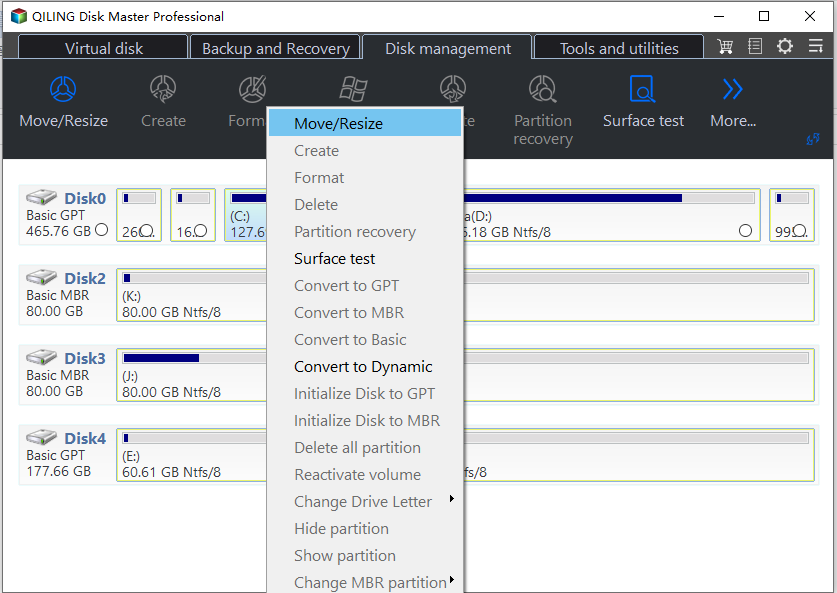
To free up enough unallocated space, drag either end of the partition to the right or left, reducing its size. You can check how much space has been decreased in the "Partition size" area. This provides a clear visual of the available unallocated space.
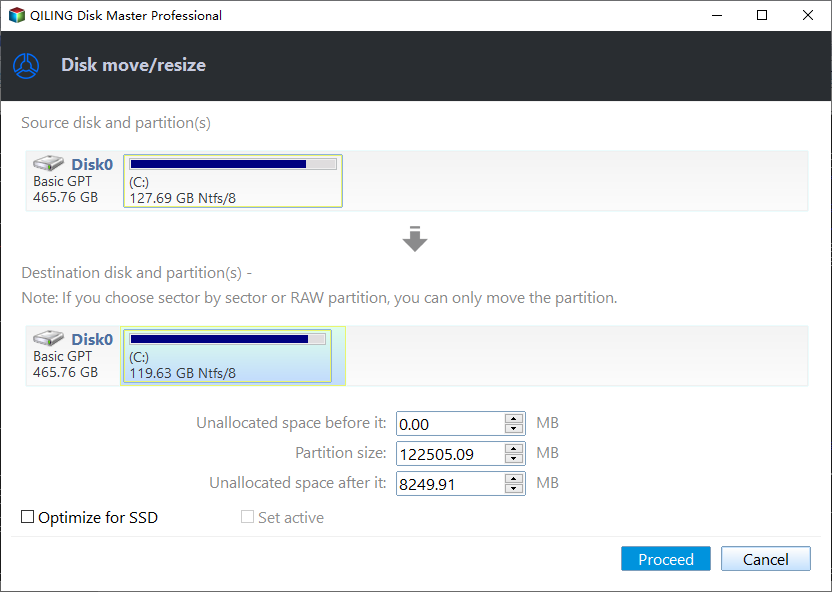
Click "Proceed" to save all the changes.
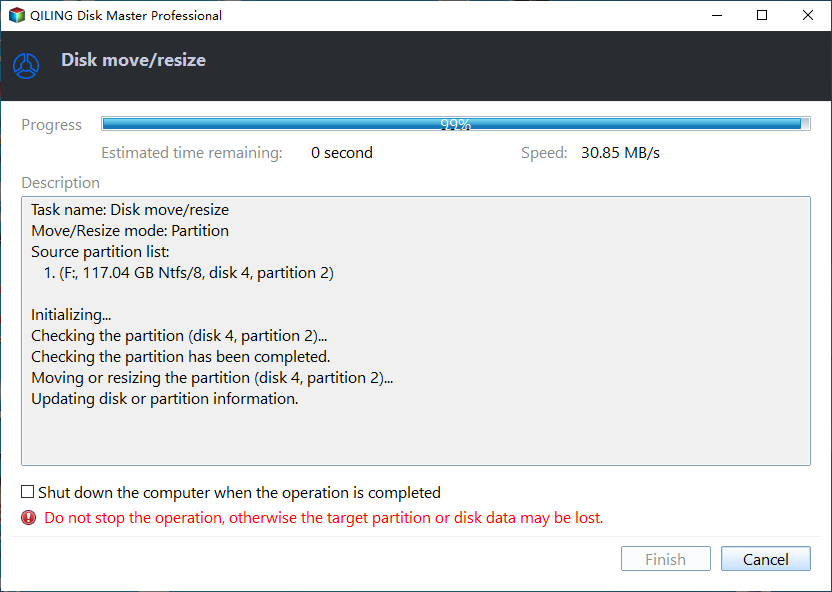
After resizing the partition, go back to Partition Manager. You should see unallocated space on the same disk.
Step 3. To create a new partition with unallocated space on the target hard drive, follow these steps: 1) Open the Disk Management console. 2) Select the target hard drive and right-click on the unallocated space.
Right-click on the unallocated space and choose "Create".
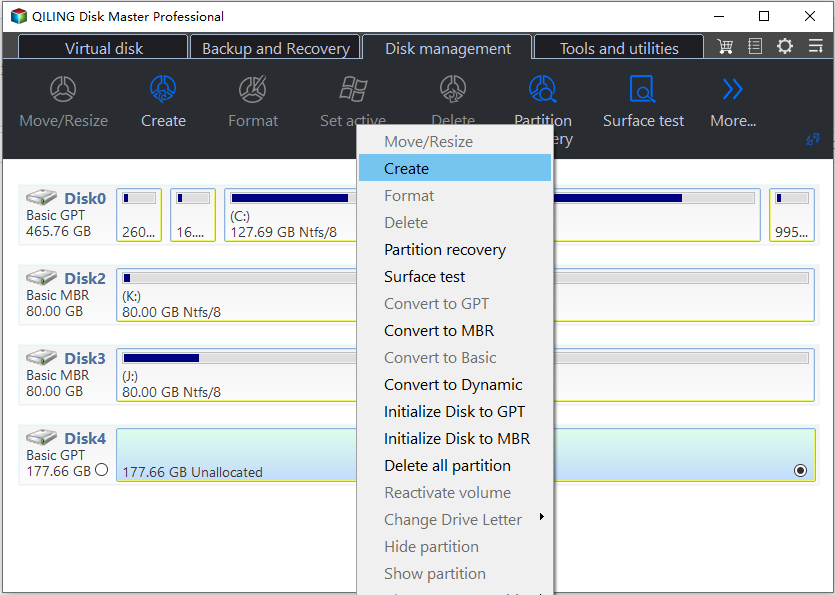
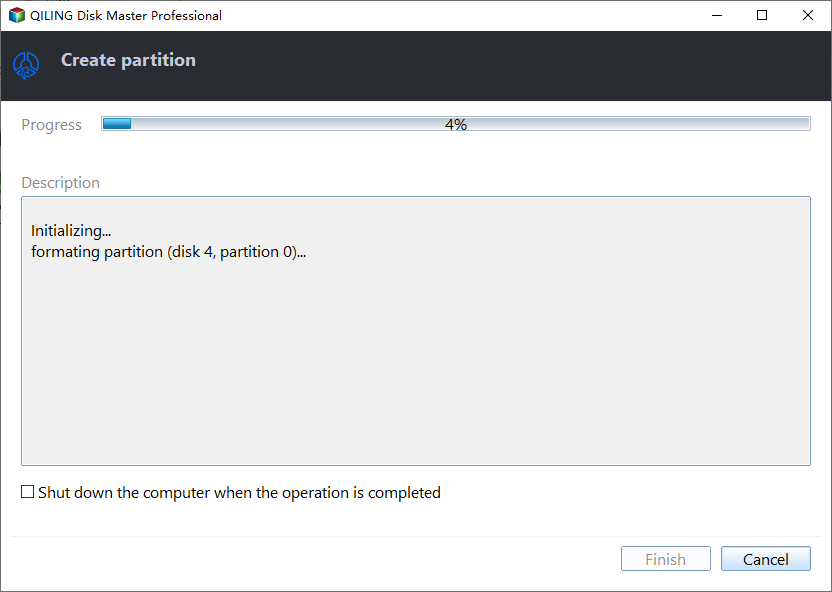
To customize your partition, you can access the Advanced Settings, where you can specify the partition size, drive letter, label, file system (options include NTFS, FAT32, EXT2/3/4, and exFAT), and more.
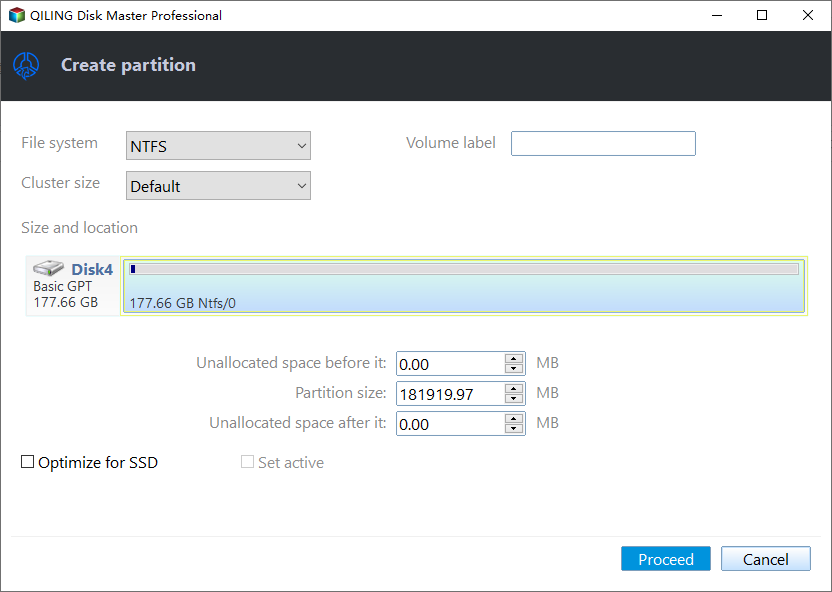
To create a new partition on a hard drive, first, go to Disk Management, which can be accessed by right-clicking on "This PC" or "Computer" and selecting "Manage." Then, click on "Disk Management" in the left panel. Next, identify the unallocated space on your disk, which is the area not currently being used by an operating system or other partitions.
You May Also Like:
Format the Xbox External Hard Drive
The Xbox One typically uses NTFS for internal hard drives, but FAT32 is required for external hard drives. To resolve the issue, you'll need to format the external hard drive to the correct format first, and a professional tool like Qiling Disk Master can help prevent formatting failures and save time.
Note: Formatting will clear all data. If you have important game data, you can clone the disk or migrate game applications with Qiling Disk Master.
Here are the steps to fix an external hard drive by formatting it:
Step 1. Launch Qiling Disk Master, right-click the partition on your external hard drive/USB/SD card which you want to format and choose the "Format" option.

Step 2. Assign a new partition label, file system (NTFS, FAT32, EXT2, EXT3, EXT4, exFAT), and cluster size to the selected partition.

Step 3. To proceed with formatting your external hard drive, USB, or SD card, review the changes you've made and click the "Proceed" button to initiate the formatting process.

Step 4. In the Warning window, click "Yes" to continue.
Replace or Upgrade Xbox Hard Drive
If your external hard drive is corrupted, it may become unusable. However, if there are only a few bad sectors, you can use Qiling Disk Master to check and repair the disk, potentially making it usable again.
If your internal hard drive is running low on space or slow, you can upgrade your Xbox hard drive to an SSD to improve game performance. To do this, you'll need to purchase a compatible SSD, such as the Xbox Expansion Card, and follow the on-screen instructions to transfer your games and data to the new drive. This process is relatively straightforward and can be completed in about 30 minutes.

Upgrading your Xbox One's storage to an SSD (Solid-State Drive) is a straightforward process that can significantly improve your gaming experience. First, ensure you have a compatible SSD, such as a Samsung 970 EVO or WD Black SN750, and a USB adapter.
To upgrade your Xbox One hard drive to an SSD without losing data or reinstalling, you can follow these steps: first, purchase an external hard drive to transfer your data, then, purchase an M.2 NVMe SSD compatible with your Xbox One, and finally, replace the original hard drive with the new SSD and transfer your data back. This process allows you to upgrade your storage without losing any of your games, apps, or data.
Restart Xbox Console
If your device is having trouble connecting to Wi-Fi, an intensive power cycle may be the solution. To do this, simply turn off your device, wait for a few seconds, and then turn it back on. This simple step can often resolve connectivity issues by refreshing the device's network settings and connections.
Step 1. Remove all cables and external drives from the Xbox.
Step 2. Press and hold the Power button until it turns off.
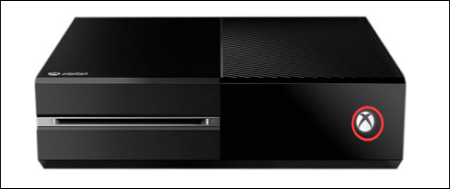
Step 3. Reconnect the cables and turn on the Xbox console.
Updating Xbox Console Firmware
Manually updating the firmware will ensure that the console can properly detect and read external drives, potentially resolving issues related to drive recognition.
Step 1. Press and hold the Xbox button to open the Guide.
Step 2. Under the Guide, select System>Updates.
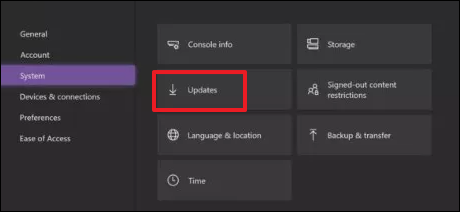
Step 3. If an update is available, install it manually.
After installation, check under System>Storage to see if your device appears in the list.
Adjust Power Management for Storage
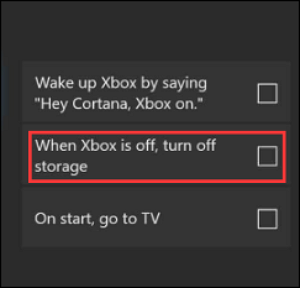
To view external devices connected to your Xbox while it's in sleep mode, go to Settings > Devices & accessories > External devices, and then adjust the power management of your storage to "Always On" or "Always On with Battery Backup". This will allow you to access and view your external devices even when your Xbox is in sleep mode.
Step 1. To access the Xbox settings, press the Xbox button on your controller to turn it on and open the Guide. From there, select the "System" option to enter the settings menu.
Step 2. Select Power and Boot in Settings.
Step 3. Select Power Mode and set it to Instant Boot.
Step 4. Deselect "When Xbox is off, turn off storage."
Reset the Xbox Operating System
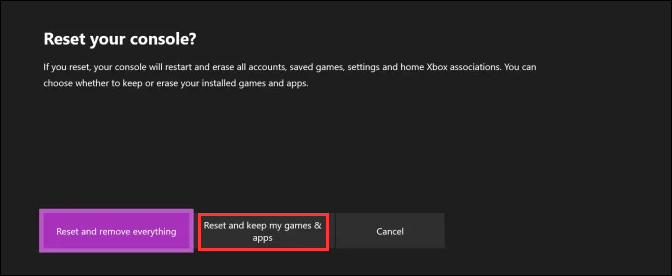
If the Xbox's operating system has a problem, you can try resetting it to resolve the issue with the external hard drive failing. This may result in data loss, but you can attempt to do this without deleting games or applications by resetting the operating system to its default settings.
Step 1. Open Guide> Settings > All Settings > System.
Step 2. Reset the console at Console info & updates.
Step 3. Select Reset and keep my games & apps to reset the operating system.
📖Extend Reading: Xbox One Not Reading Disc
Conclusion
When your Xbox external hard drive isn't working, check for a bad connection, incompatible or corrupted drive, or issues with the Xbox firmware, power supply, or other components. You can troubleshoot the problem or use Qiling Disk Master to quickly fix any hard drive issues.
Xbox External Hard Drive Not Working FAQs
If you're experiencing issues with your Xbox external hard drive not working, it might be due to a variety of reasons such as a faulty drive, incorrect settings, or a corrupted file system. To troubleshoot, you can try restarting your Xbox, checking the drive's power cord and connections, and ensuring that the drive is properly formatted for Xbox use. If the issue persists, you may need to contact Xbox support for further assistance.
1. Why does the external hard drive keep turning on and off?
If your external hard drive keeps turning on and off, it's likely due to a physical issue, such as a faulty USB port, incorrect port connection, or a bad connection, which can be fixed with basic troubleshooting steps.
2. How to fix Seagate external hard drive not detected on Xbox One?
If your Seagate external hard drive is not detected, try basic troubleshooting by connecting it to a different port on your Xbox or using a different cable. If the issue persists, check your drive for any problems that may be causing it not to show up on your Windows PC.
3. How to fix an unresponsive external hard drive?
If your external hard drive is not responding, try these quick solutions: first, unplug it, wait for a few seconds, and plug it back in; second, check the cable connection and try using a different USB port; third, restart your computer and see if it recognizes the drive; and finally, if none of these work, try running a disk check or a system restore to see if it resolves the issue.
- Reboot your computer.
- Try another USB port or cable.
- Update the driver.
- Reformat the drive.
4. What is the best Xbox external hard drive format?
FAT32 is compatible with all USB interfaces but has a 4GB file size limit. In contrast, exFAT is the recommended format for external hard drives with Xbox One, offering more efficient power and memory management.
Related Articles
- [Problem Solved] How to Install Mods in Sims 4 in 2023
- How to Fix macOS Monterey Won't Install [8 Ways]
- Windows 11 Is Getting ReFS Support for Enhanced Data Proteciton
- Quick Fixes for Windows Stuck on Repairing Disk Error in Windows 10/8/7
- Google Chrome Syne Keeps Pausing? Find Fixes Here
Google Chrome sync allows you to sync your bookmarks, history, and settings across all your devices, but some users experience a problem where the sync process keeps pausing. This issue can be caused by various factors, and to resolve it, several troubleshooting methods can be tried. - Google Chrome Windows 7&8.1 End of Support: What Should You Do
Google will stop supporting Chrome on Windows 7 and 8.1, but older versions will still be usable, though without new features and security updates. Meanwhile, Chrome 110 is expected to launch in early February for Windows 10 and 11 users.
Products
Articles & Tutorials
- Data Recovery
- Data Backup
- File Recovery
- File Backup
- System Backup and Restore
- Disk and Partition Clone
- Technical articles
- Mobile articles
- Disk Master Help
- Windows Data Recovery Tutorials
- Windows Secure Delete Tutorials
- Windows Partition Management Tutorials
- Windows File Backup and Restore Tutorials
- Windows System Backup and Restore Tutorials
- Windows Disk Backup and Restore Tutorials
- Windows Clone Tutorials