Google Chrome Syne Keeps Pausing? Find Fixes Here
Google Sync feature has been convenient for accessing Chrome bookmarks, histories, and settings on different devices, but many users experience a problem where Google Chrome sync keeps pausing, potentially causing data loss and inconvenience.
Google Chrome sync keeps pausing due to various reasons such as incorrect sync settings, outdated browser, or corrupted sync data. To resolve this issue, try restarting Chrome, checking sync settings, updating the browser, or clearing sync data.
Causes for Google Chrome Sync Keeps Pausing
The Google Chrome sync keeps pausing issue could be caused by various factors, but most of them are concerned with Google account settings and permissions issues, such as incorrect account settings, expired account permissions, or issues with Google account synchronization.
- Your Google account is not set up correctly.
- You haven't given Google enough permission to access your data on different devices.
- Please check the Google account settings to see if sync is enabled. If it's disabled, you can enable it from the account settings. If it's out of date, you may need to update the sync settings to the latest version.
- You are using an outdated Google Chrome version.
- The Google accounts you're trying to sync are in conflict. This means that the accounts have different information, such as email addresses or passwords, which is causing the syncing process to fail.
You may be interested:
Solutions to Fix Google Chrome Sync Keeps Pausing
If Google Chrome sync keeps pausing, there are some simple solutions to try. The issue may be caused by a weak internet connection, a problem with the Google account, or a conflict with other browser extensions. You can try restarting your browser, checking your internet connection, and ensuring that your Google account is set up correctly.
- Warm Tip
- The sync function in Google Chrome may not work smoothly, potentially leading to data loss during the process. It's recommended to create a backup of your Google Chrome account before troubleshooting. A more flexible option is using Qiling Backup, which can back up Google Chrome data without any loss, and detailed information can be found in the "Back Up Google Chrome Regularly to Keep Your Account Safe" section.
Solution 1. Enable the Google Sync Feature & Update the Version
Please enable Google sync on your device and update Google Chrome to the latest version.
To do this, you can follow the steps:
Step 1. Launch Google Chrome and click the Profile icon on the top-right corner.
Step 2. Click on the "Turn on sync…" option.
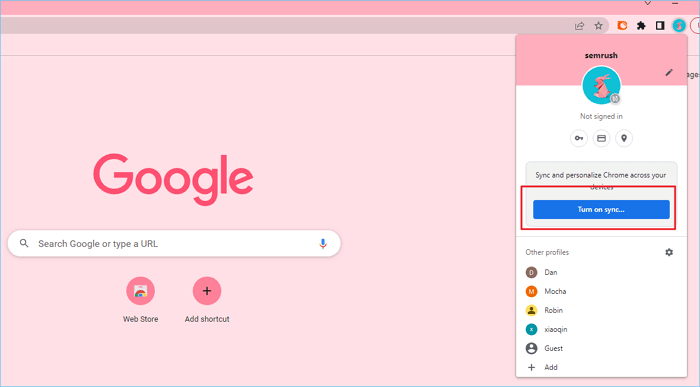
Step 3. Check for Google Chrome updates, download and install the latest version on your device.
Solution 2. Run Google Chrome As An Administrator
If Google Chrome sync keeps pausing, try running Google Chrome as an administrator to see if the issue resolves. To do this, right-click on the Google Chrome icon and select "Run as administrator" from the context menu. This may help resolve the issue.
Step 1. To access the Google Chrome icon's properties, right-click the icon on the desktop and select the "Properties" option from the context menu.
Step 2. To resolve the issue, enable the "Run this program as an administrator" option for the Compatibility tab.
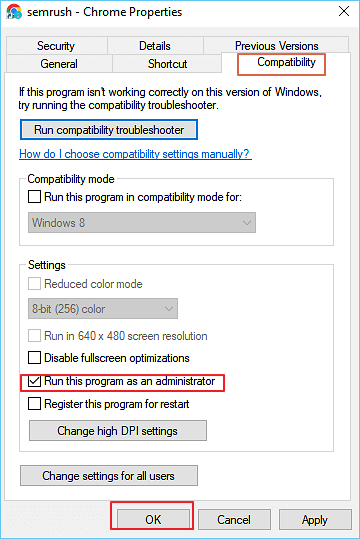
Step 3. To resolve the sync keeps pausing issue, click "OK" to finish the process. This should effectively solve the problem.
Solution 3. Disable All Google Chrome Extensions
Google Chrome extensions may sometimes block Google sync and Google service, causing the Google Chrome sync to keep pausing. To troubleshoot this issue, you can try disabling all Google Chrome extensions temporarily to see if the problem is resolved.
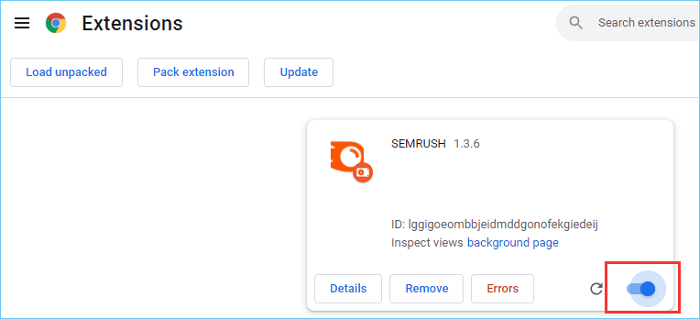
Step 1. To access the extension manager, click on the "Extensions" icon at the top-right corner of the browser, then select "Manage extensions" from the dropdown menu.
Step 2. To close all extensions that are turned on, click the sliding blue button in the pop-up window.
Solution 4. Add A Google Account Page to These Allowed Sites
Sometimes Google Chrome sync pausing can be caused by Google permission settings, which can be resolved by adding the Google account page to the allowed sites list.
Step 1. To access the content settings in Google Chrome, simply open the browser, type "chrome://settings/content" in the address bar, and press Enter. This will take you directly to the content settings page where you can manage various settings such as cookies, JavaScript, and more.
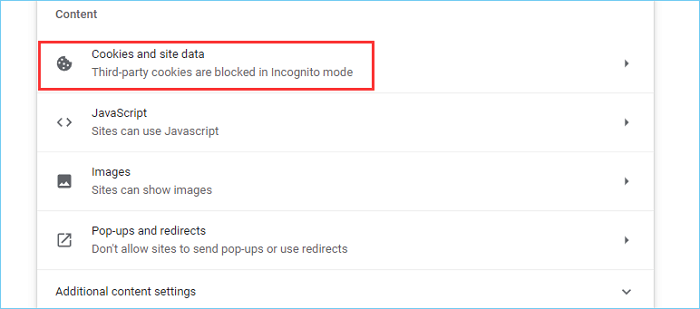
Step 2. Click the "Cookies and site data" under the content option.
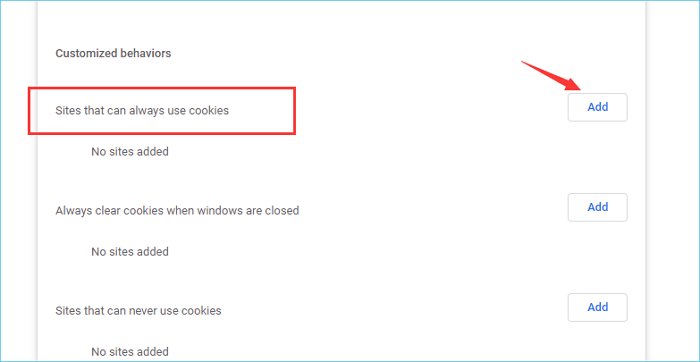
Step 3. Scroll down to find the "Site that can always use cookies" option and click the "Add" button next to it.
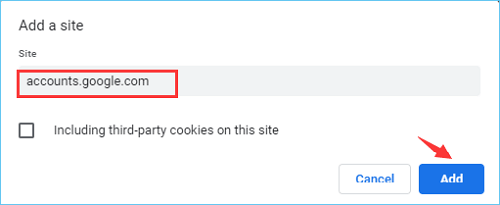
Step 4. In the pop-up window, type "accounts.google.com" and click "Add."
Step 5. Restarting the Google Chrome browser may resolve the issue where Google Chrome sync keeps pausing, allowing you to continue syncing your data without interruptions.
Solution 5. Reset All Google Chrome Settings
If all other troubleshooting methods fail to resolve the Google Chrome sync keeps pausing issue, you can try resetting all Google Chrome settings.
Step 1. To reset Google Chrome, open the browser and type "chrome://settings/reset" in the address bar, then press Enter.
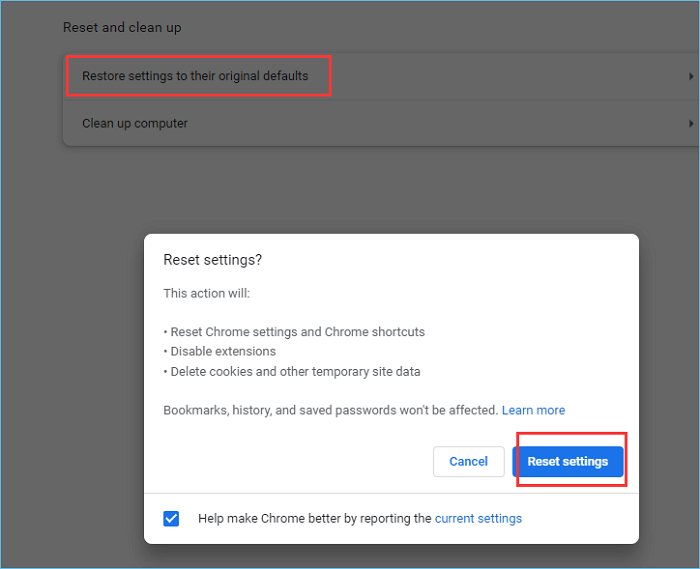
Step 2. To reset Chrome settings to their original defaults, click on the "Restore settings to their original defaults" option and then click on the "Reset settings" button in the pop-up window to confirm the operation.
Step 3. If the issue persists, try restarting your Google browser to see if it resolves the sync pause issue. This simple step can often resolve connectivity problems and get your Google sync back on track.
We hope that the solutions provided here will help you successfully resolve the Google sync keeps pausing issue.
You Should Back Up Google Chrome Regularly to Keep Your Account Safe
It's a good idea to regularly back up Google Chrome data to prevent loss in case of a sync pause issue. You can use a tool like Qiling Backup Home, which allows scheduled backups, making it easy and hassle-free.
To learn how to back up Google Chrome bookmarks and passwords, please refer to our guide, which offers two simple methods for backing up Chrome, including using Qiling Backup.
Conclusion
If you're experiencing issues with Google Chrome sync pausing, there are four potential solutions to try. Backing up Google Chrome regularly is also a good idea to keep your Google account data safe. Hopefully, these solutions will help you resolve the issue effectively. Thank you for reading!
FAQ on Google Chrome Sync Keeps Pausing
1. Why does my Google Chrome sync keep pausing?
Google Chrome sync may keep pausing due to various factors, including Google permission settings, Chrome extensions, administrator settings, and other potential causes.
2. Are there any sync alternatives that can back up your Google Chrome account?
Google Sync may not be the safest option for saving account data on different devices, as it can lead to data loss during syncing or sync pauses. A safer alternative is to use Qiling Backup, which allows you to perform backups of your data, as well as disks, systems, and more, providing absolute security for your digital work.
Related Articles
- 4 Ways to Open Microsoft Management Console [2022 Step-by-Step Guide]
- What Is "Format FS=NTFS Quick" and How to Use It? [2022 Full Guide]
- Fix 'Startup Repair cannot repair this computer automatically' in Windows 10/8/7/Vista
- Automatically Copy Files When USB Drive Connected
- GoPro Support: How to Fix Corrupted GoPro Video Files Efficiently
Stay calm if you cannot play GoPro video files on the camera. 3 reliable methods - Qiling video recovery software, with GoPro SOS, and VLC are available here to help you fix the corrupted video files, making your shots viewable again on GoPro cameras. - 5 Ways | How to Fix Data Error Cyclic Redundancy Check
Drive shows 'Data Error (Cyclic Redundancy Check)' on Windows 10/8/7? Learn 5 proven fixes to resolve CRC errors and prevent data loss on your hard drive, USB, or external storage.
Products
Articles & Tutorials
- Data Recovery
- Data Backup
- File Recovery
- File Backup
- System Backup and Restore
- Disk and Partition Clone
- Technical articles
- Mobile articles
- Disk Master Help
- Windows Data Recovery Tutorials
- Windows Secure Delete Tutorials
- Windows Partition Management Tutorials
- Windows File Backup and Restore Tutorials
- Windows System Backup and Restore Tutorials
- Windows Disk Backup and Restore Tutorials
- Windows Clone Tutorials