[Problem Solved] How to Install Mods in Sims 4 in 2023
The Sims 4, released in 2014, is the 4th generation of the Sims series and has been extremely popular, reigning as the top simulation game.
In the 8 years since its release, Sims 4 has continued to attract new players through regular updates, expansions, and platform additions, including a free download on October 18, 2022, which has brought in fresh blood to the game.

This article aims to provide detailed guides for new Sims 4 players on how to install mods in Sims 4, which can greatly increase the fun of the game, and also offers a solution to back up your Sims 4 files for added peace of mind.
Why Should Players Add Mods and CC in Sims 4
The Sims 4 allows for high playability, enabling players to create and customize their Sims, from choosing their name and appearance to planning their careers and purchasing homes, with the ability to manipulate their social interactions and activities.

Due to limited game data, Sims 4 lacks a wide range of personality items, making the game experience repetitive and potentially boring for players.
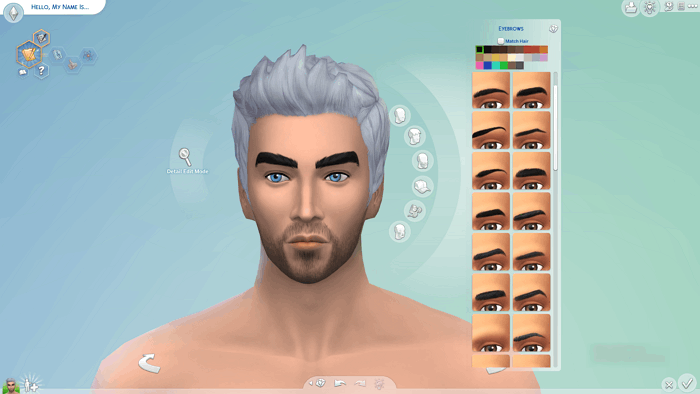
The game introduces a custom game engine and allows players to create and add Custom Content (CC) and Mods, which can maximize their choices, bringing new clothes, hairstyles, behavior styles, and more to their Sims, making the world they build more personalized and diversified.

Where to Find the Best Mods of Sims 4
To get the best Sims 4 mods or CC, you can visit some websites where talented players share their creations. Once you've found the mods you like, you can download them and follow these steps to install them in your Sims 4 game.
Here are some great websites we recommend.
After downloading mods from websites, you typically receive a compressed file. Only the .package and .ts4script files within this file are necessary to install in Sims 4, as these are the actual mod files.

How to Install Mods in Sims 4 on Steam/Origin
Sims 4 players on PC and Mac can install custom content (CC) and mods, but console users cannot. To do so on Steam or Origin, PC and Mac users can follow the methods outlined, which are not applicable to Xbox and PlayStation users.
The step-by-step guides and matters needing attention are shown below.
- Install Sims 4 mods/CCon Windows PC
- Add Sims 4 mods/CC on Mac
- Adjust Game Options
- Matters Needing Attention
Install Sims 4 mods/CC on Windows PC
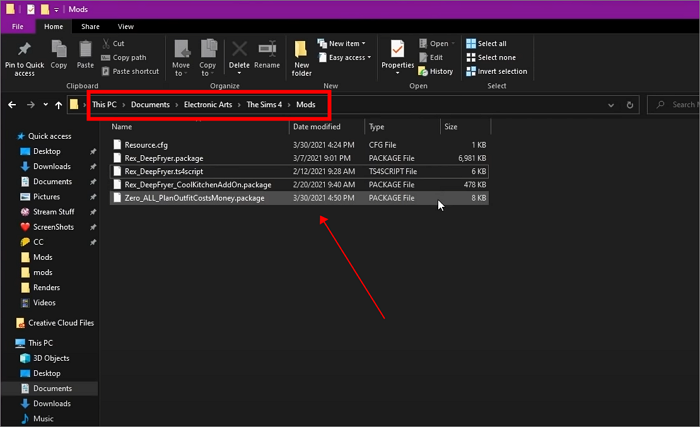
Step 1. Open Windows File Explorer and click "Document"
Step 2. Hit Electronic Arts > The Sims 4
Step 3. Now here is the Mods folder
Step 4. Put the Mods files you installed before into this folder
Add Sims 4 mods/CC on Mac
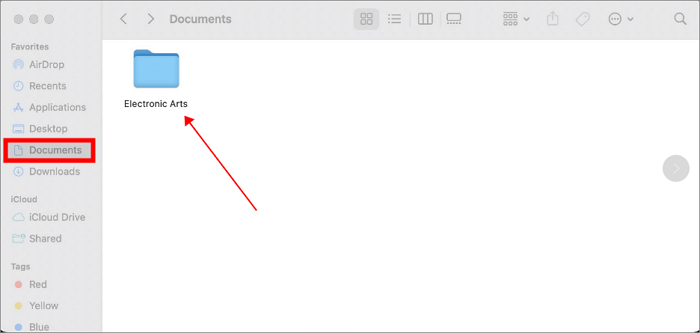
Step 1. Open Finder and click "Document"
Step 2. Hit Electronic Arts > The Sims 4
Step 3. Now here is the Mods folder
Step 4. Put the Mods files you downloaded before into this folder
- Tip
- If you download Households/Lots/Rooms mods from a website other than Sims 4 Gallery, place them in the Tray folder, not the Mods folder.
Adjust Game Options
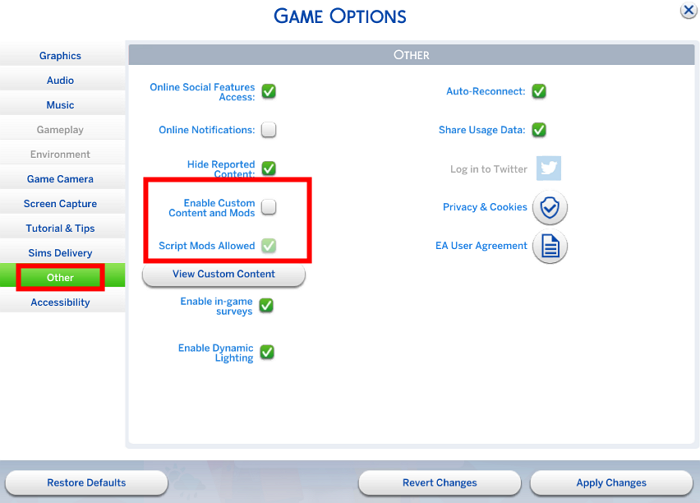
After copying the mods and custom content to the folder, make sure to enable the option "Enable Custom Content and Mods" in the Game Options, allowing the mod files to function.
Here are the 3 easy steps you should follow.
Step 1. To start the Sims 4, click the Options button located on the right menu bar.
Step 2. Select Game Options>Other
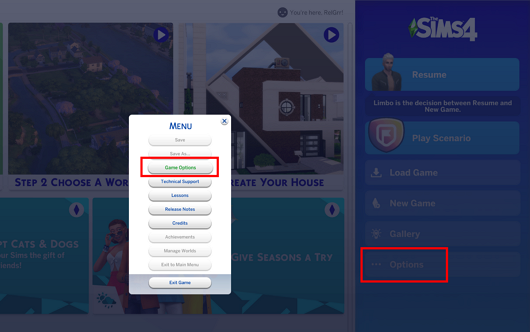
Step 3. To enable custom content and mods in the game, check the option "Enable Custom Content and Mods" and apply the changes. This will allow you to install and use custom content and mods from the game's community, which can add new features, gameplay mechanics, and visual effects to the game.
Matters Needing Attention
If you've already added mods and custom content to Sims 4 and successfully enabled them, don't become complacent - every time the game is updated or a patch is added, your mods can easily lead to game code errors.
The Sims 4 mods can be unstable and cause issues with the game's normal operation, potentially damaging your save data. To prevent this, it's essential to create a scheduled backup plan for your mods and save files, ensuring the stability of your mods files and the security of your game data.
How to Backup Sims 4 Mods and Saves File
While you can use the copy function to save Sims 4 mod and saves files to another location, we recommend using the best backup software, Qiling Disk Master Pro, for a more reliable and efficient backup process.
Qiling Disk Master Pro is a professional software that meets all backup needs of game players with its excellent performance. It can back up PC game saves and help set up a dedicated backup plan, also supporting incremental and differential backup modes that automatically back up new content when added to the Mods folder. Additionally, the software provides 250 GB of free Cloud storage, allowing users to save backup files and free up disk space.
Conclusion
Adding mods and custom content (CC) to Sims 4 is a crucial part of enhancing gameplay, but it requires careful installation to avoid damaging game data. To install mods, regular file backups are essential, and tools like Qiling Disk Master Pro can be useful in this process.
FAQs
1. What are mods and CC?
The MOD in Sims 4 allows for modifications to game settings, changing sim behavior, and introducing new functions, enhancing gameplay.
Compared to modding, creating Custom Content (CC) in Sims 4 is much simpler. CC typically involves adding items like clothes, hairstyles, facial features, furniture, and other decorative items that creators want to add to the game, giving players more options for customizing their Sims' appearances and homes.
2. How do I manually install a mod on Steam?
To install mods in The Sims 4, you should copy the mod files from the unzipped ZIP folder into the Mods folder, which can be accessed by opening File Explorer, navigating to Documents > Electronic Arts > The Sims 4 > Mods, and then placing your mods into this folder.
Related Articles
- Fixed: This Device Is Currently in Use [Updated 2023]
- (Solved!) How to Effectively Download Windows 10 ISO Without Tool
- How to Resolve reCAPTCHA Not Working in Any Browser
If you're experiencing issues with reCAPTCHA not working in your browser, it may be due to outdated browser versions, VPN errors, or malware intrusion. - How to Fix Samsung SSD Clone Failed [2023 Full Guide]
Do you know why Samsung SSD Clone Failed? This guide will help you figure out the reasons and give you a full guide to fix this error. - Download Windows 10 21H2/21H1/20H2/2004/1909/1903 ISO and Fix Fail to Install Error
Download and install Windows 10 21H2/21H1/20H2/2004/1909/1903 ISO without data loss. Fix KB5015020/KB5008212/KB5013945/KB4592449 update installation errors with proven solutions. - How to Fix Getting Windows Ready, Don't Turn off Your Computer (2022 Tips)
If your PC is stuck on the “Getting Windows ready” screen, try these solutions one by one to resolve the issue without turning off your computer. You can also use Qiling data recovery software to efficiently restore any lost files during the process.
Products
Articles & Tutorials
- Data Recovery
- Data Backup
- File Recovery
- File Backup
- System Backup and Restore
- Disk and Partition Clone
- Technical articles
- Mobile articles
- Disk Master Help
- Windows Data Recovery Tutorials
- Windows Secure Delete Tutorials
- Windows Partition Management Tutorials
- Windows File Backup and Restore Tutorials
- Windows System Backup and Restore Tutorials
- Windows Disk Backup and Restore Tutorials
- Windows Clone Tutorials