How to Backup PC Game Saves in 4 Different Ways
Why Do You Need to Backup Saved Game Files
Backups are still necessary for gamers, even with cloud storage, as they ensure your game saves, progress, and settings are safe in case of hardware failure, software corruption, or other unexpected events. Cloud storage can be unreliable, and a local backup provides an extra layer of protection for your gaming data.
Many games still store their data locally, despite the trend of cloud storage. However, this can be a risk, as data stored on a local device is vulnerable to loss due to system updates, game updates, computer viruses, failing hard drives, or other unforeseen circumstances. To avoid losing game saves, it's essential to back up the game files before any potential issues arise, as once they're lost, it's too late to recover them.
Backing up game saves is essential to prevent losing progress in case of file deletion or loss, and it allows for easy transfer of game files to other platforms.
4 Ways to Backup Game Saves on your Computer
Backing up saved game files on your PC is a straightforward process that can be achieved through several methods. One practical way is to manually copy and paste the game save files into a designated backup folder, ensuring they're easily accessible in case of a system crash or hard drive failure. Another option is to use a cloud storage service like Google Drive or Dropbox to automatically sync your game saves, making them accessible from any device. Additionally, you can utilize a dedicated game save manager like Game Save Manager or a backup software like Qiling Disk Master to automate the backup process.
- Tip
- To initiate the backup process for your game, first locate the game files on your computer. Be aware that different games save their files in various locations, so it's essential to identify the specific folder where your game's files are stored. Common locations for game files include the Documents, My Games, or Program Files folders, depending on the game. Once you've identified the correct folder, you can proceed with backing up the files.
- C:\Users\NAME\Saved Games\GAME
C:\Users\NAME\Documents\GAME
C:\Users\NAME\Documents\My Games\GAME
C:\Users\NAME\AppData\Local\GAME
C:\Program Files\GAME
C:\ProgramData\GAME
C:\Program Files\Steam\USER\GAME
Way 1. Backup Game Saves via File Backup Software
Using professional backup software like Qiling Disk Master is the easiest way to back up your game files. This software is precisely the one you need to ensure your game files are safely stored and easily recoverable.
Qiling Disk Master Pro is an all-in-one backup and recovery program for Windows 11/10/8/7 that allows users to select and back up game files, APPs, and even Minecraft worlds with a few clicks, saving them to a single file or other locations. This backup software also enables users to create automatic, scheduled, full, incremental, and differential backups and save them to different locations, making it a valuable tool for users who want to protect their data.
- Reinstall Windows without losing games.
- 250G free cloud storage.
- Create an iso image from the operating system.
- Clone a hard drive and create a bootable USB.
- Install Windows on the new SSD without USB.
- Security Zone to protect data.
The following are the detailed steps to back up your saved game files.
Step 1. To start the backup process, click the Select backup contents button.

Step 2. There are four main categories of data backup: File, Disk, OS, and Mail. Each category serves a specific purpose in protecting different types of data, including individual files, entire hard drives, operating systems, and email accounts.

Step 3. Lists of both local and network files are shown on the left-hand side of the screen, allowing you to expand the directory and choose the specific files to back up.

Step 4. Please follow the on-screen instructions to select the location where you want to store the backup.

To ensure your backup is secure, make sure it's encrypted. You can also customize the backup schedule by clicking on "Options" in "Backup Options" or "Backup Scheme" to start the backup at a specific time. Additionally, there are other customizable options available for further configuration.

Step 5. You can save the backup file on your computer, in Qiling's cloud service, or on a network-attached storage device (NAS).

Step 6. Qiling Disk Master allows customers to store backup copies of their files on either a third-party cloud drive or Qiling's own cloud storage.
To back up your data on a third-party cloud drive, select Local Drive and scroll down to add Cloud Device, then fill in your account information.
Click Qiling Cloud, then sign up and log in with your Qiling account if you wish to store backup files to Qiling's own cloud storage service.
Step 7. To start a backup, click on "Proceed" and once the process is complete, the backup will be displayed on the left-hand side of the screen. You can right-click on the backup card to view more details and options for handling the backup job.
Way 2. Manually Backup Saved Game Files
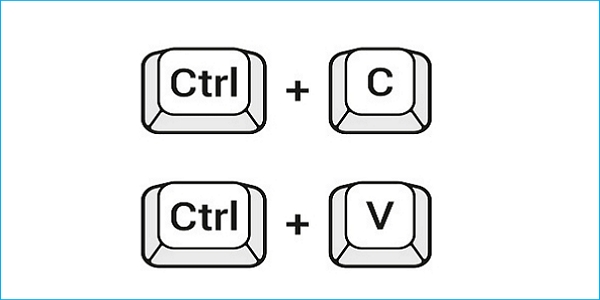
You can also back up your saved game files manually by copying them. To do this, select the files you want to back up, press "Ctrl + C" to copy them, and then go to the desired backup location and press "Ctrl + V" to paste them. This method allows you to manually save your game files.
Step 1. To back up a game, go to the game file folder and find the file that contains the game you plan to back up.
Step 2. Press the Ctrl + C keys, or right-click on that file and select Copy.
Step 3. To paste copied content, navigate to the desired location and press the Ctrl + V keys, or right-click and select Paste.
Step 4. Wait for the process to be done.
Way 3. Backup Game Saves Using File History
File History has been a practical feature in Windows since Windows 8, allowing users to back up various files, including documents, music, videos, pictures, and desktop folders, with automatic backups accessible at any time. To back up saved game files via File History, follow these steps.
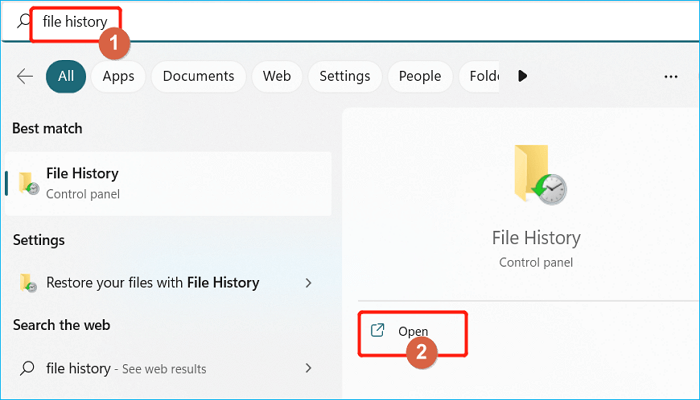
Step 1. Connect an external hard drive to your computer, then type File History in the Windows search box and click Open to use it.
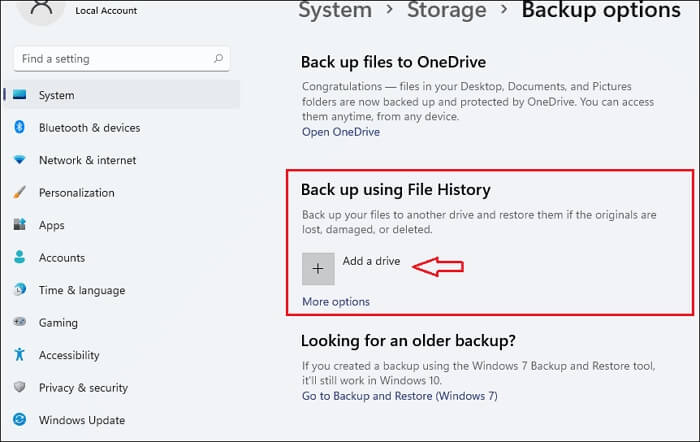
Step 2. Click Add a drive, and select the backup drive.
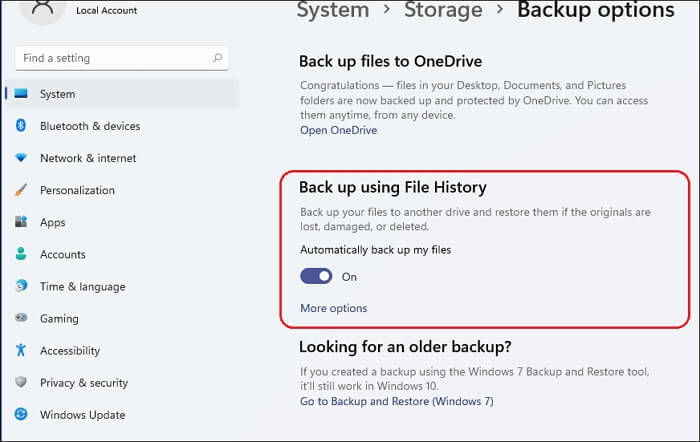
Step 3. Select "On" under "Automatically back up my files".
Step 4. Click on "More options" to customize backup needs.
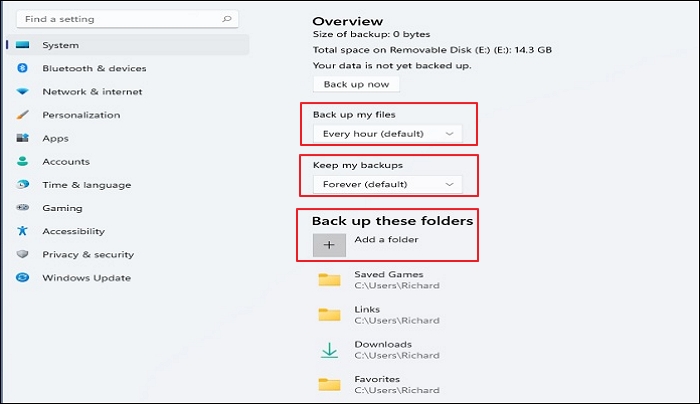
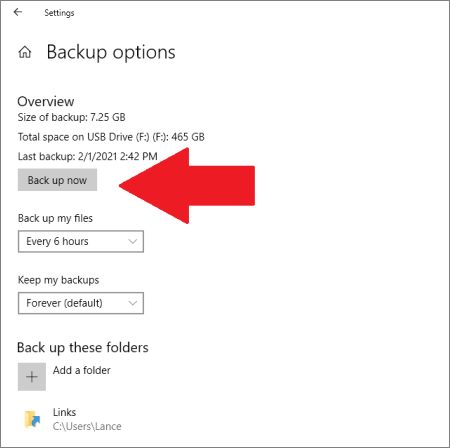
Step 5. To back up your saved game files, click Add a folder and select the subfolders containing the files you want to back up. Then, click "back up now" to start the backup process, which will copy the files to the connected external drive.
Way 4. Sync Game Saves with OneDrive
OneDrive offers 5 GB of free storage, allowing you to store and sync your files. You can use this service to create a game file backup, following the detailed steps provided. This will enable you to securely store and access your game files from anywhere.
Step 1. Type OneDrive in the search box and open it.

Step 2. Sign in to your account. You can create one if you do not have an account.
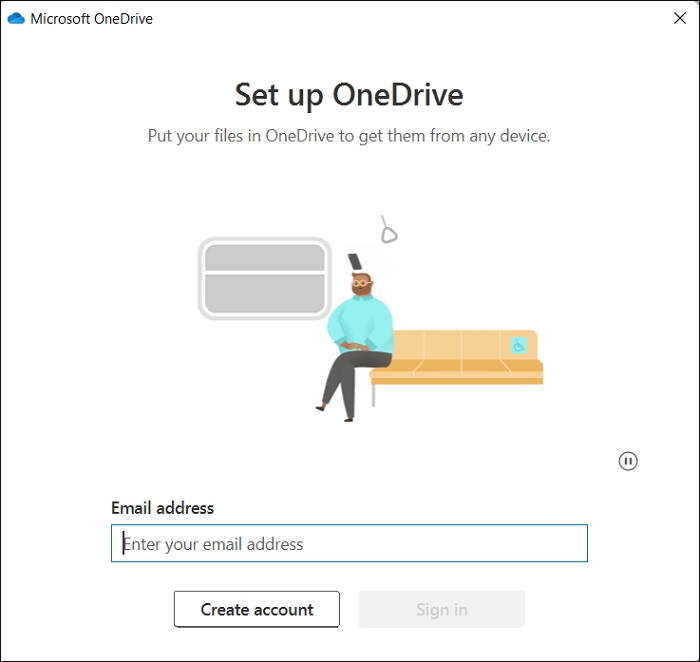
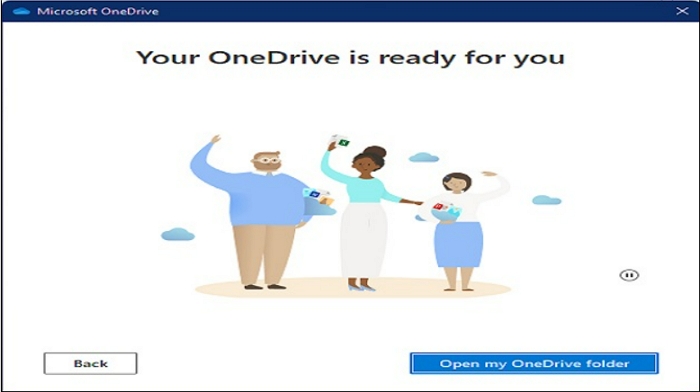
Step 3. OneDrive is ready for use when you finish the guides.
Step 4. To upload your game file, open your OneDrive folder, and then drag the game file into it. This will copy the file into your OneDrive storage, making it accessible from any device connected to your account.
The Best Way to Backup Game Saves
As a gamer, protecting your game data is crucial, and backing up your saved game files is a great way to do so. You can use any method mentioned in this article to back up your game saves, but I highly recommend using Qiling Disk Master Pro to ensure your game data is safely backed up.
Qiling Disk Master Pro is a multi-functional backup and recovery utility that allows users to back up their favorite games and perform other backup tasks to ensure data security.
FAQs
1. How do I backup my games on Windows 10?
You can use Windows 10 File Explorer to back up game save files by launching File Explorer, navigating to the game's save file location, and backing up the necessary folder or subfolder. Alternatively, Qiling Disk Master may be a more suitable option due to its additional backup features and functions.
2. Does deleting a game on PC delete save data?
For most modern games, deleting the game from your PC does not delete your save data, because save files are typically stored separately in folders like My Documents or AppData rather than within the game's installation folder.
Related Articles
- ISO Is Corrupted| How to Fix a Corrupted ISO Files in Windows 11/10
- How to Backup Outlook Emails from Browser(OWA)
- Solutions: Windows 7 Backup on Windows 10 Not Working
- Windows 7 Backup Fails with Error 0x80070003 [FIXED]
- Is Perfect Backup Safe? | Get Your Quick Answer Here
- Windows 10 Game Save File Location🔥All You Want to Know
- How to Backup An External Hard Drive to Another External Hard Drive in Windows 10
Learn how to back up an external hard drive to another external hard drive in Windows 10. Follow three clear methods to copy, transfer, or protect your files safely.
Products
Articles & Tutorials
- Data Recovery
- Data Backup
- File Recovery
- File Backup
- System Backup and Restore
- Disk and Partition Clone
- Technical articles
- Mobile articles
- Disk Master Help
- Windows Data Recovery Tutorials
- Windows Secure Delete Tutorials
- Windows Partition Management Tutorials
- Windows File Backup and Restore Tutorials
- Windows System Backup and Restore Tutorials
- Windows Disk Backup and Restore Tutorials
- Windows Clone Tutorials