Windows 10 Game Save File Location🔥All You Want to Know
Saving games before quitting or turning them off is a habit every gamer has, allowing them to continue their progress from where they left off. However, when gamers need to switch PCs or reinstall Windows, this can become a problem, as they may lose access to their saved games.
Gamers often struggle to keep track of their saved game files, which can be deleted or lost in the process of reinstalling games or updating their systems. To avoid losing all their progress, many gamers take the initiative to back up their saved files, but finding the correct save file location is the first challenge.
Windows 10 game save files are typically stored in common locations. To find the save folder containing game files, users can check the following locations: %USERPROFILE%\Saved Games, %USERPROFILE%\Documents\My Games, or the game's installation directory. The location may vary depending on the game and Windows version. Users can also check the game's settings or documentation for specific save file locations.
How to Find and Open Game Files on Windows 10
Finding most of the game file locations in Windows 10 is quite a straightforward affair. Some games save save-game files in their own folders, while others require a registry search or a specific folder path. Games like Minecraft, Terraria, and Roblox save their files in their own folders, making them easy to locate. However, for other games, you may need to search the registry or use a specific folder path, such as the AppData folder or the Documents folder. It's always a good idea to check the game's documentation or online forums for specific guidance on locating save-game files.
- Ubisoft
- Rockstar Games
- Techland
- GOG Gamers/CD Projekt Red
There are numerous games with saved files that can be found in folders other than the Windows default folder, and it's a good idea to check the game's own folder before looking elsewhere. If the saved files are still not found, then checking the Windows 10 system for game files is the next step.
🎁Follow the steps below:
Step 1. Open My Computer/File Explorer by pressing Windows + E.
Step 2. Head into documents and check the game folders outside.

Step 3. If the games you want to open or save files from aren't in the list, go to the My Games folder and select the folder that contains the games you want to work with.

Step 4. Go into the specified folder and search for any extra save folders that may be hidden or not immediately visible.
Step 5. Right-click on one of the files inside the folder and select the "Open With" option.
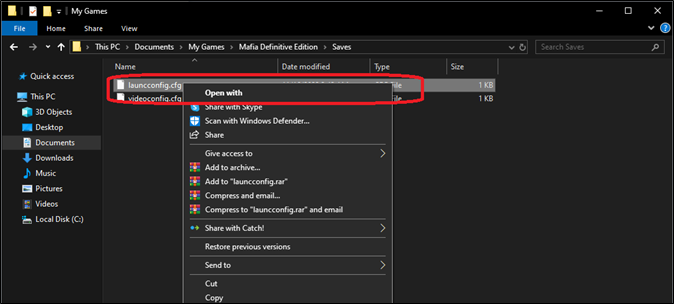
Step 6. To access Notepad, tap on the More Apps option, then select Notepad and click OK.
- Tip
- These game files won't be readable in Notepad or other software because only the game engine can interpret them, allowing players to resume their game from where they left off.
The primary Windows 10 game save file location is likely to be in the "C:\Users\YourUsername\AppData\Local\Microsoft\Windows\Savegame" or "C:\Users\YourUsername\AppData\Local\Microsoft\Windows\Savegame\GameName" folder, depending on the game. This is the most common location where game save files are stored on Windows 10.
How to Find Save Game Files on Steam on Windows 10
Most games require the Steam client to run on a Windows PC, as Steam is the primary distributor for many games worldwide. However, this means that Steam game files are not stored with Windows 10 game save file locations, making it essential to find and backup Steam cloud saves in Windows 10.
🎁Here is how to find the Steam games folder with saved files in Windows 10:
Step 1. Startup Steam on your PC.
Step 2. To access the Library option, navigate to the top of the main choices and click on the "Library" option.
Step 3. Then right-click on the title/game that you need the saved files for.
Step 4. Head into the Manage submenu.
Step 5. To access the saved game files, click on "Browse local files" to navigate to the games folder, and then explore the folder to locate the saved files.

This will take you to the folder of any of the games that you pick in your library, allowing you to access each game's file individually, especially useful if you have multiple games in your Steam library.
To backup your Steam game files, go to Steam > Settings > Cloud Saves, and toggle on "Enable Cloud Saves". Then, go to the folder where your Steam games are installed, usually in "C:\Program Files (x86)\Steam\steamapps\common\". Create a new folder and copy the "cloud" folder from the game's installation directory into it.
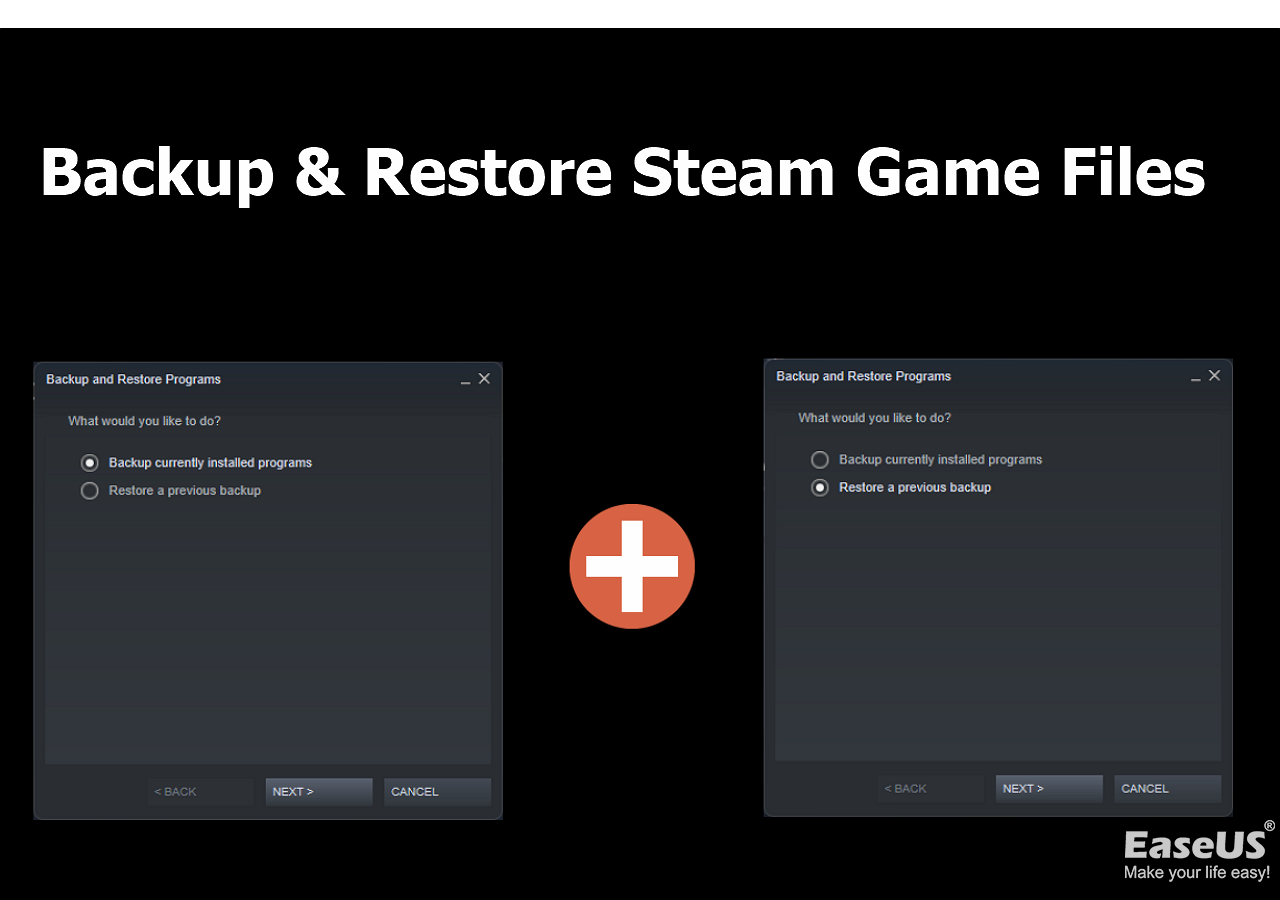
[Steam Tutorial] How to Backup and Restore Steam Game Files
This tutorial shows you how to back up and restore Steam game files in two ways. You can either use the Steam backup feature or file backup software to safely store your game files, giving you a way to recover them if needed.
Xbox Game Pass PC Save File Location on Windows 10
The location of the Xbox Game Pass save file on Windows 10 varies by game, but Xbox services save them in a single folder on your PC, specifically inside the "App Data" folder within your username's directory.
🎁Here's how you can locate Xbox Game Pass PC saves on Windows 10:
Step 1. Go to the C Drive and open the Users folder.
Step 2. Find your Username and head into that folder.
Step 3. To access the AppData folder, tap the address bar and type "\AppData" next to your username, then press Enter.

Step 4. Now find the Local folder and head into Packages.

Step 5. Then, find the save game folder next to a series of strings.

Xbox Game Pass folders are usually saved by Microsoft Store or Xbox apps within Windows, resulting in game names being followed by a string of random letters.
Microsoft Store Game Save File on Windows 10
The saved files from any Microsoft Store games will be in the App Data's subfolder called LocalLow, which can be accessed by navigating to the hidden App Data folder, requiring administrator privileges.
🎁Here's how you will find the Microsoft Store game files on Windows 10:
Step 1. Go to the C Drive, then Users, then Admin, and lastly the App Data folder.
Step 2. Find LocalLow Folder and double-click on it.

Step 3. To access the Microsoft folder inside LocalLow, navigate to LocalLow, then double-click on the Microsoft folder, and finally double-click on the game folder within it.

Step 4. Save or copy the contents within the folder.
You will see game names in the folder, making it easier to find your game titles. Save files for Microsoft Store games are stored here.
GOG Save File Location
GOG Save Files can be found in various locations on Windows 10, depending on the game installed and its configuration. They may be located in specific folders designated by the game developer. Alternatively, the save games by GOG can be found in the following locations:
- App Data folder
- Program Files
- Game installation folder
- Windows Documents
To find the GOG save file location for Witcher 3, check the folders listed in the GOG Galaxy settings, including the "My Games" folder, the "Save" folder, and the "Witcher 3" folder. Since you only have Witcher 3 by GOG on your PC, you can focus on the specific folders for that game. This will help you locate and manage your save files for Witcher 3.
🎁Here's where the save folder for Witcher 3 is on our PC:
Step 1. Head into the game Partition/hard drive and find the GOG Games folder.
Step 2. To access the game's files, you need to navigate to the game's folder on your computer. For example, if the game is Witcher 3, you would locate the folder titled "Witcher 3" on your computer.

Step 3. To safely back up your game saves, open the Bin folder and copy or back up the Save Data folder. This will ensure that your progress is preserved in case of a system update, game deletion, or any other issue that might affect your saves.

The location of "Save Data" varies by game, but it's usually found within the game's installation folder, which can be in the "App Data" or "Program Files" folder. It's essential to back up the game files, including the save data, to prevent data loss.
Pro Tip: How to Backup Game Save Files on Windows 10
To securely back up your files on Windows 10, you can use good-quality backup software like Qiling Disk Master Pro, which allows you to make a reliable backup of your files.
🌻There are a few other tools, but the things that make Qiling Disk Master Pro great for creating game save files backup are its ability to backup and restore game saves, clone hard drives, and recover data from damaged or corrupted drives.
- Get 250GB of free cloud storage to securely backup and save your files and other important data.
- The ability to create a one-click backup as well as instant recovery
- Save game data while updating the game
- High-efficiency recovery, even on unfamiliar computers
- Reinstall Windows without losing games
You should download and install Qiling Disk Master Pro on your PC to save important data and files, including save games. This can help you avoid losing them.
🎁The steps of using Qiling Disk Master Pro to backup your game files are listed below:
Step 1. To launch Qiling Disk Master Pro and backup a game, start by launching Qiling Disk Master Pro on your computer. Then, locate the file path of the game you'd like to backup. This involves navigating through your computer's file system to find the specific folder or directory where the game is stored.
Step 2. To back up your game saves, click on "Select backup contents" and then choose the "File" option. From there, select the saves folder that matches the location of your game files.

Step 3. To set your own backup cycle, hit the "Options" button, then select "Backup Scheme", and choose "incremental backup type".
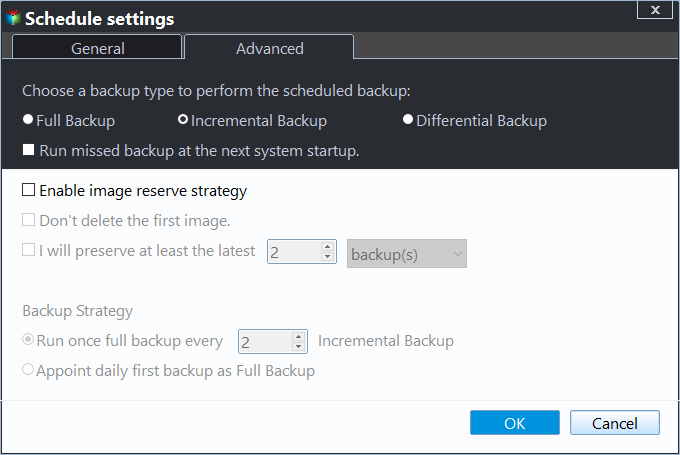
Step 4. Select a backup stored path from a local drive, Qiling free cloud, Nas, or Security Zone, then click the "Proceed" button to start the backup job now.

Conclusion
In Windows 10, saved games can be found in various file locations, including the "Users" folder, "Documents" folder, "My Games" folder, and the "Saved Games" folder. However, it's worth noting that some modern games may have unique storage methods, so the location of saved games may vary depending on the game itself.
You should search for specific titles if you can't find all your save games, but if you do find them, it's essential to back them up using Qiling Disk Master Pro to save them to cloud storage or your PC.
FAQs
1. How do I change the save file location for a game?
Most games today don't allow you to change your save file location, as they use tools like Steam or Epic Launcher to save their files. This means you'll have to use those software to alter the location of your saved files.
2. Where does Microsoft Store install games on a PC?
Microsoft saves game files in the App Data and LocalLow folder, where games appear as individual folders. If a game is not found there, try the Windows Apps folder in Program Files on the C Drive.
Related Articles
- Disk & System | How to Clone Windows 11 to SSD
- How to Disable Windows 10 Update in Every Way
- Backup and Sync No Longer Available: Try Another Way
- How to Solve Outlook Not Syncing with Gmail[2023 Tutorial]
- Best Free and Paid Disk Cloning Software for Windows 11🎭
- How to Backup and Restore 7 Days to Die Save [3 Effective Ways]
- Backup Windows XP and Create a Windows XP System Image [Full Guide]
Windows XP is still used on many computers today, and if you're one of them, you're likely wondering if you can create a backup or system image. The good news is that yes, you can, and this article will explore the three main ways to do so.
Products
Articles & Tutorials
- Data Recovery
- Data Backup
- File Recovery
- File Backup
- System Backup and Restore
- Disk and Partition Clone
- Technical articles
- Mobile articles
- Disk Master Help
- Windows Data Recovery Tutorials
- Windows Secure Delete Tutorials
- Windows Partition Management Tutorials
- Windows File Backup and Restore Tutorials
- Windows System Backup and Restore Tutorials
- Windows Disk Backup and Restore Tutorials
- Windows Clone Tutorials