[Newest Tips] How to Backup Steam Cloud Saves
Steam Cloud is a cloud storage service that allows users to upload game data, such as saves and settings, to a cloud space for hosting, including their Steam client settings and profile information.

In recent days, numerous negative posts about Steam Cloud have been flooding various forums, with many users losing trust in the service and seeking alternative ways to back up their Steam Cloud saves. This article aims to comprehensively analyze and address this issue from a multi-dimensional perspective, providing a solution to this problem.
Maybe you're interested in more posts about game information:
Why Should Steam Have Backups of Cloud Saves
The Steam Cloud saves are not reliable, so it's necessary to back them up.
Many players experience their game saves disappearing after using Steam Cloud, and due to its automated nature, it's unlikely that lost data can be recovered.
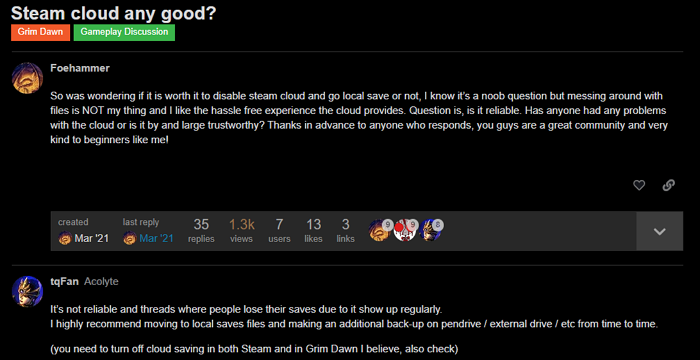
Steam Cloud can save game progress, but it's not a backup tool. Its main purpose is to transfer game data across PCs and allow users to access their game progress from any device with the same account.
The Steam Cloud synchronization is not reliable for securing game data, so it's recommended to back up game data manually. To do this, locate the Steam Cloud local save location, which can be found by following the steps provided, and then perform a backup of the game data. This will ensure that your game data is secure and can be recovered in case of any issues.
Where to Find Steam Cloud Save Location
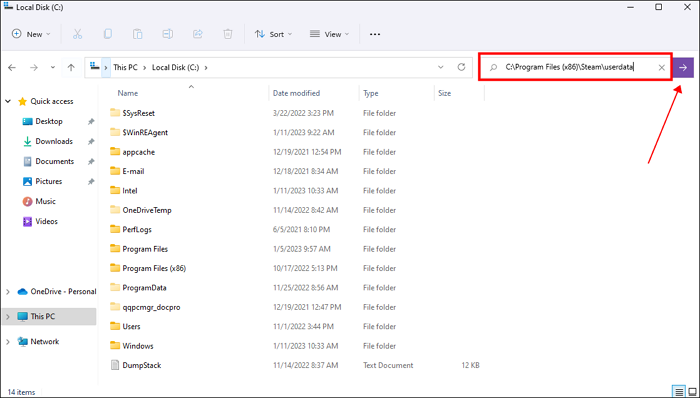
Steam Cloud saves cloud files by default in a specific local location, which varies depending on your operating system. Please check the corresponding save location for your OS.
To access your saves, open File Explorer, navigate to the local folder by searching the address, and you can easily find your saves.
- Tip
-
To find the Cloud saves location of specific games, add /(Your Steam ID)/(game ID) after the path shown above.
The Monster Hunter Rise file location is C:\Program Files (x86)\Steam\userdata\[Your Steam ID]\1446780.
How to Backup Steam Cloud Saves
To avoid potential damage to your game data, please back up the necessary saves file immediately after finding the Steam Cloud save location.
While manual backup by copying and pasting files to a specific location on the computer is a viable option, it can become cumbersome, especially for frequent users, as it requires creating backups after every game session.
Using Qiling Disk Master Pro, a professional software, is the best choice to automatically back up Steam Cloud saves.
Qiling Disk Master Pro is the best PC game saves backup software, offering a scheduled backup plan that allows users to choose from full, incremental, and differential backup modes, and set a backup cycle that suits their daily game time.
Qiling Disk Master Pro automatically backs up the latest game data every time you update your game progress, allowing you to easily recover your saves. Additionally, it offers 250 GB of free cloud space to store your backups, making it easy to transfer your saves to another PC.
To back up your Steam Cloud saves using Qiling Disk Master, follow these steps: First, install Qiling Disk Master on your computer and launch it. Then, click on the "Backup" button on the main interface.
Step 1. To initiate a backup, click the Select backup contents option.

Step 2. There are four data backup categories, File, Disk, OS, and Mail, which can be accessed by clicking on the "File" option.

Step 3. The list will display both local and network files, allowing you to extend the directory to select the backup files.

Step 4. Follow the on-screen instructions to choose a location to store the backup.

To encrypt the backup with a password, click Options, then select Backup Options. Next, click Backup Scheme to specify the backup schedule and start the backup at a certain event. This allows you to tailor the backup process to your specific needs.

Step 5. The backup can be stored on a local disk, Qiling's online service, or NAS.

Step 6. Qiling Disk Master allows customers to back up data to both their own cloud drive and a third-party cloud drive.
To back up data to a cloud drive provided by a third party, select Local Drive, scroll down to add Cloud Device, and add your account to log in.
Step 7. To proceed with the backup process, click the "Proceed" button. Once the backup job is complete, it will be displayed as a card on the left side of the panel. You can then right-click on the backup job to manage it further.
Conclusion
This article provides a detailed analysis of the limitations of relying on Steam Cloud and presents a straightforward solution to backing up Steam Cloud saves. To achieve this, you simply need to download Qiling Disk Master Pro, locate the Steam Cloud saves folder, and utilize the software to create a backup.
FAQs
1. How to Download Steam Cloud Saves
Here are the simple steps for you to download Steam Cloud saves.
Step 1. Log in to the Steam Cloud website with your Steam ID
Step 2. Find the game you want to download saves in the game list
Step 3. Click the Show Files option, and you can see several save files with different modification date
Step 4. Hit the Download button and you can get the Steam Cloud saves now
2. How to Restore Steam Cloud Saves
To restore Steam Cloud saves easily, follow these steps: first, make sure you're logged into your Steam account on the device where you want to restore the saves. Next, go to the Steam Cloud Saves page by clicking on the "Cloud Saves" tab in the Steam client.
Step 1. Log in to the Steam Cloud website with your Steam ID
Step 2. Download the saves you want to restore
Step 3. Put the file you downloaded to the game's local save file location
3. How to Delete Steam Cloud Saves
Step 1. Launch Steam and download all saves of the game from Steam Cloud
Step 2. Change the Steam mode to Offline and navigate to the game's local file location
Step 3. Open the App ID folder and delete the save files you don't want to keep
Step 4. Start the game and then end it
Step 5. Change the Steam mode to Online
Step 6. There will show a file conflict status on the library page and please hit it
Step 7. Now you can choose to use the local files to override contents in the Steam Cloud.
For a game-specific example of protecting local progress, see Pacific Drive Save File Location on Windows before relying only on a cloud copy.
Related Articles
- Boot Device Not Found Hard Disk 3F0 Error on HP [FIXED]
If you facing hard disk 3f0 errors and looking about How to fix hard disk 3F0 errors, this article has it all. We discuss the potential reasons and practical solutions to fix boot device not found hard disk error (3f0) on hp. - Fixed | Failed to Create Volume Snapshot (6 Ways)
This page illustrates what to do when you encounter the error "Failed to create volume snapshot" to backup or clone with Qiling. - How to Choose Suitable Digital Photo Storage Devices?
This page shows the five best ways to store your digital photos, and you can find good digital photo storage devices according to your needs after reading this page. - Windows 11 Virus & Threat Protection Not Working (2024 Fixes)
Many users have reported Windows 11 virus and threat protection not working. We have wrapped up a few solutions here in this blog for our readers to let them get rid of this issue. - How to Backup External Hard Drive to Synology NAS (2024 Easiest Way)
To ensure efficient data protection, follow our step-by-step guide on how to backup your external hard drive to a Synology NAS. This will help safeguard your valuable data on your NAS device. - How to Backup Onedrive to Synology NAS - 3 Effective Ways
If you're looking for a way to back up OneDrive to your Synology NAS, this guide provides a solution. It outlines three working methods to ensure your OneDrive files are safely backed up to your Synology NAS, with step-by-step instructions provided.
Products
Articles & Tutorials
- Data Recovery
- Data Backup
- File Recovery
- File Backup
- System Backup and Restore
- Disk and Partition Clone
- Technical articles
- Mobile articles
- Disk Master Help
- Windows Data Recovery Tutorials
- Windows Secure Delete Tutorials
- Windows Partition Management Tutorials
- Windows File Backup and Restore Tutorials
- Windows System Backup and Restore Tutorials
- Windows Disk Backup and Restore Tutorials
- Windows Clone Tutorials