How to Backup Onedrive to Synology NAS - 3 Effective Ways
Microsoft OneDrive is a popular cloud storage service that allows users to store, sync, and share files, photos, videos, and documents across devices and regions.
Many users prefer not to rely only on OneDrive because cloud data can be affected by account issues, sync errors, accidental deletion, or network outages. A local NAS backup gives you another copy under your own control.
Backing up OneDrive to Synology NAS helps preserve cloud files on local network storage, so important data remains available even if the Internet is down or the cloud copy becomes unavailable.
If you are not sure how to create a OneDrive backup on NAS, this Qiling guide covers three effective methods and helps you choose the one that fits your workflow.
The Benefits of Backing Up OneDrive to Synology NAS
Storing a copy of files on OneDrive to NAS, like Synology, offers numerous benefits. It provides an additional layer of data protection, ensuring that files are safe in case of device failure, theft, or other unforeseen events.
- 🔐Improve data security. Storing a second copy of your files locally on your NAS gives you more control over your data, allowing you to secure it from future security breaches or data loss incidents. This way, even if something happens to your main storage or online backups, you'll still have a safe and accessible copy of your files.
- 📡Offline accessibility. Even without internet access, you can still access your NAS files, ensuring continuous work.
- 📀Centralized management. Synology NAS units have unified administrative interfaces that simplify administering and monitoring OneDrive backups.
- 💰Cost-effective. OneDrive storage plans may have a monthly fee, but using your Synology NAS as a backup solution lets you use your existing storage capacity without any extra costs.
3 Effective Ways to Store OneDrive Files to NAS
Talked so much about OneDrive backup to Synology NAS; you must can't wait to know how to do it exactly. Here, we will discuss three ways in detail and offer step-by-step instructions. All three ways are effective, and you can choose one that you prefer.
Before making a final decision, consider the difficulty, description, and backup speed of each option, allowing you to choose the one that best suits your actual needs.
| Methods | Description | Speed | Difficulty |
|---|---|---|---|
| A professional backup software allows for seamless backup of OneDrive data to a Network-Attached Storage (NAS) device with minimal effort, requiring only a few clicks to initiate the process. | Very fast | ⭐⭐ | |
| Synology Cloud Sync | To sync data between OneDrive and Synology NAS, you can use the Synology Drive app, which allows for two-way syncing of files between the cloud and your NAS. This means that any changes made to files on either the OneDrive or Synology NAS will be reflected on the other. | Quick | ⭐⭐⭐ |
| Download and Upload | For a small quantity of files, manually downloading them from OneDrive and then uploading them to your NAS (Network-Attached Storage) device is a suitable approach. This method involves accessing the files on OneDrive, selecting the desired files, and saving them to your local device. | Slow, time-consuming | ⭐⭐⭐⭐⭐ |
1️⃣ Backup OneDrive to Synology NAS via Qiling Disk Master
If you're looking for an easy and time-saving OneDrive backup solution, Qiling Disk Master is the best choice. This excellent free file backup program allows you to back up files on OneDrive cloud to NAS with simple clicks, making it a great option even if you're unfamiliar with NAS.
The software supports various cloud services, including Google Drive, Dropbox, HiDrive, Box, and others, and is compatible with Windows 11, 10, 8, and 7.
Qiling Disk Master allows for scheduled backups, enabling automatic execution at a set time, which is particularly useful for large files, making the process more practical and efficient.
Now, download this robust tool to back up OneDrive files to Synology NAS:
- 📑What to prepare:
- Download Qiling Disk Master on your computer.
- Log into your OneDrive account on your computer.
- Connect the NAS device to the computer correctly.
Step 1. Click "backup and recovery" tab page.

Step 2. There are four data backup categories: File, Disk, System, and Sync. To create a file backup, click on the "File backup" option.

Step 3. Local and network files will be displayed on the left side, allowing you to extend the directory to select which files to back up.

Step 4. Click on the "Backup" tab and select the location where you want to store the backup by following the on-screen instructions.

Click "Options" to encrypt the backup with a password, set up a backup schedule, and choose to initiate a backup at a certain event. Further customization options are available for the backup process.

Step 5. You can save the backup to a local disk, Qiling's online service, or a NAS.

Step 6. Qiling Disk Master allows customers to back up data to both a third-party cloud drive and its own cloud drive.
To back up data to a third-party cloud drive, select Local Drive, scroll down to add Cloud Device, add your account, and log in.
Step 7. To start the backup process, click "Proceed". Once the backup is complete, it will be displayed as a card on the left side of the panel. To further manage a backup job, right-click on it.
When the backup process completes, all OneDrive files will be stored in the Synology NAS.
2️⃣ Backup OneDirve to Synology NAS via Synology Cloud Sync
OneDrive can be backed up to a Synology NAS through the built-in service, Synology Cloud Sync, which allows you to sync files between OneDrive and the NAS.
Syncing data between devices is different from backing up data, as it doesn't protect against data loss in the event of deletion. Once files are deleted on one device, they will also be deleted on synced devices.
Here are the steps to set up and back up OneDrive to Synology NAS: Install the OneDrive app on your Synology NAS, create a shared folder, link your OneDrive account to the shared folder, configure the backup settings, run the initial backup, and schedule the backup to run automatically. Once the initial backup is complete, you can access your OneDrive files from the Synology NAS, and the NAS will automatically sync any changes you make to the files.
Step 1. To access your Synology NAS, open a browser and navigate to the Synology NAS official website. Log in to your account to proceed.
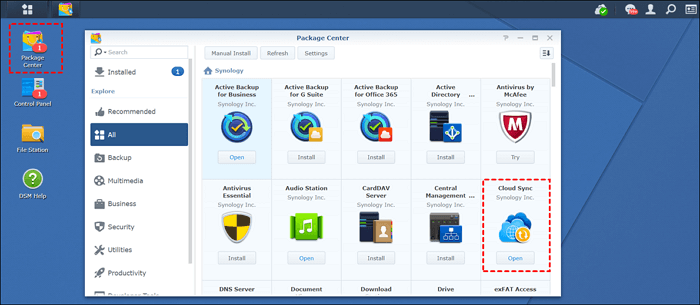
Step 2. Click Package Center, locate Cloud Sync, and install the software.
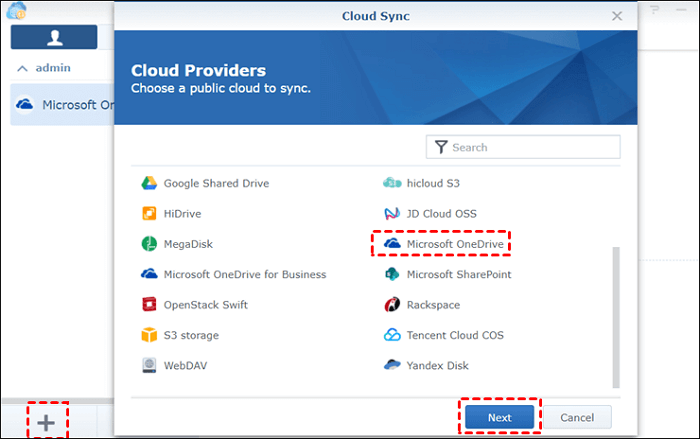
Step 3. To add OneDrive to your setup, click on the + icon and select OneDrive from the list, then click Next.
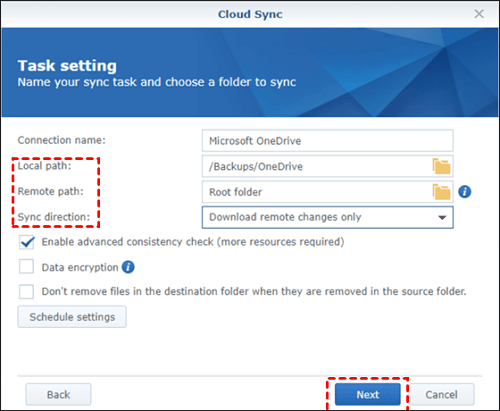
Step 4. Fill out the boxes in the next window.
- Local Path - Choose the file for backup.
- Sync DirectionSince you're backing up data to OneDrive from a Synology NAS, choose the 'Upload Local Changes Only' option.
- Remote Path To sync data, choose the folder from which you will sync the data as the Root Folder.
Step 5. Select the Next button to start the process.
3️⃣ Manually Download and Upload OneDrive Files to Synology NAS
If you don't want to install any program, manually downloading and backing up files from the cloud to the target location is the most straightforward way, but it's only suitable for a small number of files due to the time-consuming process and risk of data loss.
Now, follow the guidelines to back up OneDrive files to Synology NAS:
Step 1. Open the OneDrive on your computer, select and download the files/folders you want to back up.
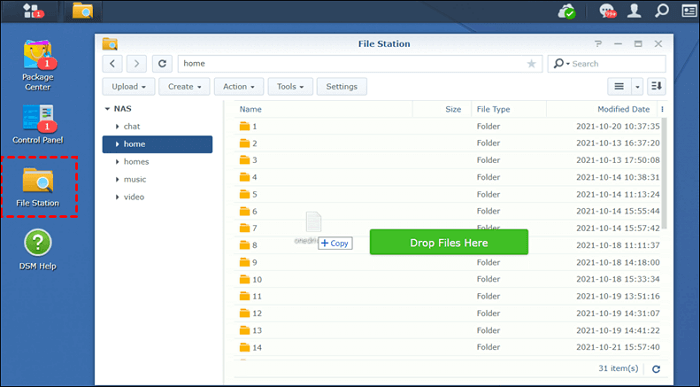
Step 2. Launch Synology NAS on the web > click File Station.
Step 3. Move the downloaded OneDrive files to the designated NAS folder for saving backups.
The Final Words
Backing up OneDrive files to Synology NAS can be achieved in three ways we mentioned above. You can choose one that you like.
We recommend Qiling Disk Master as the best option for backing up files from OneDrive to NAS, as it simplifies the process and ensures data safety. With its scheduled backup feature, you can set a plan to automatically store copies of added files to NAS, eliminating the need for manual operation. This makes your work easier and more efficient.
Backup OneDrive to Synology NAS FAQs
1. Can Synology back up to OneDrive?
You can easily back up your Synology NAS to OneDrive using Qiling Disk Master, a user-friendly NAS backup software, or by utilizing Synology's cloud sync feature to transfer data from your NAS to the OneDrive cloud.
2. Can I backup OneDrive to an external hard drive?
Backing up OneDrive to an external hard drive is a great way to ensure data safety and avoid accidental deletion. You can either manually download files from OneDrive and move them to an external hard drive, or use a backup software like Qiling Disk Master to do it automatically. This way, you can rest assured that your cloud data is safely stored on a physical device.
3. Does Synology NAS have a backup?
Synology NAS devices have built-in backup capabilities, offering various solutions such as Synology Data Replicator, Cloud Station Backup, Hyper Backup, Time Machine for macOS users, and Snapshot Replication to protect data stored on the NAS.
Related Articles
- How to Backup Only New or Changed Files in Windows 10 [2 Ways]
- How to Back Up Windows 10 to Synology NAS/Synology Windows Backup (2 Ways)
- How Can I Backup Files in Safe Mode
- Sync Files Between Computers Without Cloud (3 Alternatives)
- Windows 10 File History Not Working [Solved 2024]
- Backup Synology NAS to Cloud/External Hard Drive
- How to Move Netflix to Another Computer? [Step-by-Step Guide]
Do you want to know how to move Netflix to your new computer? This post will introduce you several valid methods to help you move your Netflix or transfer your Netflix downloads. Go and have a try!
Products
Articles & Tutorials
- Data Recovery
- Data Backup
- File Recovery
- File Backup
- System Backup and Restore
- Disk and Partition Clone
- Technical articles
- Mobile articles
- Disk Master Help
- Windows Data Recovery Tutorials
- Windows Secure Delete Tutorials
- Windows Partition Management Tutorials
- Windows File Backup and Restore Tutorials
- Windows System Backup and Restore Tutorials
- Windows Disk Backup and Restore Tutorials
- Windows Clone Tutorials