Windows 11 Virus & Threat Protection Not Working (2024 Fixes)
Key Takeaways
- The issue of Virus and Threat Protection not working is often due to conflicts between third-party antivirus software and the built-in protection programs or settings.
- To fix the issue, you can try the following solutions: update Windows, reset Windows Security, restart the Security Center service, run an offline scan, disable third-party antivirus, perform a full system scan, check Group Policy settings, reset your PC, run the Windows Security troubleshooter, perform SFC and DISM scans, verify date and time settings, or contact Microsoft Support.
- Creating a backup of your computer is necessary to add extra protection for your device in case of hardware failure or misoperation, allowing you to recover your data and settings.
Windows offers robust security features, including built-in virus and threat protection, which helps keep users safe from harmful attacks on their system.
Many Windows 11 users are experiencing issues with the virus and threat protection not working, causing problems and frustration. This guide provides effective tips to resolve the issue and get the virus and threat protection up and running again.
12 Fixes – Virus and Protection Not Working on Windows
Many Windows 11 users have tried various methods to resolve issues with the virus and threat protection facility, but some of these attempts have been unsuccessful and time-consuming. Fortunately, we have identified effective methods that have worked for others, saving you the hassle of trial and error.
1. Update Windows
To update Windows, go to Settings, then click on Update & Security, followed by Windows Update. From there, you can check for updates and install any available ones. This may resolve the issue with the threat detection facility.
Step 1. Go to Settings and open the Update & Security section.
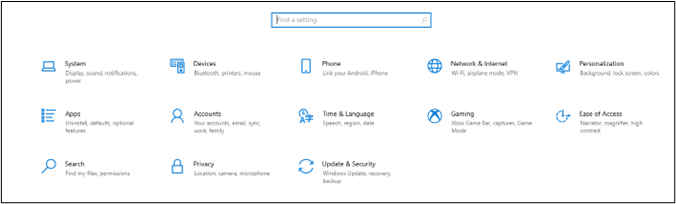
Step 2. Look for Windows Update in your computer and tap on the "Check for Updates" option.
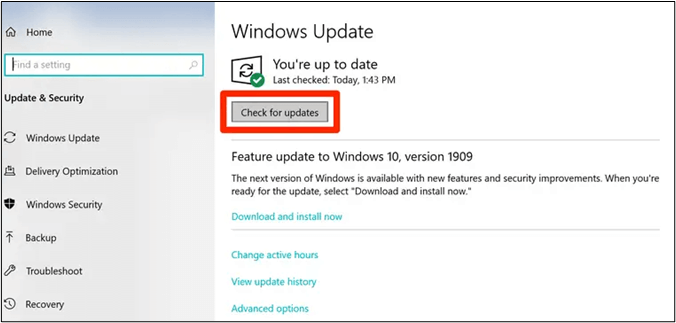
Your system will check for available updates and install them in your system. This option can help determine if the issue has been resolved by installing the latest updates.
2. Reset Windows Security Service
To reset the settings of Windows security, go to the Start menu and type "Windows Security" in the search bar. Click on the result to open the app. Click on the three dots at the top right corner of the app and select "App settings".
Step 1. To access Windows Security settings, navigate to Settings and select Installed Apps. From the list, find Windows Security and right-click on it.
Step 2. Choose App Settings and click on the Reset button.
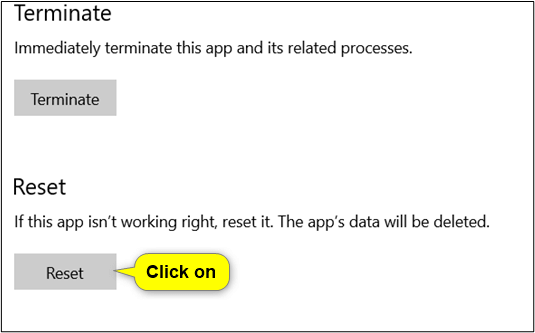
The application will reset all settings you have made in it, returning everything to its default state.
3. Check & Restart Windows Security Settings
To resolve the Windows security settings issue, you can try restarting them by following these steps. This may resolve the problem.
Step 1. To access the Services app in Windows, simply type 'Services' in the search bar and select the app from the results to open it.
Step 2. Look for Windows Security Service and start it.
Step 3. If the issue persists, try restarting the device, turning it off and on again, or resetting it to its factory settings. This can often resolve the problem.
4. Use Windows Security Offline Scan
If you're experiencing issues with Windows 11's virus and threat protection not working, you can try using the offline scanning option available in your system as a last resort. This may help resolve the problem.
Step 1. Go to Windows Security from your device's settings.
Step 2. Open Virus & Threat Protection and click on Scan Options.
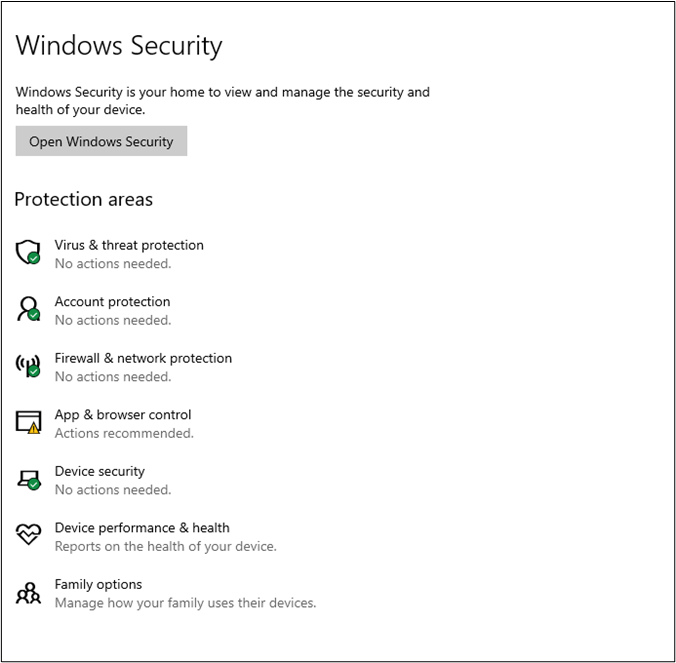
Step 3. Select Microsoft Defender Offline Scan and click the Scan Now button.
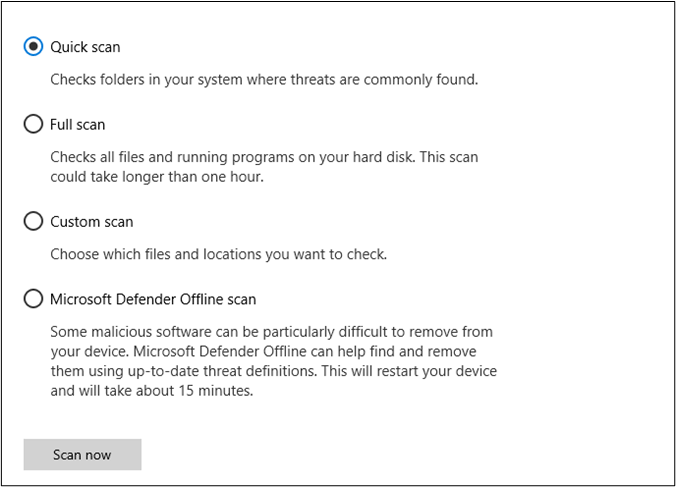
5. Disable Third-party Antivirus
Disabling or uninstalling third-party antivirus software may resolve conflicts with Windows built-in virus protection feature, allowing you to install updates without issues.
Step 1. Go to Settings and open the Apps section.
Step 2. Look for your concerned antivirus and click on it.
Step 3. Tap on the Uninstall button to move ahead with the solution. If you are prompted to confirm that you want to uninstall the app, tap Uninstall again to confirm.
6. Perform a Full System Scan
Run a full system scan to identify and fix the issue, which may help resolve the problem with your system's virus and threat protection.
Step 1. Go to Windows Security and open Virus and Threat Protection.
Step 2. Click on Scan Options given under Current Threats option.
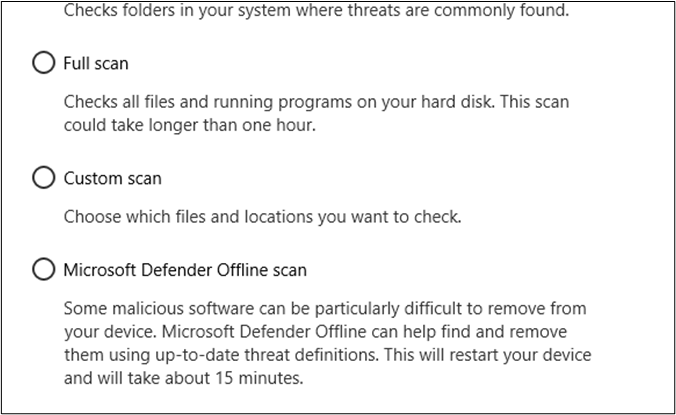
Step 3. To initiate a full system scan, tap on the "Full Scan" option and then click the "Scan Now" button.
7. Change the Group Policy Settings
By changing the group policy setting, you can also resolve this issue. So, follow these steps to perform this check and find out if the issue is solved.
Step 1. Press the Windows + R keys on your keyboard to open the Run dialog box. Type gpedit.msc in the box and press Enter to open the Local Group Policy Editor.
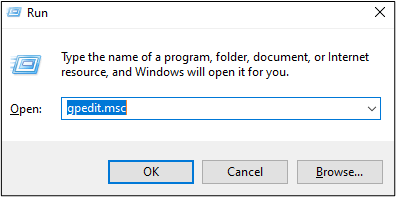
Step 2. To configure Windows Security settings, follow this path: Computer configuration > Administrative Templates > Windows Components > Windows Security > Virus and Threat Protection. This will allow you to set policies for virus and threat protection.
Step 3. Make sure that it is set as Not Configured, if not, change it to this setting.
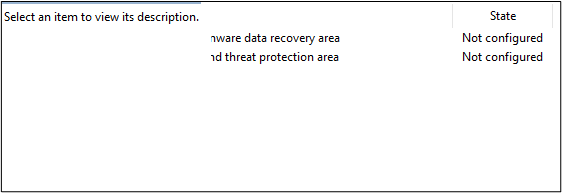
Now, close the Windows and try using this feature again. It might be possible your issue has been resolved.
8. Reset Your Computer
Changes in one application may be affecting the processing of virus and threat protection features, or resetting your computer may resolve the issue.
Step 1. Go to Settings and then choose Updates & Security.
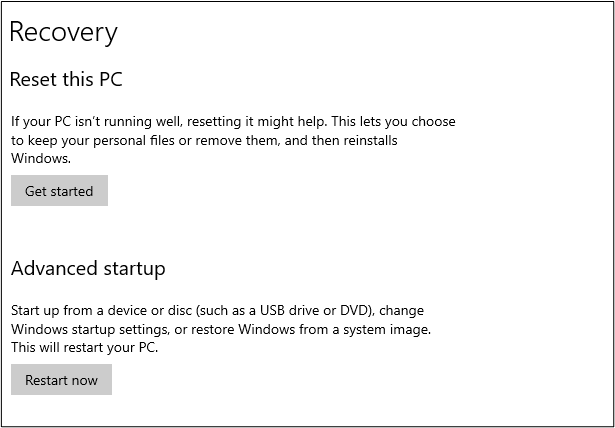
Step 2. Click on Recovery and then Reset this PC.
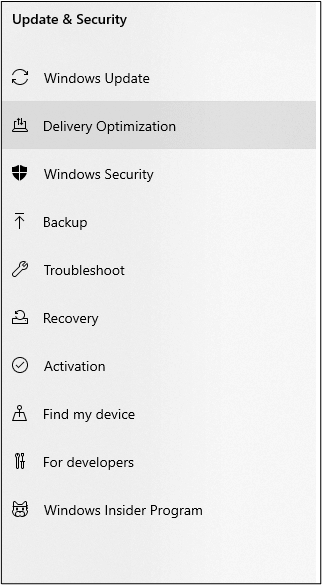
Step 3. To complete the process, tap on the Get Started button and follow the on-screen instructions.
9. Run Windows Security Troubleshooter
You can also run the troubleshooter by following these steps.
Step 1. Go to Settings and choose Update & Security.
Step 2. Click on the Troubleshooter option to complete this task.
10. Perform SFC and DISM
Run system file checking and DISM to resolve the issue.
Step 1. Press Windows + R to open the dialogue box.
Step 2. Type sfc /scannow after the second line in the box.
Step 3. Once a new window is opened, type `DISM.exe /Online /Cleanup-Image /Restorehealth` and enter.
The scan will take a few minutes to complete. Once finished, restart your system to verify if the issue is resolved.
11. Check Your Date and Time Settings
To ensure the system runs smoothly, it's recommended to set your device's date and time accurately, as incorrect time and date can cause system malfunction.
12. Seek Help from Microsoft Support
If you've tried all the troubleshooting steps and still can't resolve the issue, it's best to contact Microsoft support for assistance. They'll be able to provide personalized guidance and help you find a solution. This way, you can get the problem resolved efficiently.
If Windows 11's virus and threat protection isn't working as expected, consider TotalAV as a reliable alternative. This security solution provides robust features like a smart firewall, VPN, malware and virus scans, password protection, device optimization, and real-time protection, among others. You can purchase a subscription plan today to enjoy its comprehensive security benefits.
 TOTALAV
TotalAV is an award-winning antivirus software that provides real-time protection against viruses, malware, and online threats, keeping users' devices secure.
Antivirus Protection Enabled
Pro Tip: Better Way to Safeguard Your Computer from All Aspects
Having an antivirus tool installed on your PC can prevent many issues caused by malware, but technical issues like a hard drive failing can still occur. To keep your files safe, choose a software like Qiling Disk Master Free, which offers advanced options to backup data.
Using this software, you can schedule data backups and store your files in cloud storage, allowing you to recover your data even if your system encounters an error, and also gain access to advanced features.
We recommend downloading this software and keeping yourself safe from data loss.
[Causes] Why Windows Virus & Protection Not Working?
The issue may be caused by conflicts between third-party antivirus software and built-in programs, or by incorrect system settings.
Wrapping Up
This blog provides a solution to resolve Windows 11 virus and threat protection not working issues, helping to get your system back to smooth operation. It is recommended to use Qiling Disk Master to keep your data safe.
Share this post if you find it is helpful:
FAQs on Windows 11 Virus and Threat Protection Not Working
1. How do I reactivate virus and threat protection?
You can reactivate virus and threat protection using these steps.
- Go to "Windows Security."
- Look for "Virus and Threat Protection" and open it
- Toggle on all the buttons given on the screen
2. How do I enable Microsoft antivirus on Windows 11?
You can install Microsoft antivirus on Windows 11 by going to Windows Security and following the on-screen instructions.
3. Is Microsoft Defender antivirus included in Windows 11?
Microsoft Defender antivirus is a built-in feature in Windows 11 that provides protection against malware attacks.
If Windows Security quarantined a file, first confirm whether it is safe to restore; the quarantine recovery guide separates false positives from genuinely deleted files.
Related Articles
- 500 GB Free Cloud Storage 2024
- 3-Minute Guide on Backup vs. Sync
- Top 10 Best Gmail Backup Tools in 2024 (Free & Paid)
- [Detailed Guide] How to Factory Reset HP Laptop
- Download the Lenovo OneKey Recovery Software
- Microsoft Surface Factory Reset Without Password or Recovery Key
- Best Commercial Backup Software for Window(2022 Thorough Review)
Go through the detailed review of the best commercial backup software available. Learn about the Qiling Backup, its main features, compatibility, etc. The different versions of Qiling Backup ensure you get the best for your professional backup.
Products
Articles & Tutorials
- Data Recovery
- Data Backup
- File Recovery
- File Backup
- System Backup and Restore
- Disk and Partition Clone
- Technical articles
- Mobile articles
- Disk Master Help
- Windows Data Recovery Tutorials
- Windows Secure Delete Tutorials
- Windows Partition Management Tutorials
- Windows File Backup and Restore Tutorials
- Windows System Backup and Restore Tutorials
- Windows Disk Backup and Restore Tutorials
- Windows Clone Tutorials