[Detailed Guide] How to Factory Reset HP Laptop
| Workable Solutions | Step-by-step Troubleshooting |
|---|---|
| Factory Reset HP Laptop in Settings | Pressing Windows + I keys > Search for and open "Settings" > Choose the "Update & Security" ...Full steps |
| Reset with Windows Recovery |
Use Advanced Boot Options...Full steps Use a Bootable Windows 7 or 8 Disc...Full steps |
If you're selling your HP laptop or experiencing problems with it, try factory resetting it. This will erase all data on the laptop, making it ideal for sale, and may resolve any issues you're having with the device.
Resetting your HP laptop to its factory settings can be beneficial in various situations. You may need to resolve an issue with a specific feature, improve your laptop's performance, or simply start fresh with your customization journey. In any of these cases, a factory reset can help resolve the problem.
1. Factory Reset HP Laptop in Settings (Windows 10/11)
Windows 10 and Windows 11 come with a reset option that allows you to easily and quickly reset your HP laptop's settings and data.
Before resetting your laptop, make sure to back up your files and programs using a tool like Qiling Backup to avoid losing your saved data.
Qiling Backup
- Back up your system, file, disk, partition, etc., effectively
- You can copy your system drive to an SSD/HDD, or clone your HDD to an SSD, without reinstalling Windows. This allows you to transfer your existing Windows installation and all your files to a faster storage device, making your computer more efficient and responsive.
- To create a portable Windows USB drive, you can use the Windows 10 Media Creation Tool to download and install Windows on a USB drive, allowing you to use your Windows system anywhere. This process involves downloading the tool, selecting the USB drive as the installation location, and following the prompts to complete the installation.
To reset Windows 10 or 11 to its default settings, go to Settings, then Update & Security, and click on Recovery. From there, select "Reset this PC" and choose to keep your files or remove everything. If you choose to keep your files, you'll be able to keep your personal files, but all apps and settings will be reset.
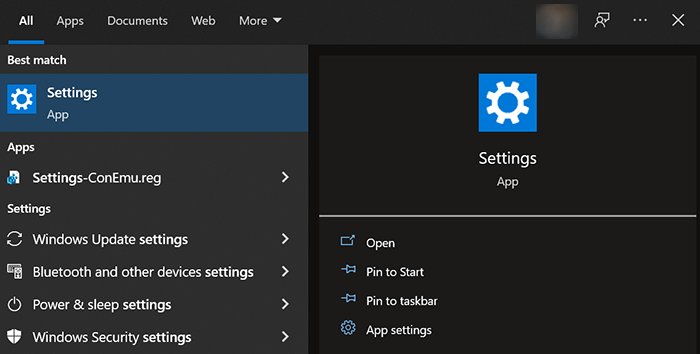
Step 1. To open the Settings app, press the Windows key + I keys together, or search for and open "Settings" from the Start menu.
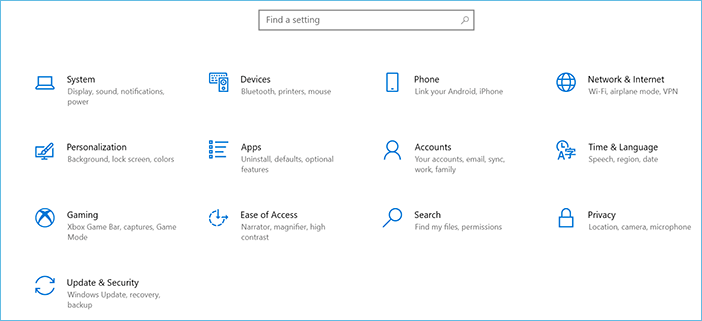
Step 2. Choose the "Update & Security" option on the "Settings" window.
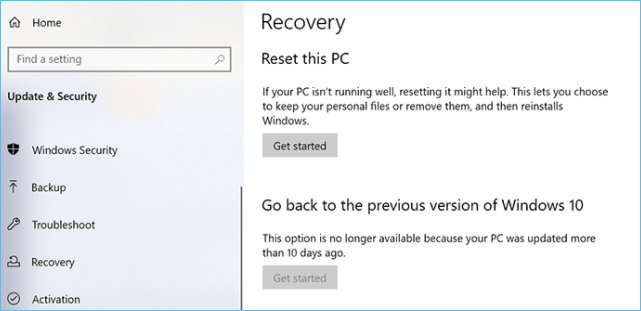
Step 3. To start the recovery process, select "Recovery" from the sidebar on the left, then choose "Get started" under the "Reset this PC" header on the right.
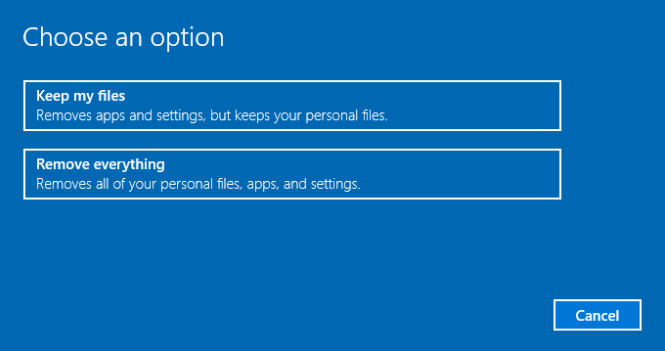
Step 4. To reset your PC, you have two options: "Remove everything" which completely wipes off all data, or "Keep my files" which only removes the operating system and apps, keeping your personal files intact.
Step 5. The reset wizard will ask how you want to reinstall Windows on your laptop, offering two options: "Cloud download" to download and install the Windows OS from the cloud, or "Local reinstall" to reinstall from a local source.
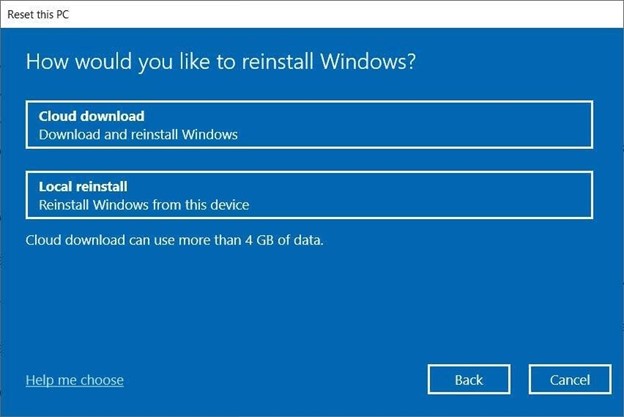
To finish resetting your HP laptop, follow the on-screen instructions. Once you've completed the reset, you can reload your recovered data and configure your settings as desired.
2. Factory Reset HP Laptop with Windows Recovery (Windows 8/7)
If your HP laptop runs Windows 7 or 8, you can still reset it, but the process is slightly different from Windows 10 and 11. You can either use the Advanced Boot Options or a bootable disc, depending on whether you have access to one. This allows you to reset your machine.
Use Advanced Boot Options
The Advanced Boot Options menu on Windows 7 and 8 laptops allows you to choose an option before the operating system loads, such as booting in safe mode, launching with the last known good configuration, or repairing the laptop, which is useful for resetting the machine.
Step 1. Turn off your HP laptop.
Step 2. To troubleshoot and potentially resolve issues with your HP laptop, turn it back on while pressing and holding down the F8 key. This will allow you to access the Advanced Boot Options menu, where you can choose to boot in Safe Mode, enable debugging, or launch the boot menu.
Step 3. The user should choose the "Repair your computer" option on the "Advanced Boot Options" screen.
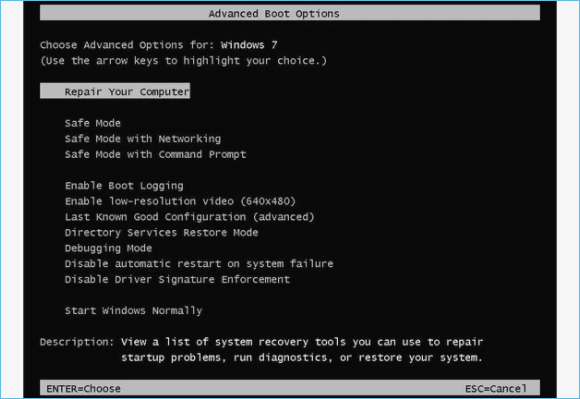
Step 4. To reset your device to its factory settings, follow the on-screen instructions.
Use a Bootable Windows 7 or 8 Disc
If you have access to a bootable Windows 7 or 8 disc, you can use it to reset your HP laptop. The disc allows you to access an option that resets your laptop, and you can follow the disc's instructions to do so. Alternatively, if you don't have a bootable disc, you can also try using the built-in recovery options on your laptop, such as the HP Recovery Manager, to reset your laptop.
Step 1. To boot from a disc, insert the disc into your laptop's disc drive, turn on your laptop, and enter the BIOS settings by pressing a key (usually F2, F12, or Del) as soon as the laptop starts booting. From there, navigate to the boot order settings and select the disc drive as the primary boot device.
Step 2. Select your language, time, and keyboard from the menu that opens. Then, click "Next."
Step 3. To fix your laptop, select the "Repair your computer" option to start the resetting process.
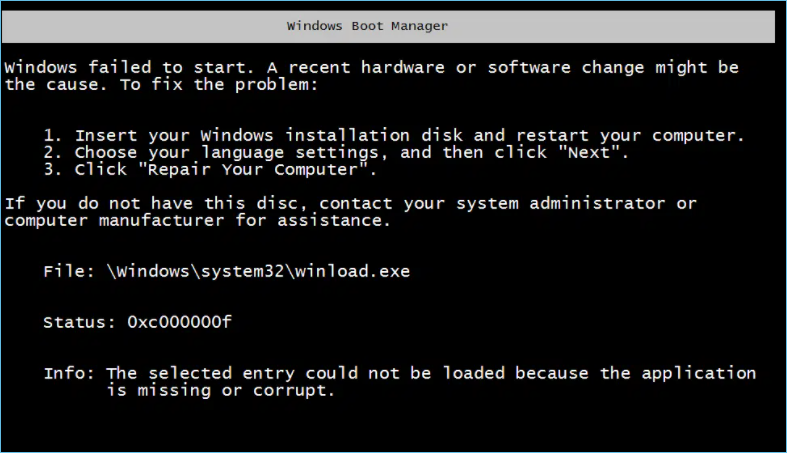
Step 4. The wizard will guide you through the steps to restore your HP laptop to its factory settings, a process that can help resolve various issues and give you a fresh start with your device.
Conclusion
Factory resetting your HP laptop allows you to sell your device without leaking your data and also helps fix issues with your laptop, such as app or system-level problems. It's recommended to back up your hard disks, files, and documents before performing the reset process to avoid losing access to your essential files.
Related Articles
- For Business of All Sizes: A Solid Way for Business Data Backup
- System Backup Image vs. Recovery Drive: Which Backup Method Works for Me
- What Does Qiling Backup Do | Here're the 5 Most Popular Functions
- Disk & System | How to Clone Windows 11 to SSD
- How to Create an ISO Image of My Hard Drive
You will learn 4 methods to create an ISO image of my hard drive and create one based on your different situations. - Best Dell Data Migration Tool for Windows 10/8/7
Dell Data Assist and Qiling Disk Master are both good Dell data migration tools that allow you to migrate files and settings to a new computer quickly, even for the operating system.
Products
Articles & Tutorials
- Data Recovery
- Data Backup
- File Recovery
- File Backup
- System Backup and Restore
- Disk and Partition Clone
- Technical articles
- Mobile articles
- Disk Master Help
- Windows Data Recovery Tutorials
- Windows Secure Delete Tutorials
- Windows Partition Management Tutorials
- Windows File Backup and Restore Tutorials
- Windows System Backup and Restore Tutorials
- Windows Disk Backup and Restore Tutorials
- Windows Clone Tutorials