System Backup Image vs. Recovery Drive: Which Backup Method Works for Me
In Windows 10, backing up your vital data is a great practice to get into, and you have several options to do so. Two of the most effective methods are creating a system backup image and recovery drive, which can help ensure that your data is safe in case of a computer failure or other issues. This is especially important if you use your computer regularly, as losing your data can be a significant hassle.
To prevent system failures, it's worth discussing several backup options. If you're unsure which one is most beneficial for you, understanding the differences between System Backup Image and Recovery Drive can help you find the best suitable option.
What's a System Backup Image?
A system backup image is a file that contains all the data on a computer's hard drive or a single partition, created by a system imaging program that replicates all the data, resulting in a file size that is as large as the used space on the system hard drive.
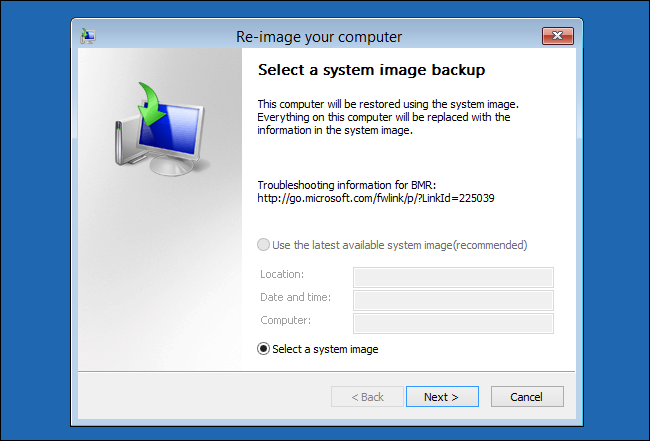
System Image is a backup that includes all user data, software files, registry entries, boot files, and other files and directories, including the primary partition or Windows operating system's location, which can be restored if the computer crashes or won't boot without reinstalling the OS.
The Windows 10 Recovery Tool is a software that allows users to create a recovery drive for their Windows 10 operating system. This tool can be downloaded from the official Microsoft website and is available in both 32-bit and 64-bit versions.
The Windows 10 recovery tool allows you to create a recovery USB or CD/DVD to restore the OS to its factory settings in case of any issues.
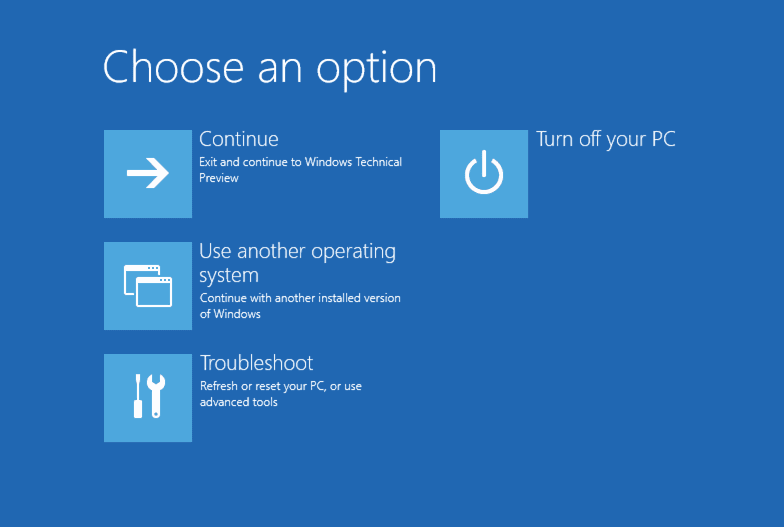
What's a Recovery Drive?
Related: How to Fix the Trouble of Cannot Create Recovery Drive
A recovery drive is a tool that restores a system to its original condition, which can be a factory default or a clone of the Windows system. It requires a vacant USB drive to store the backup, similar to a factory reset on smartphones.
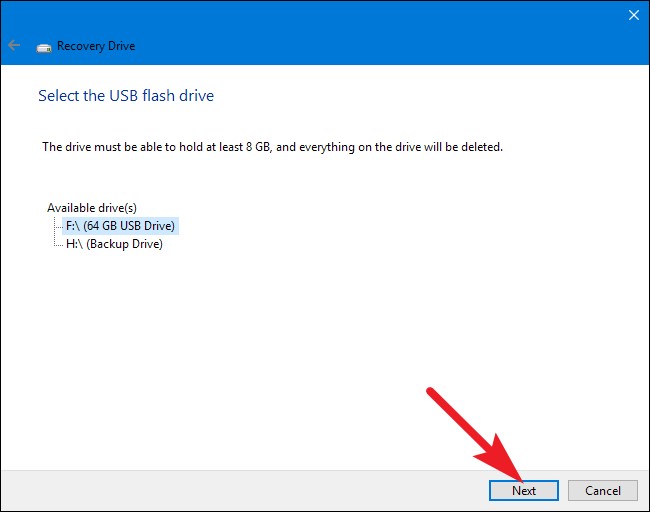
The Recovery Drive backup process will completely format your machine, and unfortunately, desktop apps and other personal data will not be backed up as part of this procedure. Users typically try this option when their system stops functioning, crashes, or needs to be reinstalled.
Should You Create a System Backup or a Recovery Drive?
System Backup Image allows for full system recovery, including multiple drives, while Recovery Disk enables transferring of essential files and data from the system drive.
A recovery drive stores only essential data to ensure a proper system boot-up, whereas a system backup image is a complete backup of the entire system disk drive.
Both System Image and Recovery Drive are essential components of the backup procedure. System Image is ideal for restoring specific apps or files, while Recovery Drive is useful for restoring user settings. If your computer experiences a major issue, such as a component failure, you can reinstall Windows 11 using the Recovery Drive. It's recommended to recreate the Recovery Drive at least once a year as Windows updates regularly improve security and efficiency. However, keep in mind that personal data and software not included with your computer will not be backed up.
The effectiveness and importance of both options are on par with each other, allowing users to select the one that best suits their needs.
| System Backup Image | Recovery Drive |
|---|---|
| Backs up all the data on the hard drive. | Restores the computer to its initial stage. |
| Does not require any USB drive. | Requires a USB drive for backup. |
| No deletion of personal data and desktop apps. | Erases the desktop apps and personal data. |
To create a system image backup using the built-in system backup tool, you should first ensure that you have enough storage space on an external device to store the backup. This is because creating a system image backup requires a significant amount of space. Even if you have created a recovery drive, it is still recommended to perform regular system image backups to ensure your data is safe. This can be done using the system backup tool and saving the image on safe storage media.
How to Create a System Backup Image with a Small Size
The Windows Backup and Restore application can create a system image, but it lacks compression capabilities. To overcome this limitation, a smart and adaptive backup solution like Qiling Backup may be required. This tool offers users compression choices when making a system backup, making it a more efficient and effective option.
- Incremental backups allow for more efficient use of storage space, freeing up room for additional data to be stored.
- Backing up the operating system, installing programs, and securely storing data on the drive are all essential functions that a hard drive performs.
- The software is portable and can be used to restore a system image to any system, making it highly versatile and convenient for users.
- When something goes wrong with the system, an emergency restoration can be used to restore stability.
Step 1. Launch Qiling Backup and choose "System Backup" on the home page.

Step 2. The system partition will be automatically selected, so you only need to choose the location.

Step 3. You can save backup files to your local drive, cloud storage, or network-attached storage (NAS), and also connect an external hard drive to store system backup files.

Step 4. You can customize the settings in "Options" at the left bottom, then click "Proceed" to start the process.

After completing the backup process, you can view the backup status, restore, access, or remove the backup by right-clicking the backup task on the left.
Conclusion
It's a good idea to back up your system frequently to prevent problems such as disc failure or hacking, and a backup can even save your life. You can choose between a System Backup or a Recovery Drive, and using third-party Windows backup and recovery software can provide additional help.
Related Articles
- 9 Ways to Fix Google Drive Upload Stuck Problem
- Guideline: Backup Specific Folders to OneDrive on Windows 10/11
- How to Fix the Task Image Is Corrupted or Tampered With (4 Ways)
- Download the Lenovo OneKey Recovery Software
- How to Create Restore Point Automatically (2 Easy Ways!)👍
The advantages of having a system restore point are huge, but many wonder how to create restore point Windows 10 automatically. In this post, we will see how to create one and an easy alternative to get the job done in a few steps. - Top 2 Ways to Create System Image Windows 11 on USB🔥
To create a system image of Windows 11 on a USB drive, you can use Qiling Disk Master and Backup and Restore (Windows 7). This process allows you to backup your entire Windows 11 system onto a USB drive, providing a complete image of your operating system.
Products
Articles & Tutorials
- Data Recovery
- Data Backup
- File Recovery
- File Backup
- System Backup and Restore
- Disk and Partition Clone
- Technical articles
- Mobile articles
- Disk Master Help
- Windows Data Recovery Tutorials
- Windows Secure Delete Tutorials
- Windows Partition Management Tutorials
- Windows File Backup and Restore Tutorials
- Windows System Backup and Restore Tutorials
- Windows Disk Backup and Restore Tutorials
- Windows Clone Tutorials