9 Ways to Fix Google Drive Upload Stuck Problem
Google Drive has the most users among cloud storage services, but it can sometimes cause issues like getting stuck while uploading files.
There is a wide variety of factors that could contribute to the Google Drive Upload Stuck problem, and this article will cover how to fix it, starting with a simple overview.
Overview of Google Drive Upload Stuck Problem
Many people rely on Google Drive to store important files, but some users have encountered problems with the service, including freezing and upload issues, which can be frustrating and disrupt their workflow.
The Google Drive app may get stuck on different stages of the upload process depending on the device, with the Android app getting stuck on "Waiting to upload" and the PC app getting stuck on "Starting upload."
Upload speed may be impacted by factors such as file size, available bandwidth, browser or application cache, server interruptions, and outdated software versions.
If you're experiencing issues with uploading files to Google Drive, whether on a PC or Android device, you're not alone. The problem can occur due to various reasons and can be frustrating. Fortunately, there are solutions to this issue, and by continuing to read, you'll find the answers to fix the Google Drive upload problem.
How to Fix Google Drive Upload Stuck?
When attempting to upload files, users may encounter errors, specifically "waiting to upload" and "beginning upload" failures, which both result in error messages. In this section, you'll be tasked with finding answers to these two common upload problems.
Stuck on Waiting to Upload.
To solve this problem first, we will take a look at three methods that will help you:
Fix 1. Clear Cache
Android and other mobile devices may experience issues with Google Drive uploads when the software has a large amount of cache or data. To troubleshoot, try the following methods.
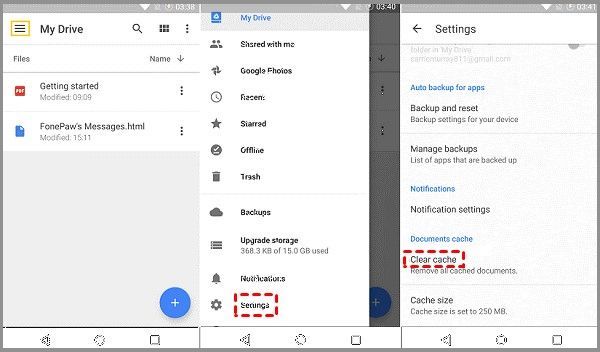
Step 1: The menu symbol in the top left corner of Google Drive on an Android smartphone can be accessed by tapping on it.
Step 2: Press OK after selecting Settings > Clear Cache.
Step 3: Connect to Google Drive after restarting your device.
Fix 2. Force Stop Google Drive
To force stop Google Drive, try pressing the Windows key + X and selecting Task Manager, then click on the "Processes" tab, look for the Google Drive process, click on it, and click on the "End Task" button. Alternatively, you can press the Windows key + R and type "taskkill /im googledrive.
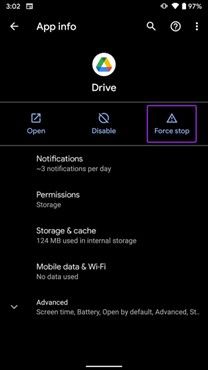
Step 1: Go to the device's Settings menu, select Apps & notifications, and then open the Google Drive app.
Step 2: To check if Google Drive is stuck on uploading, click the "Force Stop" button and restart the app.
Fix 3. Turn Off Wi-Fi
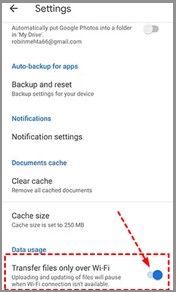
Here, try and turn off the Wi-Fi settings in Google Drive:
Step 1: Launch Google Drive, then go to Settings from the menu.
Step 2: On this screen, toggle the button to turn off the option to transfer files over Wi-Fi exclusively, and then re-upload the files.
Stuck on Beginning Upload
To solve this problem, we will take a look at three methods that will help you.
Fix 1. Check the Internet
If the solutions above cannot solve the problem of Google Drive becoming stuck on beginning the upload, you may examine the network connection to see whether or not it is functioning properly. This could involve checking the Wi-Fi signal strength, restarting the router, or using a different network connection. If the issue persists, you may want to try using a different file sharing service or seeking further assistance from Google support.
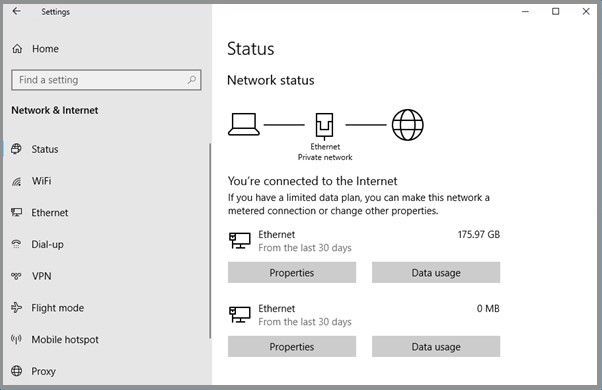
Step 1: Proceed to your computer's Settings menu.
Step 2: Select Internet & Network from the menu, and the Status window will appear, showing whether your computer has a stable connection to the network.
Fix 2. Turn off Any Browser Extensions
To resolve the issue, turn off any browser extensions that are running in the background. This can be done by accessing the browser's settings or extensions menu, where you can disable any add-ons that may be interfering with the browser's functionality.
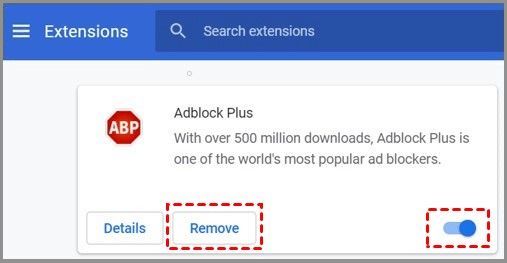
Step 1: Go to chrome:/extensions/ or click More tools > Extensions in Chrome to view and manage browser extensions.
Step 2: By using the right mouse button, you can pick the extension, and then using the switch to enable or disable the extension, or clicking the Remove button to remove the extension.
Fix 3. Clear Cache And Data of Browser
When we use a browser, it saves cookies, browsing history, and other data, making it easier to view websites quickly. However, having too much data can cause issues like the "Google Drive upload stalled" problem.
If the uploading process on Google Drive is stalled, you can try clearing the data and cache that the browser has stored, which may help resolve the issue.
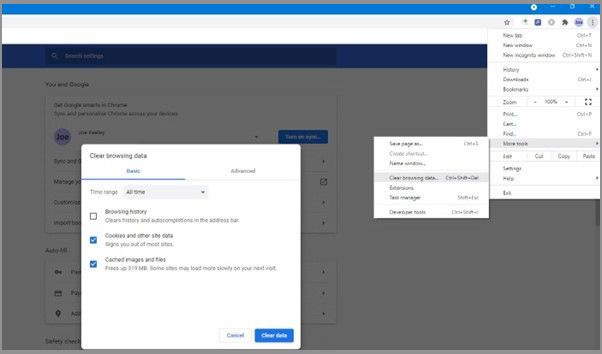
Step 1: To clear data and cache on Google Chrome, launch the web browser you normally use. In Chrome, click on the three vertical dots in the upper right corner, select "More tools" from the drop-down menu, and then choose "Clear browsing data.
Step 2: You can access the Settings menu by clicking the button with the three dots in the corner of the screen.
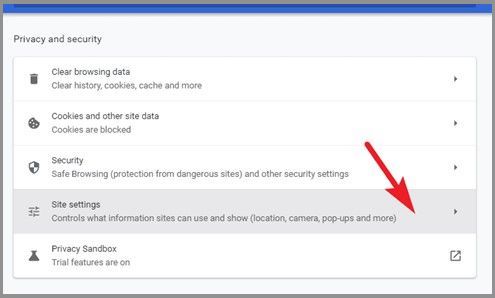
Step 3: To clear your browsing data, go to the Settings screen, then select Privacy and Security, and finally, choose Clear browsing data.
Step 4: Tap Clear data after selecting the date range to use.
Note: If you often upload files to Google Drive using your phone, you may want to try clearing the cache and data on your Google Drive app before attempting to upload files to Google Drive again. This can help resolve any issues you're experiencing with uploading files.
Tip for Android: To clear the cache on your Android device, go to Settings > Apps and Notification > Drive, then select Storage & cache and choose CLEAR CACHE.
Tip for IOS: To delete an application from your iPhone, go to Settings > General > iPhone Storage > Delete App. Then, reinstall the Google Drive app on your computer.
Fix 4. Upload Files with Incognito Mode
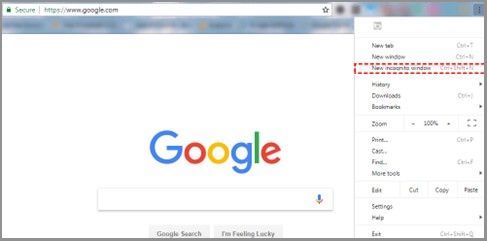
If clearing caches and browsing data don't resolve the issue, try uploading files in incognito mode. This can help determine if the problem is specific to a particular browser or account.
Step 1: To open Google Chrome in incognito mode, click the More button in the top right corner, then select New incognito window. This will launch a new browser window that is private and doesn't save any browsing history.
Step 2: To sign in to Google Drive, go to drive.google.com and enter your Google account credentials.
Step 3: Try uploading the file once again to see if it will work this time.
Fix 5. Switch to Other Free cloud storage
When Google Drive takes an excessively long time to upload files or even crashes, it can be frustrating and time-consuming to troubleshoot the issue, taking away from the time that could be spent on productive work or studying.
You can save your data just as easily on one of the many fantastic cloud drives available today instead of Google Drive.
OneDrive is Microsoft's online storage service that Windows users can access, allowing them to store any file and seamlessly integrate with Microsoft Office 365.
Dropbox is a reliable cloud storage service that offers simple file syncing capabilities, making it a good option for users.
Fix 6. Turn to A Professional Google Drive Alternative
Google Drive is used by users to store and backup important data and images. Qiling Backup, a robust tool, offers advanced capabilities, including basic backup and disk cloning, and supports typical disk and file copying functions.
SQL Server and Exchange backup and recovery solutions offer advanced cloning operations, allowing for the creation of a safe copy of sensitive data. This feature provides an additional layer of protection for important information, ensuring its integrity and security.
To avoid losing essential data saved in Google Drive, it's crucial to back it up to other cloud storage locations. This can be easily achieved by utilizing a professional and free cloud backup service, such as Qiling Backup, which automates the process of backing up your Google Drive data to another cloud drive.
Main Features of Qiling Backup
- Set up a daily, weekly, or monthly backup schedule.
- Replace the old hard drive with a new one that is similar to the old one. Ensure the new hard drive has the same capacity and interface type as the old one to avoid any compatibility issues.
- An encrypted backup file provides an additional layer of security.
- System backup images can be transferred between computers with different hardware configurations.
Here are the steps to back up files with this tool:
Step 1. To start backup, click the File backup button to start.

Step 2. You'll see a list of local and network files on the left-hand side, where you can select the files to be backed up by expanding the directory.

Step 3. Follow the on-screen instructions to select the desired location for the backup.

Step 4. In the Backup Options section, click Options to encrypt the backup with a password, allowing you to customize the backup operation to your specific needs.

To specify the backup schedule, you can select a pre-defined scheme or customize it according to your needs. You can choose from various schemes such as daily, weekly, monthly, or custom intervals.

Step 5. Backups can be stored on a local disk, in Qiling's cloud service, or on a network attached storage device (NAS).

Step 6. Qiling Backup offers users the option to back up their data to either a third-party cloud drive or the company's own cloud storage service.
To back up your data to a third-party cloud drive, select Local Drive, scroll down to add Cloud Device, and enter your account information.
Step 7. To start a backup, click on Proceed, and once completed, the backup will appear as a card on the left-hand panel, allowing for further management by right-clicking on it.

Conclusion
If you're experiencing issues with Google Drive getting stuck on "commencing upload," there are a few potential solutions to try. You can try restarting the Google Drive app, checking for any updates, or even reinstalling the app. If these steps don't resolve the issue, you might want to consider reaching out to Google's support team for further assistance.
How can we correct this mistake? Regarding backing up all of your crucial data, we strongly suggest you use Ease Qiling backup. Its excellent features will keep you hooke
Related Articles
- How to Clone C Drive to SSD in Windows 10
- The Settings You Should Change in Windows 11
- How to React to Windows 11/10/8/7 Defender Security Warning
- Quickly Solved | Windows Defender Not Working
- Best PC Backup cloud storage: Preview and Full Tutorial
Have a preview of PC backup cloud storage and follow the best solutions to achieve backing up PC files or entire PC to cloud. Get to know the steps in this post. - Best Portable Backup Software for Windows PCs or Servers
This page introduces the best portable backup software for Windows PCs and servers, as well as how to use it for continuous data protection.
Products
Articles & Tutorials
- Data Recovery
- Data Backup
- File Recovery
- File Backup
- System Backup and Restore
- Disk and Partition Clone
- Technical articles
- Mobile articles
- Disk Master Help
- Windows Data Recovery Tutorials
- Windows Secure Delete Tutorials
- Windows Partition Management Tutorials
- Windows File Backup and Restore Tutorials
- Windows System Backup and Restore Tutorials
- Windows Disk Backup and Restore Tutorials
- Windows Clone Tutorials