3-Minute Guide on Backup vs. Sync
Users often confuse Backup and Sync, two distinct operations to safeguard and manage their data.
In this blog, you'll learn the key differences between backup and sync, when to use each, and their respective benefits, allowing you to make informed decisions for your data management needs.
| Workable Solutions | Step-by-step Troubleshooting |
|---|---|
| Use Backup |
Select "Start" > select "Settings" > go to "Backup & Security" > choose "Backup"...Full steps |
| Use Qiling Backup | Launch Qiling Backup > click "Create backup" > select "backup contents"...Full steps |
| Use Sync | To sync your settings, go to Start, then Settings, then Accounts, and finally Sync your settings.Full steps |
What Is Backup
Backup is the process of copying files and folders from one location to another, typically to protect data in case of a system failure, data loss, or other disaster.
The process of copying files from one device to another, such as a computer to a hard drive, USB, cloud, flash drive, or another computer.
Complete Guide on How to Back Up Computer (Windows & Mac)
This guide provides information on various backup types, a smart backup strategy, and how to back up a computer, enabling you to understand and implement effective data protection methods.
What Is Sync
Syncing refers to the process of keeping two or more locations or devices with identical files at the same time, ensuring consistency and up-to-date information across all connected platforms.
When files are synced, they are stored in a shared repository and can be accessed from any location with the necessary permissions.
Syncing plays a vital role in business management and handling.
This tool enables users to share their ideas and information with multiple customers and companies in an efficient and organized manner, facilitating effective communication and collaboration.
You can share your information with anyone outside the company or your location without needing any physical device.
The most commonly used syncing and sharing services include Google Drive, Dropbox, Microsoft OneDrive, iCloud, Box, and pCloud, which allow users to store and access their files across multiple devices, as well as share them with others. These services provide a cloud-based storage solution, enabling users to access their files from anywhere and collaborate with others in real-time.
- Dropbox
- Box
- Google Drive
- OneDrive
- Evernote
The Difference Between Backup and Sync
The main distinction between backup and sync is that backup is a one-way process, whereas sync is a two-way copying process.
Backup and synchronization are two related but distinct concepts in data management. Backup involves creating a copy of data from one source to another device, often for the purpose of preserving it in case of data loss or hardware failure.
In syncing, deleting data from one location will also delete it from another, whereas in backup, deleting a file from one location won't affect the other.
When syncing, you can directly check, monitor, and edit sets of files, but when opening backup files, you must restore them.
When to Use Backup
Regular backups protect your data from being lost due to accidental deletion, hardware failures, viruses, and cyber-attacks, keeping it safe and secure.
Backing up your data is the most reliable way to restore it, allowing you to access and share your files and folders over the internet. However, without internet access, syncing and sharing services are unavailable, making it impossible to recover your data in this scenario.
Recovering gigabytes of data is a complex task, especially when compared to smaller amounts of data. The process involves multiple steps, including identification, extraction, and verification, which can be time-consuming and require significant resources.
Syncing is time-Data recovery can be a lengthy and inconvenient process, often hindered by poor internet connections and connectivity issues. Moreover, data loss frequently occurs due to cyber threats like viruses, malware, and other malicious attacks.
Restoring deleted data from a backup is a simpler and more secure option than relying on data recovery software to retrieve lost information.
You can back up your important files to any external location if you're using Windows 10.
Backup Essential Data with File History in Windows 10
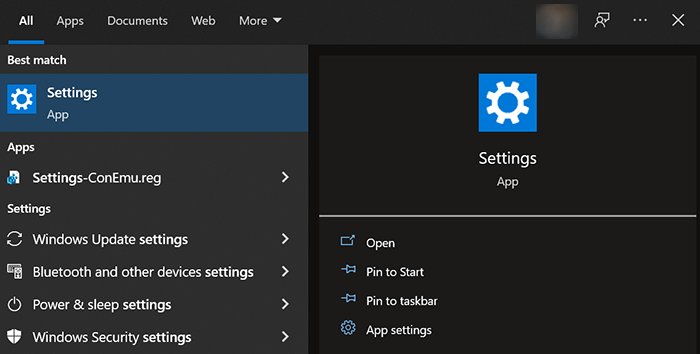
Step 1. Select "Start" and open the menu. Select "Settings".
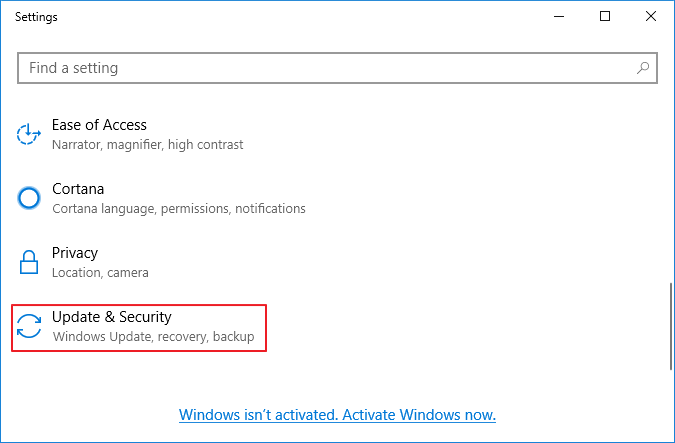
Step 2. Go to "Update & Security", then "back up".
Step 3. To add a drive for backups, go to the "Add a drive" option and select an external source or network location where you can store your backups.
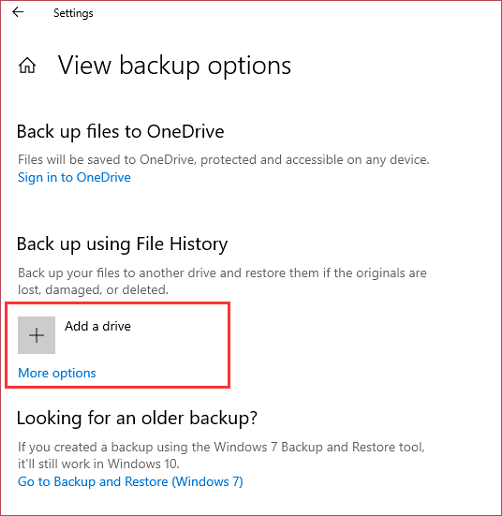
If you've backed up your files using File History in Windows 10, you can quickly restore them in case of missing files. To do this, go to Settings > Update & Security > Backup, and click on "Restore your files from a backup" under the "Backup" section.
Step 1. To convert files, go to the Taskbar and type "convert files" in the search bar.
Step 2. Select "Restore your files with File History".
Step 3. Find your files and their version.
Step 4. To restore the original version of a file, select the version you want to restore, then click "Restore". This will save the selected version in its original place or location.
To save the file at another location, click on the "Restore" option, then select "Restore" again, and finally choose the desired location to keep the file.
Besides all these features, you can find your backups created on older versions (Windows 7) to Windows 10:
Step 1. Go to the Taskbar and type Control panel.
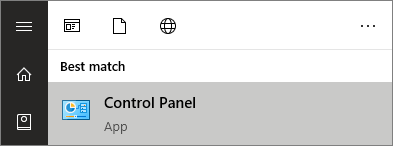
Step 2. Select "Control Panel" and then "System and Security".
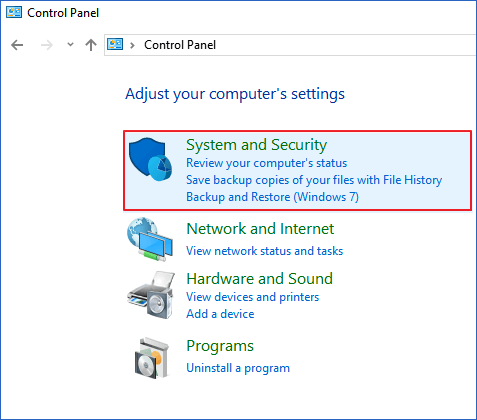
Step 3. Go to "Backup and Restore" (Windows 7).
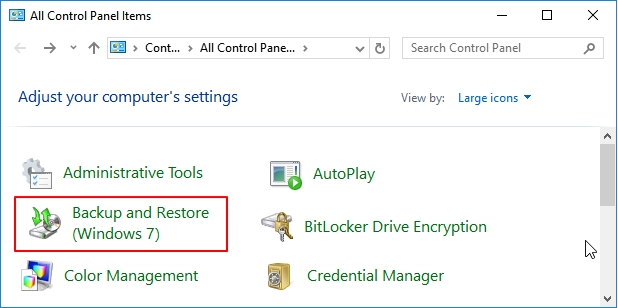
What are backup options available in Windows 10?
There are two types of file backups:
- To create a complete image backup of the C, D, and E drives, you can use a backup software such as Qiling Disk Master. These programs will allow you to select the drives you want to include in the backup and create a single, compressed image file that contains all the data from those drives.
- File backup to save individual files and folders.
Backup Data with Qiling Backup
Qiling Backup simplifies the process of backing up and syncing your data, making it easy to manage your digital information.
Qiling Backup is a comprehensive solution for data recovery and synchronization needs, providing a complete solution for all your data needs.
Qiling provides:
- System image backup
- Disk clone
- Bootable backup
- File backup and recovery
Backup services offer ample storage space for data, but syncing services, which are cloud-based, have limitations in terms of storage capacity.
The most commonly used cloud-based services for backup and syncing of data are OneDrive, Google Drive, and Dropbox.
Qiling Backup offers 250GB of free cloud storage to its users, in addition to limited storage space for backup and syncing. However, users must purchase extra storage space if they need more.
Steps of how to use Qiling Backup are listed below:
Step 1. To initiate a file backup using Qiling Backup for the first time, navigate to the home screen and click on the "File backup" option.

Step 2. To backup files, folders, or directories, follow these steps: Select all the desired files, folders, or directories by following the paths to locate them, then proceed with the backup process.

Step 3. You need to select a backup location to save and retain the backup.

Step 4. Qiling Backup allows users to save backup files to various devices, including local hard drives, external USB drives, SD cards, network drives, and NAS drives, as well as Qiling's cloud drive. We recommend choosing the cloud drive for greater accessibility, flexibility, and safety.

Step 5. To set up an automatic and intelligent backup schedule for the next file backup task, navigate to the "Options" setting. Here, you can choose to encrypt confidential files, compress the backup image size, or customize a backup schedule to specify the start time for the next backup.

Customize an advanced and automatic backup task here:

Step 6. Click "Proceed" to start the file backup process, and your completed backup files will be visible in a card style on the left area.

When to Use Sync
Syncing helps keep your colleagues and partners informed, making it easier to manage your business.
Syncing allows team members to collaborate easily and effectively by automatically updating each other's files in real-time, ensuring everyone has access to the latest version of a document or project.
When files are synced, the updated version of a file can overwrite the older version, potentially causing data loss.
It's a platform that allows you to manage your business remotely with your team, enabling seamless communication and information sharing regardless of geographical location.
Synchronization increases the likelihood of Ransomware because if data is corrupted at one location, it will be corrupted at another site, making it more difficult to recover.
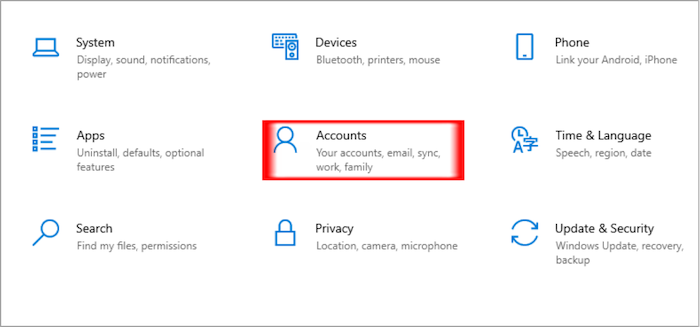
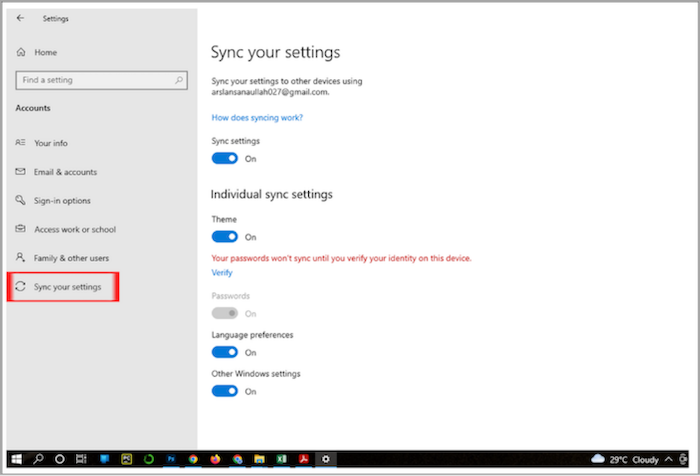
Windows 10 allows you to sync your valuable assets, and to find the Sync settings, simply follow these steps.
Step 1. Select the "Start" button and then select "Settings".
Step 2. Click on "Accounts".
Step 3. Select "Sync your settings" to start syncing your essential files.
The Benefits of Using Both Backup and Sync
Using both backup and sync simultaneously can be beneficial for users as it provides a redundant copy of their data and ensures it's always up-to-date, maximizing their productivity.
Backup services ensure you have your original information in case of data loss, while syncing ensures you get updates on time. Together, they help secure and manage your data more effectively.
Benefits of backup:
- Replication ensures that data is safely stored in multiple locations, so if it's corrupted or lost in one place, it can still be recovered from the other location. This helps prevent data loss and ensures business continuity.
- A full backup is the fastest and most reliable option for securing large files.
- You can schedule it according to your needs.
- Backup lowers the probability of Ransomware and malware.
Benefits of Sync:
- Ensure smooth workflow.
- Ensure Real-time updates.
- Best for remote access and control of your valuable asset.
To safeguard your business from data loss, mismanagement, and cyber-attacks, consider implementing a backup and syncing solution. This will help protect your company's valuable information and ensure its continued availability, even in the event of a disaster or security breach.
If you looking for a cost-effective solution to all your backup needs?
Qiling Backup offers efficient backup and instant recovery of valuable assets, making it a reliable solution for users.
Visit Qiling Backup for more information!
Related Articles
- Download the Lenovo OneKey Recovery Software
- For Beginner's: Put a Windows 11 PC to Sleep
- What Does Qiling Backup Do | Here're the 5 Most Popular Functions
- Windows 11 Ruined My Computer! Slows Down and Crashes a Lot
- Windows 11/10 Easy Transfer | Migrate Files, Programs and Settings Easily
Qiling Disk Master is a Windows 11/10 easy transfer tool that simplifies the process of migrating files, programs, and settings from one Windows 11/10 device to another, making the process easy and fast. - Windows 10 File Transfer Tool (Windows 11 Available)
Download a free Windows 10 file transfer tool to easily transfer program files, user files, setup files, and document/music/picture/app files from Windows 7, 8, 8.1, 10, and 11 to a Windows 10 or 11 PC.
Products
Articles & Tutorials
- Data Recovery
- Data Backup
- File Recovery
- File Backup
- System Backup and Restore
- Disk and Partition Clone
- Technical articles
- Mobile articles
- Disk Master Help
- Windows Data Recovery Tutorials
- Windows Secure Delete Tutorials
- Windows Partition Management Tutorials
- Windows File Backup and Restore Tutorials
- Windows System Backup and Restore Tutorials
- Windows Disk Backup and Restore Tutorials
- Windows Clone Tutorials