Microsoft Surface Factory Reset Without Password or Recovery Key
Key Takeaways
- ✏️Microsoft Surface factory reset is a process that helps resolve issues with the operating system, improves device performance, and resolves conflicts with drivers or software, all by restoring the device to its original settings.
- ✏️If you've forgotten your login credentials, you can perform a Microsoft Surface factory reset without a password or recovery key by using the login screen and USB Recovery option.
- ✏️If you're planning to factory reset your device, it's essential to back up all your data first, as the reset process will erase everything, including your files and settings.
Is It Possible to Factory Reset Microsoft Surface Without a Password or Recovery Key?
I have my brother's Microsoft Surface Laptop. He passed away. I'm trying to reset it so it can be used, but I don't have any of his login information, password, PIN, or recovery key. How can I reset them to factory settings? - Microsoft Community
Microsoft Surface users often face login issues or forgotten passwords when factory resetting, but a solution exists. Performing a Microsoft Surface factory reset without a password or recovery key is possible, and this article provides three effective methods to regain control of your device when locked out.
🚩Important
Before factory resetting your Microsoft Surface, make sure to back up your important files to prevent losing them. This will erase all data saved on your device.Qiling Disk Master Free. To ensure your files and data are backed up safely and soundly, consider using cloud storage services like Google Drive, Dropbox, or Microsoft OneDrive. These platforms allow you to store and access your files from anywhere, and many offer automatic backup features, versioning, and collaboration tools.
With this robust backup tool, you can choose from various backup options such as full system, file and folder, disk/partition, and email backups, among others, to select the level of protection that suits your needs. It allows you to safely back up files to local drives, external hard drives, NAS, network, and the cloud, and restore them efficiently whenever needed.
You can reduce backup times and save disk space with incremental backups that only capture changes since the latest backup. This also helps with scheduled backups for continuous data protection. Download it to back up your important data.
Method 1. Factory Reset Surface Without Password from the Login Screen
⏱️Time Duration: Around 30 to 60 minutes
📒Preparations:
- Back up your important personal files
- Power off your Surface device
To reset your Surface device without a password or PIN, follow these steps:
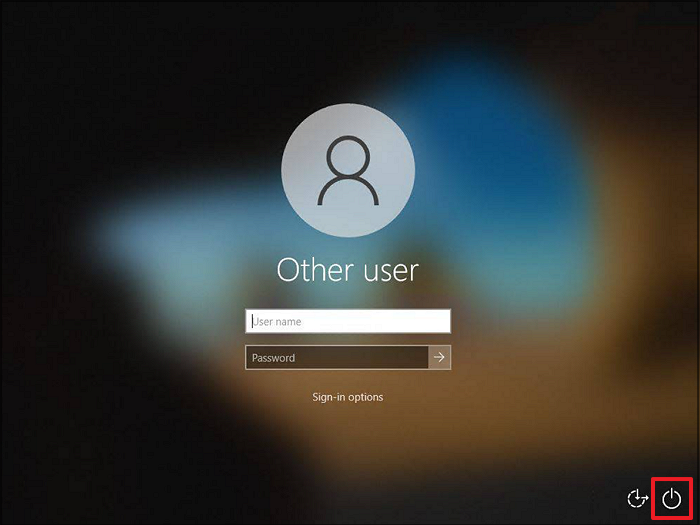
Step 1. To restart your computer, press the "Power" icon while holding the "Shift" key, then select "Restart". If you don't have a physical keyboard, click on the "Ease of Access" icon to open the "On-Screen Keyboard" to access the "Power" icon.
Step 2. Select the "Troubleshoot" option and then tap "Reset your PC" from the "Choose an option" window.

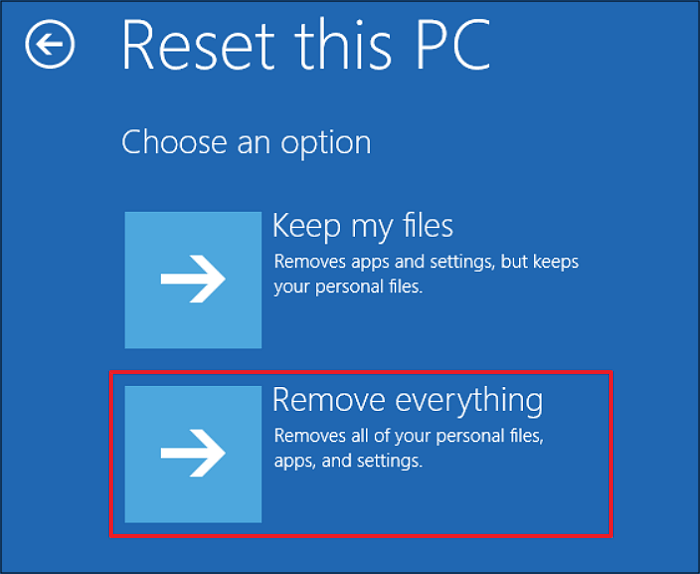
Step 3. Select the appropriate option based on your needs, either "Keep my files" or "Remove everything". From the "Remove everything" option, click on the "Just remove my files" tab to reset the device to its factory settings.
Do you find the post helpful? Share it with your followers and friends to help them factory reset Surface without a password or recovery key.
Method 2. Clean Install Windows with Surface Recovery Image via USB Recovery
⏱️Time Duration: Approximately 3 hours
📒Preparations:
- Perform a backup of your necessary data
- Get a USB drive with 16/32 GB of storage
If you're experiencing software issues on your Surface device, such as driver conflicts, app crashes, and update failures, a clean installation of Windows may be the best solution. This process uses a USB recovery image to install Windows, including the drivers and firmware, effectively restoring your device to its optimal state. To do this, you can follow a tutorial that guides you through the steps of creating a USB recovery image and using it to clean install Windows on your Surface device.
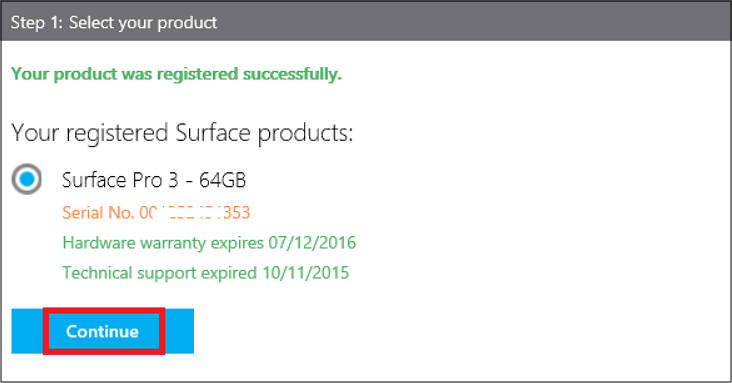
Step 1. To download the recovery image for Surface, log in with your Microsoft account, select your Surface product, enter the serial number, and hit "Register". Then, tap "Continue" and "Download", and finally save the recovery image to your desired location.
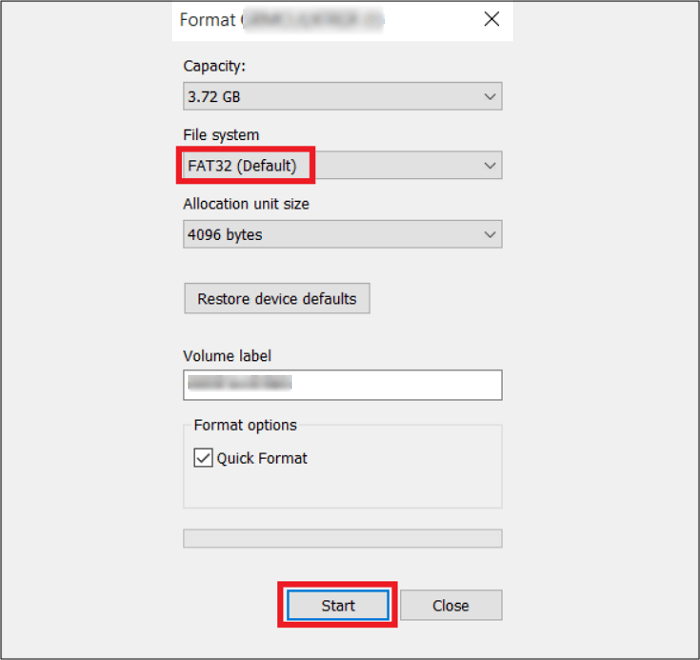
Step 2. To format a USB drive for a Surface device, insert the drive into a PC, open File Explorer, right-click the drive, select "Format," and choose FAT32 as the file system. Then, extract the downloaded recovery image zip file and save it to the formatted drive. Once the Surface device is turned off, plug the USB drive into its port.
Step 3. Press and hold the Volume Down button and press the Power button once, then release the Volume Down button when the Surface logo appears, and select the "Language" and "Keyboard Layout" when the recovery process starts.

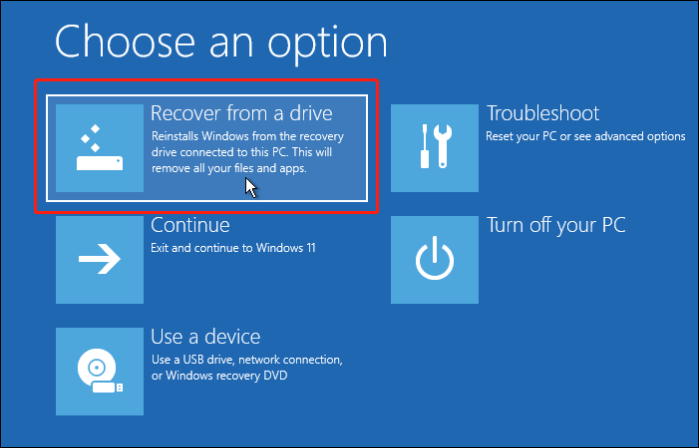
Step 4. To recover from a drive, start by booting from the Surface's recovery drive. Once the Surface is in the recovery environment, select "Troubleshoot," then "Recover from a drive." After that, select "Recover," and the Surface will start recovering.
📚Further Reading: Factory Reset Dell Laptop | Factory Reset Lenovo Laptop without Novo Button
Method 3. Microsoft Surface Factory Reset Without Recovery Key
⏱️Time Duration: Around 30 minutes to an hour
📒Preparations:
- Get a USB drive with at least 8/16GB of storage
- Format your flash drive via the FAT32 file system
If you have Bitlocker encryption enabled on your Surface Pro, you'll need the recovery key to reset it. However, you can download the recovery key to a local drive if you remember your Microsoft account credentials or the device model and serial number, allowing you to reset your Surface Pro without a password or recovery key.
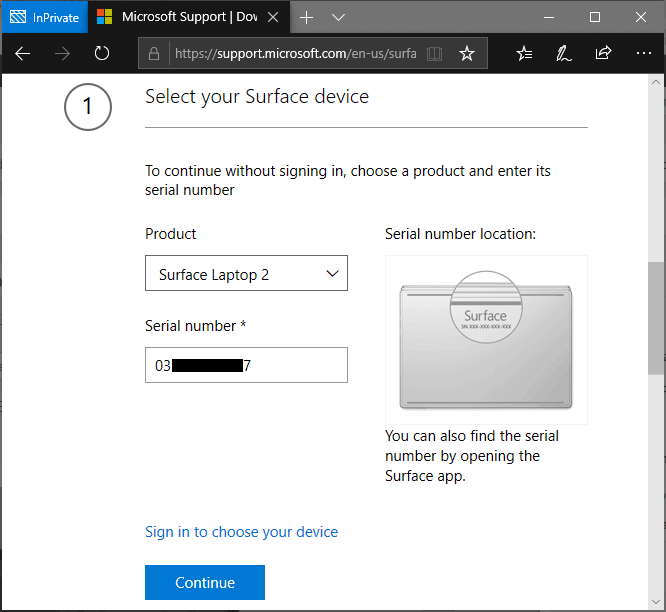
Step 1. After backing up your personal files, visit the Surface recovery page, select your Surface device, choose "Surface Pro" from the product menu, and type its serial number. Then, press the "Continue" tab.
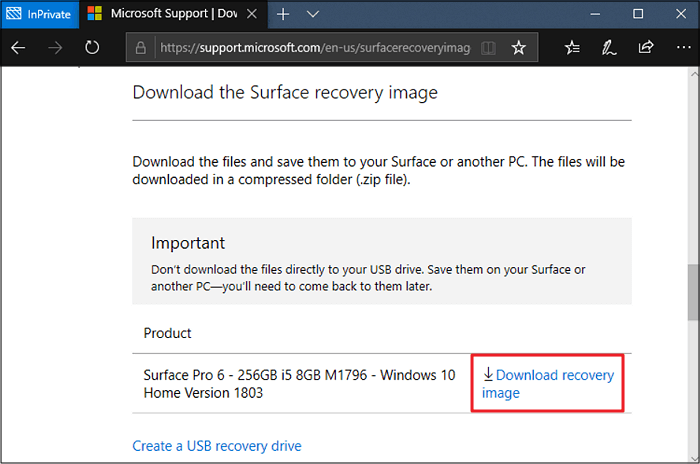
Step 2. Since the recovery image is in a Zip file, you can't download it directly to a USB drive. Instead, tap the "Download recovery image" and then "Save it to a local drive" to save it to your computer. Once saved, you'll need to extract the contents to the root directory of your USB drive.
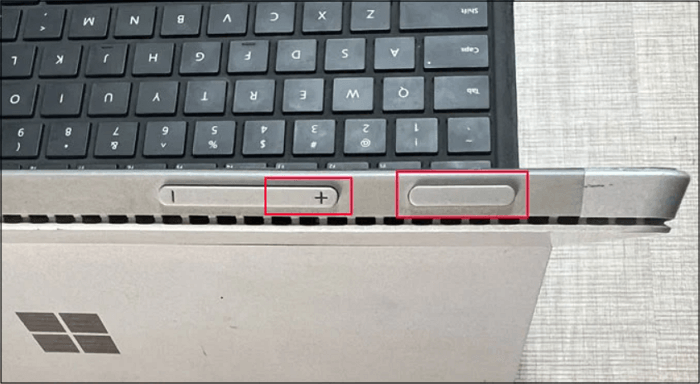
Step 3. To reset your Surface Pro, first turn off the device and plug in the USB drive. Then, press and hold the Power button along with the Volume down button until you see the Surface logo. This will take you to the recovery environment, where you can select "Troubleshoot" and then "Reset this PC" to complete the reset process.
If you're unable to factory reset your Surface due to a forgotten password or missing recovery key, don't worry! You can still perform a factory reset by following the steps outlined in the post, which provides a helpful solution for this common issue. Share this information with your followers and friends to help them overcome this problem and get their Surface up and running smoothly again.
Conclusion
To perform a Microsoft Surface factory reset without a password or recovery key, you can use one of three methods. Choose the method that best suits your needs, but first, consider saving your data with Qiling Disk Master, a software that offers an easy and powerful backup service with instant recovery. This will ensure that your important files and information are preserved, making the factory reset process a more manageable and stress-free experience.
Microsoft Surface Factory Reset Without Password FAQs
What is a password reset disk?
A portable storage device, like a USB flash drive, that can help reset a forgotten password for local accounts, but should be created through the Control Panel beforehand.
How do I factory reset my Microsoft computer without logging in?
To factory reset your Microsoft computer without logging in on Windows 10 or 11, follow these steps: Press the Windows key + X and select the Power option. Hold down the Shift key while clicking on Restart.
- To restart your device while holding the "Shift" button, press the "Power" icon on the login screen and select "Restart" while keeping the "Shift" button held down.
- From the "Choose an option" screen, tap "Troubleshoot."
- Lastly, hit "Reset your PC," and that's all.
Can you factory reset Surface without recovery key?
You can factory reset your Microsoft Surface device without a recovery key by performing the Clean Install Windows task with Surface Recovery Image through USB Recovery. This method allows you to restore your device to its original settings.
Related Articles
- How to Migrate Windows 11 to SSD
- Can I Upgrade My Laptop Processor | Your Answer Is Here
- 3-Minute Understanding SSD Cache in Windows 10/11: Is It Worth It?
- How Long Does it Take to Install Windows 10/11
- How to Backup/Export and Restore Chrome History and Cookies
- Top 4 Best Hard Drive Cloning Software of 2024
- How to Create Image of SD Card on Windows 11/10/8/7 [Step-by-step Guide]
If you need to create an image of an SD card, this article is for you. It will guide you through the process of creating a disk image of an SD card using professional SD card backup software, making it easy and quick to do so.
Products
Articles & Tutorials
- Data Recovery
- Data Backup
- File Recovery
- File Backup
- System Backup and Restore
- Disk and Partition Clone
- Technical articles
- Mobile articles
- Disk Master Help
- Windows Data Recovery Tutorials
- Windows Secure Delete Tutorials
- Windows Partition Management Tutorials
- Windows File Backup and Restore Tutorials
- Windows System Backup and Restore Tutorials
- Windows Disk Backup and Restore Tutorials
- Windows Clone Tutorials