How Long Does it Take to Install Windows 10/11
| Workable Solutions | Step-by-step Troubleshooting |
|---|---|
| Download and Install Windows Time | If you are downloading and installing Windows 10 for the first time on your PC, it can take somewhere...Full steps |
| Windows Upgrade Time | Firstly, if you have an average-speed computer and a good internet connection, it will take 1-1.5 hours...Full steps |
| Installation Failed Solutions | There can be multiple problems that might cause your windows installation process to fail. Here...Full steps |
Installing Windows 10/11 can take a significant amount of time due to its complexity, and the exact duration is difficult to predict, making it a time-consuming process.
Windows installation speed massively depends upon the internet connection, computer's SSD, processor, and some other factors, which makes it hard to predict.
How Long Does It Take to Download and Install Windows
Here is how you can download Windows 10. If you are downloading and installing Windows 10 for the first time on your PC, it can take somewhere from 2.5-3 hours, depending upon the specs of your computer. You can download it for free from the official Microsoft website, but you will have to buy the license later.
- Visit the official Microsoft website and click on Download Tool Now.
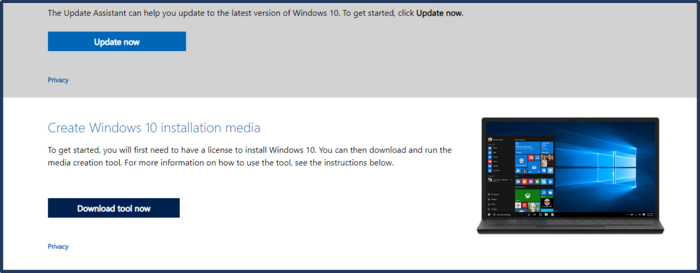
- Download and run the tool.
- Read and accept the terms and conditions.
- Now, click on create installation media.
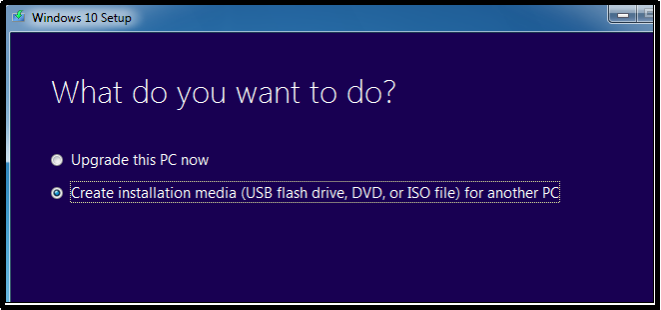
- Select the language, architecture, and edition of the operating system on the next screen and click on next.
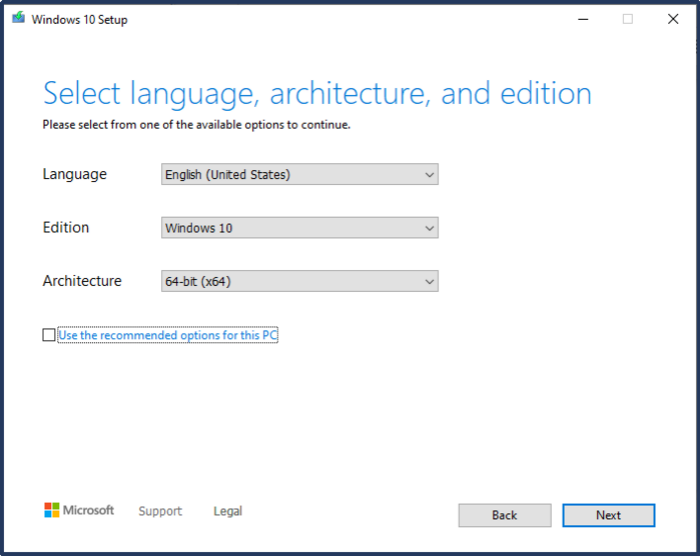
- Follow all the commands, input the requirements, and click next on the next screen.
- Lastly, click on Install now.
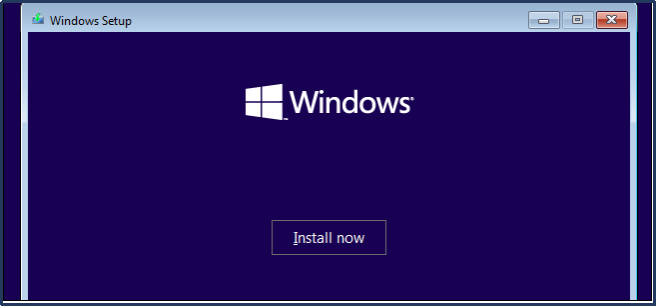
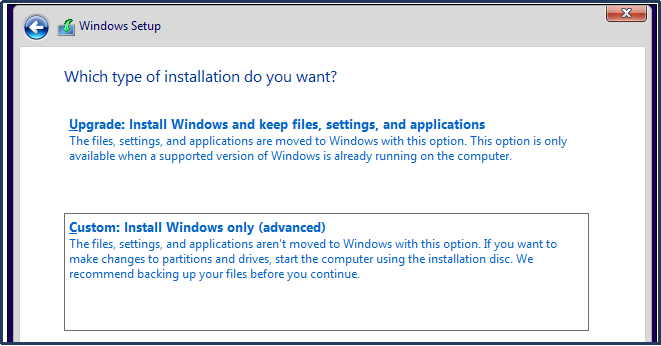
You will now see a window asking which type of installation you want. Click on 'Custom' and proceed.
- Select the drive you want to install your Windows in and click on next.
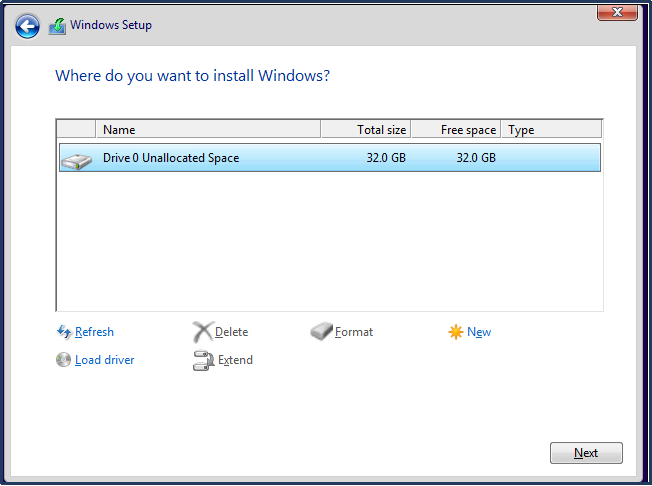
Windows will be automatically downloaded and installed, and your PC will restart several times during installation. Please ensure your PC remains powered on throughout the process to avoid potential damage.
Windows 11 cumulative update failed to download and install in 2022, causing frustration and disruption to users. This issue was likely due to a combination of factors, including corrupted system files, outdated drivers, or conflicts with other software.
Microsoft typically releases a cumulative update preview build for both Windows 11 and Windows 10 on the 3rd/4th week of every month, which includes bug fixes and feature improvements.
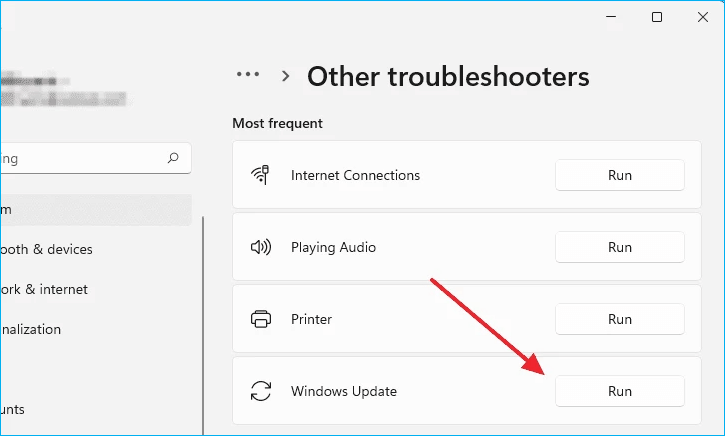
How Long Does It Take to Upgrade to Windows 10
Upgrading from Windows 8 to Windows 10 can take around 1-1.5 hours on an average-speed computer with a good internet connection, though the actual time may vary based on computer specs and internet speed.
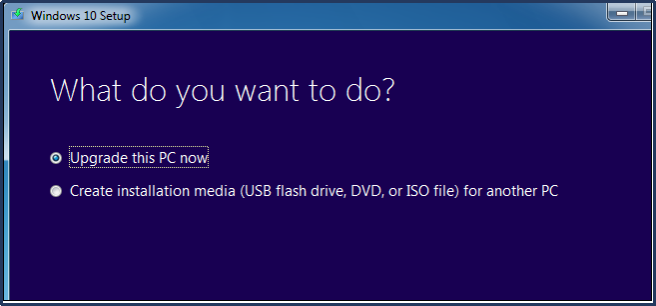
To upgrade to Windows 10 from Microsoft's official website, follow these steps: Download the Media Creation Tool, run it, and select the Upgrade this PC now option. The tool will then check for and download the necessary files, and then the upgrade process will begin. This process may take some time, but following the proper steps from Microsoft's website can help minimize the time taken.
- Visit the official website of Microsoft and click on update now.
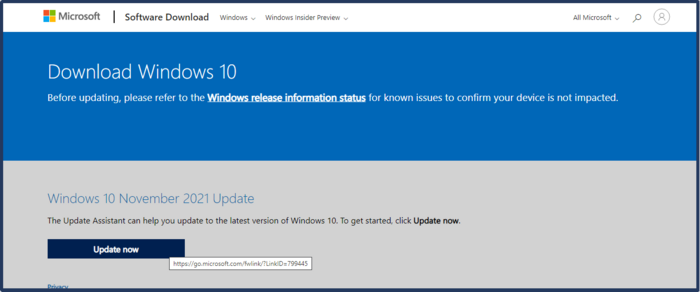
- Now, download the Windows installation file and run it.
- Read and accept the terms and conditions.
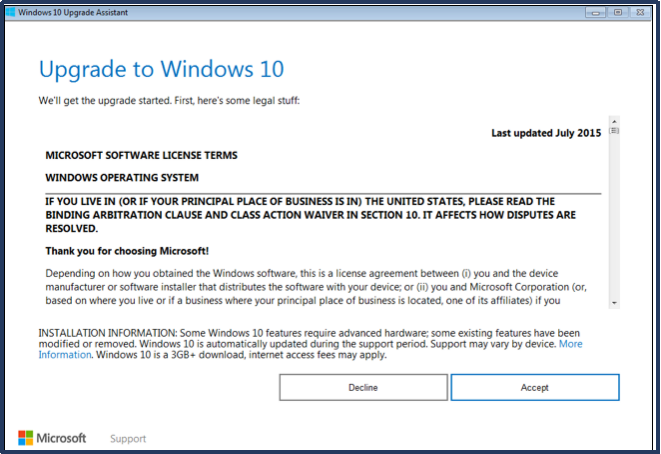
- On the next screen, select Upgrade this PC now.
- To install the required packages, follow these steps: First, update the package list by running `sudo apt update` in the terminal. Next, install the required packages by running `sudo apt install -y build-essential libssl-dev libffi-dev libncurses5-dev libgdbm-dev libnss3-dev libpam-dev libssl-dev libreadline-dev libsqlite3-dev wget curl libbz2-dev liblzma-dev libncurses5-dev libgdbm-dev libnss3-dev libpam-dev libssl-dev libreadline-dev libsqlite3-dev libxml2-dev libxslt-dev libcurl4-openssl-dev libexpat1-dev libncurses5-dev libgdbm-dev libnss3-dev libpam-dev libssl-dev libreadline-dev libsqlite3-dev libxml2-dev libxslt-dev libcurl4-openssl-dev libexpat1-dev`.
- In the end, click on Install Now.
- Follow the prompts, and your PC will start downloading and installing Windows 10.
Upgrading from Windows 8 to Windows 10 is a straightforward process, but switching from Windows 10 to Windows 11 requires more time and effort.
The process of rendering a 3D animation can take 2 to 3 hours, depending on the speed of your internet connection and computer specifications.
Windows 10 Installation Failed Solutions
Windows installation can fail due to various problems, including issues with the installation media, corrupted system files, driver conflicts, and problems with the boot process. To resolve these issues, try verifying the integrity of the installation media, running the System File Checker (SFC) to scan for corrupted system files, updating drivers to the latest versions, and troubleshooting boot issues by checking the BIOS settings and updating the UEFI firmware. Additionally, ensure that the computer's hardware is compatible with the Windows version being installed, and consider running a disk cleanup and disk defragmentation to free up space and improve performance.
1. Improper BIOS Settings
Improper BIOS settings are the main reason why Windows installation fails. If you've changed the primary bootable devices, it can cause issues during the installation process.
Solution: To resolve the issue of the PC not booting from the correct device, set your primary bootable device to your HDD (Hard disk drive) and restart the PC. If the problem persists, reset the BIOS settings to default, which will reset all priorities and resolve the issue.
2. In-Compatible Architectures
Windows installation may fail due to in-compatible architectures, such as trying to install a 64-bit or 32-bit version on an 86-bit processor. This can cause the installation to crash.
Solution: To resolve the issue of a 32-bit Windows version not being compatible with a 64-bit processor, you should determine the architecture of your computer's processor. If it's a 64-bit processor, download and install the 64-bit version of Windows. This will ensure compatibility and resolve the problem.
3. Faulty Peripheral Devices
Faulty peripheral devices can cause software malfunction, leading to a failed Windows installation.
Solution: To resolve issues with your laptop or computer, disconnect all external devices such as joysticks, speakers, microphones, and printers. This will help identify if the problem is hardware-related.
4. A Third-Party Antivirus
The latest versions of Windows have built-in security features, making third-party antivirus software somewhat unnecessary and potentially problematic to install.
Solution: Go to the Control Panel
Before installing or updating Windows 10/11, it's recommended to use Qiling Backup to back up files, hard disks, and partitions, as well as clone hard drives on both Windows/Mac and migrate OS to SSD.
To create a backup for your important files and documents, follow these steps: identify the files and documents you need to back up, select a storage device or cloud service to store your backup, set up the backup process using software or tools provided by the storage device or cloud service, and finally, regularly check and update your backup to ensure it remains current and accurate.
Step 1. To initiate a backup, click the File backup option in the Backup and recovery page.

Step 2. On the left, both local and network files will be shown, allowing you to select and extend the directory to pick the desired backup files.

Step 3. Follow the on-screen instructions to choose a location to store the backup.

To encrypt the backup with a password, click on the "Options" button in the "Backup Options" section. This will allow you to add an extra layer of security to your backup by requiring a password to access it. You can also explore other options in this section to customize the backup process according to your specific needs.

To specify the backup schedule and start the backup at a certain event, click on the "Backup Scheme" option.

Step 4. The backup may be stored on a local disk, Qiling's online service, or a Network-Attached Storage (NAS).

Step 5. To start the backup process, click the "Proceed" button. The backup job will be displayed as a card on the left side of the panel once it has been completed. You can then right-click on the backup job to manage it further.
Conclusion
Upgrading to the latest version of Windows is recommended, as it offers new features and upgrades, but keep in mind that the installation time may vary.
Upgrading from Windows 8 to Windows 10 can take around 1-1.5 hours, but the actual installation process may take longer, up to 3-3.5 hours, so it's best to plan ahead and avoid any interruptions during this time.
Related Articles
- Work from Home Equipment Checklist: What Do You Really Need To Work From Home
- How to Disable Windows Defender on Windows 11
- Guideline: Backup Specific Folders to OneDrive on Windows 10/11
- [PC & Android] How to Backup to Cloud with 3 Methods
- Top 10 Best Gmail Backup Tools in 2024 (Free & Paid)
This post provides an overview of the 10 best Gmail backup tools, highlighting their features and details to help you choose the one that best meets your needs. - Boot Device Not Found Hard Disk 3F0 Error on HP [FIXED]
If you facing hard disk 3f0 errors and looking about How to fix hard disk 3F0 errors, this guide includes it all. We discuss the potential reasons and practical solutions to fix boot device not found hard disk error (3f0) on hp.
Products
Articles & Tutorials
- Data Recovery
- Data Backup
- File Recovery
- File Backup
- System Backup and Restore
- Disk and Partition Clone
- Technical articles
- Mobile articles
- Disk Master Help
- Windows Data Recovery Tutorials
- Windows Secure Delete Tutorials
- Windows Partition Management Tutorials
- Windows File Backup and Restore Tutorials
- Windows System Backup and Restore Tutorials
- Windows Disk Backup and Restore Tutorials
- Windows Clone Tutorials