Fix Windows 11 Cumulative Update Failed to Download and Install
| Workable Solutions | Step-by-step Troubleshooting |
|---|---|
| Fix 1. Run Update Troubleshooter | Select Start > Settings > System > Troubleshoot...Full steps |
| Fix 2. Make Sure that BITS is Running | Click Start, type services.msc in the Start Search...Full steps |
| Fix 3. Run SFC and DISM | Right-click or press and hold Command Prompt...Full steps |
| Fix 4. Reset Update Components | It's kind of a complicated procedure to reset...Full steps |
| Fix 5. Download Windows 11 KB ISO | Here's the direct download link for every...Full steps |
Error: Download and Install Windows 11 Cumulative Update Failed
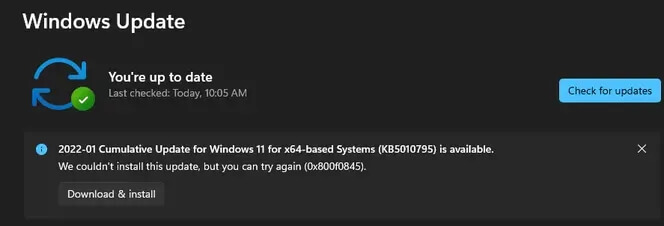
You're having trouble downloading the 2022-01 Cumulative Update for Windows 11 for x64-based Systems (KB5010795), and you're wondering if it's an isolated issue or if others are experiencing the same problem, as you need the update to resolve a VPN connection issue with your current OS.
To resolve the issue with the 2022-03 Cumulative Update for KB5011563 (OS Build 22000.593) Preview installation error 0x800f0922 in Windows 11, try running the Windows Update Troubleshooter, resetting Windows Update components, or checking for corrupted system files using the System File Checker (SFC) and DISM tools. If the issue persists, consider creating a new user account and testing the update from there, or seeking further assistance from Microsoft Support. Additionally, ensure your system is up-to-date with the latest updates and that any third-party antivirus software is disabled during the update process. If none of these steps resolve the issue, you may need to perform a clean installation of Windows 11.
You're experiencing issues with installing the Windows 11 cumulative update KB5011563, which is getting stuck at various percentages. You're concerned about the safety of downloading it in its current state.
* Which OS build are you running? Check Windows 11 update history To get the most recent cumulative update, go to Settings > Update & Security > Windows Update, and click on the "Check for updates" button. If an update is available, follow the prompts to download and install it. The current version is March 28, 2022—KB5011563 OS Build 22000.593 Preview.
Why Is Windows 11 Cumulative Update Not Installing?
A cumulative update preview build for Windows 11 and Windows 10 is typically released on the 3rd/4th week of every month, bringing bug fixes and feature improvements. Keeping Windows up to date is essential for enhanced security, but automatic updates can sometimes fail, making it difficult to download and install the suggested updates.
Consequences of failing to install a Windows 11 update:
- PC crashed and was unbootable
- Blue/black screen of death
- Unknown error codes
- INACCESSIBLE_BOOT_DEVICE
Qiling Free System Backup Software
To ensure seamless operation and data protection, it's highly recommended to have a reliable backup software in place for both Windows 11 and 10, especially when a new cumulative update is released. This is because these updates can sometimes cause system instability or data loss, and having a backup ensures that you can quickly recover your important files and settings in case of any issues.
- A software that enables fast and reliable disk imaging, system imaging and file backup, allowing for efficient data protection and recovery.
- To prevent data loss from a system crash and BSOD (Blue Screen of Death) after a failed major or minor Windows update, create a System Restore point before updating. This will allow you to revert to a previous state if the update fails.
- To create a bootable rescue media, you'll need a blank USB drive or CD/DVD. Download the desired rescue software, such as Hiren's BootCD or a Linux distribution like Ubuntu, and follow the provided instructions to create a bootable media.
The "Windows 11 cumulative update failed to download and install" issue can occur due to insufficient disk space, corrupted system files, internet connection instability, or network issues. Various fixes are available for different update versions, including the initial 2021-12 KB5006674 and the latest 2022-03 KB5011563 Preview.
Fix 1. Run the Windows Update Troubleshooter
The Update Troubleshooter can help resolve errors encountered while downloading and installing Windows updates by identifying and fixing the issue.
Step 1. To resolve Windows Update issues, go to Settings > System > Troubleshoot > Other troubleshooters, then select Windows Update under Most frequent and click Run.
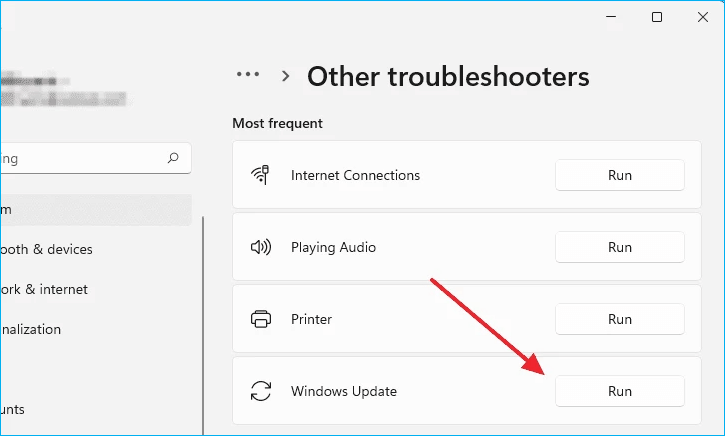
Step 2. When the troubleshooter is finished running, it's a good idea to restart your device.
Step 3. Check for new updates by going to Start > Settings > Windows Update > Check for updates, and install any available updates.
To use the Windows Update Troubleshooter in Windows 10, follow the steps outlined in the linked page.
Fix 2. Check Background Intelligent Transfer Services are Running
BITS is a service used by programmers and system administrators to download and upload files, and also by Windows to download updates.
Step 1. To access the Services window, type services.msc in the Start Search text area and click on services.msc in the programs list. If prompted, enter an administrator password or click Continue for confirmation.
Step 2. To resolve the issue, double-click on the Background Intelligent Transfer Service, check its Startup status, and if it's Stopped, click Start and OK. If it's Running, right-click and select Restart.
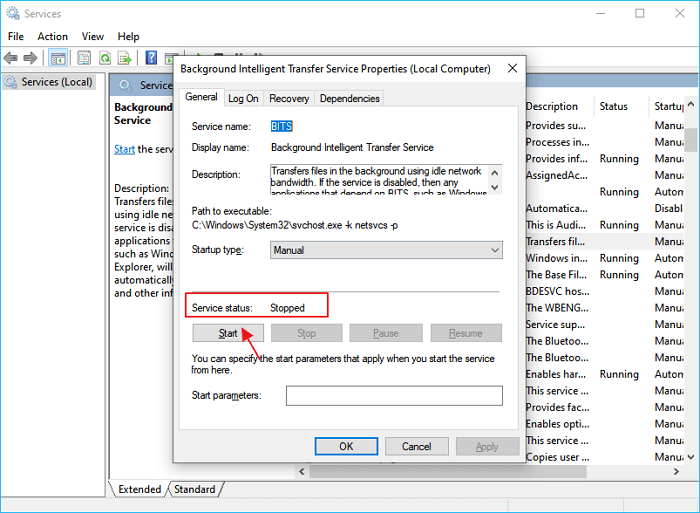
Step 3. If Windows Update is not running at startup, double-click on it to open the window, check the status, and if it's stopped, click start and ok, but if it's running, right-click and restart.
Fix 3. Run SFC and DISM to Repair System Corruption
System File Checker is a utility in Windows that checks for problems with files on your computer. To run it, open the Command Prompt as an administrator, type `sfc /scannow`, and press Enter. This will scan all protected system files and replace any corrupted or missing ones with a cached copy from the Windows installation media.
Step 1. To open Command Prompt as an administrator, type "Command Prompt" in the search box on the taskbar, right-click or press and hold on the "Command Prompt (Desktop app)" result from the list of results, select "Run as administrator", and then select "Yes".
Step 2. Run the command `DISM.exe /Online /Cleanup-image /Restorehealth` in the Command Prompt, pressing Enter afterwards. This process may take a few minutes to start and up to 30 minutes to complete.
Step 3. After seeing a message that says "The operation completed successfully," type `sfc /scannow` and press Enter. (note the space between "sfc" and "/")
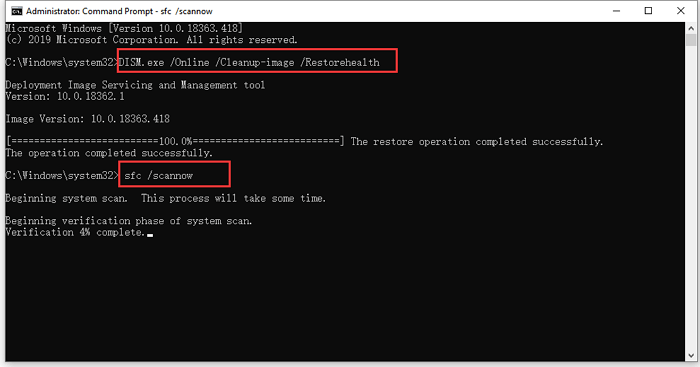
Step 4. Once you've completed the verification process, type "exit" in the chat window to complete the process and close the chat session.
Fix 4. Reset Windows Update Components
Windows update is a crucial component of Windows that provides security patches, fixes known bugs, and installs new drivers for hardware devices. However, issues with system files can sometimes prevent Windows update from working properly, leading to problems with downloading or installing cumulative updates. In such cases, resetting Windows update components can be a significant fix.
Resetting Windows update components can be a lengthy and complicated process, with many steps to follow. However, a simplified guide can be found on tenforums.com, which is applicable to both Windows 10 and 11, making it a user-friendly resource for those who need to reset their Windows update.
Fix 5. Download Windows 11 Cumulative Update ISO for Clean Install
The most effective way to fix the in-place update failure of a cumulative update for Windows 11 is to install it offline.
The direct download link for every available cumulative update preview for Windows 11 for x64-based systems is available.

Step 1. Open the link, type KB5011563 for example, and hit Search.
Step 2. To download the correct version of the software, select the appropriate title information and click the "Download" button.
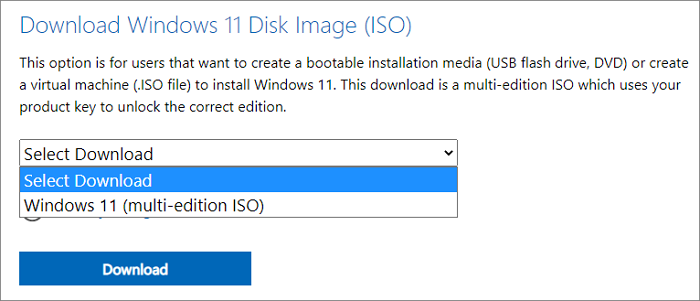
To download Windows 11 Pro, follow these steps: Go to the official Microsoft website and click on the "Download Now" button. Select the Windows 11 Pro version and choose your language and architecture (32-bit or 64-bit).
The Windows 11 Pro ISO image is a file that contains the entire installation contents of the Windows 11 Pro version. It can be downloaded from various sources, including Microsoft's official website, and is used to install the operating system on a computer. The ISO file is a collection of files and folders that make up the Windows 11 Pro installation, including the operating system itself, drivers, and other necessary components. The ISO file can be burned to a DVD or USB drive and used to install Windows 11 Pro on a computer, or it can be used to create a virtual machine or a bootable USB drive. The ISO file is a digital copy of the Windows 11 Pro installation media, and it can be used to install the operating system on multiple computers.
How to Prevent Windows 11 Cumulative Update Failure from Ruining Your Computer
The cumulative update, released monthly, offers security enhancements and performance improvements, but its installation can be disrupted by various factors, potentially leading to a computer shutdown or even complete death, making it a double-edged sword.
Preparing a system backup image is more significant and helpful than mending the issue after a failed update, as it ensures a working system is available in case of a disaster.
A backup of a working system state, along with programs and data, is useful for preventing OS crashes, data loss, and disaster recovery situations.
Qiling Backup Free can do most of the backup work for you, allowing you to save backups to multiple locations such as a physical hard drive, network drive, NAS, and cloud.
Before any disaster strikes, create a bootable rescue media in advance. This allows you to perform a system recovery or data recovery, even on a computer that's become inaccessible.
Step 1. Prepare a USB drive which can be written and read.
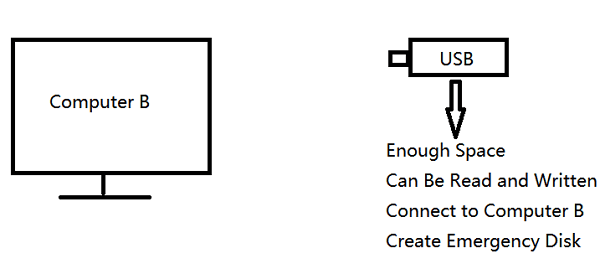
Step 2. Launch and install Qiling Backup on the Computer B.
Step 3. Find and click "Tools" and choose "Create bootable Media".
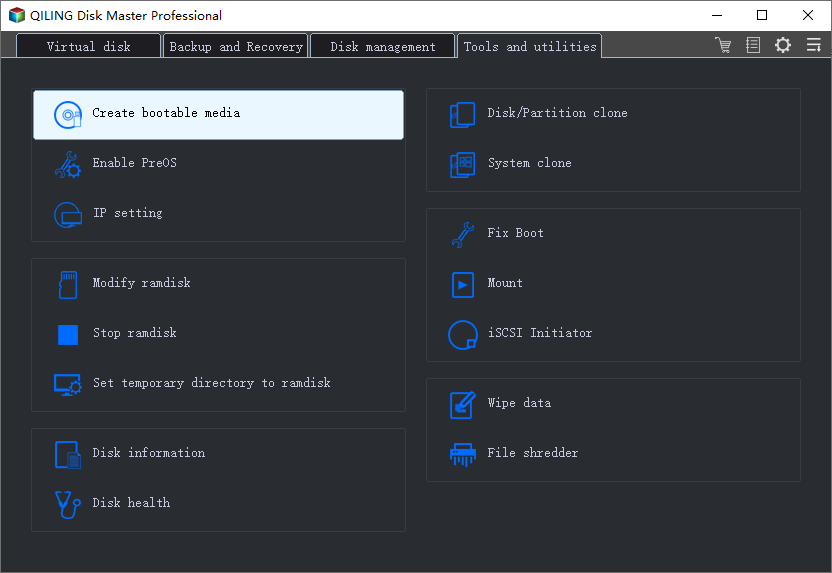
Step 4. Choose the location where you want to save the bootable disk, which can be an ISO file, a bootable USB drive, or a CD/DVD disc.
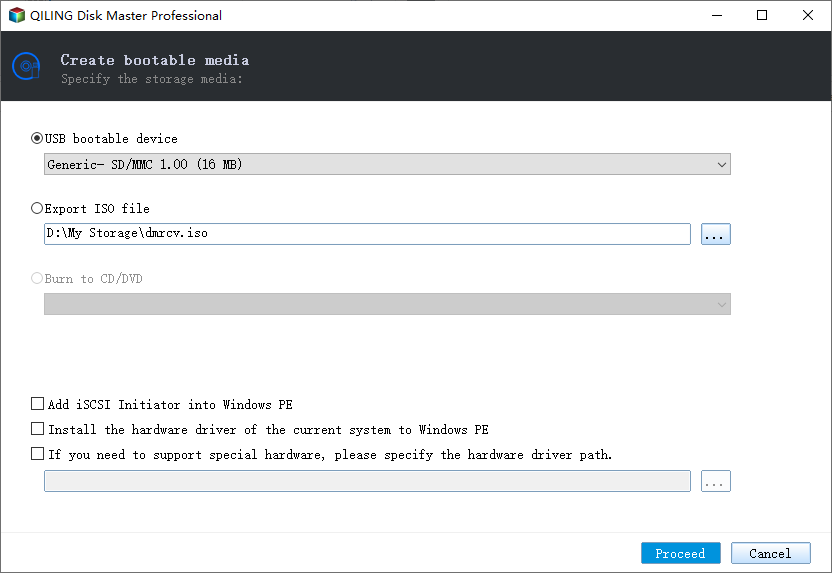
Step 5. Then click "Proceed" to start.
Related Articles
- 5 Ways to Prevent Computer Virus: Elimate Your Fears and Doubts About Virus!
- 9 Ways to Fix Google Drive Upload Stuck Problem
- Best Free Norton Ghost Alternative for Windows 10
- Two Ways: Encrypt Backup Drive to Protect Your Data
- Tech Support Scams Attack? No Worry!
This blog provides an in-depth look at tech support scams, covering their various aspects and offering tips to avoid falling victim to them. - Things to Backup Before Reinstalling Windows, Don't Forget!
Use this checklist of things to back up before reinstalling Windows, including files, drivers, product keys, settings, and system images.
Products
Articles & Tutorials
- Data Recovery
- Data Backup
- File Recovery
- File Backup
- System Backup and Restore
- Disk and Partition Clone
- Technical articles
- Mobile articles
- Disk Master Help
- Windows Data Recovery Tutorials
- Windows Secure Delete Tutorials
- Windows Partition Management Tutorials
- Windows File Backup and Restore Tutorials
- Windows System Backup and Restore Tutorials
- Windows Disk Backup and Restore Tutorials
- Windows Clone Tutorials