Blue Screen of Death Is Changing to Black, How to Fix Windows 11 Black Screen of Death
Windows 11 Black Screen of Death Error
Windows 11 was released on June 24, 2021, and existing Windows 10 users will be able to upgrade and download the new operating system for free when the official version becomes available.
Windows 11 brings significant improvements to system functionality and user interface. One notable change is the black screen of death, which is now simply black, marking the first major update to this part of the Windows interface since 2016, when Microsoft added QR codes.
Windows 11 BSOD (Blue Screen of Death) occurs when the system encounters a critical error, prompting a restart with an error code, such as CRITICAL_PROCESS_DIED or VIDEO_TDR_TIMEOUT_DETECTED.
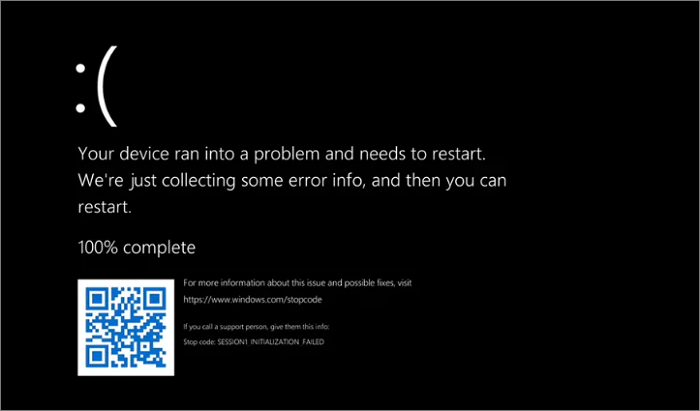
The Black Screen of Death is a severe Windows system issue that occurs when the system encounters a critical problem. When this happens, the Windows system freezes and fails to boot, rendering all hard drives inaccessible.
Quick Navigation:
The Causes of Windows 11 Black Screen of Death
To recover files from a black screen of death on Windows 11, first try to identify the cause of the issue, which could be a software or hardware problem. If it's a software issue, try restarting your computer in safe mode or using a system restore point to revert to a previous working state.
Fix 1. Reboot Windows 11 in Safe Mode
To fix a black screen error, try uninstalling or updating drivers, which can be done through the Device Manager. This process involves searching for the problematic device, right-clicking on it, and selecting "Uninstall device" or "Update driver." If the issue persists, you may need to roll back the driver to a previous version or seek further assistance from the manufacturer or a technical support team.
To fix the corrupted MBR and solve the Black Screen of Death on Windows 11, you can use the built-in Command Prompt or a third-party tool like Qiling Partition Master. First, boot your computer from a Windows installation media, such as a USB drive or CD/DVD. Then, open the Command Prompt and type the command "bootrec /fixmbr" to repair the MBR.
To fix the BDC error in the Command Prompt to solve Windows 11 BSOD, follow these steps: Run the Command Prompt as an administrator, type "bcdedit /enum" and press Enter to list all boot entries, identify the problematic entry, and type "bcdedit /set {identifier} safeboot:off" to disable the safe boot, then restart your computer and check if the issue persists. If it does, try to disable the problematic driver or update the BIOS to resolve the issue. If the problem still persists, you may need to use the System File Checker (SFC) to scan and replace corrupted system files.
Fix 5. Remove Virus or Malware
If you're experiencing a black screen of death on Windows 11, there are several other tips you can try to troubleshoot the issue. Firstly, try pressing the Windows key + X and selecting the Power option to restart your computer.
The Causes of Windows 11 Black Screen of Death
The black screen of death on Windows 11 is typically caused by a combination of factors, including corrupted system files, hardware issues, or software conflicts. This issue can occur due to a faulty driver, a malfunctioning graphics card, or a problem with the operating system itself.
- Applications incompatibility issues
- Memory stick incompatibility/corruption or poor contact
- Hardware failure
- MBR or system file error
- BCD errors
- Virus or malware attack
Given the reasons mentioned above that may cause the black screen error on Windows 11, here are the solutions to try out!
Recover Files from Black Screen of Death on Windows 11 at First
When Windows 11 experiences a black screen of death, it doesn't delete files, but you won't be able to access your hard drive or data. If the issue is hardware-related, you may need to format and repartition the hard disk or even reinstall the system, which would result in data loss.
To recover data from a computer that can't boot, it's recommended to export and back up important data on the hard disk in advance. If the computer is unbootable, you can use Deep Data Recovery Pro with bootable media to restore files from a corrupted hard drive.
Step 1. Create a bootable disk
Before creating a bootable disk, make sure to copy any important data from the USB to another device, as the process will erase the existing data. Then, use Deep Data Recovery WinPE Edition to create a bootable disk on the empty USB.
Connect a USB drive to your PC, then launch the Deep Data Recovery WinPE Edition software. Select the USB drive from the list and click the "Create" button to create a bootable disk.
Step 2. Boot from the bootable USB
Connect a bootable disk to a non-booting PC, and in the computer's BIOS settings, change the boot sequence to prioritize the disk. This often resolves the issue when the computer is restarted and the BIOS is accessed by pressing F2.
Press F10 to save and exit and set the PC to boot from a removable device or CD/DVD instead of the hard drive.
Step 3. Recover data from a hard drive that won't boot
When booting from a USB, you can run Deep Data Recovery from a WinPE bootable disk, select the drive you want to scan to find all lost files.

Click "Scan" to start the scanning process.

After scanning, preview and select the files you want to recover, then click "Recover" to save them to a different location to avoid data overwriting.

If your computer is displaying a black screen of death, try recovering data from it first. Once you've managed to retrieve your important files, you can proceed with troubleshooting.
Fix 1. Reboot Windows 11 in Safe Mode
Windows 11 black screen of death are often caused by driver problems. The Safe Mode startup environment loads only essential system files and drivers, excluding the influence of third-party software or drivers, which can help troubleshoot the issue.
To boot into Safe Mode on Windows 11, press and hold the Shift key while clicking the Power button. From the options that appear, select Restart.
Step 1. To enter the Windows Recovery Environment, start and shut down your computer repeatedly. This process, known as a "hard reset," can be initiated by pressing the power button to shut down your computer, then immediately pressing it again to turn it back on.
- Press and hold the power button for 10 seconds to turn off your computer.
- To start the computer, press the power button. To turn it off, press and hold the power button for 10 seconds.
- Press the power button again to turn on your computer.
- Hold the Power button on your Windows computer for 10 seconds after it has started to shut it down completely.
- Retry to power on your computer until Windows fully restarts and enters WinRE.
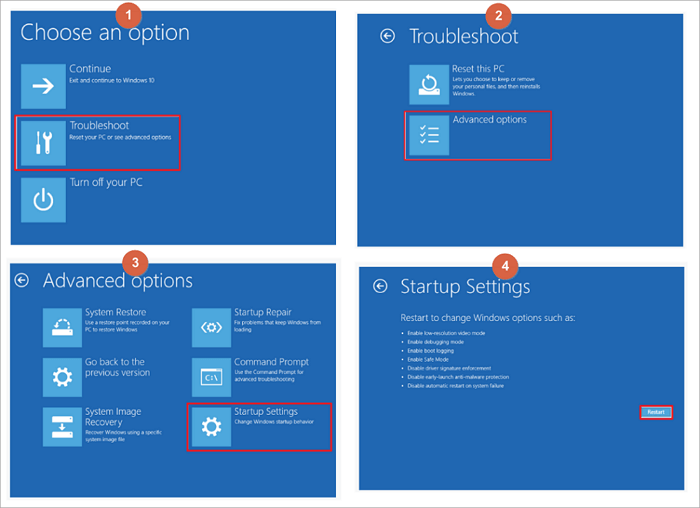
Step 2. Once you enter the Choose an option screen, select "Troubleshoot > Advanced options > Startup Settings > Restart".
Step 3. Follow the on-screen instructions to press F4, F5, or F6 for Safe Mode in different cases.
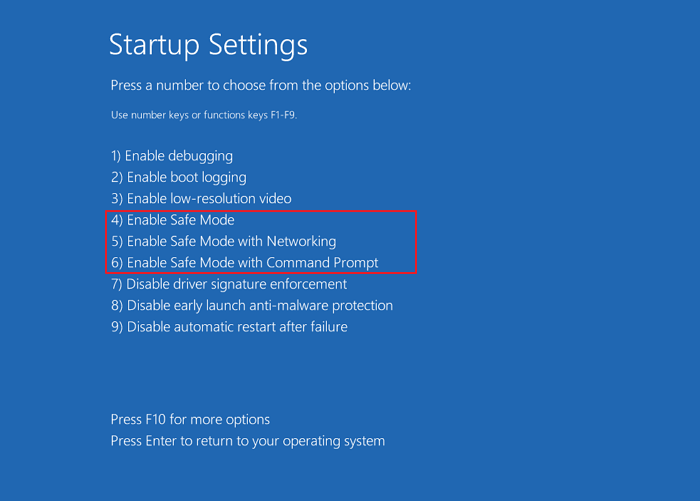
If there's no black screen or infinite restart issue in Safe Mode, it's likely a third-party software or driver issue that can be resolved by uninstalling them one by one to troubleshoot.
Fix 2. Uninstall or Update Drivers to Fix Black Screen Error
The black screen of death on Windows 11 may occur due to incompatible or outdated drivers, which can be resolved by uninstalling or updating these drivers to the latest versions.
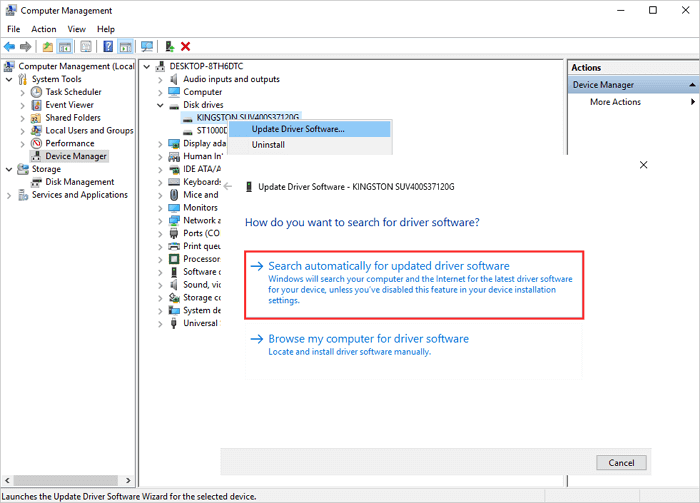
Steps to Update Device Drivers:
Step 1. Type device manager in the Search box, then click "Device Manager".
Step 2. Expand Disk driver. Right-click your disk drivers and choose "Update Driver Software".
Step 3. Choose "Search automatically for updated driver software". Then, wait for the computer to search and install the latest driver software.
Steps to Uninstall Problematic Drivers:
Step 1. To resolve the issue, open the Device Manager, expand the disk drivers, right-click on the problematic driver, and select the "Uninstall" option. This will remove the driver, and Windows will automatically reinstall it when you restart the computer.
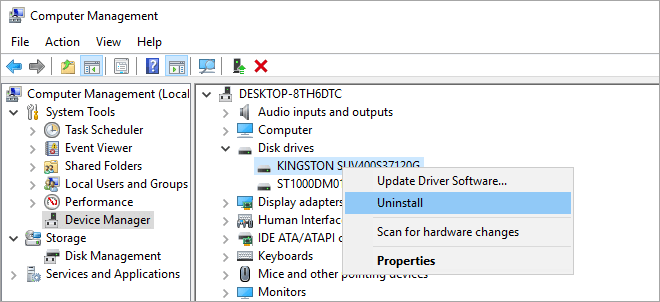
Step 2. Wait for the process to complete and restart the computer. Then, the system will automatically reinstall an updated device driver for your disk.
If removing some drivers doesn't help, you can also sort the installed software by date to see which ones were recently installed, uninstall them, and then restart your computer to see if the black screen issue persists.
Fix 3. Fix Corrupted MBR to Solve Black Screen of Death on Windows 11
If the Master Boot Record (MBR) on the system disk is corrupted, it can cause a black screen issue. To resolve this, you can attempt to repair the corrupted MBR using a partition manager like Qiling Partition Master.
This partition management software allows you to partition your hard drive and resolve errors by creating a WinPE bootable disk, which can be used when the computer is unable to boot normally.
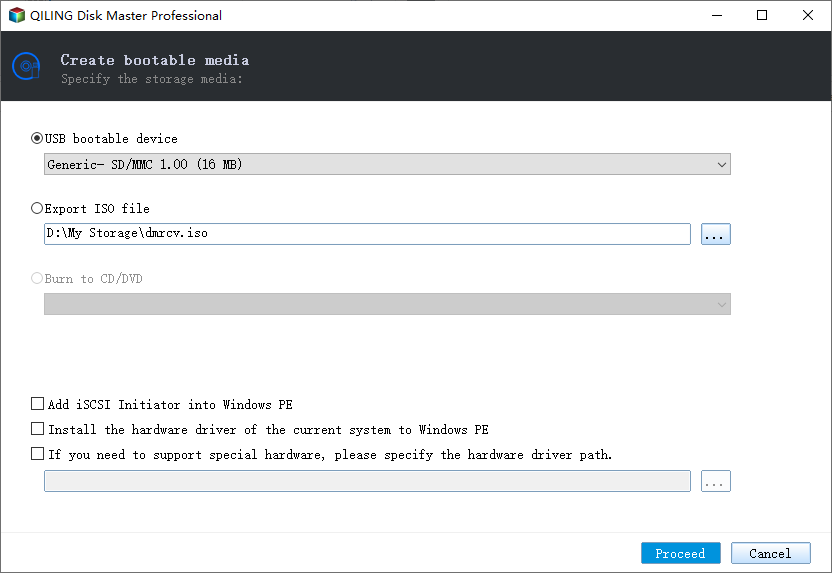
Step 1. Create a WinPE bootable disk
- To create a bootable media using Qiling Partition Master, launch the software and click "Create bootable media" on the toolbar. You can then select to create the bootable disk on a USB drive or, if your computer has a CD/DVD drive, create it on a CD/DVD instead.
- Click "Proceed" to finish the process.
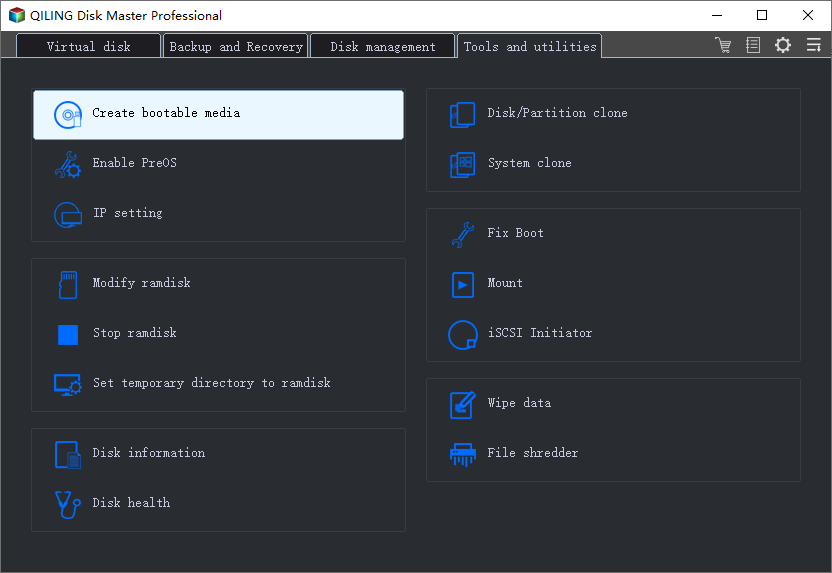
Step 2. Boot Qiling Partition Master Bootable USB
- Connect the bootable USB or CD/DVD to your PC.
- To enter the BIOS screen, press F2 or Del when restarting the computer. Once in the BIOS, set the computer to boot from the "Removable Devices" or "CD-ROM Drive". After doing so, Qiling Partition Master will run automatically.
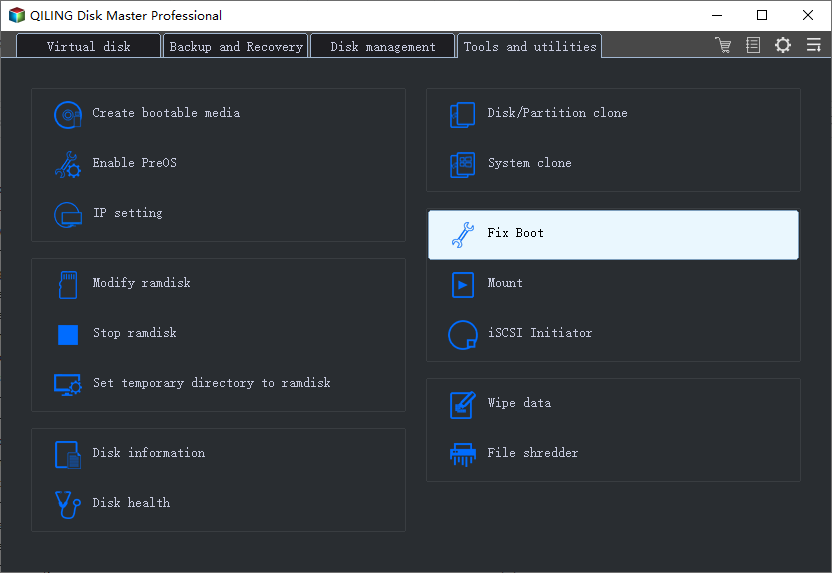
Step 3. Rebuild MBR
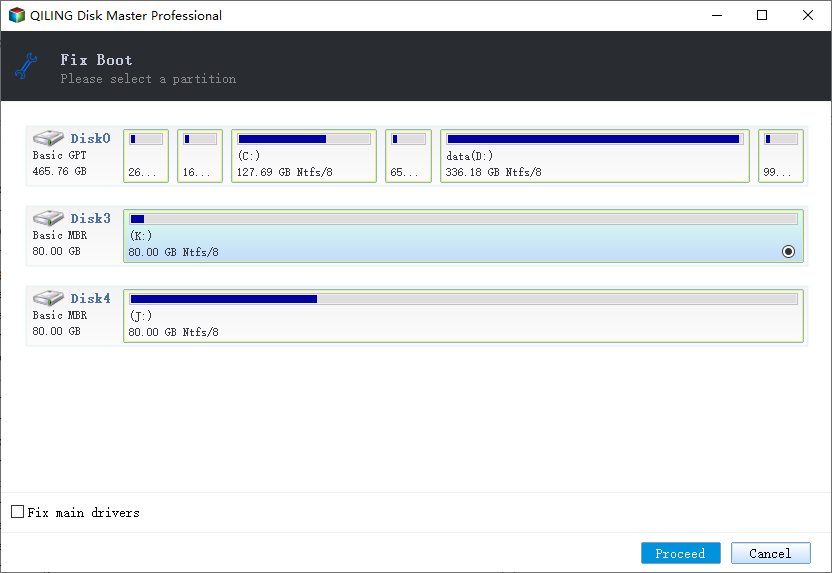
- To repair a damaged Master Boot Record (MBR), go to the tools page and select the "Fix boot" feature. Then, click on the disk whose MBR is damaged to proceed with the repair process.
- Select the appropriate MBR type for your current operating system, then click "Proceed" to rebuild the Master Boot Record (MBR), which should restore normal boot functionality to your computer.
Fix 4. Fix BDC Error in CMD to Solve Windows 11 BSOD
To fix the BDC error that leads to the black screen of death in Command Prompt, you can try running the command `chkdsk /f` to check and fix disk errors, or run the command `sfc /scannow` to scan and replace corrupted system files. If the issue persists, you can try running the command `bcdboot C:\Windows /s C:` to rebuild the BCD, or run the command `bootrec /fixboot` to fix the boot sector.
Step 1. To boot your computer from a Windows bootable drive or installation CD or DVD, simply insert the bootable media into your computer and restart it. The computer will automatically detect the bootable drive or CD/DVD and begin the boot process.
Step 2. To access the Command Prompt in Windows, follow the wizard's instructions: select "Repair your computer" from the boot options, then choose "Troubleshoot", followed by "Advanced", and finally select "Command Prompt".
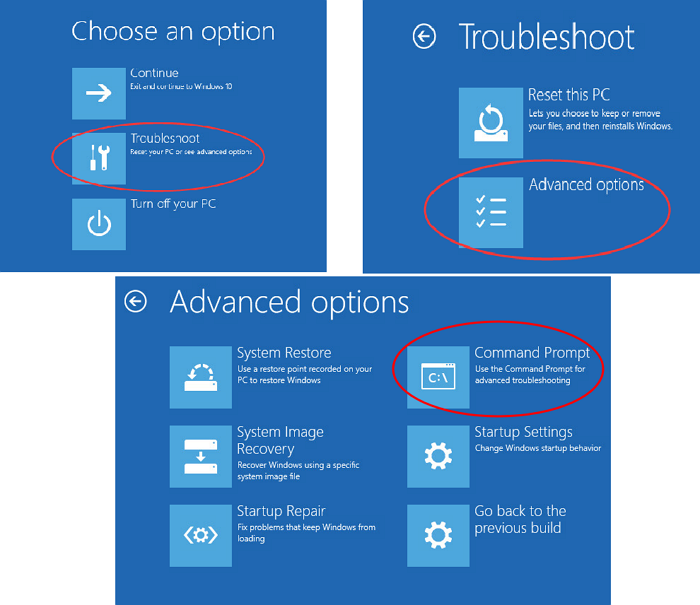
Step 3. On the Command Prompt window, type these following commands and hit enter after each one.
bootrec /Fixmbr bootrec /FixBoot bootrec /ScanOs bootrec /RebuildBcd
Step 4. When it completes, exit Command Prompt. Restart the computer and check if Windows 11 can boot without a black screen.
Fix 5. Remove Virus or Malware
Download and install reliable anti-virus software, run a full disk scan to detect any threats, thoroughly check computer files for viruses, and clean up any detected viruses.
After the virus is removed, the black screen issue can be resolved by installing all the necessary patches that need to be upgraded.
Conclusions
To fix the Windows 11 black screen of death, first back up important data. Then, access Safe Mode to check for driver or application issues and resolve them. Finally, you can use a partition manager to repair corrupted MBR in a few simple steps.
Fixing the BCD error in CMD can be useful. At last, scan and remove viruses or malware with powerful ant-virus software.
Other Tips to Fix Black Screen of Death on Windows 11
If the above methods can't solve the BSOD error on Windows 11, you can still try to check the memory stick or CPU problems.
Tip 1. Reconnect or Clean Memory Stick
A black screen can also be caused by bad memory contact or dust buildup. To resolve this, try unplugging the memory strip from the motherboard, wiping the gold finger with an eraser (avoiding water), and then plugging it back in. If this doesn't work, you can try switching to a different memory slot to see if the issue resolves itself. This troubleshooting step can often solve blue screen problems.
Tip 2. Cool the Computer
The black screen issue can be caused by high internal temperatures, particularly in the CPU, graphics card, and hard disk, which can be due to poor heat dissipation.
If the CPU and graphics card fans spin normally, it's suggested to improve the host's heat dissipation, like adding a chassis heat dissipation system, to prevent overheating issues.
Related Articles
- Best Solutions on How To Fix Adobe Acrobat Error 0 104
- What Is 4k Hard Drive
- How to Perform Free Hard Drive Test or Diagnostic to Repair Disk Errors in Windows 10/8/7
- Windows 11 MBR to GPT Convert Tool [Free&Paid]
- How to Fix the Micro SD Card Is Write Protected Error
Do you know how to fix the error showing your Micro SD card is write-protected? This guide provides methods with detailed steps to explain how to fix the Micro SD card is write protected error. - My SanDisk Ultra USB 3.0 Is Write Protected What to Do?
If your newly purchased SanDisk Ultra USB 3.0 is write-protected, what should you do to fix it? This post will provide two effective solutions and guide you to solving this problem step-by-step.
Products
Articles & Tutorials
- Data Recovery
- Data Backup
- File Recovery
- File Backup
- System Backup and Restore
- Disk and Partition Clone
- Technical articles
- Mobile articles
- Disk Master Help
- Windows Data Recovery Tutorials
- Windows Secure Delete Tutorials
- Windows Partition Management Tutorials
- Windows File Backup and Restore Tutorials
- Windows System Backup and Restore Tutorials
- Windows Disk Backup and Restore Tutorials
- Windows Clone Tutorials