How to Perform Free Hard Drive Test or Diagnostic to Repair Disk Errors in Windows 10/8/7
Drive errors, corruptions, or bad sectors can be caused by improper shutdowns, harmful software, virus attacks, etc., ultimately leading to Windows 10/8/7 system crashes, hard drive failures, data loss, and other accidents.
Top 4 Methods to Windows 10 Hard Drive Test/Diagnostic
Performing a regular hard drive diagnostic in Windows 10 is a good idea to avoid unpleasant problems. There are four ways to conduct a free hard drive test in Windows 10/8/7, and following any one of these methods can help solve your issues with ease.
| Workable Solutions | Step-by-step Troubleshooting |
|---|---|
| 1. Run Disk Doctor | Open Qiling Partition Master on your computer. Then locate the disk, right-click the partition...Full steps |
| 2. Check Windows Properties | Open "This PC", right-click the HDD/SSD you want to scan and choose "Properties"...Full steps |
| 3. Use Command Prompt | Press the Windows key and type cmd. Right-click "Command Prompt"...Full steps |
| 4. CHKDSK Alternative | Download Qiling CleanGenius for Free and install it. Open the software...Full steps |
Method 1. Perform Hard Drive Error Diagnostic with Software
Applies to Windows 10, 8, 7, Vista, XP
If your Windows 10 computer is experiencing errors, crashes, or other issues, a simple solution is to use an error-checking software. I recommend Qiling Partition Master Free, a free and user-friendly tool that can quickly scan and repair disk errors, even if you have limited technical expertise. This software not only checks and fixes disk errors but also offers various other disk management features.
Highlights:
- Resize or move the partition to adjust the partition size
- Clone disk in a few simple steps
- To format a hard drive, USB, SD card, or SSD for free, you can use the built-in formatting tools in your computer's operating system. For Windows, go to File Explorer, right-click on the drive you want to format, and select "Format.
- Delete or wipe a partition quickly
This software can be used to test and repair hard disk health for errors, corruption, and bad sectors, ultimately leading to improved performance.
Perform disk check on Windows 10:
Step 1. Click the target partition that has a problem.
Step 2. Choose "Surface test".
Step 3. Click "Proceed" to check errors on your partition.
You can easily test a hard drive in Windows 10/8/7 using Qiling partition magic software, which makes it simple and straightforward to do so.
Method 2. Perform Hard Drive Error Check with Windows Properties
Windows has a built-A tool that can scan your disk to find system errors and bad sectors and show if there are any problems with your hard drive is available. This tool cannot only scan for problems but also fix them, if possible. It can check your hard disk health and repair bad sectors and errors, allowing you to identify and potentially resolve any issues with your hard drive.
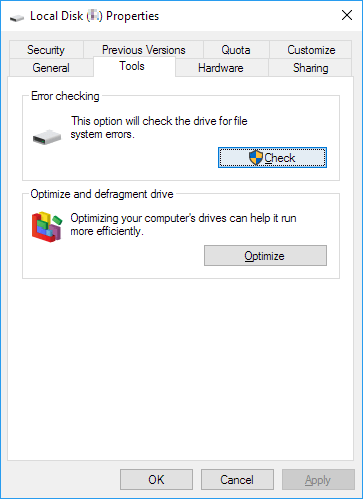
Step 1. To scan the hard drive or solid state drive, open "This PC", right-click on the drive you want to scan and select "Properties".
Step 2. Click the "Check" button under the Error checking section in the "Tools" tab.
Step 3. Next, you can choose to Scan or Repair the drive if errors were found.
Step 4. When the scanning finishes, click on the Show Details link to see the CHDSK log in Event Viewer.
Method 3. Use Command Prompt to Perform Hard Drive Diagnostic
To perform a disk diagnostic in Windows 10, you can use the Command Prompt (CMD) to run CHKDSK, which can help repair disk errors. If you're experiencing poor hard drive performance, running CHKDSK can help diagnose and fix issues. To do this, you can follow the steps to run CHKDSK and let it scan and repair any disk errors on your system.
Step 1. Press the Windows key and type cmd.
Step 2. Right-click "Command Prompt" and choose "Run as administrator".
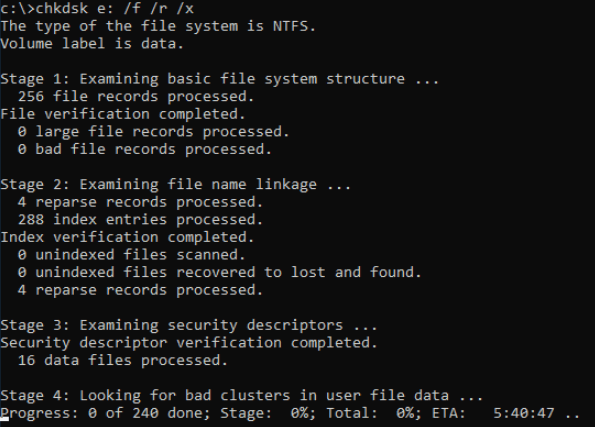
Step 3. Enter the following command: chkdsk E: /f /r /x
The command `chkdsk /f E:` is used to check and repair errors on the partition with drive letter "E". It will automatically fix any errors found.
Step 4. In case of possible system file corruption, you are recommended to run the System File Checker tool to repair missing or corrupted system files after running CHKDSK. To do this, type the command "sfc /scannow" in the Command Prompt and press "Enter".
sfc /scannow
Also read: CHKDSK cannot continue in read-only mode
Method 4. Check and Repair Disk Using CHKDSK Alternative (Also Free)
Download Qiling CleanGenius and install it on your computer. Let's start checking and refixing file system error on your device now.
Step 1. Click "File Showing" to enter the next step.
Step 2. To fix a problematic device, choose the target device and tick the box of "Check and fix file system error". Then, click "Execute" to start the repair process.
Step 3. When the fixing process completes, click "here" to open and use your device. The device is now ready for use, and you can start enjoying its features, playing games, watching videos, or making calls. You can also start customizing and personalizing your device to make the most out of it.
Conclusion
If you're looking for help with hard drive diagnostics, including SD cards, Flash USB drives, and SSD drives, this content can guide you. The four methods mentioned can make hard drive error checking easy and fast.
Disk Doctor Windows 10 Related Questions
If you want to get some further help or additional information, read these questions and answers below.
1. How to run CHKDSK?
To run CHKDSK:
Step 1. Press the Windows key and type cmd.
Step 2. Right-click "Command Prompt" and choose "Run as administrator".
Step 3. Enter the following command:
chkdsk E: /f /r /x
2. How to check the disk for free?
Qiling partition tool makes it effortless check disk:
Step 1. To check the file system on your disk using Open Qiling Partition Master, first open the program on your computer. Next, locate the disk you want to check and right-click on the partition. From the context menu, choose "Advanced" and then "Check File System".
Step 2. In the Check File System window, select the "Fix the error on the disk" option and click "Proceed".
Step 3. When it has completed, click "Finish".
3. Is it free to perform disk error checking?
You can test your hard drive using built-in tools like Check Disk (chkdsk) or Disk Cleanup, or third-party software like CrystalDiskInfo, HDTune, or HD Tune Pro. Additionally, you can check for physical damage by running a S.M.
- Perform Hard Drive Error Diagnostic with Software
- Make use of Windows Properties.
- Use Command Prompt
- Try CHKDSK Alternative
Related Articles
- Format SanDisk SD Card|How to Format SanDisk SD Card on Windows 10 and Mac
- How to Wipe a Hard Drive in Windows XP Without CD
- Top 8 Best Free Windows 11/10/8/7 Disk Management Tools (2022 Update)
- There Is No Disk in the Drive. Please Insert a Disk into Drive
- Can I Format My Samsung SSD T7 1TB for PS5, and How?
Before you install an SSD on your PS5, you should format it to work with the PS5. Luckily, you will discover a comprehensive tutorial to format SSD for PS5. - Can I remove Samsung Micro SD Card Write Protection on My Own?
Many SD cards especially micro SD cards, have no physical write protection switch. This post will cover a reliable method of how to remove Samsung micro SD card write protection.
Products
Articles & Tutorials
- Data Recovery
- Data Backup
- File Recovery
- File Backup
- System Backup and Restore
- Disk and Partition Clone
- Technical articles
- Mobile articles
- Disk Master Help
- Windows Data Recovery Tutorials
- Windows Secure Delete Tutorials
- Windows Partition Management Tutorials
- Windows File Backup and Restore Tutorials
- Windows System Backup and Restore Tutorials
- Windows Disk Backup and Restore Tutorials
- Windows Clone Tutorials