CHKDSK Cannot Continue in Read-only Mode: Get 5 Fixes for CHKDSK Read Only Mode
To resolve the CHKDSK read-only error on your External Hard Drive E:, try running the command prompt as an administrator and then run the command "chkdsk E: /r" to force a full check of the drive. If the issue persists, you can try to disable the read-only attribute of the drive by right-clicking on the drive in File Explorer, selecting Properties, and then clicking on the "Read-only" checkbox to uncheck it. Additionally, you can also try to format the drive and then run CHKDSK again. If none of these steps work, it may be worth considering replacing the External Hard Drive.
When your hard drive starts misbehaving or reporting errors, CHKDSK can be a lifesaver. CHKDSK, short for check disk, verifies the file system integrity of a volume and fixes logical file system errors. However, running certain CHKDSK commands and parameters, such as chkdsk /f/r or chkdsk /scan, may result in the error message "CHKDSK cannot continue in read-only mode".
PAGE CONTENT:
- 1. Schedule a CHKDSK on Reboot
- 2. Remove Disk Read-only Using Diskpart
- 3. Remove Disk Read-only Using Software
- 4. Change Read-only Files to Normal
- 5. Close All Programs and Files
Why CHKDSK Cannot Continue in Read-only Mode
CHKDSK not working issue occurs due to various reasons, such as write protection or read-only issues, which can prevent it from checking disk errors or resolving startup problems. If the cause is a read-only issue, CHKDSK may report an error message indicating that the disk is read-only.
"The file system is NTFS, but an error was found and CHKDSK (Check Disk) cannot continue in read-only mode."
This error usually occurs in Windows 10/8/7/XP or other versions in three situations:
- You are trying to run CHKDSK on your system partition.
- The disk you are trying to scan is currently used by a program.
- You're trying to scan a disk that has a read-only file system, meaning it's not possible to make changes or add new files to it. This is likely because the disk is formatted as a CD or DVD, which are designed to be read-only. If you need to scan the disk, you might want to consider using a different method that doesn't require writing to the disk.
Related topic: The file system of the drive is RAW, which means it's not formatted, and CHKDSK (Check Disk) is not supported on unformatted drives.
How to Fix CHKDSK Cannot Continue in Read-only Mode Error
If CHKDSK can't continue in read-only mode, try different methods to resolve the issue. You can attempt to run CHKDSK in read-write mode, or try to boot your system in safe mode to see if the problem persists. If the issue is still present, you may need to try repairing or replacing the affected disk or partition.
Fix 1. Schedule a CHKDSK on Reboot
If CHKDSK can't scan the system partition or a drive in use, schedule it to run on reboot instead.
Step 1. Press Windows + X keys to bring up the power users menu.
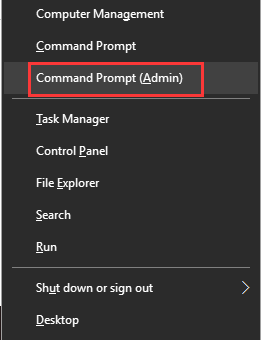
Step 2. In the power users menu, select the "Command Prompt (Admin)" option.
Step 3. Click "Yes" when you are presented with a UAC window requesting permission to launch the Command Prompt as Administrator.
Step 4. To run a disk check on the C drive, type `chkdsk /r c:` and press Enter in the Command Prompt window, replacing "c" with the actual drive letter of the disk you want to check.
Step 5. Click "Y" when you are asked if want CHKDSK to run when the system restarts next.
Step 6. Restart the system, CHKDSK will be automatically launched to check and repair disk errors in Windows.
Fix 2. Remove Read-only on a Disk Using Diskpart
Sometimes, the CHKDSK read-To run CHKDSK in non-read-only mode, you must change the drive from read-only status to read and write in the Windows command prompt.
Step 1. Press Windows + X keys and select Command Prompt (Admin).
Step 2. On the Windows Command Prompt window, you'll enter the following command lines each by each.
- diskpart
- list disk
- select disk X (e.g. select disk 1)
- attributes disk clear readonly
- exit
Now you can continue using CHKDSK again.
Fix 3. Remove Read-only on a Disk Using Software
If you're not tech-savvy and uncomfortable with command lines, don't worry – there are graphical solutions to help you remove write-protection from your hard drives, USB drives, and SD cards.
Fix 4. Change the Read-only File System to Normal
If the above method fails, it's likely that CHKDSK can't continue in read-only mode because the disk has an unrecognized or incompatible file system. To resolve this, you'd need to change the file system from read-only to read-write. A tool like Qiling free partition software can assist with this process by formatting the disk.
Step 1. Launch Qiling Partition Master, click the partition you intend to format and choose "Format" in "Disk management" page.

Step 2. In the next window, set the Partition label, File system, and Cluster size for the partition, then click "Proceed".

Fix 5. Close All Running Programs and Files
To resolve the issue where you're trying to scan a disk that's currently being used by a program, you can close all programs, processes, and files accessing the target drive. Manually shutting down programs may not resolve the issue, so you can further check in the Windows Task Manager. This will allow you to identify and terminate any programs or processes that are still accessing the disk, making it possible to run the CHKDSK scan.
Step 1. To check what programs and processes are running in the background, press Ctrl + Shift + Esc to open Task Manager in Windows 10/8/7.
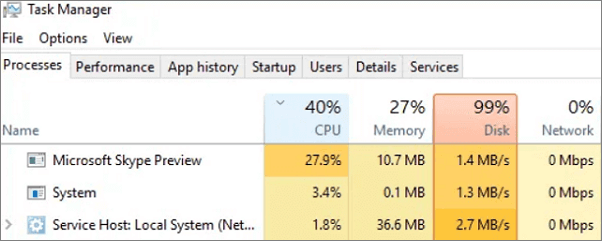
Step 2. Right-click the suspicious application or process and choose End task to force close a program.
Have You Solved the CHKDSK Read-only Mode Problem?
To resolve the "Errors found. CHKDSK Cannot Continue in Read-only Mode" issue, you can try one of five easy-to-apply solutions. Each method should be attempted until the problem is completely fixed, so be patient and try them in sequence.
For average computer users, running CHKDSK in the Windows Command Prompt can be intimidating, especially when it reports errors. To make it easier to check file system errors or fix file system corruption, users can download the free alternative Qiling Partition Master, a comprehensive partition manager software that features a simple "Check File System" operation.
Related Articles
- Convert FAT32 to NTFS Without Losing Data
- How to Corrupt A Flash Drive on Purpose
- How to Format Read Only Disk to Normal Windows 11
- How to Format SD Card to NTFS on PC and Android
- Easy Ways to Clean a Disk and Improve Its Performance
- How to Format BitLocker Drive/USB/SD Card With or Without Password
- All the Acer eRecovery Management Problems: How to Fix It Easily
You will learn the potential causes of Acer eRecovery Management problems and 5 solutions to fix them easily. And you can learn an overall solution to fix them once and for all.
Products
Articles & Tutorials
- Data Recovery
- Data Backup
- File Recovery
- File Backup
- System Backup and Restore
- Disk and Partition Clone
- Technical articles
- Mobile articles
- Disk Master Help
- Windows Data Recovery Tutorials
- Windows Secure Delete Tutorials
- Windows Partition Management Tutorials
- Windows File Backup and Restore Tutorials
- Windows System Backup and Restore Tutorials
- Windows Disk Backup and Restore Tutorials
- Windows Clone Tutorials