Restore a File from Windows Security Quarantine Safely
A quarantined file is not the same as a normally deleted document. Microsoft Defender holds it to prevent execution, and restoring an untrusted file may expose the PC to malware. Start with Protection History, not a raw disk scan.
Confirm what Windows Security did
Step 1. Open Windows Security > Virus & threat protection > Protection history. Find the event by time and file path. Administrator permission may be needed for details.
Step 2. Read whether the event says Threat quarantined, Threat blocked, or another action. Quarantined content may be restorable there; blocked-and-removed content may need to be obtained again from a trusted source.
Step 3. Verify the file's origin, digital signature where relevant, and expected purpose. If you cannot establish that it is safe, leave it quarantined and ask the publisher or security administrator for guidance.
Microsoft's Protection History guide explains the available actions and warns that a restored threat may be detected again.
Restore only a verified false positive
If you have strong evidence of a false positive, select the matching Protection History card and use its Restore action when available. Then rescan the file and request a vendor review if it is repeatedly detected. Do not turn off real-time protection or create broad exclusions just to keep one file. For software downloads, obtaining a clean copy from the official publisher is often safer than restoring an old executable.
If the file was removed rather than quarantined
Check OneDrive, File History, and independent file backups. A Qiling file-backup task can restore an earlier, known-good document from a selected backup point to a new folder. Scan that restored copy with security software before opening it, especially if it is executable or contains macros.
Step 1. Open Qiling Disk Master Pro, find the relevant File backup task, and choose Recovery.
Step 2. Select a backup point from before the security event and choose only the file or folder you need.
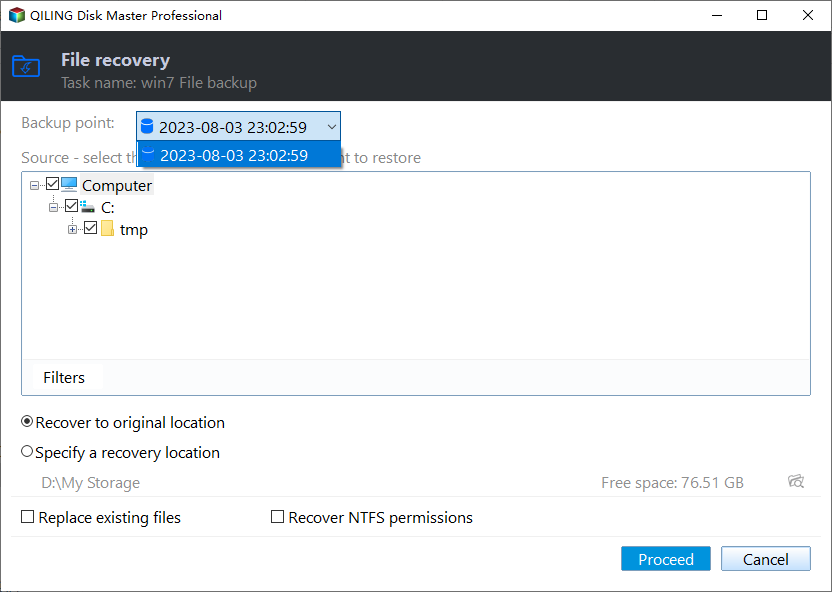
Step 3. Choose Specify a recovery location away from the original path, leave replacement off, and click Proceed. Scan the recovered file before use.
Use disk recovery only for a genuinely deleted local file
If no quarantined copy or backup exists and the local file has truly been deleted, stop writing to that disk and consider a Qiling Deep Data Recovery scan. Recover to a different drive, then have the result checked for malware. A recovery scan cannot override Defender's quarantine or prove a file is harmless.
Related Articles
- Selective File Restore
Restore an older version to a separate folder. - Deleted Files in Windows
Separate actual deletion from a Windows-managed state.
Products
Articles & Tutorials
- Data Recovery
- Data Backup
- File Recovery
- File Backup
- System Backup and Restore
- Disk and Partition Clone
- Technical articles
- Mobile articles
- Disk Master Help
- Windows Data Recovery Tutorials
- Windows Secure Delete Tutorials
- Windows Partition Management Tutorials
- Windows File Backup and Restore Tutorials
- Windows System Backup and Restore Tutorials
- Windows Disk Backup and Restore Tutorials
- Windows Clone Tutorials