How to Restore One Folder from a Windows File Backup
You do not need to restore an entire disk just to recover one folder if it was protected by a file-backup task. The safest first restore is to a new location so you can compare old and current contents before replacing anything.
Find the right backup version
Step 1. Connect the backup drive and identify the original folder path. Check its last known good date, especially if the folder was changed or deleted gradually.
Step 2. Make sure the backup drive is healthy and the image files are intact. Do not edit or rename files inside the backup set by hand.
Step 3. Create an empty destination folder on another drive or a clearly named location such as D:\Recovered-Folder. Leave enough space for the full restored folder.
Restore the folder with Qiling Disk Master Pro
Step 1. Open Backup and Recovery, locate the File backup task, and click its Recovery action. If the task is absent but you have the image, use the application's image-browsing route to select the correct backup file.

Step 2. In Backup point, choose a date before the folder was damaged. Expand the tree and select only the folder you need, not the entire C: drive. Check a second point if the expected files are absent.
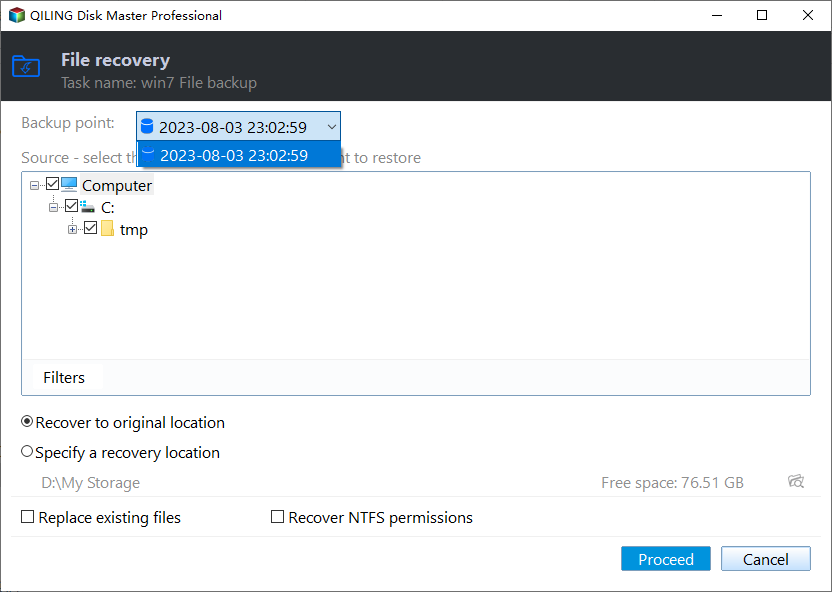
Step 3. Select Specify a recovery location and browse to your empty destination folder. Leave Replace existing files unchecked for the first attempt. If NTFS permissions are optional, restore them only when you understand whether the new PC/account can access those files.
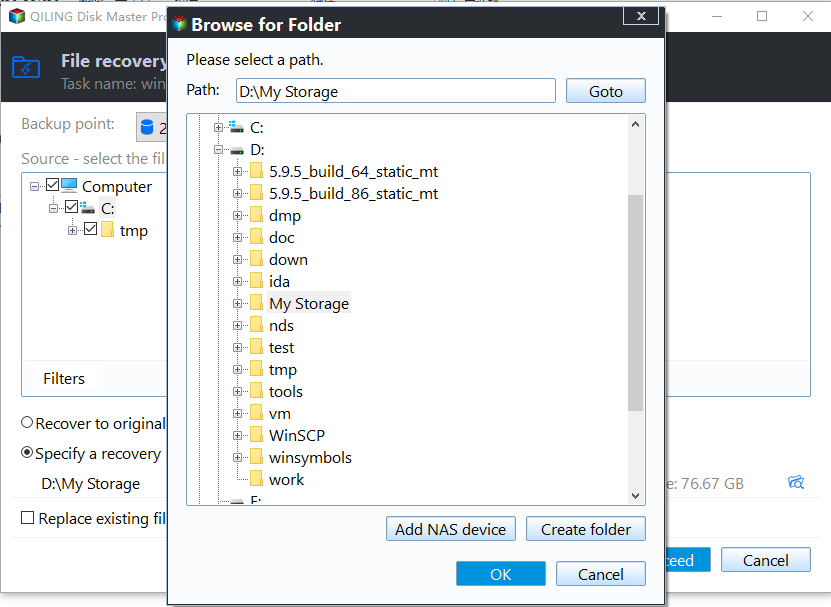
Step 4. Click Proceed, wait for completion, and compare file counts and several important documents or photos with the original. Keep the recovered copy until you decide whether to merge it into the live folder.
If the folder is missing or the restore fails
Confirm the task and backup point first. A disk image and a file-backup image may be browsed differently. Check that the backup drive has not changed letter, that the chain of incremental points is complete, and that the destination is writable. If the folder was never selected or was excluded, the image cannot supply it; check File History or another backup.
Do not restore over the current folder while you are still comparing versions. An older file may be valuable, but it can also overwrite a newer document. Use a deliberate file-by-file merge after verification.
Related Articles
- Missing Files in Backup
Check image contents and task filters. - Restore a Disk Image
Understand the different whole-disk workflow.
Products
Articles & Tutorials
- Data Recovery
- Data Backup
- File Recovery
- File Backup
- System Backup and Restore
- Disk and Partition Clone
- Technical articles
- Mobile articles
- Disk Master Help
- Windows Data Recovery Tutorials
- Windows Secure Delete Tutorials
- Windows Partition Management Tutorials
- Windows File Backup and Restore Tutorials
- Windows System Backup and Restore Tutorials
- Windows Disk Backup and Restore Tutorials
- Windows Clone Tutorials