Backup Completed but Files Are Missing in Windows
A “completed” message confirms that a task ended, not that every file you expected is in the image. The wrong source folder, filters, a later backup point, or an inaccessible source can all make a usable-looking backup incomplete. Investigate before deleting or overwriting the original data.
Identify the missing item and the correct backup point
If only hidden folders or files are missing, review the hidden-file backup settings as well as the source path and backup point.
Step 1. Write down the exact original path, file name, size, and last modification time. Do not search only by a familiar display name; Windows Libraries and OneDrive can point to a different physical folder.
Step 2. Check when the file first existed and when the backup task ran. A file created after the selected backup point cannot be inside that version.
Step 3. Open the task's source list and filters. Check excluded extensions, hidden folders, and whether the selected parent folder actually includes the missing path.
Inspect the Qiling file-backup image
Qiling Disk Master Pro records a file-backup task and lets you browse its recovery points. Use the image rather than looking for loose copies of every source file in the destination folder.
Step 1. Open Backup and Recovery, find the correct File backup task, and choose Recovery. Match the task name and storage location to the image you intended.

Step 2. Select each plausible Backup point by date and time, expand the source tree, and look in the original path. If the folder is selected but one file is missing, check the task's Filters and whether it was accessible during backup.
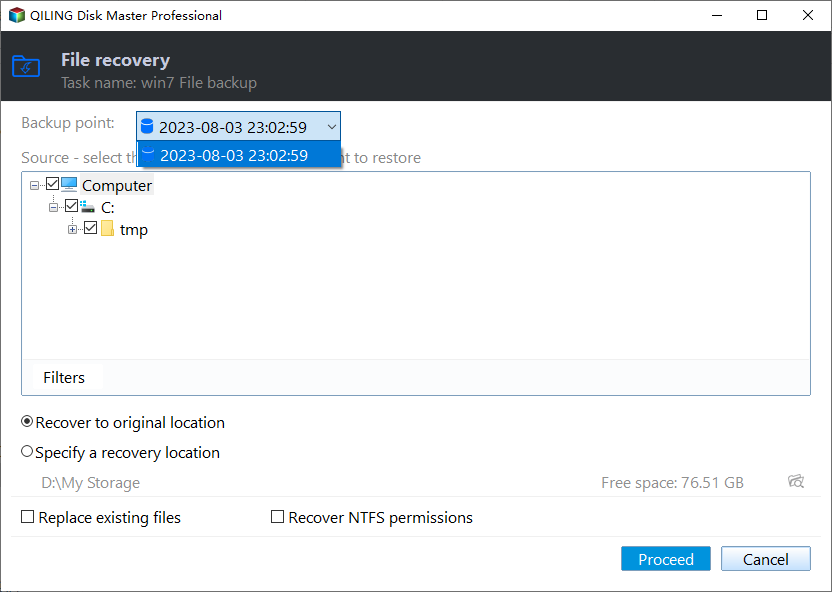
Step 3. Select a sample file that is present, choose Specify a recovery location on another folder, leave Replace existing files off, and click Proceed. Open the restored file to validate the image before changing the original.
Correct the next backup
If the folder was omitted, edit or create a task with the exact source path in the tree. If a filter excluded the file type, remove only that filter and rerun the backup. If access was denied, fix the path or account permission and review the new log. If the source was an online-only cloud placeholder, download the content locally first.
For a missing file that existed before backup but is no longer on the source, check File History, cloud version history, and other copies. A fresh backup cannot recreate data that had already disappeared. Keep the questionable old image until the file's fate is known.
Make verification routine
After important backups, compare the source selection with a short checklist and restore one representative document or photo to a test folder. Record the backup point date. Periodic restore tests catch configuration errors earlier than a green completion icon.
Related Articles
- Restore One Folder
Recover a selected folder to a safe location. - Backup Access Denied
Investigate files skipped by a permission error.
Products
Articles & Tutorials
- Data Recovery
- Data Backup
- File Recovery
- File Backup
- System Backup and Restore
- Disk and Partition Clone
- Technical articles
- Mobile articles
- Disk Master Help
- Windows Data Recovery Tutorials
- Windows Secure Delete Tutorials
- Windows Partition Management Tutorials
- Windows File Backup and Restore Tutorials
- Windows System Backup and Restore Tutorials
- Windows Disk Backup and Restore Tutorials
- Windows Clone Tutorials