Hidden Files Missing from a Windows File Backup
If a backup completes but a hidden folder is absent, the file may have been outside the selected source tree or excluded by a filter. Windows also hides some protected operating-system files by default, so an Explorer view alone cannot prove what the backup contains. Decide whether you need ordinary hidden personal files or a complete Windows system image; they are different backup jobs.
Find the exact file and backup point
Step 1. In File Explorer, enable View > Show > Hidden items and record the file's full path. Do not change protected system-file visibility merely to make a backup appear complete.
Step 2. Open the Qiling task and confirm that its source tree includes the parent folder. Compare the file's last modification time with the selected backup point.
Review Qiling Filters
Step 1. Open Backup and Recovery > File backup, select the intended folder directly, and click Filters. Check the Include or Exclude patterns and the Exclude hidden files and folders option. Review Exclude system files and folders separately.
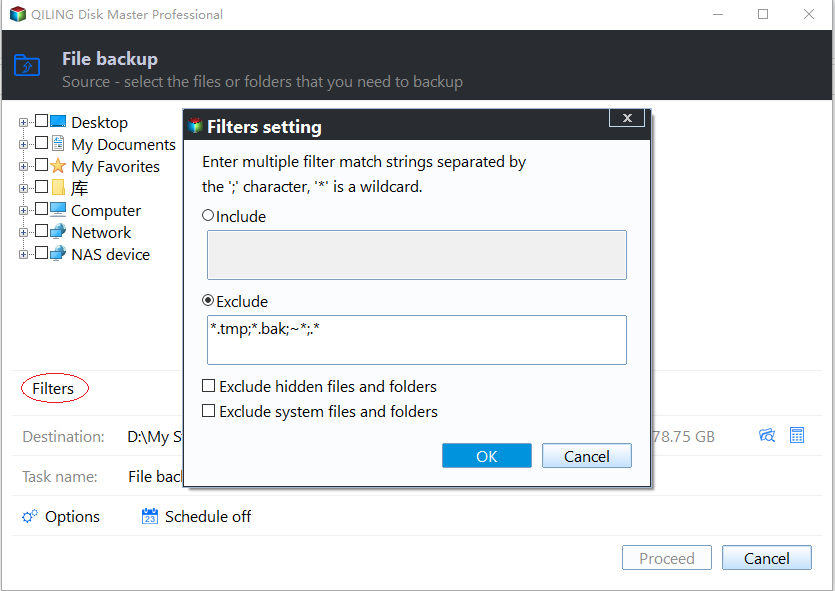
Step 2. Remove only the exclusion that blocks data you actually need. Keeping temporary files excluded may be reasonable; broad include patterns can make the backup much larger.
Back up and test a hidden personal file
Step 1. Select a destination on another physical disk and click Proceed. Wait for the new backup point to finish before judging the changed task.

Step 2. Browse or restore one known hidden personal file to a separate test folder. Check its contents and permissions. If it is still missing, inspect the task result and the exact include pattern.
A file backup is not a replacement for System backup when your goal is to restore a bootable Windows installation, its EFI partition, and application state.
Related Articles
- Backup Completed but Files Missing
Check source selection, filters, and backup points. - File History Missing Downloads
Verify coverage of another commonly omitted folder.
Products
Articles & Tutorials
- Data Recovery
- Data Backup
- File Recovery
- File Backup
- System Backup and Restore
- Disk and Partition Clone
- Technical articles
- Mobile articles
- Disk Master Help
- Windows Data Recovery Tutorials
- Windows Secure Delete Tutorials
- Windows Partition Management Tutorials
- Windows File Backup and Restore Tutorials
- Windows System Backup and Restore Tutorials
- Windows Disk Backup and Restore Tutorials
- Windows Clone Tutorials