Boot Device Not Found Hard Disk 3F0 Error on HP [FIXED]
My HP laptop was experiencing lag while gaming, so I restarted it, but when I turned it on, it went straight to the BIOS. After exiting the BIOS, the screen displayed a black screen with the text: "No bootable device found" or similar error message, indicating that the laptop was unable to boot from its usual location. This could be due to a variety of reasons such as a faulty hard drive, corrupted boot sector, or incorrect BIOS settings.
"Boot Device Not Found"
Please install an operating system on your hard disk.
Hard Disk (3F0)
F2 System Diagnostics
If you have checked the troubleshooting steps but couldn't find the "Intel Rapid Storage Technology" to check for Octane Memory, the Hard Disk 3F0 error is likely related to a hardware issue with your hard drive. Check your hard drive for errors or corruption using built-in tools like Check Disk or a third-party disk utility. If the issue persists, consult a professional for further assistance.
What Does Hard Disk 3F0 Mean
The Hard Disk 3F0 error occurs when trying to power/restart a computer, indicating the firmware can't find the operating system to boot, resulting in a "Boot Device Not Found" message, typically due to an issue with the Hard Drive where the OS resides.
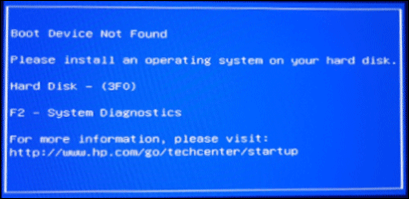
The Hard Disk 3F0 error can occur due to a variety of reasons, including a faulty or failing hard drive, a corrupted operating system, a malfunctioning IDE cable, or a problem with the disk controller.
- PC and Hard Disk connection issues.
- Outdated or misconfigured BIOS settings.
- Wrong or Faulty boot sequence in BIOS.
- Damaged OS files or boot files.
- If the bootable disk is corrupted.
To fix the "boot device not found hard disk error (3F0) on HP", try booting in safe mode, checking the BIOS settings, running a disk check, and updating the BIOS. If the issue persists, consider reinstalling Windows or seeking professional help. Additionally, checking the disk for errors using the built-in Windows tool or a third-party software like Hiren's BootCD can also help identify and resolve the problem.
[6 Fixes] Boot Device Not Found Hard Disk 3F0 Error
- 1. Conduct a Hard Reset
- 2. Restore BIOS to Default Settings
- 3. Run System Recovery Using HP Recovery Manager
- 4. Test Hard Drive via HP PC Hardware Diagnostics
- 5. Reinstall Windows
- To create bootable media for your HP computer, start by downloading the HP Support Assistant software from the HP website. Once downloaded, run the software and follow the on-screen instructions to create a bootable USB drive or CD/DVD. This will allow you to boot your HP computer from the media and access the HP Support Assistant menu, where you can troubleshoot and resolve issues with your computer.
1. Conduct a Hard Reset
A hard reset is a forced restart that starts the system from scratch, establishing connections between the BIOS and hard disk, and giving the OS a fresh start. To perform a hard reset and fix the boot device not found 3F0 error, follow these steps:
Step 1. Turn off your computer and disconnect any cables from docking stations or port replicators.
Step 2. Disconnect all external devices (peripherals) like USB drives, CDs, etc.
Step 3. If the laptop is not turning on, unplug the power adapter and remove the battery if it's removable. This can help reset the system and potentially resolve the issue.
Step 4. Press and hold the Power button for 15 seconds to drain the electrical charge.
Step 5. Insert your battery (if applicable) and plug the adapter back into the laptop.
Step 6. Turn on the computer by pressing and holding the Power button, then select the "Start Windows Normally" option from the startup menu using the arrow keys and press Enter.
To start your HP laptop without any error, first, press and hold the power button for 30 seconds to discharge any residual power. Then, plug in the power cord and press the power button again.
2. Restore BIOS to Default Settings
If the BIOS settings are misconfigured, it may cause the boot device not found hard disk 3F0 error, as the firmware may not be able to find the bootable file. To resolve this, restore the BIOS settings to their default values by following specific steps. This may resolve the error.
1. To reset your computer, first turn it off completely by pressing the power button, and then wait for at least 5 seconds to ensure the power is fully off. This is a crucial step to prevent any potential damage or data loss during the reset process.
2. Press the Power button to restart the computer and repeatedly press the F10 key to enter the BIOS setup.
3. To access the BIOS Setup screen, press the F9 key to select and load the default settings.
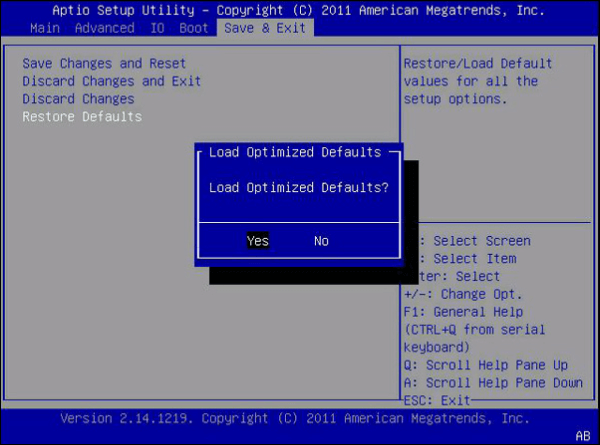
4. Press F10 to save and exit, select Yes and press Enter to confirm exiting without saving changes.
5. After that, follow the prompt to restart your computer.
The firmware attempted to boot the computer normally, but if it still displays a Hard Disk 3F0 error, try using the next method to resolve the issue.
3. Run System Recovery Using HP Recovery Manager
HP laptops have a built-in system recovery manager that can resolve errors like "boot device not found". You can run this manager to resolve the issue.
If you purchased an HP laptop from the beginning of 2018, you may not be able to access the system recovery manager, as it's not preinstalled on these models. To proceed, you'll need to download the HP recovery manager before moving forward.
1. Turn off your HP laptop, disconnect all external peripherals except the power cord and the mouse.
2. To turn it back on and immediately press f11 a few times, you can follow these steps: First, locate the power button on your device and press it to turn it back on. Once it's on, quickly press the f11 key a few times.
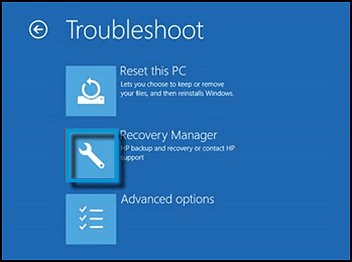
3. Click Troubleshoot and select Recovery Manager.
4. The Recovery Manager window presents two recovery options. Users can choose to "Back up your files first (recommended)" if they want to backup their files before recovering, or select "Recover without backing up your files" if they have already backed up their files.
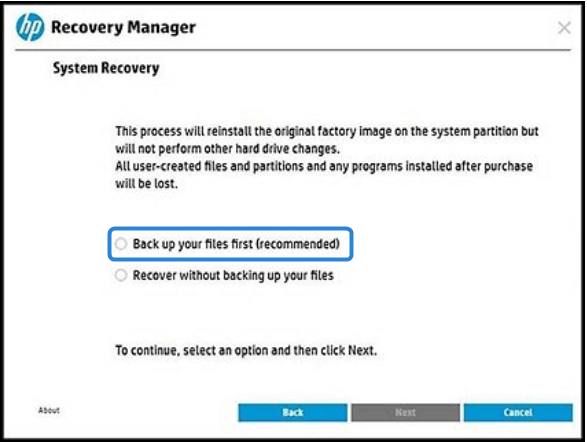
5. A system recovery screen appears with some messages, read them and click Next to start the process.
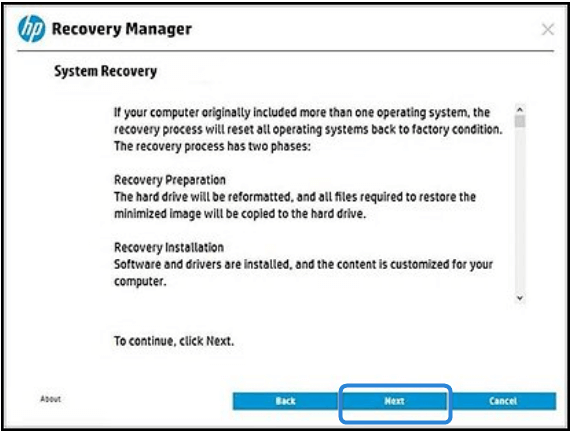
6. When the process is complete, click Continue to start the installation phase of the system recovery.
7. After the installation process, the computer will restart several times. Once it has completed the restarts, you can click the "Finish" button to restart the computer again.
8. To fix the hard disk 3F0 error, follow the on-screen instructions to complete the setup process, then turn off the computer, connect all devices, and restart it. This should resolve the issue.
4. Test Hard Drive via HP PC Hardware Diagnostics
To resolve the boot device not found 3F0 error, you can test hard drive connections using HP Hardware Diagnostics. This involves running the diagnostics tool and checking for any issues with the hard drive connections. If any problems are found, you can try to resolve them and see if it fixes the error.
1. Connect the AC adapter to the computer.
2. Press and hold the Power button until the computer turns off.
3. Turn on your computer and press the Esc key repeatedly until the menu appears. Then, click the F2 key to access the HP PC Hardware Diagnostics.
4. To access the HP PC Hardware Diagnostics main menu, click on it and select "Component tests > Quick Test > Run Once" from the options.
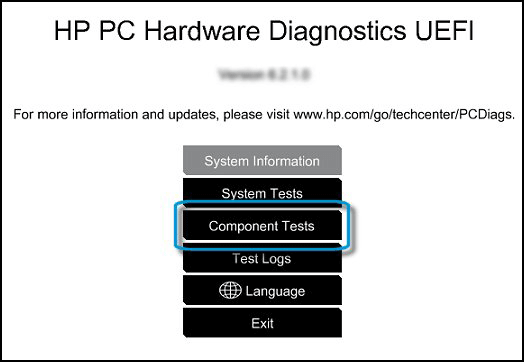
5. To test a specific hard drive, select it and run the test, or choose to test all hard drives by selecting "Test All Hard Drives". This will initiate the Hard Drive Quick Test.
6. The test results will be shown on the screen once the test is finished.
Remember: If the problem persists after attempting the troubleshooting steps, conduct extensive tests or identify the faulty drive and note down the 24-digit failure ID to provide to HP support for further assistance.
5. Reinstall Windows
In some cases, the 3F0 error may be related to issues with the Windows operating system itself, requiring a reinstall. This process can be complex, and users can refer to Microsoft's blog on reinstalling Windows for detailed guidance on prerequisites, preparation, and the process.
Before opting for Windows reinstallation, make sure you have backed up your data.
6. Create Bootable Media to Boot Your HP Computer
When errors like Hard Disk 3F0 occur, the typical solution involves some risk of data loss and requires technical expertise. However, an alternative approach uses bootable media to safeguard data and resolve issues like this in a more straightforward way, and that's where Qiling Disk Master comes in.
Qiling Disk Master is a professional software that provides all-around solutions for creating clones, advanced backups, and security from external threats, with a simple UI that can be used in just a few clicks.
Key Features of Qiling Disk Copy:
- Create bootable media such as a USB, CD/DVD, or ISO to have a backup plan for your PCs in case of emergencies.
- Create a System clone to upgrade to a new OS, migrate data, or troubleshoot issues by duplicating the current system configuration, including installed applications, settings, and files, allowing for a safe and efficient transition or recovery process.
- Offers advanced backup and restoration solutions.
- To safeguard data from external threats, utilize the Security Zone features.
To create a bootable USB to boot your HP computer, start by downloading the HP Support Assistant software from the HP website. Then, create a bootable USB drive using the software, following the on-screen instructions.
Step 1. Prepare a USB drive which can be written and read.
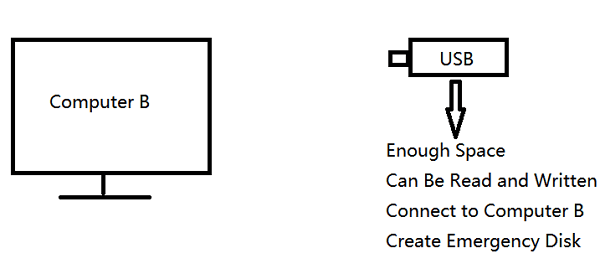
Step 2. Launch and install Qiling Disk Master on the Computer B.
Step 3. Find and click "Tools" and choose "Create Emergency Disk".
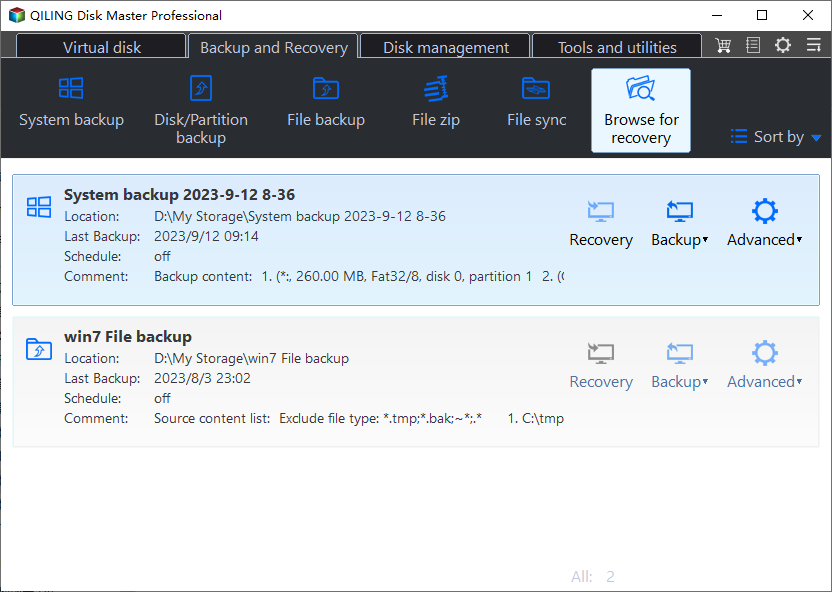
Step 4. To proceed, select the desired method for creating the bootable device, such as creating an ISO file, a bootable USB, or a CD/DVD disc. This will allow you to choose the location where the boot disk will be created.

Step 5. Then click "Create" to start.
Conclusion
The HP laptop's Hard Disk 3F0 error can be caused by various factors, including misconfigured boot order, wrong BIOS, or hard drive issues. To resolve the boot device not found error, practical solutions include using Qiling Disk Master, which can create bootable media to get the system back to normal without risking data loss. This approach avoids the risk of losing data and provides a reliable solution to fix the boot device not found hard disk error (3f0) on HP laptops.
FAQs
Here are some of the most frequently asked questions on how to fix hard disk 3F0 errors. If you have similar queries hope this will help you.
1. Why is my PC saying boot device not found?
When you start your computer, the firmware can't fetch the Operating System files from the hard drive, resulting in a "boot device not found" error.
2. How do I fix the HP 3F1 error?
HP 3F1 errors are typically caused by hard drive issues or corrupt OS files. To resolve this issue, you can try various methods, such as troubleshooting the hard drive, checking for corrupt OS files, or running a disk check to identify and fix any errors.
- Hard Reset your PC.
- Set BIOS settings to default.
- Run HP PC Hardware Diagnostics.
- Reset/Remove the hard drive.
3. What is error code 3F0 on HP hard drive?
The error code 3F0 on HP hard drive indicates that the system is unable to find the boot device, which is usually the hard drive containing the OS files. This error can occur due to various reasons, and solutions include checking the boot order, ensuring the hard drive is properly connected, running a diagnostic test, and reinstalling the OS if necessary.
Related Articles
- Is Windows 10 Backup Any Good? Check the Answer
- Norton vs McAfee: Ultimate Comparison to Decide Which to Use
- [Error 0x8007016a] Fix OneDrive Cloud Error Code
- Tips for Clean Install Windows 10 without Losing Data
- [What Is OneDrive] Do I Need Microsoft OneDrive? Find Answer Here
- Why Does My Computer Keep Blue Screen | 100% Solved
If your computer is experiencing a blue screen, you're in the right place. This article provides a comprehensive guide to understanding what a blue screen means, why it appears, and how to troubleshoot the issue.
Products
Articles & Tutorials
- Data Recovery
- Data Backup
- File Recovery
- File Backup
- System Backup and Restore
- Disk and Partition Clone
- Technical articles
- Mobile articles
- Disk Master Help
- Windows Data Recovery Tutorials
- Windows Secure Delete Tutorials
- Windows Partition Management Tutorials
- Windows File Backup and Restore Tutorials
- Windows System Backup and Restore Tutorials
- Windows Disk Backup and Restore Tutorials
- Windows Clone Tutorials