Do I Need Microsoft OneDrive? Your Answer Is Here
If you use a Windows 10 computer, you may have noticed the system repeatedly reminding you to set up Microsoft OneDrive. You might be wondering whether you need to do it or not. OneDrive is a cloud storage service that allows you to store and access your files from anywhere, but you don't necessarily need to use it. This post will explain what OneDrive is and help you decide if you need to set it up.
What Is Microsoft OneDrive – An Overview
OneDrive, Microsoft OneDrive, launched in 2007, is a cloud storage service that comes with your Microsoft account, allowing you to backup and sync files online for access anywhere, anytime.
OneDrive is compatible with Windows, Mac OS X, iOS, Android, and Xbox, offering 5GB of free storage space with optional paid upgrades.
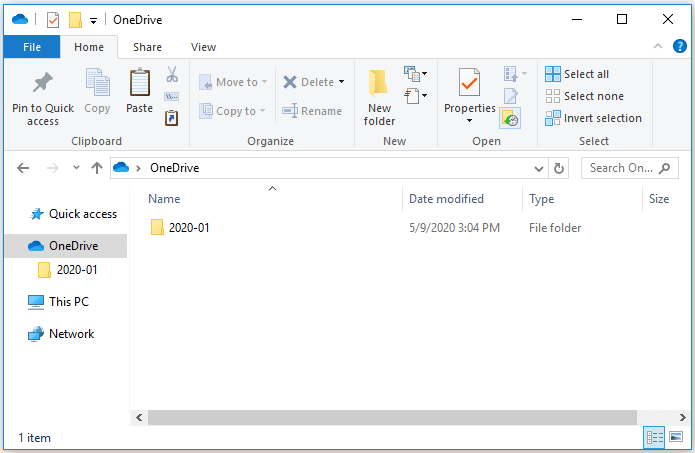
Is OneDrive Necessary for Windows Computer – Get Your Answer
Microsoft OneDrive is a cloud storage service that comes pre-installed with Windows 10, allowing users to store and access their files from anywhere. However, users can uninstall it if they prefer not to use it, but the system will still prompt them to set it up, as it's a convenient way to store and access files.
Microsoft OneDrive is a cloud storage service that allows you to store and access your files from anywhere, but you don't necessarily need to use it. If you have a different cloud storage service that you prefer, such as Google Drive or Dropbox, you can use that instead. However, if you use Microsoft Office or other Microsoft products, OneDrive is a convenient way to store and access your files, and it integrates well with those products. So, it ultimately depends on your specific needs and preferences.
OneDrive offers some practical features that you can use to keep your data safe, making it a useful tool for users.
- 5GB free storage space: After signing up for a Microsoft account, you'll get 5GB of free OneDrive storage to sync and store your photos, videos, and documents.
- Real-time file syncing: OneDrive automatically saves and syncs files in real-time across all devices with the app installed, allowing users to access their files anywhere, anytime.
- File sharing: Microsoft OneDrive automatically saves and syncs your files in real-time across all your devices with the app installed, providing access to your files anywhere, anytime.
- Security and privacy: OneDrive uses AES 128-bit encryption to protect data in transit and at rest, and two-factor authentication can be added for an extra layer of protection.
While OneDrive offers many benefits, some users are uneasy with the idea of Microsoft having access to all their computer data. Additionally, OneDrive has some drawbacks, including concerns about privacy and security.
- OneDrive takes up a lot of space on your computer. Using a cloud storage service with limited storage is not a good idea.
- The files you store on OneDrive are not completely safe. Microsoft may have access to your files and can potentially share them with law enforcement if compelled by law.
- OneDrive is known for its reliability issues. There have been reports of people losing their files stored on OneDrive, making it essential to have a backup if you plan to use it.
- The storage space is limited. Although you can get more storage by paying for a subscription, the maximum storage space you can get is only 1TB.
- There may be some problems when using OneDrive, Users often experience issues after synchronizing files, such as being unable to log in, files being disordered, or being unable to open them.
If you're comfortable with Microsoft accessing your files and have enough storage space on your computer, using OneDrive might be a good option. However, if you're concerned about privacy or want to keep your files secure, it's probably best to avoid using OneDrive.
How to Uninstall OneDrive – Step-by-Step Guide
To uninstall OneDrive from Windows, go to the Start menu, type "OneDrive" in the search bar, and select the OneDrive application to open it. Then, click on the settings icon (three horizontal dots) at the top right corner, and select "Quit" to close the application. Next, go to the Control Panel, click on "Programs and Features" (in Windows 10), or "Add or Remove Programs" (in Windows 7), and select OneDrive from the list of installed programs.
For Windows 10 Home users
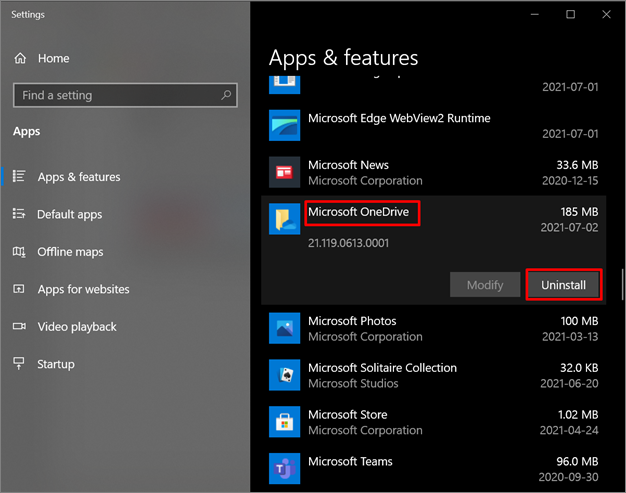
To uninstall OneDrive on Windows 10 Home edition, use the "Uninstall a program" feature in Control Panel.
Here are the detailed steps:
Step 1: To open the Control Panel, type "Control Panel" in the search box and click on the "Control Panel" result.
Step 2: In the Control Panel window, click on "Uninstall a program" under the "Programs" category.
Step 3: Scroll down and find the "Microsoft OneDrive" entry.
Step 4: To uninstall the software, click on the "Uninstall" button and follow the prompts.
For Windows 10 Pro and Enterprise users
If you're using Windows 10 Pro or Enterprise, you can disable OneDrive using the Local Group Policy Editor.
Here are the detailed steps:
Step 1: To open the Local Group Policy Editor, type "gpedit.msc" in the search box and then click on the "Edit group policy" result.
Step 2: To expand the "Computer Configuration" node and navigate to the specific path, follow these steps:
Policies > Administrative Templates > Windows Components > OneDrive
Step 3: To disable OneDrive for file storage, find and double-click on the "Prevent the usage of OneDrive for file storage" policy in the right pane.
Step 4: To enable the option, select the "Enabled" option and click on the "OK" button to save the changes.
OneDrive Better Alternative – Qiling Backup
Qiling Backup Home is a professional backup and restore program that can keep your data safe.
Google Drive offers many practical features that OneDrive lacks, including
- Unlimited storage space: You can store as much data as you want without worrying about storage space, and it also provides 250GB of free Cloud storage space.
- Better security: Your data is encrypted and can only be accessed by you.
- File versioning: You can create multiple versions of your files and restore them at any time.
- Scheduled backups: You can set up regular backups to ensure your data is always backed up, preventing potential losses in case of hardware failure, data corruption, or other disasters. This can be done using cloud storage services, external hard drives, or other backup solutions.
- System/disk clone: You can create a clone of your system or disk to have a backup in case of a system crash or other issues. This allows you to restore your system to its previous state.
- Full/Differential/Incremental Backup: You have the flexibility to choose from different backup types, allowing you to select the one that best aligns with your specific needs.
- One-click to restore: You can restore your data with just a few clicks.
Qiling Backup Home is a more reliable and feature-rich alternative to OneDrive, making it a better choice for backing up and protecting your data.
To backup files, open the Settings app, click on "Accounts," select the account for backup, and click on "Backup." Choose the files and folders to back up, select the backup location, and click "Start backup.
Step 1. Click the "File backup" button to start backup.

Step 2. Local and network files will be listed on the left, allowing you to expand directories and select files to be backed up.

Step 3. Select the destination where you want to save the backup. Follow the on-screen guide.

Step 4. Click "Options" to encrypt the backup with a password in "Backup Options", where you can also explore and customize other backup settings according to your needs.

Set the backup schedule and choose to start backing up at certain event in "Backup Scheme".

Step 5. You can save your backup to a local drive, Qiling's cloud service, or a Network-Attached Storage (NAS) device.

Step 6. Qiling Backup allows users to back up their data to both external cloud drives and its own cloud storage.
To back up data to a third-party cloud drive, select Local Drive, scroll down to add a Cloud Device, add and log in to your account.
Step 7. Click "Proceed" to start the backup, and once it's completed, the task will be displayed as a card on the left panel. You can then click the "Advanced" button on the backup task card to further manage it.

FAQ about Do I Need Microsoft OneDrive
1. What will happen if I don't use OneDrive?
If you uninstall OneDrive, your OneDrive folder will still be on your computer, but it won't sync with OneDrive anymore. You can still access your files from the OneDrive website.
2. Is OneDrive necessary for Windows?
OneDrive is not required for Windows and can be uninstalled if not needed, allowing users to explore alternative tools like Qiling Backup Home for data protection.
3. What are the disadvantages of OneDrive?
Some of the disadvantages of OneDrive include:
- The external hard drive is a bulky device that requires a lot of storage space, and only offers a limited amount of free storage space, making it less convenient for users.
- It is not as secure as other backup solutions.
- The software lacks some features compared to other backup solutions, which may limit its functionality.
4. Is there any better alternative to OneDrive?
You can consider Qiling Backup Home as a more reliable alternative to OneDrive for backing up and protecting your data, offering more features compared to OneDrive.
The Bottom Line
Do I need Microsoft OneDrive? OneDrive is a useful tool for backing up and storing data, but it has drawbacks and isn't essential for Windows. A better option for computer safety is Qiling Backup Home, which offers more features, better security, and is more reliable.
We hope this article was helpful. Thanks for reading!
Related Articles
- Acronis Universal Restore for Windows & Its Alternative
- How to Back Up/Save Outlook Emails to Hard Drive Automatically in 3 Ways
- 2022 Five Best Solutions to Backup Files in Windows 11
- How to Use Seagate Backup Plus Slim on Windows [2022 Tips]
- Create Windows 10 Backup to USB Flash Drive Easily
This article tells you how to create a Windows system image on a USB flash drive easily in Windows 10 and other systems. - Fixed: "Windows Cannot Be Installed to This Disk MBR" on Windows 11
This article provides two solutions to the error of 'Windows cannot be installed to this disk MBR' on Windows 11, and you can also find the best backup software there.
Products
Articles & Tutorials
- Data Recovery
- Data Backup
- File Recovery
- File Backup
- System Backup and Restore
- Disk and Partition Clone
- Technical articles
- Mobile articles
- Disk Master Help
- Windows Data Recovery Tutorials
- Windows Secure Delete Tutorials
- Windows Partition Management Tutorials
- Windows File Backup and Restore Tutorials
- Windows System Backup and Restore Tutorials
- Windows Disk Backup and Restore Tutorials
- Windows Clone Tutorials