How to Use Seagate Backup Plus Slim on Windows
Overview of Seagate Backup Plus Slim
Seagate Backup Plus Slim is an efficient tool to increase users' efficiency, available in various storage options, including 1 TB, 2 TB, 4 TB, and 5 TB. This external hard drive can be used to back up data on both Windows and Macintosh OS, making it a convenient option for those upgrading from one operating system to another. To make it bootable in Win10/11, you'll need to find a way to do so.
Want to know more Seagate products? Read on:
The Seagate Backup Plus Slim can be connected to a computer via a USB 3.0/2.0 port and is compatible with Windows 7 or later, as well as macOS 10.11 or higher, requiring a minimum of 600MB of free storage for backup and recovery.
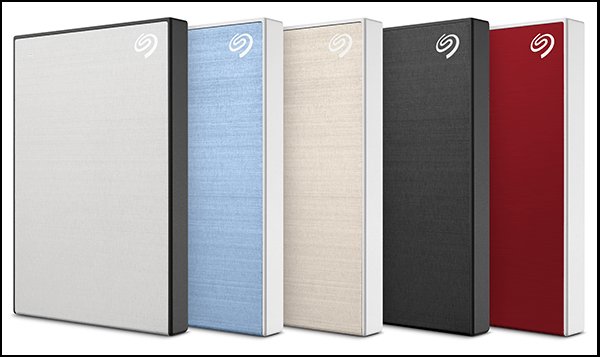
How to Use Seagate Backup Plus Slim on Windows
- How to Create A Backup with Seagate Backup Plus Slim
- How to Restore Files with Seagate Backup Plus Slim
After getting a Seagate Backup Slim, you'll need to use its software, which includes various options like Seagate Dashboard, Toolkit, and DiscWizard. While the Seagate Toolkit is one way to proceed with backups, it's essential to know how to retrieve your backup data to your system. Unfortunately, the Seagate Backup Plus Slim's portability comes at the cost of some features and essentials for backup, making it a good idea to have an alternative backup plan in place to stay safe despite the Seagate Toolkit's limitations.
How to Create A Backup with Seagate Backup Plus Slim
You can create a backup on your Windows OS by using File Explorer to access and download its software on your Seagate drive, allowing you to save your data.
There are no steps provided. Can I assist you with something else?
Step 1. Plug the Seagate Backup Plus Slim into a USB 3.0 or 2.0 port on your computer, whichever is available.
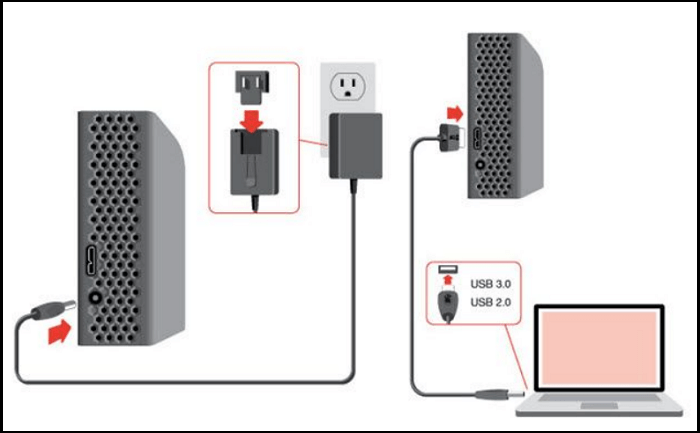
Step 2. To access the Seagate Toolkit, press the Windows key to open the Start Menu, then find and select the Seagate Toolkit.
Step 3. To initiate a backup, click on the "Backup selected Folders" option and then choose the specific folders you wish to back up.
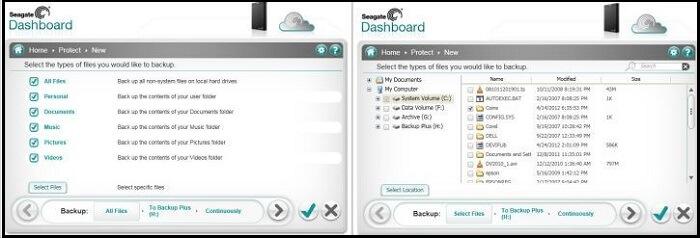
Step 4. Start the backup process.
The Seagate Backup Plus Slim allows for only one backup at a time, but you can customize the backup plan to select specific files to back up. To do this, choose Custom Backup Plan and select the desired files. You can then edit the backup progress to exclude unwanted files by unchecking the corresponding checkboxes. For the backup destination, select the Seagate Backup Plus and proceed to the next step. You can schedule the backup and the newly added files will be returned to the Seagate device, with the note that only one Seagate Backup Plus Slim can be used for one device.
How to Restore Files with Seagate Backup Plus Slim
Now that you have a backup, you'll want to know how to retrieve the backup files on your Windows computer.
To restore files using Seagate Backup Plus Slim, follow these steps: First, connect the device to your computer using a USB cable, then launch the Seagate Backup Plus Slim software. Next, select the files you want to restore by browsing through the backup files and folders, and choose the destination where you want to save the restored files.
Step 1. Connect Seagate Backup Plus to your PC's USB port.
Step 2. Launch File Explorer/Windows Explorer.
Step 3. The Seagate Toolkit allows you to restore your data from backups. To do this, open the Seagate Toolkit, and among the available options, click on "Restore".
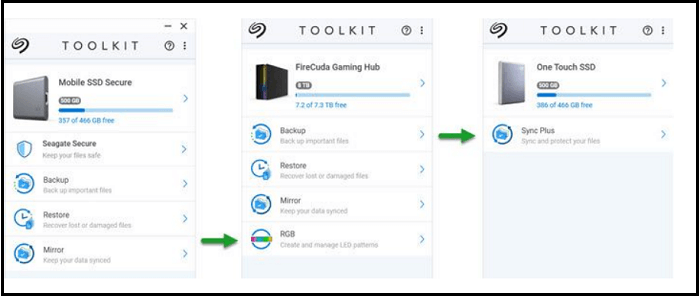
Step 4. After clicking on the Backup plan, you will be taken to a page where you can view the details of the plan, including the name, description, and creation date. From this page, you can click on the "Restore" button to restore the plan to its original state.
Step 5. Proceed with your action, then select a location to restore the backup.
Step 6. Now, select Restore to initiate the process
You can choose a location for the restored files, or if no location is specified, it will be restored to the default location. If restored to the default location, you can find the files by searching for their names, which will reveal their location. This way, you can keep track of all the files restored from the backup.
What Are the Benefits of Seagate Backup Plus Slim
Seagate's Backup Plus Slim is a top-notch portable hard drive that has always been a reliable choice for backups. Its quality is exceptional, making it a favorite among users who rely on it for their data storage needs. Several factors contribute to its popularity, making it a go-to option for those seeking a trustworthy portable hard drive.
- The device is portable, making it compact in size and easy to carry.
- Some drives also come with a free 60-day Adobe Creative Cloud subscription.
- You can make a scheduled and automatic backup.
- You can export some critical media and add it to Virtual memory with free cloud storage.
- You can link your social media profiles and share memories directly to your social media accounts.
- The backup speed is extremely fast, reaching 120 Mbps, allowing for quick data transfer and backup.
- It is lightweight and small in size.
Besides, it is one click backup solution that simplifies the process.
Comprehensive Alternative - Qiling Backup
The Seagate Backup Plus is a fast and efficient hard drive, excelling in data transfer, but it has a notable drawback. Despite its speed, the Seagate Toolkit, which is supposed to facilitate backups, has been reported to be unreliable, failing to back up application programs, configurations, and media for some users, and also lacks the ability to secure data.
We've introduced a reliable alternative to traditional backup drives - Qiling Backup Home. This program doesn't replace a physical backup drive, but rather, it's a software that can back up all your data and restore it without any hassle or loss.
The following are the reasons why Qiling Backup is better:
- The tool creates a comprehensive backup of your system, including all data, system files, personal files, configurations, and applications, and also adds a personal touch to your system.
- With a simple and user-friendly interface, you can easily backup and restore your data with just a few clicks.
- The entire data transfer process is lossless.
- You can encrypt the backup disk with this software on your Seagate Backup Plus Slim.
- It lets you create partition backups, system images, and similar.
- Though an easy-The tool still has all the features you need to back up according to your preferences, making it a useful still.
- Qiling offers a free feature that allows you to create a full offline backup and get more cloud storage.
This software allows you to create backup files, choose from manual, scheduled, or automatic backup plans, set up, and manage your files, offering both speed and reliability, which is better for data recovery.
To learn how to use it, start by following these steps:
Step 1. Click the "File backup" button to start backup.

Step 2. Local and network files are listed on the left, and directories can be expanded to select the files to be backed up.

Step 3. Select the destination where you want to save the backup, following the on-screen guide.

Step 4. To encrypt the backup with a password, click on "Options" and then select "Backup Options". This allows you to customize the backup task according to your needs, exploring various other options available.

Set the backup schedule and choose to start backing up at a certain event in the "Backup Scheme" tab.

Step 5. You can store the backup to a local drive, Qiling's cloud service, or a NAS (Network-Attached Storage).

Step 6. Qiling Backup allows users to save their data to both external cloud services and their own cloud storage.
To back up data to a third-party cloud drive, select Local Drive, scroll down to add a Cloud Device, add and log in to your account.
Step 7. Click "Proceed" to start the backup task, which will then be displayed as a card on the left panel. Once completed, you can click the "Advanced" button within the backup task card to further manage it.

FAQs About Seagate Backup Plus Slim
Seagate Backup Plus Slim is a popular external hard drive that offers a range of features and benefits. Here are some frequently asked questions about it: What is Seagate Backup Plus Slim?
1. Can you use Seagate Backup Plus Slim on your PC?
The Seagate Backup Plus is compatible with Windows OS 7 or higher and Macintosh OS with macOS version 10.11 or higher.
2. How do I run Seagate Backup on my PC?
To run Seagate Backup on your PC, you can use File Explorer or File Manager, and access the Seagate Toolkit to download and run the software.
3. Does Seagate Backup Plus Slim work with Windows 10?
Seagate Backup Plus Slim works on Windows 10 and 11.
The Final Word
Seagate Backup Plus Slim is a portable drive available from Seagate, and it comes with a software called Seagate Toolkit that allows you to create a backup and recover your data on your PC. However, the Seagate Toolkit has some reliability issues with data backup and security, which makes Qiling Backup a better alternative. If you were looking for instructions on how to use Seagate Backup Plus Slim on Windows, you would have found the answer.
Related Articles
- Does Backup Protect Against Ransomware? Why Ask
- How to Back Up Windows 10 to USB on Your Own [3 Ways]
- SyncToy Windows 10/11: How to Use SyncToy for Backup
- The Settings You Should Change in Windows 11
- What Size Flash Drive Do I Need to Backup my Computer?
Learn what size flash drive you need to back up your computer. Estimate backup space for files, system images, and Windows recovery drives. - Where is the Save File Location for Hogwarts Legacy Cracked by Empress?
Are you wondering about where is the save file location for Hogwarts Legacy cracked by Empress? You can get your answer by reading this post. Also, you will learn how to back up this game with data backup software.
Products
Articles & Tutorials
- Data Recovery
- Data Backup
- File Recovery
- File Backup
- System Backup and Restore
- Disk and Partition Clone
- Technical articles
- Mobile articles
- Disk Master Help
- Windows Data Recovery Tutorials
- Windows Secure Delete Tutorials
- Windows Partition Management Tutorials
- Windows File Backup and Restore Tutorials
- Windows System Backup and Restore Tutorials
- Windows Disk Backup and Restore Tutorials
- Windows Clone Tutorials