Why Does My Computer Keep Blue Screen | 100% Solved
"My PC randomly blue screens, mostly after some medium use, but sometimes right when I boot up and login. Haven't found a pattern yet, since I've been able to game for hours without it blue screening. But it may show this screen after not using the PC the whole day." ---- PC randomly blue screen issue from Reddit

If your Windows computer is plagued by random blue screen errors, don't worry - we've got solutions for you! This post provides complete fixes to resolve the issue, as well as some helpful tips to prevent the blue screen of death from happening again.
What Does Blue Screen Mean & Why It Keeps Appearing
The Blue Screen of Death, also known as a stop error or fatal system error, is an error screen displayed on Windows computers after a fatal system error caused by issues like incompatible hardware and software, corrupted or outdated device drivers, and critical system file problems. The blue screen error is a signal that a repair is required, but it doesn't necessarily mean you need to reinstall the system--the computer will attempt to automatically reboot and resolve the issue.
With modern technology, system errors can often be fixed by identifying and addressing specific causes, such as a faulty driver or a hardware issue, allowing the computer to function normally again without reinstalling the entire operating system.
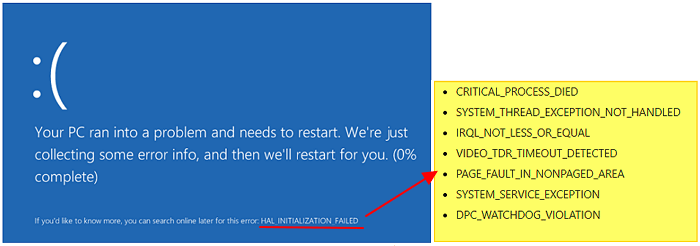
The causes of the error mainly include:
- Incompatible hardware or software issues
- Outdated, corrupted or incompatible device drivers
- Critical system file corruption
- Incorrect BIOS settings
- The PC is attacked by malware or computer viruses
Solutions to Fix Computer Keeps Blue Screen
- Warning
-
Although the blue screen of death won't destroy the operating system, it's good to take precautions. Create an emergency bootable USB/CD beforehand. If the blue screen death error can't be repaired, or the computer freezes and can't be booted, you can restore Windows image to a working computer without reinstalling and resetting.
Qiling Disk Master Pro is a reliable backup and restore tool that enables you to create a bootable disk from a USB flash drive or CD/DVD, even if the computer is unbootable.
To make a copy of your Windows OS with Qiling Disk Master, follow these steps. First, install Qiling Disk Master on your Windows OS and launch the software.
Step 1. Prepare a USB drive which can be written and read.
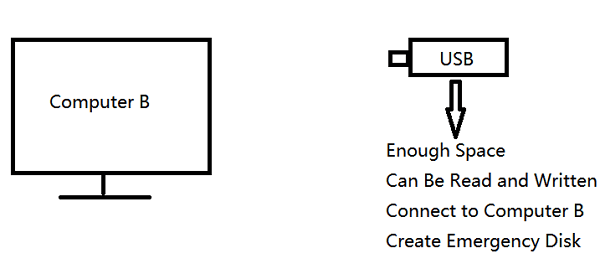
Step 2. Launch and install Qiling Disk Master on the Computer B.
Step 3. Find and click "Tools" and choose "Create Emergency Disk".
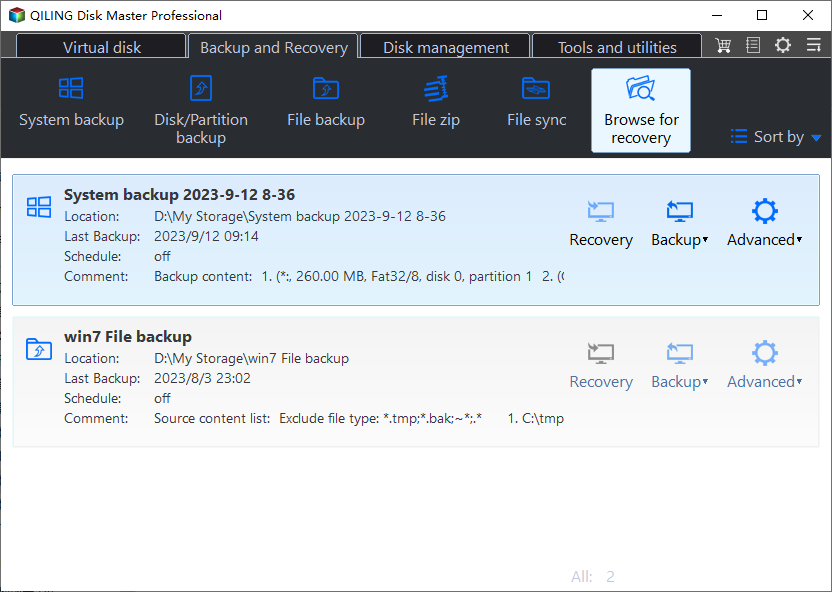
Step 4. You can choose the location where you want to save the boot disk, such as creating an ISO file, making a bootable USB, or burning it onto a CD/DVD disc.

Step 5. Then click "Proceed" to start.
To fix your computer's blue screen issue, try creating an emergency bootable disk. This can help you troubleshoot and resolve the problem.
- Solution 1. Uninstall Incompatible Programs or Hardware
- Solution 2. Update Outdated, Incompatible or Corrupted Drivers
- Solution 3. Fix System File Corruption
- Solution 4. Change BIOS Settings
- Solution 5. Check and Remove Malware or Viruses
- Solution 6. Boot up in Safe Mode
- Solution 7. Perform System Restore
Solution 1. Uninstall Incompatible Programs or Hardware
If you've recently installed a new program or hardware on your Windows 10 machine, and the blue screen of death error started appearing, try uninstalling the newly installed program or hardware one by one until the blue screen error no longer occurs.
Solution 2. Update Outdated, Incompatible or Corrupted Drivers
Outdated, incompatible, or corrupted device drivers are a common cause of blue screen errors, making it essential to update them to avoid or fix various computer problems.
To update your device drivers:
1. Press the Windows key + X to open the Win + X menu, and then click on Device Manager from the options list.
2. In Device Manager, find the device whose driver needs to be updated and right-click on it.
3. Select "Update Driver" from the context menu, then select "Search automatically for updated driver software" to let Windows find and install the latest drivers.
5. Windows will now automatically find and install the latest drivers for your system.
Solution 3. Fix System File Corruption
System file corruption is a common cause of the blue screen error, and the System File Checker (SFC) tool can scan for and repair corrupted system files.
To use the SFC tool:
1. Open Command Prompt as an administrator.
2. Type "sfc /scannow" and press Enter to start scanning for corrupt system files, which can help resolve issues with your Windows system.
3. Once the scan is complete, restart your PC and check whether the blue screen error has been fixed.
Solution 4. Change BIOS Settings
If you've made changes to your BIOS settings and are now experiencing the blue screen of death error, try reverting the settings to their default values to see if it resolves the issue.
Solution 5. Check and Remove Malware or Viruses
Malware and viruses can also cause blue screen errors, and running an antivirus scan can help remove the infection.
Solution 6. Boot up in Safe Mode
If you're still experiencing the blue screen error after trying various solutions, it's possible that your computer's hardware is failing. To determine if this is the case, try booting your computer in Safe Mode. This mode only loads the essential components of Windows, which can help identify whether the issue is caused by hardware or software problems.
To start Windows in Safe Mode:
1. Open the Start menu and click the Power button.
2. Press and hold the Shift key and click "Restart."
3. In the next window, select "Troubleshoot."
4. Select "Advanced options."
5. Select "Startup Settings."
6. Click the "Restart" button.
7. In the next window, select "Enable Safe Mode" from the list of options.
8. Once your computer is in Safe Mode, you can attempt to resolve the blue screen error by running any of the previously suggested solutions.
Solution 7. Perform System Restore
If you've tried all the previous solutions and are still getting a blue screen error, you can try using System Restore to revert your computer back to a previous working state.
To perform System Restore, follow these steps:
1. Open the Start menu and click the "Control Panel."
2. Select "System and Security."
3. Select "System."
4. Click "System Protection" in the left-hand pane.
5. Select "Restore my computer to an earlier time."
6. To restore your system to a previous state, you need to select a date and time from the list of available restore points. This list is generated by the system's restore feature, which periodically creates snapshots of the system's state at specific points in time.
7. Click "Next."
8. Confirm the restoration by clicking "Finish."
After completing System Restore, restart your computer to see if the error has been resolved.
Tips to Prevent Computer Keeps Blue Screen
To prevent the blue screen of death error from occurring again, you can take several measures. First, ensure that your system is running the latest Windows updates, as these often include bug fixes and patches.
- Keep your device drivers up to date.
- Install reliable anti-malware and antivirus software and perform regular scans.
- Avoid making any changes to your BIOS settings.
- Be careful when downloading and installing new software.
- Create regular backups of your computer's data.
You may be interested:
Conclusion
The blue screen of death error can be caused by various factors, including outdated device drivers, system file corruption, power surges, and hardware failures. You can try any of the above solutions to fix the problem, and it's recommended to create an emergency bootable disk before troubleshooting to prevent any further issues.
FAQ on Computer Keeps Blue Screen
How do I stop my computer from blue screening?
If your computer is experiencing blue screens, there are several things you can try to troubleshoot the issue. You can start by checking for any software updates, as outdated drivers or operating systems can often cause blue screens.
- Keeping your device drivers up to date.
- Installing reliable anti-malware and antivirus software and performing regular scans.
- Avoid making any changes to your BIOS settings.
- Be careful when downloading and installing new software.
- Creating regular backups of your computer's data.
Should I be worried if my computer blue screened?
If your computer blue screens occasionally, don't worry, it's a sign that Windows needs repair, and it will automatically repair the error and reboot. However, if it happens frequently or with other problems, try the suggested solutions to fix the issue.
Related Articles
- How to Use Robocopy Copy Folders and Subfolders on Laptop/PC
- 5 Best Win32 Disk Imager Alternatives in 2024 (Free)
- 500 GB Free Cloud Storage 2024
- How Much Space Does a Windows 10 Backup Take | Find Your Answer Here!
- Unable to Copy Files to External Hard Drive on Windows 11[SOLVED]
- How to Stop Word From Creating Backup Files | Quick Solutions
- How to Backup An External Hard Drive to Another External Hard Drive in Windows 10 [Methods Provided]
Want to know how to backup an external hard drive to another external hard drive in Windows 10? We have a complete guide to help you copy your data from one drive to another easily.
Products
Articles & Tutorials
- Data Recovery
- Data Backup
- File Recovery
- File Backup
- System Backup and Restore
- Disk and Partition Clone
- Technical articles
- Mobile articles
- Disk Master Help
- Windows Data Recovery Tutorials
- Windows Secure Delete Tutorials
- Windows Partition Management Tutorials
- Windows File Backup and Restore Tutorials
- Windows System Backup and Restore Tutorials
- Windows Disk Backup and Restore Tutorials
- Windows Clone Tutorials