How to Backup An External Hard Drive to Another External Hard Drive in Windows 10 [Methods Provided]
- How Do I Backup Everything from One External Hard Drive to Another
- How to Back Up An External Hard Drive to Another External Hard Drive in Windows 10
Introduction
Upgrading your external hard drive can be a necessity when it starts crashing, running out of space, or degrading in performance. When you decide to buy a new drive with more disk space and better performance, you'll want to transfer your existing data to the new drive. Fortunately, backing up an external hard drive to another external hard drive in Windows 10 is a relatively simple and straightforward process.
Keep reading to learn how to easily backup an external hard drive to another external hard drive on Windows 10.
How Do I Backup Everything from One External Hard Drive to Another
Hard disks have a limited lifespan and can suffer from performance issues due to wear and tear. If you have an old hard disk and want to back up your files to a new external drive, you'll need to ensure the new drive's file system is up-to-date, specifically running Microsoft's latest NTFS file system. This will prevent any potential issues with file compatibility and ensure a smooth backup process.
If your hard disk uses the FAT32 format, convert it to NTFS, as FAT32 has limitations, such as not being able to store files larger than 4GB, whereas NTFS offers improved disk space management and faster write and read speeds.
To change the file system from FAT32 to NTFS, you can use the built-in command-line tool called `convert.exe` in Windows.
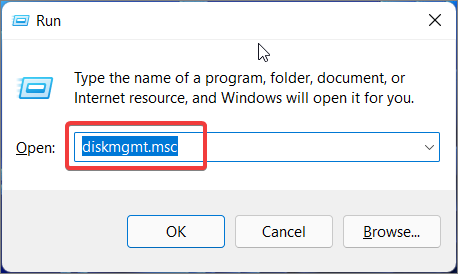
Step 1. To open Disk Management, press the Windows key + R to open the Run dialog box, type "diskmgmt.msc" and press the "Ok" button.
Step 2. Right-click on the new drive and then click on "Format".
Step 3. The volume label is set to "My Volume". Under the "File system" drop-down, NTFS is selected.
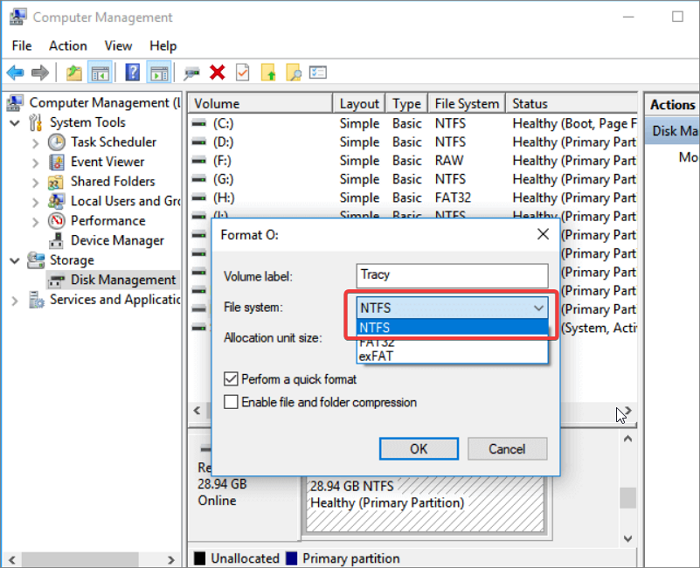
Step 4. To change the drive to "NTFS" format, click on the "OK" button.
Once the file system is updated to NTFS, the external drive can host large files and has improved read and write speeds.
Backing up an external hard drive to another in Windows 10 can be done in three efficient methods. Below we will walk you through each method step by step so you can choose the one that best fits your needs.
How to Back Up An External Hard Drive to Another External Hard Drive in Windows 10
If you want to know how to backup an external hard drive to another external hard drive in Windows 10, there are three excellent solutions available that allow you to transfer all your files to your new drive.
- Method 1. Back-Up An External Hard Drive to Another with Qiling Backup
- Method 2. Back-Up An External Hard Drive to Another By Copying Data
- Method 3. Back-Up an External Hard Drive to Another via Windows Easy Transfer
Method 1. Back-Up An External Hard Drive to Another External Hard Drive with Qiling Backup
Qiling Backup is a free and award-winning software that offers more than just data backup capabilities. It allows you to create a bootable rescue media, store files in the cloud, protect against ransomware, and schedule backups, making it a great tool for those who value data security. If you're looking to backup an external hard drive to another one, this software is a great choice, and with its user-friendly interface, you can easily follow the steps to complete the process.
Step 1. Start with selecting the Disk backup button.

Step 2. You can use Qiling backup to back up a whole disk or a specific partition, depending on your needs.

Step 3. Select the destination where you want to save the backup.

Step 4. For disk/partition backup, you can choose to save the backup to a local drive or a NAS (Network-Attached Storage) device.

Step 5. After the backup process is completed, your task will be displayed at the left. You can then click the "Advanced" button of the task to further manage your backup, such as recovering it or creating an incremental backup.

Method 2. Back-Up An External Hard Drive to Another External Hard Drive By Copying Data
To make a backup of your files, the simplest method is to copy-paste them from the old drive to the new drive. This involves selecting the files you want to back up, right-clicking on them, and choosing "Copy." Next, navigate to the new drive and right-click on the desired location, selecting "Paste."
Step 1. Connect both the old and the new drive to the computer.
Step 2. To compare the contents of the external hard drives, open both the external hard drive windows and keep them open side-by-side. This will allow you to see the files and folders on both drives at the same time, making it easier to identify any differences or discrepancies.
Step 3. To transfer files from your old drive to your new drive, select the files you want to copy/move and press "Ctrl+C" to copy them or "Ctrl+X" to cut them.
Step 4. To transfer files from your computer to an external drive, click on the new external drive window and press "Ctrl+V" to paste your files onto it.
The process of copying or moving files from an older external hard disk to a newer one can take a while, depending on the size of the files and the physical write and read speed of both disks.
- Notice:
- When copying files to another drive, ensure a sturdy and strong USB cable is used and securely connected to prevent the backup process from failing and potentially corrupting your hard disk.
Method 3. Back-Up an External Hard Drive to Another External Hard Drive via Windows Easy Transfer
If you're using Windows 8 or earlier, you can use Windows Easy Transfer to safely move files and settings from one computer to another, or from one external hard drive to another, making it easy to transfer data from an older drive to a newer one.
It transfers the following data:
- Windows settings
- User Accounts
- Desktop
- Taskbar options
- Emails
- Documents
- Pictures
Here's how to backup an external hard drive to another external hard drive using Windows Easy Transfer: Windows Easy Transfer is a built-in tool in Windows that allows you to transfer files, settings, and user accounts from one computer to another, but it can also be used to backup an external hard drive to another external hard drive. To do this, connect both external hard drives to the same computer, then open Windows Easy Transfer and select the option to transfer files from one external hard drive to another.
Step 1. Connect both the external hard disks to the PC.
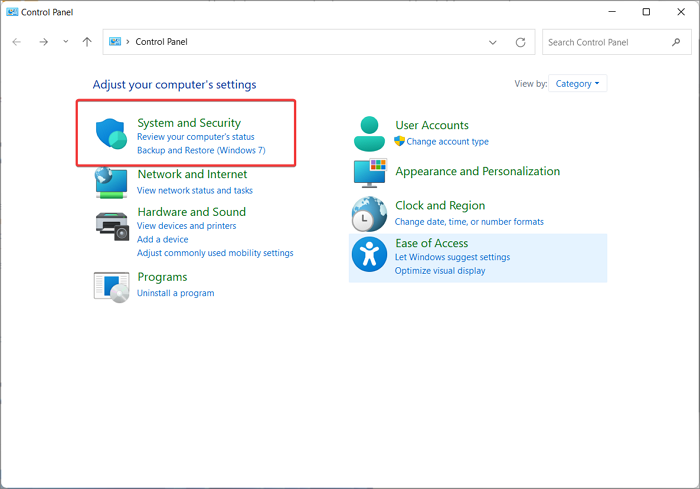
Step 2. Click on the "Start" menu and then open "Control Panel".
Step 3. Select "System and Security", followed by "Backup and Restore".
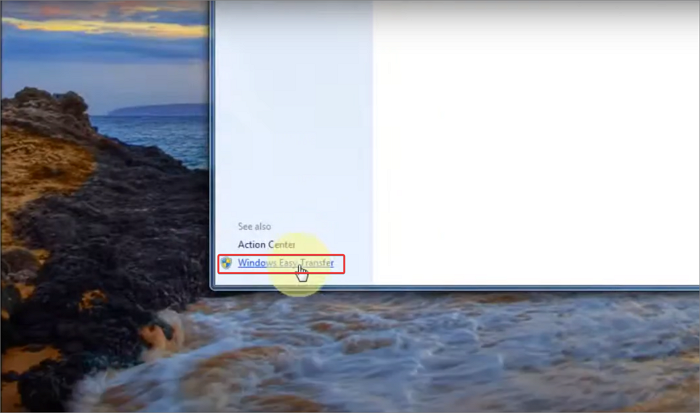
Step 4. On the left-bottom window pane, click on "Windows Easy Transfer".
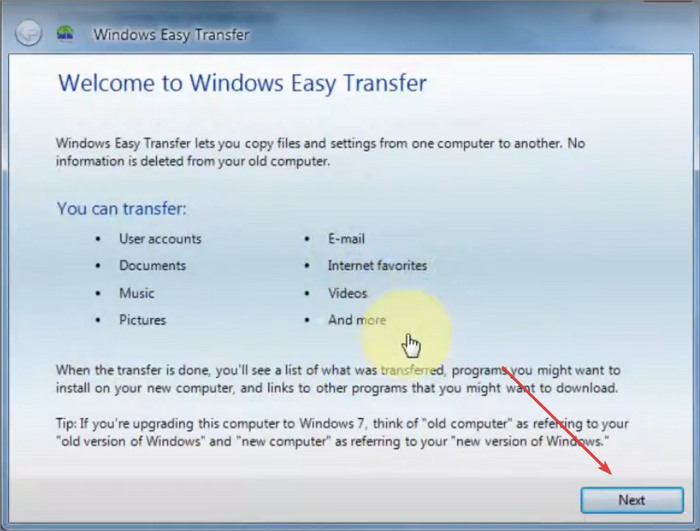
Step 5. Once the Windows Easy Transfer window opens, click on "Next".
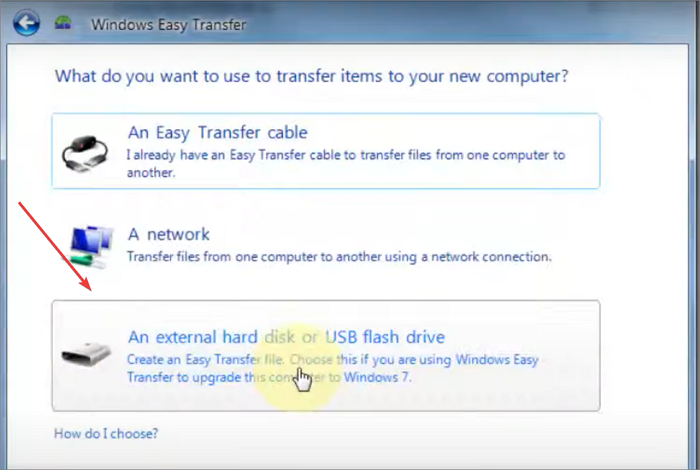
Step 6. Connect your new external hard drive to your computer and go to the Disk Cleanup tool, then select "An external hard disk or USB flash drive" from the options.
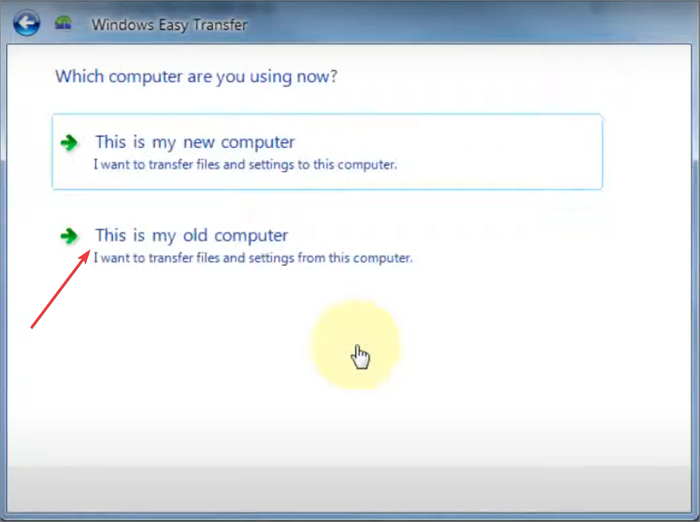
Step 7. Now select "This is my old computer".
Step 8. After clicking "Scan" and allowing some time for your PC to scan for files, it will give you an estimate of the size of the files that will be transferred.
Step 9. After clicking on "Next", enter your Windows password and then click on "Save" to complete the process.
Step 10. Now, save the file onto the new external hard disk.
After backing up your files to the new drive, you can use Windows Easy Transfer to restore the data to your new computer.
Here's how to do that:
Step 1. Open Windows Easy Transfer.
Step 2. To proceed, click on "Next", and then select "An external hard disk or USB flash drive" from the options provided.
Step 3. Select the option "This is my new computer" and then click "Yes" on the prompt that appears.
Step 4. To open a saved file, go to the hard disk where you saved it and select the "Open" option.
Step 5. Now the data will be restored.
Final Verdict
For backing up and cloning disks in Windows 11/10, a dedicated tool like Qiling Backup is a one-stop solution. It allows users to back up their SD card, disk, hard drive, and even create a rescue media disk, making it a convenient alternative to manual copy-pasting or using Windows Easy Transfer. This tool streamlines the process, eliminating the need for cumbersome manual methods.
With Qiling Backup, you can schedule automatic backups of your entire hard drive or individual folders or files, and easily restore backups, with options to encrypt and save them on the cloud, hard disk, or external drive.
The Qiling Backup program offers various tools, including free features, and also provides a free trial period where you can access all its premium features for a limited time.
Back-Up An External Hard Drive to Another External Hard Drive in Windows 10 FAQs
1. Can you clone a hard drive to an external hard drive?
You can clone a hard drive to an external hard drive by creating a system image of your PC. This process involves creating a copy of your entire hard drive, including all files, programs, and settings, and saving it to an external hard drive.
2. How do I backup my Dell computer to a flash drive?
Step 1. Click on the "Windows" button, and open "Control Panel".
Step 2. To access the Backup and Restore (Windows 7) feature, navigate to the Control Panel, select the "System and Security" category, and then choose the "Backup and Restore (Windows 7)" option.
Step 3. Click on "Create a system image" from the left window pane.
Step 4. Select your external hard drive and click on "Next", then select "Start backup" to begin the backup of your Dell computer to the flash drive.
3. How do I transfer files from my old Dell computer to my new Dell computer?
You can transfer files from your old Dell computer to your new Dell computer using one of three methods: using a USB drive, using a cloud storage service, or using a network connection. Each method has its own advantages and disadvantages, but they all allow you to transfer your files to your new computer.
Related Articles
- Free System Restore Software Windows 10 to Create Windows Recovery Disk
- How to Backup Quick Access in Windows 10 [ 2022 Update]
- How to Copy/Clone Bootable USB Drive in Windows 10/8/7 (2022 Tips)
- 3 Ways | How to Backup OneDrive to External Hard Drive in Windows 10 [Full Guide]
- How to Save Outlook Email to Hard Drive without PST - PST Alternatives
PST is the file format used to store Outlook data. But sometimes, you may want to save Outlook email to hard drive without PST rather than other formats. If you want to know how to save outlook emails to hard drive without PST, read this post, and get your answer here. - 5 Best Snapshot Backup Software Examples
Are you looking for great snapshot backup software? This page provides you with 5 top snapshot backup software for users from different systems. Read all information the post shows, and you can find the one which suits you more according to your personal needs.
Products
Articles & Tutorials
- Data Recovery
- Data Backup
- File Recovery
- File Backup
- System Backup and Restore
- Disk and Partition Clone
- Technical articles
- Mobile articles
- Disk Master Help
- Windows Data Recovery Tutorials
- Windows Secure Delete Tutorials
- Windows Partition Management Tutorials
- Windows File Backup and Restore Tutorials
- Windows System Backup and Restore Tutorials
- Windows Disk Backup and Restore Tutorials
- Windows Clone Tutorials