Unable to Copy Files to External Hard Drive on Windows 11[SOLVED]
Highlights:
- ✅Unable to copy files to an external hard drive can be caused by various factors, including issues with the external drive itself, such as a faulty drive or incorrect file system, or problems with the computer's operating system, such as outdated drivers or conflicting software. In some cases, the issue may also be related to file permissions or corrupted files.
- ✅This post provides 10 fixes to help you solve the issue effectively.
- ✅If you don't want to try these solutions one-by-one, consider using a backup tool to save files to the external hard drive smoothly with one click.
When you're unable to copy files to an external hard drive, it can be frustrating and time-consuming. This issue can occur due to various reasons, such as a faulty external hard drive, incorrect file system, or compatibility problems. To resolve this issue, you can try checking the file system of the external hard drive, ensuring it's compatible with your computer's operating system, and running a disk check on the external hard drive to identify and fix any errors.
If you're experiencing issues, refer to a post from Qiling for step-by-step guides to resolve the problem. Alternatively, consider using professional backup software to safely back up files to an external hard drive.
Why File Access Denied While Copying or Moving Files
File access denied while copying files to an external hard drive can be caused by various issues, including unstable connections, faulty file formats, outdated Windows versions, insufficient disk space, malware or computer viruses, or improper file names.
Whatever the reason or error, you can try the following fixes.
- 🎁Editor's recommendation
- If you're not sure why your files aren't backing up to an external hard drive, using backup software can be a quick and efficient solution. This way, you can ensure your files are safely backed up without having to troubleshoot the issue.
How to Fix Windows 11 Unable to Copy Files to External Hard Drive
1️⃣Check and Update Windows version
If your Windows version is outdated, it may cause an issue with copying or moving files, leading to an error.
- Press the Windows key + R on your keyboard to open the Run dialog box.
- Type winver and hit Enter.
A small window will pop up, displaying the version and build number of Windows currently installed on your computer.
To update Windows to the latest version:
- Press the Windows key on your keyboard and click on the Settings icon to access the Windows Settings menu.
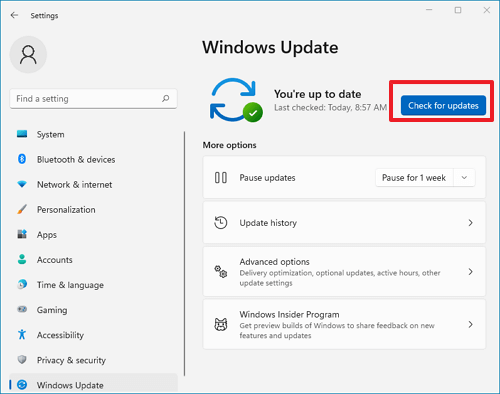
- Click on Windows Update in the left-hand pane.
- Click on the Check for updates button.
📖You may be interested: File Stops Copying Halfway | Copy and Backup Files without Admin Rights
2️⃣Reconnect the external hard drive to the PC
Check that your external hard drive and PC are properly connected with a compatible USB cable.
3️⃣Check the free storage space on the external hard drive
If you're copying a file to an external hard drive and it's stuck due to insufficient disk space, the process will stop and you'll be unable to proceed if the remaining storage space is smaller than the target file size.
To free up space on your external hard drive, you can check for any unnecessary files or data that can be cleared. This includes deleting any unimportant documents, images, or videos that are taking up space.
To check the storage space of the external hard drive:
- Go to Settings > Storage > View the storage usage of each drive.
4️⃣Restart your Windows Explorer
Restarting Windows Explorer is another feasible way to fix the 'Unable to copy files to external hard drive' issue.
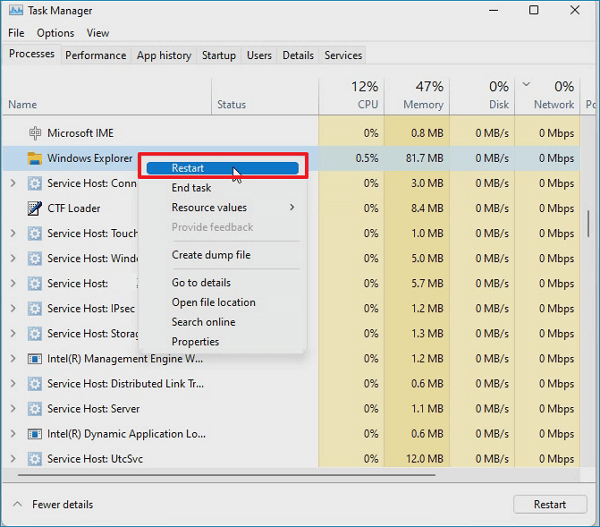
- To open the Task Manager, click on the Windows key + X at the same time, and select Task Manager from the list of options that appears. This will open the Task Manager window, where you can view and manage running processes, applications, and system resources.
- To restart Windows Explorer, open the Task Manager, locate Windows Explorer, right-click on it, and select Restart. This will restart the Windows Explorer process, which may resolve issues related to file management and navigation.
5️⃣Check and change the file name
To resolve the issue of failed data migration due to special symbols in file and folder names, try renaming the folder and avoid using special characters, such as $, %, &, etc. in the names. This should allow the data migration to proceed smoothly.
6️⃣Scan for computer viruses and malware
A failed file copy can be caused by computer viruses and malware. To resolve the issue, a thorough virus and malware scan is necessary to detect and remove any infected files.
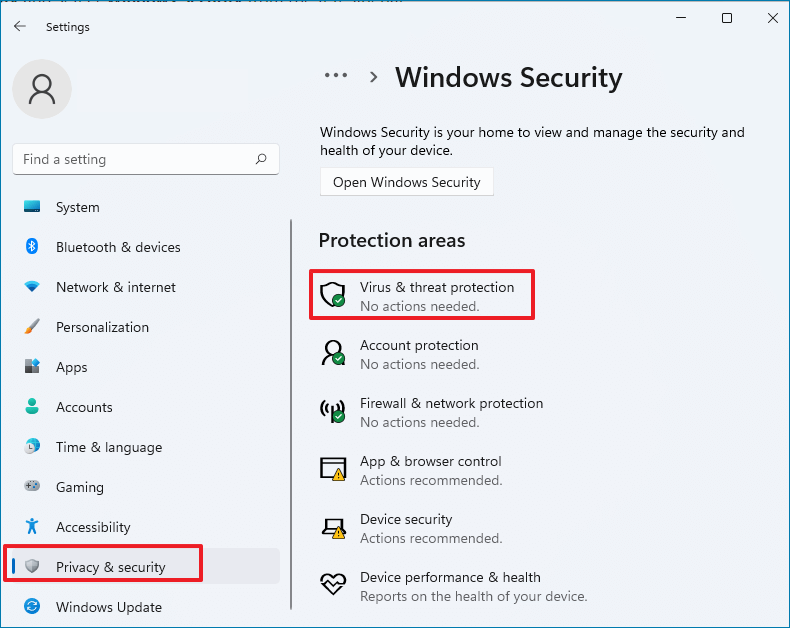
- To access the Windows Security settings, go to Start > Settings > Privacy & security > Windows Security > Virus & threat protection.
- In the pop-up window, click Scan options under the current threats option.
- To initiate a full scan, select the "Full scan" option and then tap "Scan now" to begin the virus scanning process.
7️⃣Run SFC to repair corrupted files
If copied files are corrupted or damaged, an 'unable to copy files to an external hard drive' error may occur. SFC (System File Checker) can scan and repair corrupted files, helping to resolve the issue.
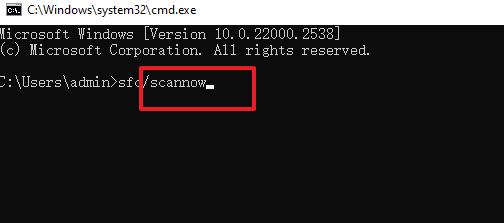
- Press Windows + R to open the Run dialogue, type cmd, and click OK. This will open the Command Prompt.
- In the pop-up black window, type sfc/scannow, and click Enter.
8️⃣Perform CHKDSK
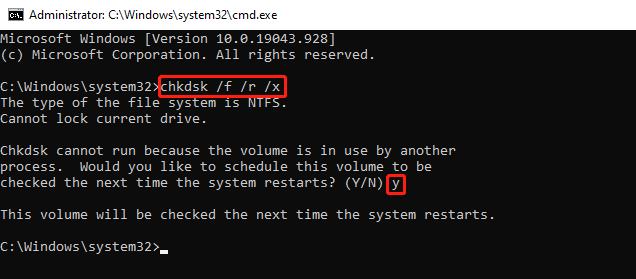
If your external hard drive has bad sectors, you should run the CHKDSK command to repair the issue.
- Press Windows + R to open the Run window, type cmd, and click OK to open Command Prompt as administrator.
- Type chkdsk/f/r/x, and hit Enter.
- Type Y and hit Enter after the (Y/N) command.
- Restart your PC and wait for the process to finish.
🚩Further Reading: SFC and CHKDSK: How to Run SFC and Chkdsk
9️⃣Get ownership of the file
If you don't have permission to access the document, you should obtain ownership of the file first and then proceed with the file moving task.
- Right-click the file or folder and select the Properties option from the context menu.
- Select Security > Advanced.
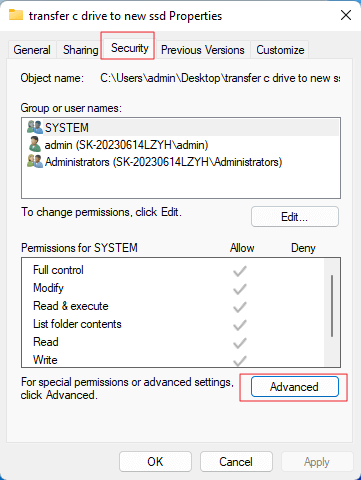
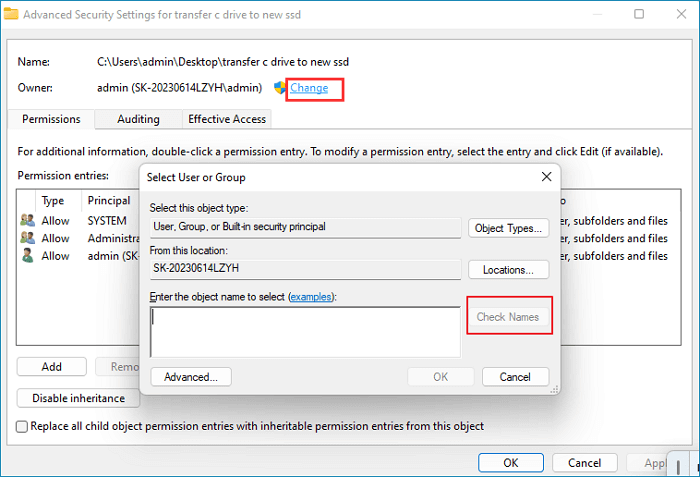
- To add a new account, click on "Change" and then input the desired account name into the blank frame. Next, click "Check Names" to verify the account's existence, and finally click "OK" to confirm the addition.
- Check Replace owner on subcontainers and objects.
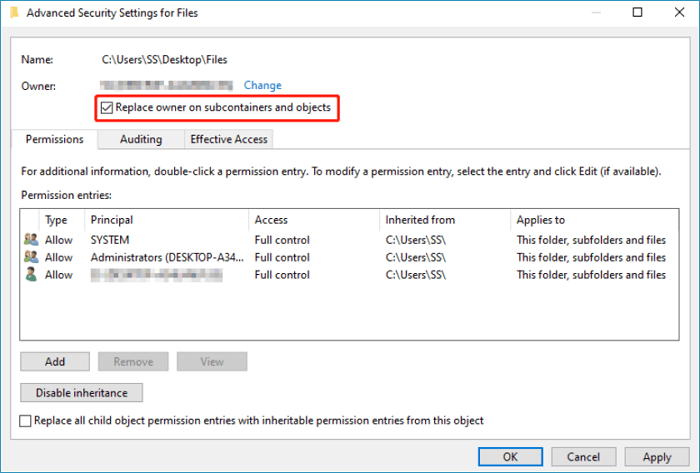
- Click Apply > OK.
🔟Create a new user account
If none of the above fixes solves the issue effectively, you can create a new user account to check if it works.
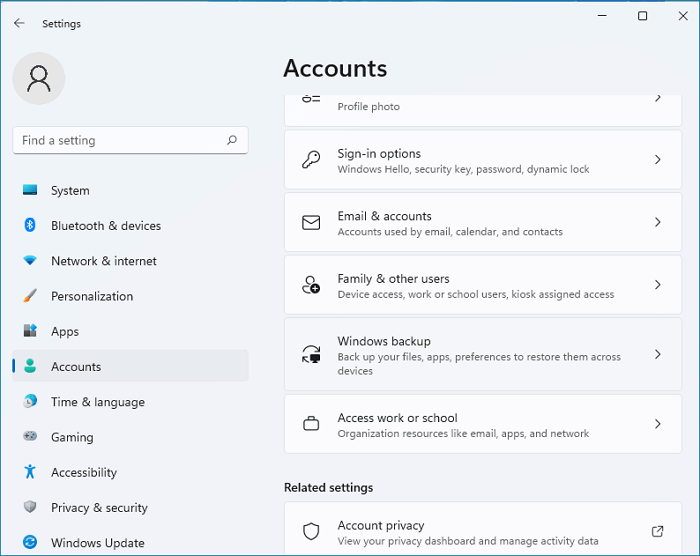
- Open Windows Settings > Accounts > Family & other users.
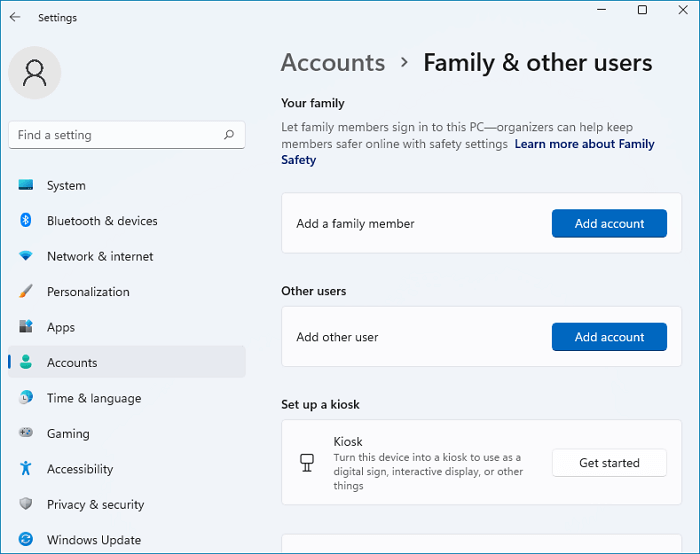
- Click Add account beside the Add other user option.
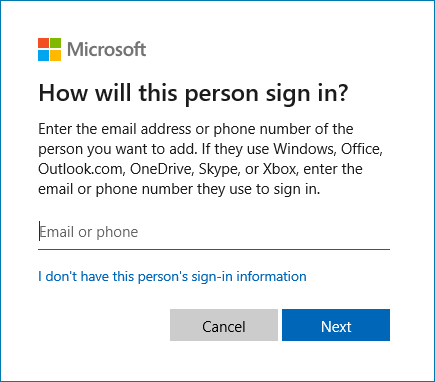
- Click I don't have this person's sign-in information > Add a user without a Microsoft account.
- Follow the onscreen instructions to complete the process and click Next.
- To resolve the issue of being unable to copy files from the previous account, restart the PC, switch to the new account, and attempt to copy the files again.
Never Miss! Backup File to External Hard Drive on Windows 11/10/8/7
Copying and pasting is a simple way to move files and folders, but it's only practical for a few files at a time due to the time-consuming process and risk of data loss.
If you have multiple files to save to an external hard drive, consider using a backup tool like Qiling Disk Master Free, which is a professional and reliable option that can help you save files safely and smoothly.
All files are stored on the external hard drive in a compressed and encrypted format, ensuring the security of your files and maximizing storage space.
Qiling offers both encrypted and compressed backup options, as well as features like scheduled, incremental, and differential backup, allowing for more efficient and secure file transfers to external drives, cloud services, or network locations.
Works on Windows 11/10/8/7, Qiling Disk Master has a simple UI, and you can download and use this backup tool with confidence:
Refer to the following guide to back up files with Qiling Disk Master using simple clicks.
Step 1. To initiate a backup, click the Select backup contents option.

Step 2. There are four data backup categories: File, Disk, OS, and Mail. Clicking on File will allow you to select specific files to back up.

Step 3. On the left, both local and network files will be shown, allowing you to expand the directory to select the backup files.

Step 4. Choose a location to store the backup, as prompted by the on-screen instructions.

To encrypt the backup with a password, click on Options in Backup Options, then select Backup Scheme to specify the backup schedule and start the backup at a certain event, allowing you to tailor the process to your needs.

Step 5. The backup may be stored on a local disk, Qiling's online service, or a Network-Attached Storage (NAS) device.

Step 6. Qiling Disk Master allows users to back up their data to both a third-party cloud drive and Qiling's own cloud drive.
If you want to back up data to a cloud drive, select Local Drive, scroll down to add Cloud Device, and add and log in to your cloud account.
Step 7. To start the backup process, click the "Proceed" button. Once the backup is complete, it will be displayed as a card on the left side of the panel. You can then right-click on the backup job to further manage it.
Sum Up
You're experiencing issues with copying files to an external hard drive, but you've likely found a solution to resolve the problem. If not, you might consider using the backup method instead, which can efficiently transfer files to the external drive.
Qiling Disk Master is a program that offers the simplest way to save a copy of your files and keep them safe. It also has many advanced features, providing flexible file backup options. You can set automatic backups to eliminate manual operation. Download and try it; it's a must-have.
Frequently Asked Questions
1. How do I give permission to an external hard drive in Windows 11?
To get permission from an external hard drive, you can follow these steps:
- Right-click the external hard drive > Properties.
- Click Security > Advanced > Change permissions.
- Double-click on the username or account.
- Under the "Applies to" option, select "This folder, subfolders and files" and then check all options, including "Full control", "Modify", "Read and write", "List folder contents", "Read", and "Write".
- Click OK to save all changes.
2. How do I copy my hard drive to another hard drive?
Cloning is the best method to copy a hard drive to another, creating an exact replica of the original disk. This process copies all data, including the operating system, settings, system-related files, installed programs, and more. A popular tool for disk cloning is Qiling Disk Copy, which ensures a smooth and successful transfer without data loss, eliminating the need for Windows OS reinstallation.
3. Can I just copy and paste one hard drive to another?
Copying and pasting one hard drive to another is not feasible if it contains the operating system and installed applications. Cloning is the right choice if you want to migrate all data, including the operating system and installed applications, from one hard drive to another.
Related Articles
- How to Back Up Windows 10 to USB on Your Own [3 Ways]
- Windows 7 System Image Backup Failed Not Enough Disk Space[SOLVED]
- Is Google Drive Going Away? Get Clear Ideas Here!🥇
- Macrium Reflect Guide | How to Boot from Rescue Media (with Alternative)
- How Can You Transfer Files from an SD Card to a Desktop Computer?
How can you transfer files from an SD card to a desktop computer? Do you want to get the answer? This article will tell you how to transfer files from an SD card to a desktop computer. - How Do I Backup All My Programs in Windows?
If you want all the programs to be protected for security, you have to create a backup for all of them. This post will give you a simple answer and an easy-to-follow guide on how do I backup all my programs in Windows. Read on to learn more. - Acronis Imaging Software for Windows 11/10/8/7 Free Download
Acronis imaging Software, also known as Acronis True Image, is one of the top disk imaging solutions among users. This article will introduce the popular software to you in detail and help you find the best alternative software to meet your higher requirements.
Products
Articles & Tutorials
- Data Recovery
- Data Backup
- File Recovery
- File Backup
- System Backup and Restore
- Disk and Partition Clone
- Technical articles
- Mobile articles
- Disk Master Help
- Windows Data Recovery Tutorials
- Windows Secure Delete Tutorials
- Windows Partition Management Tutorials
- Windows File Backup and Restore Tutorials
- Windows System Backup and Restore Tutorials
- Windows Disk Backup and Restore Tutorials
- Windows Clone Tutorials