Windows 7 System Image Backup Failed Not Enough Disk Space[SOLVED]
Key Takeaways
- ✅The 'Windows 7 system image backup failed not enough disk space' issue often occurs due to insufficient storage space, causing the backup process to halt.
- ✅ Extending the system reserved partition or recovery partition is an effective way to allocate enough space for the system image backup, providing a more robust and reliable system restore capability.
- ✅Creating a system image with Qiling Disk Master Free is a more reliable way to safeguard your computer, as it ensures a smooth backup process without any hassle.
Creating a system image of your Windows 7 will back up all system files and bootable sectors on the system partition, allowing you to restore the OS to its previous state if your computer gets stuck. This eliminates the hassle of reinstalling the OS and other programs when your device is on the fritz.
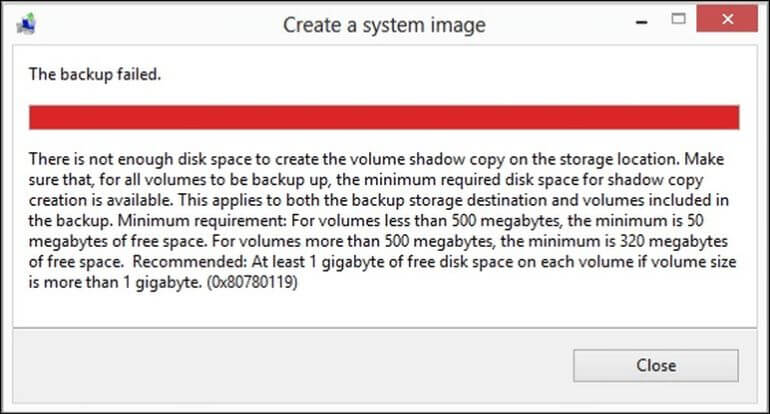
If you're trying to create a full system image backup on Windows 7 but encounter the "not enough disk space" error, this is a common problem often accompanied by error codes like 0x80780119, 0x80780038, or 0x807800B4. This issue is typically caused by problems with the system reserved partition or recovery partition, which can prevent you from successfully creating a system image backup.
If the system image backup failed due to a lack of disk space in the storage location, you can try deleting unnecessary files or programs, compressing the backup, moving the backup to a different storage location, or upgrading your storage capacity to resolve the issue and restore the system image.
📖Related Reading: Windows 10 Backup Keeps Failing | Not Enough Disk Space But There Is Plenty
Fix 1️⃣ Extend the System Reserved Partition or Recovery Partition
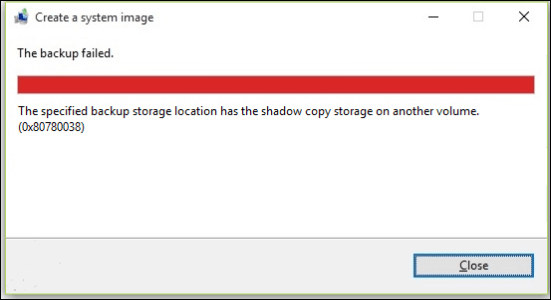
Windows 7 system image backup failed due to not enough disk space, specifically for the shadow copy. Volume shadow copy is a technology that creates backup files for computer files or volumes, but the error "Not enough volume shadow copy" means the backup file size exceeds the requirements for restoring on your system.
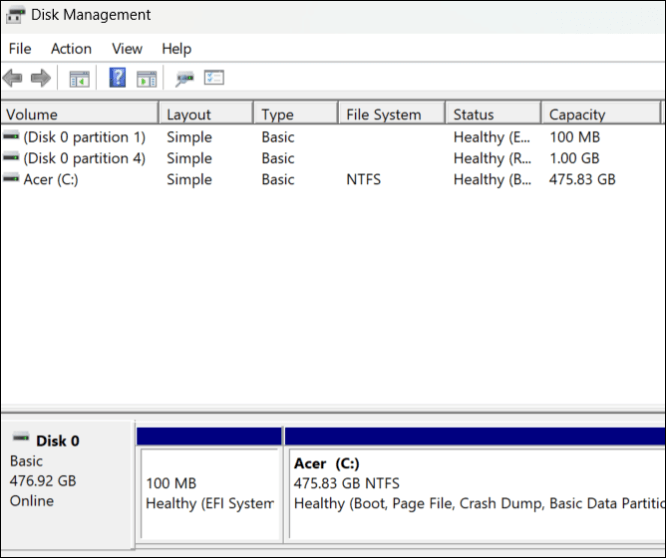
To resolve the error, you may need to extend the system reserved partition or recovery partition to allocate enough space to restore the system image. This can be done using the Disk Management tool or free third-party software, ensuring the backup volume has sufficient free space, typically 50 MB for volumes under 500 MB and 320 MB for larger volumes. Restoring the System Image should then be attempted to see if it resolves the issue.
📌You may be interested: No System Restore Points in Windows 7
Fix 2️⃣ Clear Update Sequence Number (USN) Journal Files
The System Reserved Partition issue is causing the problem, which is related to the Change Journal, a feature that records file system changes. This is due to an anomaly in the NTFS system's update sequence number (USN), which tracks changes made to the System Reserved Partition volume.
If a disk volume operation (like shrinking or increasing) goes wrong, it can create a Change Journal on the System Reserved Partition, potentially taking up space needed for volume shadow copies, which can make it hard to restore the system image.
If the System Reserved Partition has less than 50 MB of free space, the volume shadow copy file (less than 500 MB) cannot be recovered, resulting in an error when trying to create a Windows 10 image backup. This can be resolved by clearing the accumulated USN journal files, which requires free space on the System Reserved Partition.
Step 1. Press the Windows key + R to open the Run dialog box.
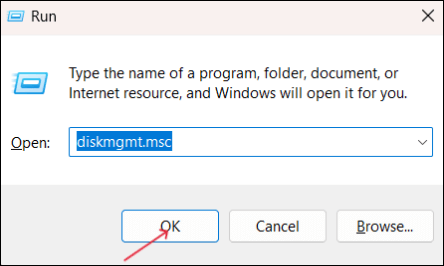
Step 2. To open the Disk Management tool, type diskmgmt.msc in the Run dialog box and click OK.
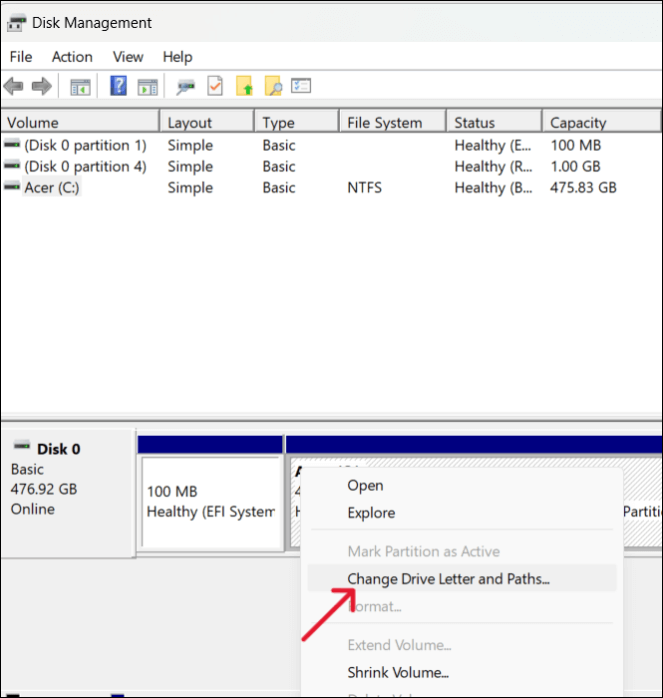
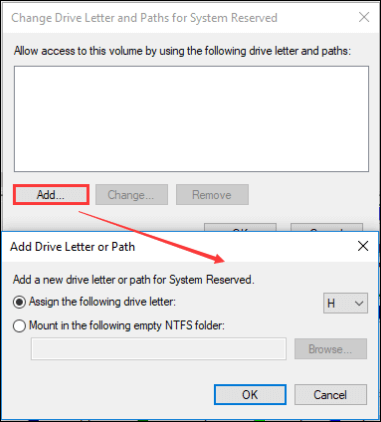
Step 3. Assign a drive letter to the System Reserved Partition by right-clicking on it, selecting "Change Drive Letter and Paths", and clicking "OK" after choosing a drive letter.
Step 4. Open the Command Prompt on your PC.
Step 5. Run the commands below one after the other and press Enter after each entry.
- fsutil usn queryjournal H:
- fsutil usn deletejournal /N /D H:
Step 6. To remove the drive letter from the System Reserved Partition, you can use the built-in Disk Management tool in Windows. After executing the steps, open Disk Management, select the System Reserved Partition, right-click on it, and choose "Change Drive Letter and Paths".
The process will free up 30-40 MB of space within the reserved partition, allowing you to create a System Image without storage problems.
Fix 3️⃣ If the Shadow Copy has Another Volume
If the system image backup failed due to no space, it's likely that the location you want to save your system image is not empty. This could be due to another primary reason, such as a shadow copy storage on another volume. To troubleshoot the error and fix it, try the following steps.
Step 1. Run the System File Checker (SFC) scan.
To run the System File Checker (SFC) command and fix corrupted system files, follow these steps:
Step 2. System Protection and System Restore Points.
If the SFC scan can't fix the error, try using a System Image backup for Windows 7. You can enable System Protection and create System Restore Points, which create shadow copies of your system, providing an additional layer of protection. This allows you to restore your data if something goes wrong.
Fix 4️⃣Change the Recovery Partition Size
If you're unable to recover a Windows 7 System Image backup, it may be due to the recovery partition, which needs to be resized to meet the space requirements of the volume shadow copy files needed to create a system image.
| Partition Size | Minimum Free Space |
| Less than 500MB | 50 MB |
| More than 500MB | 320 MB |
| More than 1GB | 1GB |
If the System Image is too large to fit on the Recovery Partition, you'll need to increase the size of the Recovery Partition to accommodate it. This will provide sufficient space to store the System Image.
Easy! Create Windows System Image via Qiling Disk Master
If the Windows 7 system image backup failed due to not enough disk space, the best solution is to create a System Image using professional backup software like Qiling Disk Master Free. This software also offers free cloud support for storing the image backup and a security zone to encrypt the data, providing an additional layer of protection.
The Qiling Disk Master tool offers a range of features, including setting scheduled backups, making advanced backup plans, cloning the system or drive, creating bootable USB drives, and more. With its all-around features and protection, you can safeguard your data through backups and images, clones, and other functions. By downloading the tool, you can create a System Image for Windows 11/10/8/7.
Follow the easy steps to create a Windows system image with Qiling Disk Master:
Step 1. Launch Qiling Disk Master and choose "Backup" tab page.

Step 2. Click on the "System backup" option to initiate the backup process.

Step 3. The system partition will be automatically selected, so you only need to choose the location.

Step 4. You can save the backup file on your local drive, in the cloud, or on a network-attached storage (NAS) device, and also connect an external hard drive to store the system backup files.

Step 5. To customize the settings, click on the "Options" button at the bottom left, then click "Proceed" to start the process.

After completing the backup process, you can verify the backup status, restore, open, or remove the backup by right-clicking on the backup task in the left panel.
[Causes] Why Windows System Image Failed Not Enough Disk Space
If a PC stops working or is affected by something, a full system restore can be performed using the Windows System Image backup. However, if you're trying to create a Windows 7 system image backup and it fails due to not enough disk space, possible reasons include insufficient free space on the backup drive or partition, or the system drive itself being too full, making it difficult to create a backup.
- Error (0x80780119): If there is not enough disk space available at the storage location to create a volume shadow copy of the image backup, the process will fail or be unable to complete.
- Error (0x80780038): The image backup is stored in a backup location that utilizes shadow copy storage on a separate volume.
- Error (0x807800B4): The backup volume is too large, exceeding 2088958 MB, which means it cannot be protected.
The Wrapping Up
If the Windows 7 system image backup fails due to not enough disk space, it's usually because the backup process can't create a volume shadow copy, which requires sufficient disk space on the system reserved or recovery partition. To resolve this issue, you can try the 4 fixes covered in this guide: extending the system reserved partition, clearing USN journal files, checking shadow copy on another volume, or changing the recovery partition size.
If the issue persists, the best way to protect your data is to create a system image backup with Qiling Disk Master, which can store it on the cloud or in the security zone, thus avoiding the error.
FAQs Related System Image Backup Failed Not Enough Disk Space
Here are some of the most frequent FAQs about Windows 7 system image backup failed not enough disk space. If you have similar queries, I hope this will help you.
1. What is 0x80780119 not enough space?
The 0x80780119 error occurs when there's not enough space on the System Reserved partition to create a system image, resulting in a storage issue on the drive.
2. Why does my computer say there is not enough disk space when there is?
If your hard drive is showing less free space than expected, it might be due to corrupted or hidden files taking up the space. You can try using the hard drive repair or CHKDSK tool to identify and fix the issue.
3. Why does my Windows image backup keep failing?
Windows image backup frequently failing can be attributed to various reasons, with damaged or corrupt files being the most common cause. This can stem from software or hardware issues, or even external threats, leading to the backup process failing.
Related Articles
- 2024: How to Install Windows 11 on M.2 SSD (with Pictures)
- Should You Encrypt Backups? Here's the Answer
- How to Get Windows Activation Key and Start Windows 11
- [Solved] Upgrade or Clone PS3/PS4 Hard Drive to a Larger Drive
- Windows 10 Game Save File Location🔥All You Want to Know
- Windows Backup Did Not Complete Successfully - How to Fix?
- How to Use Image reserve strategy in Qiling backup Personal Edition
Learn how to use the Image Reserve Strategy in Qiling Backup Personal Edition to automatically manage and retain backup files. Step-by-step guide on configuring backup retention rules for Windows.
Products
Articles & Tutorials
- Data Recovery
- Data Backup
- File Recovery
- File Backup
- System Backup and Restore
- Disk and Partition Clone
- Technical articles
- Mobile articles
- Disk Master Help
- Windows Data Recovery Tutorials
- Windows Secure Delete Tutorials
- Windows Partition Management Tutorials
- Windows File Backup and Restore Tutorials
- Windows System Backup and Restore Tutorials
- Windows Disk Backup and Restore Tutorials
- Windows Clone Tutorials