No System Restore Points in Windows 7? How to Recover Them
System Restore is a Windows built-in feature that creates system restore points automatically and periodically, allowing you to return to a previous version of the system files, registry, and programs on your computer, which can be a lifesaver when your computer crashes or you accidentally delete something important.
If you're experiencing issues with missing system restore points in Windows 7, it's likely due to a lack of disk space or a problem with the System Restore feature itself. To resolve the issue, you can try running the built-in System File Checker tool to scan for corrupted system files, or use the Disk Cleanup tool to free up space on your hard drive. Additionally, you can try running the System Restore feature in Safe Mode to see if it works properly in a minimal environment.

Possible Reasons Why The System Restore Points Are Missing
In Windows 7, system restore points may be missing due to various reasons such as lack of protection, corrupted or turned off restore points, virus or malware infection, incorrect registry settings, insufficient free disk space for System Restore, or Group Policy settings.
To address the issue, you can try one or more of the following solutions:
- Tip
- If you're not interested in trying the previous solutions one by one, you can jump to the System Restore Better alternatives - Qiling Backup, which can restore your system without relying on restore points and prevent any data loss in case the computer crashes or is attacked by malware or virus.
4 Fixes to Recover System Restore Points in Windows 7
Fix 1. Run SFC(System Files Checker) to Position Problematic
Fix 3. Disable, Delete and Recreate the Page File
Fix 4. Enable Check Volume Shadow Copy
Fix 1. Run SFC(System Files Checker) to Position Problematic
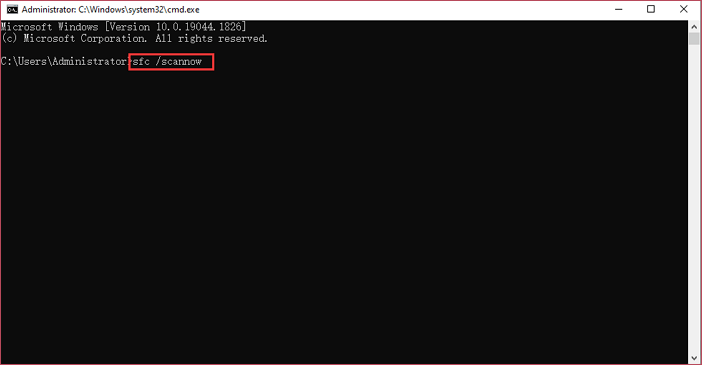
If there are no system restore points in Windows 7, the issue might be caused by corrupted system files. To fix this, you can run the System File Checker (SFC) tool, which scans and repairs damaged system files. This can potentially resolve the problem and allow you to create system restore points again.
Here's how:
Step 1. Open the Command Prompt as an administrator by searching for "cmd" and selecting "Run as administrator".
Step 2. In the Command Prompt, type sfc /scannow and hit Enter.
Step 3. Wait for the process to complete and restart your computer to check if the issue has been resolved.
Fix 2. Enable System Restore
If the Windows 7 system restore points are missing, it's possible that System Restore is turned off by mistake. To check, follow these steps: 1) Click on the Start button and select Control Panel. 2) Click on the System and Security link. 3) Click on the System link.
Step 1. Click Start in Windows, then open Control Panel.
Step 2. To access System Protection, go to System > System Protection, then navigate to the System Protection window.
Step 3. Find the drive you want to restore and click Configure.
Step 4. Check the "Restore system settings and previous versions of files" option.
Fix 3. Disable, Delete and Recreate the Page File
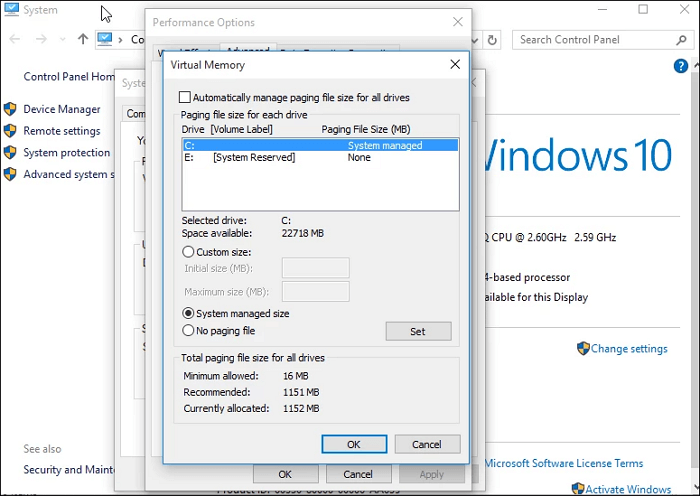
If the page file is fragmented, system restore points will be deleted automatically at each startup. To resolve this issue, disable, delete, and then recreate a page file.
Step 1. To access System Properties, you can type "advanced system settings" in the search box, which is usually located in the Start menu or on the taskbar. This will open a window where you can click on "System" or "System Properties" to access advanced settings for your computer.
Step 2. Go to Settings, then click on Performance, and from there click on Settings under the Performance tab. Next, click on the Advanced tab and then click on Change in the Virtual memory section.
Step 3. To disable the page file on a specific drive, uncheck the "Automatically manage paging file size for all drives" option, select the drive you want to modify, and choose "No paging file" from the options. Then, click the "Set" button to apply the changes.
Step 4. To delete the pagefile.sys file, restart your computer, then open the Computer and navigate to your main drive. Once you've located the pagefile.
Step 5. To disable the Page File, follow the steps and click Set to enable it. Then, reboot the computer and check if the system restore or Volume Shadow Copy is running correctly.
Fix 4. Enable Check Volume Shadow Copy
If Volume Check Shadow Copy is disabled, your Windows restore points may disappear. To enable Check Volume Shadow Copy, follow these steps:
Step 1. To access the Service utility in Windows, click on the Start button and type "services.msc" in the search box, then press Enter to open the Service utility.
Step 2. To check if the Volume Shadow Copy service is running, follow these steps: Scroll through the Services list and locate Volume Shadow Copy. Once you've found it, check if its status is set to "Running" or "Started".
Step 3. If the Volume Shadow Copy is off, right-click it and Start.
System Restore Better Alternatives - Qiling Backup
System Restore can be a helpful tool for reverting your computer to a previous state, but it may not always work as expected, such as not having any system restore points available in Windows 7.
For some users, enabling or disabling the page file, recreating the page file, and running SFC may not work at all, and even if it does, they may not be able to create a restore point when needed due to insufficient free space on their system drive.
If Windows won't boot, you can use Qiling Backup, a reliable and safe alternative to System Restore, to create an image of your entire system and save it to an external hard drive or network location. This backup image allows you to restore your computer to the last healthy state quickly, even if Windows cannot boot.
Qiling Backup Home is a complete and reliable backup solution that can back up operating systems, applications, settings, and data, supporting full, incremental, and differential backup types.
This software allows you to schedule automatic backups to keep your computer safe, and also enables you to upgrade your system disk by cloning it to a larger one without losing any data.
To create a system image and restore your computer when System Restore is not working, follow these steps: Create a system image by going to Control Panel > System and Security > Backup and Restore (Windows 7) or Control Panel > System and Security > Backup (Windows 8), then select "Create a system image" and follow the prompts. This will create a copy of your system, including all installed programs and settings.
Step 1. Launch Qiling Backup and choose "System Backup" on the home page to start a system backup.

Step 3. You'll need to select the location to install Windows, the system partition will be automatically selected.

Step 4. You have the option to save your backup file on Local Drive, Cloud, or NAS, and you can also connect an external hard drive to store your system backup files.

Step 5. You can customize the settings in "Options" at the bottom left, then click "Proceed" to start the process.

After completing the backup process, you can view the backup status, restore, access, or remove the backup by clicking on the backup task on the left.
You may also be interested:
Sum Up
If you find no system restore points in Windows 7, don't panic. You can try some fixes, such as enabling the Volume Shadow Copy service or recreating the page file, to resolve the issue.
To ensure data security, create a system backup using Qiling Backup to prevent data loss in case of unexpected issues, allowing for a quick recovery to a previous healthy state, even if Windows is unable to boot.
In short, you can fix missing restore points by checking System Protection, disk space, and backup settings. If you found this helpful, please share it with others. If you have any questions or need further clarification, feel free to reach out to us.
No System Restore Points in Windows 7 FAQ
1. How do you restore Windows 7 if there is no restore point?
If you don't have any restore points, you can still restore Windows 7 by opening System Restore in Safe Mode and selecting a restore point to restore from. To do this, follow these steps:
- To force Windows 7 to start in Safe Mode, restart your computer and keep pressing the F8 key before Windows 7 loads. This will allow you to access the Advanced Boot Options menu, from which you can select Safe Mode.
- Select Safe Mode with Command Prompt on the coming screen.
- Type `rstrui.exe` in the Command Prompt and press Enter key to open the System Restore window.
- Choose a restore point to restore your system.
2. How do I turn on restore points in Windows 7
To turn on restore points in Windows 7, right-click Computer on the desktop, select Properties, click System Protection, then Configure, and check the box to Turn on system protection, choosing a maximum disk space usage. Click OK to confirm and exit.
3. Does Windows 7 automatically create restore points?
Windows 7 automatically creates a restore point when you install new programs or updates, but you can also create a restore point manually at any time.
Related Articles
- How to Factory Reset PC Without Losing Data in Windows
- How to Clone Windows 11/10 to USB Drive on Your Own
- Full Analysis: Is Windows 11 Need Any Antivirus
- How to Back Up Windows 10 to USB on Your Own [3 Ways]
- How Do I Clone My Old SSD to My New SSD?
Do you know how do I clone my old SSD to my new SSD? If you do not know, this short post can help you. After reading this post, you can learn how to clone an old SSD to a new SSD. - How Do I Clone Only C Drive to SSD?
To clone only the C drive to an SSD, you can use disk cloning software such as Qiling Disk Master. This tool allow you to select specific partitions or drives to clone, ensuring that only the C drive is copied to the SSD, while leaving other partitions intact.
Products
Articles & Tutorials
- Data Recovery
- Data Backup
- File Recovery
- File Backup
- System Backup and Restore
- Disk and Partition Clone
- Technical articles
- Mobile articles
- Disk Master Help
- Windows Data Recovery Tutorials
- Windows Secure Delete Tutorials
- Windows Partition Management Tutorials
- Windows File Backup and Restore Tutorials
- Windows System Backup and Restore Tutorials
- Windows Disk Backup and Restore Tutorials
- Windows Clone Tutorials