How to Factory Reset PC Without Losing Data in Windows
What Is a Factory Reset
If your computer is running slow, displaying weird error messages, or hanging even when storage is not full, it's time to take action. Instead of calling a technician, you can try factory resetting your PC, which clears all data, fixes issues, and gets rid of corrupted files, effectively restarting your computer with a fresh OS installation. If you're concerned about losing data, don't worry, we've got you covered with a guide on how to factory reset your PC without losing data in Windows.
How to Factory Reset a Computer Without Losing Data
Several options are available to factory reset a computer and prevent data loss, but they differ in how they work, ease of use, and the extent of data saved. Depending on your prerequisites, you can choose the one that best suits your needs.
- Option 1: Use Reset This PC Feature
- Option 2: Reset Using the Advanced Startup Menu
- Option 3: Use Microsoft Media Creation Tool
- Option 4: Use Qiling Backup to Backup Data
Option 1: Use Reset This PC Feature
Windows allows you to reset your computer, offering two options: keeping your data and resetting, or erasing all data without backing up. This process saves all files, folders, and media, but removes third-party applications and software, resulting in the loss of all installed apps, even if you choose to keep your data.
In some old devices, you may need to use the Windows Service Menu to factory reset, but be cautious as improper use can harm your system. If you can't find it, consider using a different method instead.
Option 2: Reset Using the Advanced Startup Menu
To factory reset your computer, you can use the Advanced Startup Menu or the Windows Recovery Environment feature. Press the Windows key + X and select the Power icon, then hold the Shift key and select Restart.
Follow the steps given below to reset the PC by the Advanced Startup Menu:
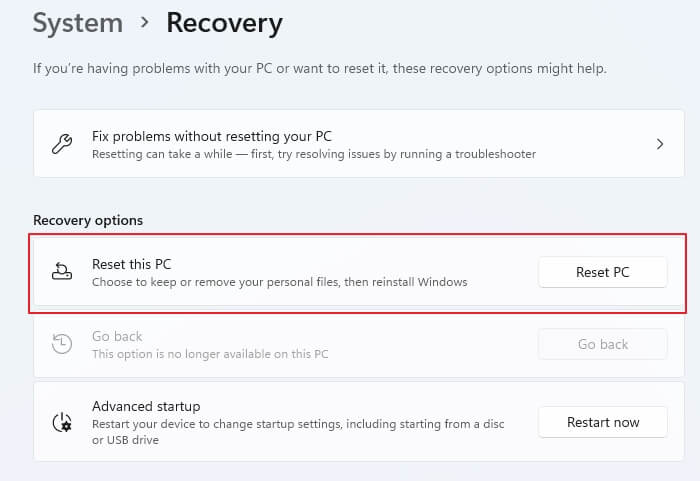
Step 1. Open Windows Settings using Win + I.
Step 2. Navigate to System > Recovery.
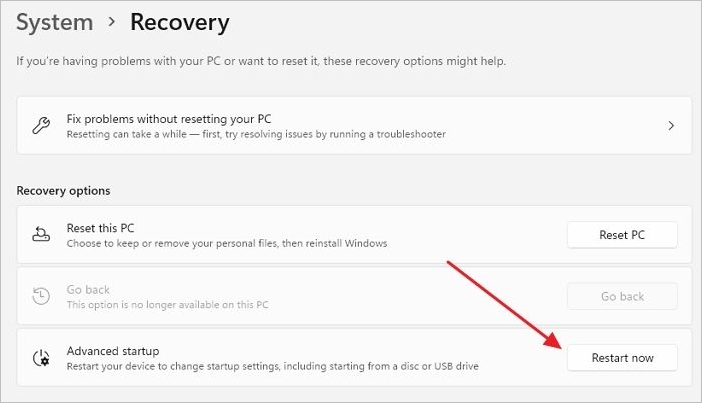
Step 3. To access advanced startup options, locate the "Advanced Startup" option and choose "Restart Now" from the right-hand side.
If you don't get into Windows Recovery Environment mode after rebooting, press the F11 key from your keyboard during the reboot process, and the Advanced Setup menu will appear.
Now, follow the steps in WinRE.
Step 1. Click on "Troubleshoot", and then click on "Reset this PC".
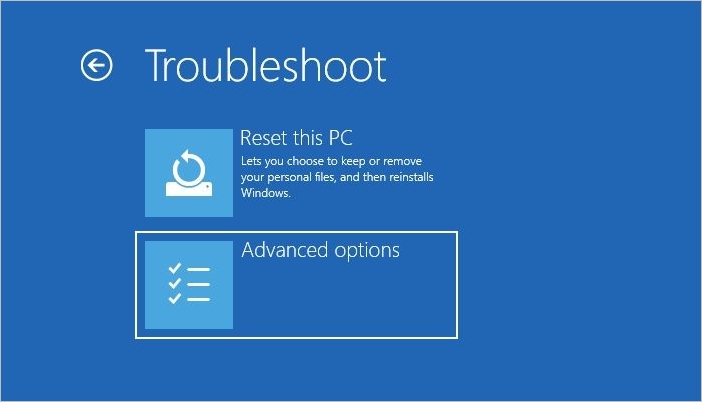
Step 2. Click on the "Keep my files" option and press the "Next" button.
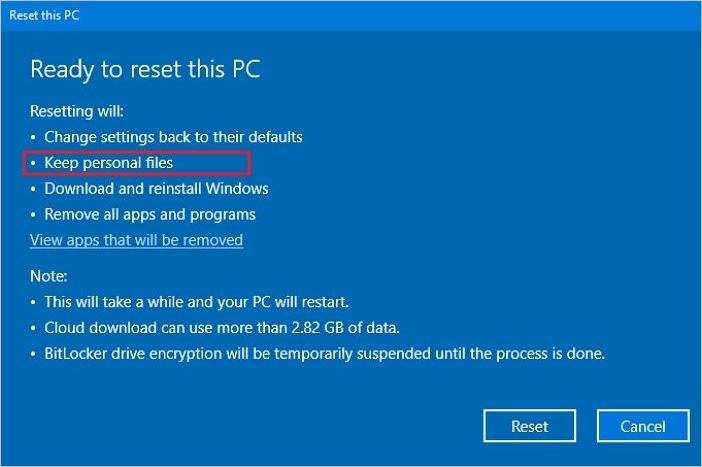
Step 3. Click on the "Reset" button. A prompt box appears, and click on "Continue".
A cloud storage service will save your personal files and data, but it will not back up your apps, software, and drivers.
Option 3: Use Microsoft Media Creation Tool
Microsoft Media Creation Tools allow you to create an ISO file, which is an exact copy of your data. This ISO image can be stored and retrieved using CDs, DVDs, or similar media. However, using these tools requires a good understanding of the technical aspects and complexities involved.
To use the Media ISO image from the Media Creation Tool to reinstall the OS and save data, follow these steps: Use the Media Creation Tool to create a bootable USB drive or CD/DVD, then use the bootable media to start the installation process. During the installation, select the "Keep personal files and apps" option to save your data and installed applications.
Step 1. To download Windows 11, head over to the Microsoft Official website and download the Media Creation Tool.
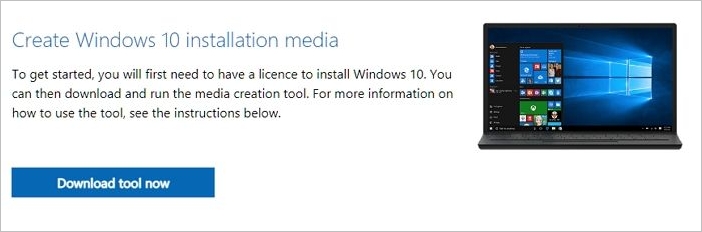
Step 2. After the download completes, right-click the file and run it, or double-click on the file to launch it.
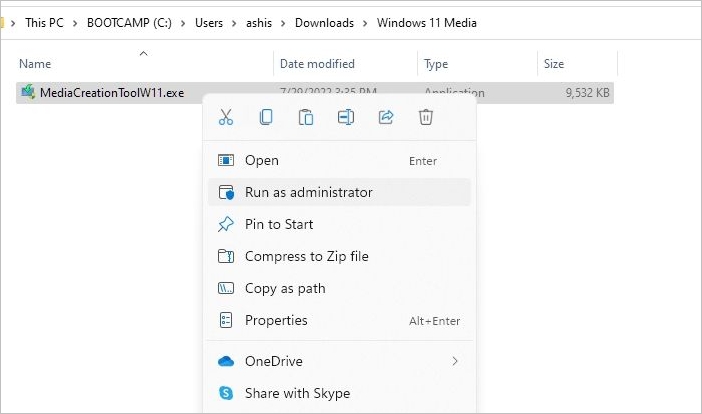
Step 3. Now, choose "Download" and install updates if you are connected to a network, then press the Next button to proceed.
Step 4. Navigate to change what to keep. You will be given several options about which data you want to keep amongst apps, files, and system files.
Step 5. Click on the "next" button to reinstall your Windows OS.
Your computer will restart, and all your settings and configurations will be saved, but this may make a factory reset less effective. An alternative option can help save your data while still allowing for a factory reset.
If your Windows 10 reset is stuck or fails to reset, you can try the following solutions to resolve the issue. Firstly, try to boot your computer in Safe Mode and then run the Windows 10 reset process again.
Resetting your PC is no longer a daunting task, thanks to the various methods available. If you encounter any issues during the process, you can easily find solutions with just a few clicks.
Option 4: Use Qiling Backup to Backup Data Before Factory Reset PC
When you want to reset your PC without losing important data, use Qiling Backup to create a backup of your files, folders, and apps, and store it on an external hard drive. After the reset, you can transfer the backed-up data back to your PC.
The tool backs up all your data and saves it on cloud storage, allowing you to recover it whenever needed, and it can even rescue your data if you don't want to reset but want to prevent loss. An active internet connection is required.
Users prefer this third-A party app is a more user-friendly option compared to other Windows inbuilt functions, as it doesn't require special technical skills to use and backup. This makes it an ideal solution for those without a tech background, providing an easy and accessible way to manage and protect their data.
Qiling Backup Main Features:
- Free of charge
- Backup and restore files, disks/partitions and systems
- Full/Incremental/Differential backup mode
- Simple backup management through merging, deleting or compressing files.
- Encrypted backups to enhance security and privacy.
Here, we will give you the full steps to back up important data using Qiling Backup.
Step 1. To begin the backup process, click the File backup button.

Step 2. The left-hand side of the screen displays lists of both local and network files, allowing you to expand the directory and select the files to be backed up.

Step 3. Follow the on-screen instructions to select a location for storing the backup.

Step 4. To set up automatic backups, click on Backup Options and select the desired backup schedule by clicking Options. Ensure that the backup is encrypted for added security.

You can select a specific time to start the backup in the Backup Scheme by clicking Options, where you'll find additional customizable settings to explore.

Step 5. You can store the backup file on your computer, in Qiling's cloud service, or on a network-attached storage device (NAS).

Step 6. Qiling Backup allows customers to store backup copies of their files on a third-party cloud drive or the company's own cloud storage.
To back up your data on a third-party cloud drive, select Local Drive and scroll down to add Cloud Device, then fill in your account information.
Step 7. To start a backup, click on the "Proceed" button. Once the backup process is complete, it will be displayed as a card on the list view, and clicking on it will allow you to view more details about how to handle the backup job.

Things to Keep in Mind before Factory Reset the Computer
Deciding to factory reset your computer can be a hassle and a daunting task, as it may result in losing your data, so it's essential to back up all of it beforehand.
You may be interested in Solution for Windows 10 Reset Stuck Issue.
The program manufacturer takes steps to prevent unauthorized access, so transferring app credentials to another computer requires deactivating it on the original device. This involves using licenses and passwords, and then reinstalling the apps if they cannot be saved during a backup.
When preparing for a move, it's essential to jot down a list of all the essential settings, programs, and personal files, whether you plan to back up them or not. This list should also include the source through which you can retrieve your files in case you need to restore them.
Tips for Preventing Data Loss During a Factory Reset
To prevent data loss, it's essential to back up your data and select a method that saves most of your data while being effective for resetting in case of corrupted files and buggy software. If you don't have a method that saves all of it or intend to use a third-party tool for rescue, use external drives to back up all your data and reinstall it after a factory reset. Additionally, move all system files on the C drive to a local drive and transfer them to an external drive.
The Wrap Up
To factory reset a PC without losing data in Windows, you can use the Reset PC feature, Advanced Startup Menu, or an ISO file of the Windows Media Creation Tool. However, a safer option is to use Qiling Backup, which securely saves all your data. This prevents the loss of important files and ensures a smooth reset process.
Frequently Asked Questions?
Q.1. Will I lose Windows if I factory restore?
If you factory restore your computer, you won't lose your Windows OS, but rather get a fresh update of Windows 10.
Q.2. How do I reset my laptop like new?
If you want to reset your laptop to its original state, you should not reset it like a PC. Instead, choose the "Keep Everything" option and select "Erase all Data" to wipe all data from your computer, effectively making it like new.
Before choosing Reset this PC, review what a Windows reset keeps and removes so you can back up the right files.
Related Articles
- Top 10 Free Features in Qiling Backup
- Fixed | Windows 10 Backup Is Disabled? 3 Tricks for Activating Backup
- Backup WD Hard Drive with Best Free Backup Software
- Disk & System | How to Clone Windows 11 to SSD
- Does System Restore Remove/Delete Files? Answered!
Does System Restore remove/delete files, programs? Some people still cannot figure out what Windows System Restore can and cannot do. Follow this article and make it clear. - Fixed | Failed to Create Volume Snapshot (6 Ways)
This page illustrates what to do when you encounter the error "Failed to create volume snapshot" to back up or clone with Acronis or Macrium Reflect.
Products
Articles & Tutorials
- Data Recovery
- Data Backup
- File Recovery
- File Backup
- System Backup and Restore
- Disk and Partition Clone
- Technical articles
- Mobile articles
- Disk Master Help
- Windows Data Recovery Tutorials
- Windows Secure Delete Tutorials
- Windows Partition Management Tutorials
- Windows File Backup and Restore Tutorials
- Windows System Backup and Restore Tutorials
- Windows Disk Backup and Restore Tutorials
- Windows Clone Tutorials