2022 Ultimate Guide: How to Factory Reset PC
Ⅰ. Factory Reset or Reinstall Windows 10: Do You Have an Idea?
When preparing to sell or give away an old computer, it's essential to clean and wipe the existing personal data to prevent information leakage. To do this, you have two options: a factory reset or reinstalling Windows 10. The decision between the two depends on your specific situation and goals. If you want to keep the operating system and installed programs, a factory reset is a good choice.
First of all, let's see what they mean:
A factory reset will erase all personal settings and data from your computer, restoring it to its original state when you first unboxed it.
Reinstalling Windows 10 will keep your personal files and some settings, but all programs will be uninstalled and need to be reinstalled after the process is complete.
If you're selling or giving away your PC, a factory reset is best, as it gives the new owner a clean slate. If you just want to start fresh and get rid of accumulated junk, a Windows 10 reinstallation might be the better choice.
LEARN MORE
Part Ⅰ explains what factory reset is and what reinstalling Windows is, also mentioning that reinstalling Windows involves another concept called a clean install, and provides a link for more information on whether to choose Windows 10 reset or clean install.
Ⅱ. How to Factory Reset PC without Losing Data & Password
A factory reset, which differs from a Windows 10 reinstallation, involves restoring a computer to its original settings. There are several ways to factory reset a PC without losing data, including doing it from within Windows, using the Recovery Partition, or backing up data before the reset. We'll cover all these methods.
Method 1. How to Factory Reset PC from within Windows
To enable users to keep their personal files, follow these steps:
Step 1. Go to Start > Settings > Update & Security.
Step 2. Click on Recovery in the left-hand sidebar.
Step 3. Under "Reset this PC," click on Get Started.
Step 4. You'll be given two choices: "Keep my files" or "Remove everything." If you want to keep your personal files, choose the first option. If you prefer to start with a clean slate, choose the second option.
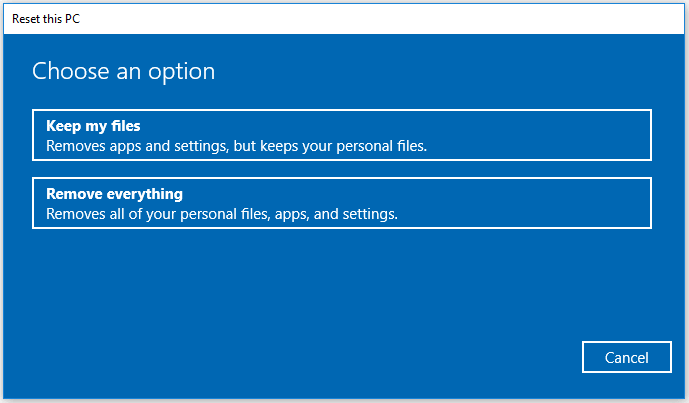
Step 5. Once you've made your selection, click on Reset.
Step 6. Windows will now begin the reset process. This may take some time, so please be patient.
After completing the reset, you'll be guided through the process of setting up Windows, similar to when you first turned on your PC.
Method 2. How to Factory Reset PC Using the Recovery Partition
To recover data from a damaged or corrupted partition, you can use the Recovery Partition, a special partition on your hard drive used for recovery purposes. This method is a bit more involved, but it's still relatively easy to do.
Step 1. Start by restarting your PC.
Step 2. To access the Advanced Boot Options menu, press and hold the F2/F10/F8/DEL key while your PC boots, instead of booting directly into Windows. This will give you access to the menu.
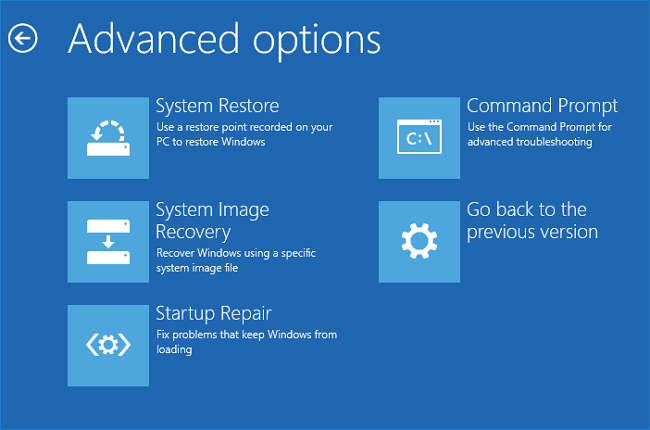
Step 3. Select Repair Your Computer from the list of options.
Step 4. The System Recovery Options dialog box is displayed. This dialog box allows you to choose a recovery option to troubleshoot and fix problems with your computer.
Step 5. Click on Command Prompt.
Step 6. You can also use the following command to check the version of the Windows Subsystem for Linux (WSL): `wsl --version`
rstrui.exe
Step 7. Launch the System Restore wizard by clicking on Next.
Step 8. Select the desired restore point from the list and click on "Next" to proceed with the restoration process.
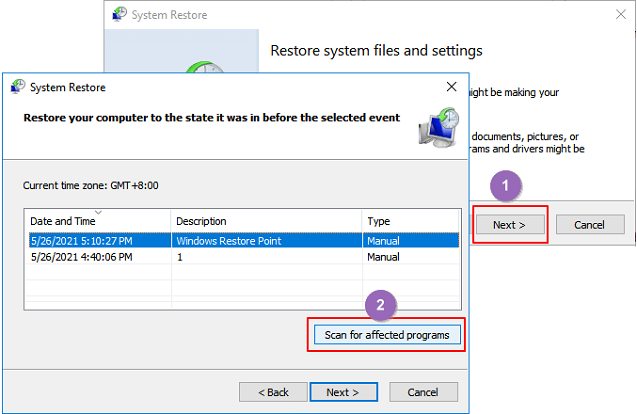
Step 9. Confirm your selection and click on Finish.
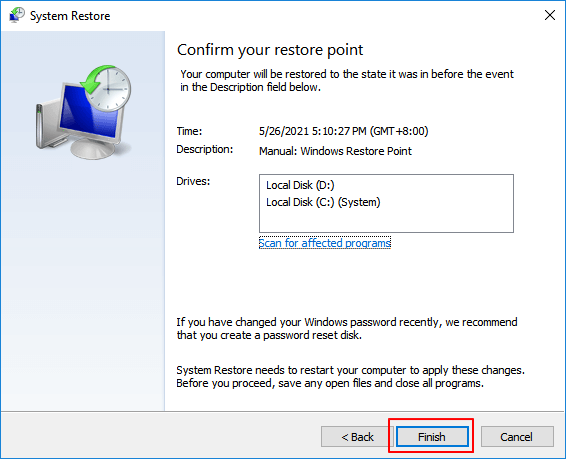
Windows will now start the restore process, which may take some time. Once the restore is finished, you will be prompted to set up Windows 10, similar to when you first turned on your PC.
Method 3. Backup before Factory Resetting Your PC
If you want to factory reset your computer and keep your files, you can use the built-in Windows Backup and Restore feature or third-party backup software like Qiling Backup. However, if you want to factory reset your computer before selling it, but also keep your existing data in another location, you should back up your data first. The best way to do this is to create a full backup image using Windows Backup and Restore or third-party backup software. Using a third-party software like Qiling Backup is a simpler option, which can help you create a full backup image of your computer.
Download Qiling Backup from the button below and follow the detailed guide to create a full backup, which includes step-by-step instructions.
- Notice:
- Consider using an external hard drive as a backup location to ensure your backed-up data remains accessible, even if you decide to sell or give away the computer.
Step 1. On the main page, click "System backup" button to start.

Step 2. Qiling Backup automatically selects the system partition, requiring only the selection of a backup destination.

Step 3. You can save the backup file to either a local drive on your computer or a Network-Attached Storage (NAS) device for safekeeping.

Step 4. After the backup process is completed, you can check the backup status, recover, open, or delete the backup by clicking on the backup task on the left.

After backing up your computer, you can proceed with the factory reset process using the steps outlined in Method 1.
Windows users who have set a login password for their computer can easily reset their computer to factory settings from the login screen if they've forgotten their password.
Step 1. To reset your PC, hold down the Shift key on your keyboard and press the Restart option under your power menu. This will initiate the reset process.
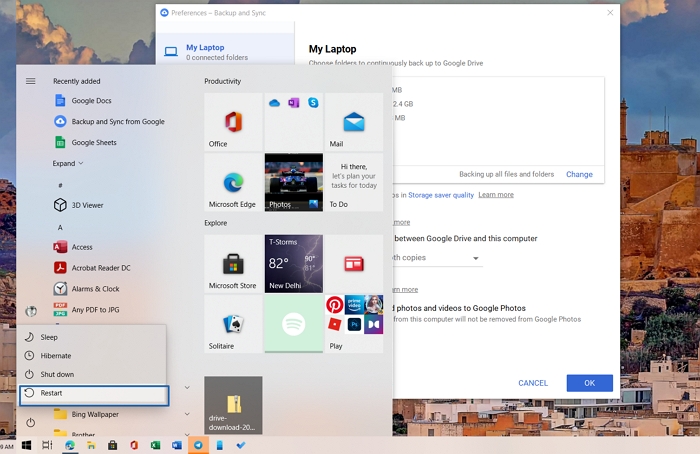
Step 2. To resolve the issue, restart Windows and access the boot options menu, then select the Troubleshooting option to proceed.
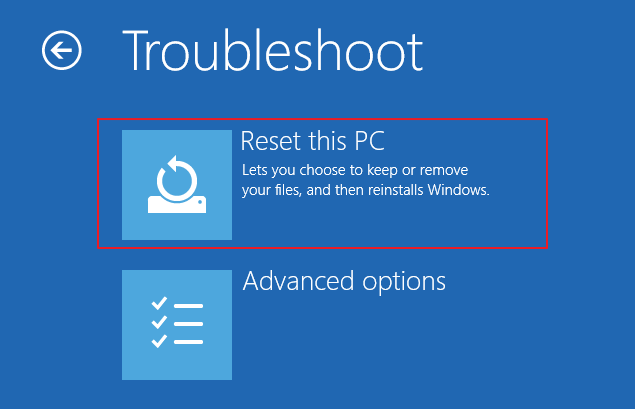
Step 3. In the Troubleshoot menu, click the Reset this PC option.
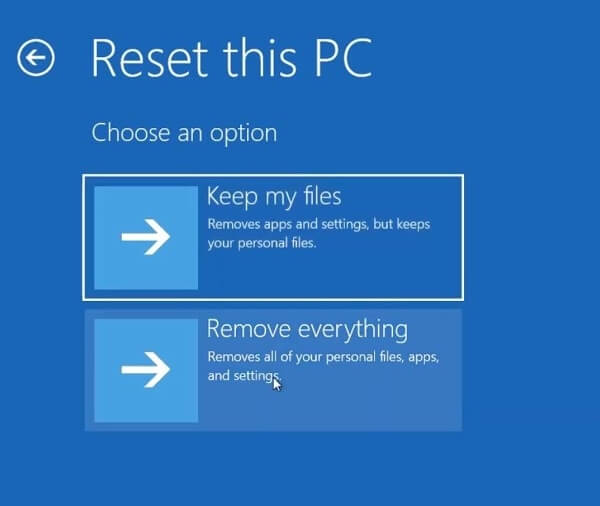
Step 4. You can choose to save your files or reset Windows computer completely, removing all files and settings. To save your files, click the Keep my files option, or click Remove everything to reset the computer completely.
If you need to factory reset your PC without losing data or without a password, there are several methods you can follow. You can choose the one that best suits your needs.
LEARN MORE
To factory reset a PC without losing data or a password, you can use various methods such as creating a System Image, using the built-in Reset This PC feature, or using a third-party tool like Qiling Disk Master. This process allows you to start fresh with a clean installation of Windows while preserving your files and settings. For more information, you can check out the provided link.
👍How to Factory Reset PC without Losing Data & Password
Ⅲ. Exclusive Tips: How to Reset Lenovo/HP/Acer Laptops
To factory reset your computer, you can use various methods depending on your laptop model. If you have a Lenovo, HP, or Acer laptop, you can follow specific steps for each brand. For Lenovo laptops, you can use the built-in recovery feature, reset from the BIOS settings, or use a USB recovery drive. HP laptops can be reset using the HP Recovery Manager, a USB recovery drive, or by pressing the F11 key during boot-up.
#1. Reset Lenovo Laptop using Lenovo OneKey Recovery (OKR)
Apply to: Lenovo Yoga, Ideapad
To do an exclusive Lenovo laptop factory reset, you must first check if there is a Novo button on your laptop, usually located in the upper left corner of the power button. If it's present, press and hold it while powering on your laptop. This will open a menu where you can choose to reset your laptop to its factory settings. If there's no Novo button, you can try pressing the power button and the volume down button simultaneously for 10 seconds to enter the BIOS settings, then navigate to the "Reset" or "Recovery" option to perform a factory reset.
Step 1. Press the Novo button for a few seconds, then select System Recovery from the Novo Button Menu.
Step 2. To reset a Lenovo desktop to its factory settings, select the option to "Restore from initial backup".
Step 3. Click Start, let the process complete, and follow the on-screen instructions to configure the settings.
You can also watch the official support video from Lenovo to see how to use OneKey Recovery, which provides a step-by-step guide on how to use this feature.
🎬Watch the Official Support Video
#2. How to Reset HP Laptops
The steps to factory reset an HP desktop or laptop are the same and can be done using the common method, which is outlined in the guide above.
#3. How to Reset Acer Aspire Laptops
The Acer Aspire laptop has a unique method of entering boot mode, which is different from the common method. To reset it, please watch a detailed video guide that shows how to do it.
LEARN MORE
If you don't like the video guide, you can also click here to learn about the exclusive tips on factory resetting Lenovo/HP/Acer laptops.
Ⅳ. How to Factory Reset PC from Boot
When your PC can't boot normally, you can try a factory reset directly from the boot menu. This allows you to restore your system to its original settings, effectively resetting it to its factory state. The process may vary slightly depending on your device, but generally, you'll need to access the boot menu, select the option to reset your PC, and follow the on-screen instructions to complete the process.
When you factory reset your PC from boot, you're actually using the Advanced Recovery function. This can be accessed by starting your PC with a recovery disk or a bootable USB drive, which allows you to use Windows Advanced Recovery.
Here are the steps to factory reset a PC from boot:
Step 1. To create a bootable USB drive, use third-party software or download Windows Installation Media, making sure the USB drive is at least 16 GB in size.
Step 2. To create a bootable USB drive, follow these steps: create a bootable USB drive using a tool such as Rufus, and then boot your computer into the BIOS/UEFI settings. Set the first boot device as USB, insert the USB drive, and restart your PC. Your computer will then boot from the created drive.
Step 3. When you see the Windows Installation screen, look for the "Repair your computer" option at the bottom left of the Windows Setup screen.
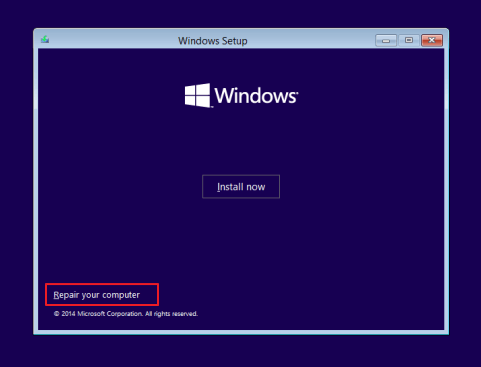
Step 4. To repair your computer, click the "repair your computer" option, which will take you to the Advanced Recovery screen. From there, select "Troubleshoot" and then "Reset This PC".
Step 5. To factory reset your PC, choose between the two reset options: "Keep my files" or "Remove everything". This process is the same as the common method.
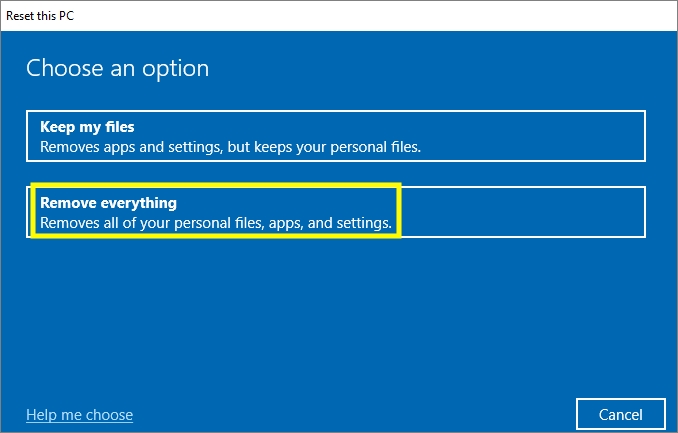
Step 6. When you make the choice, let the Windows system complete the process.
Once the setup is complete, the PC will return to the first-time setup phase, and you can power down, then power back on and follow the on-screen instructions to complete the setup.
Ⅴ. Fix: There Was a Problem Resetting Your PC
The article aims to help users factory reset their PC, but also provides a solution to the problem of encountering an error message "There was a problem when resetting your PC. No changes were made." after trying to reset the PC. This is achieved by troubleshooting the issue and providing a solution to fix it.
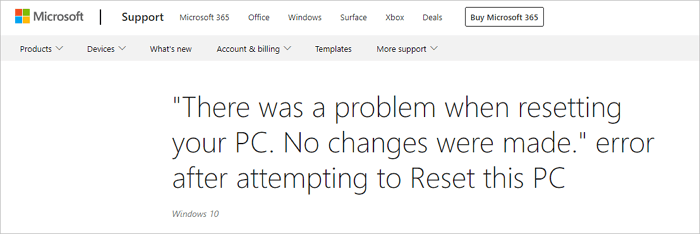
The officially recommended solution is to use the command prompt, which can be done by following the detailed steps to resolve the issue.
Step 1. To open Command Prompt, press the Windows key + R to open the run box, type "cmd" and press Enter.
Step 2. You can copy the following command line and press Enter to run the command.
dism /online /cleanup-image /restorehealth
Step 3. To restart your computer, press the power button and select the option to restart or shut down. Once your computer has restarted, go to Settings > Update & Security > Recovery, and select the option to "Get started" under the "Reset this PC" section.
LEARN MORE
Besides using Command Prompt, you can also fix the issue by performing a clean install of Windows or rebooting from a WinPE bootable disk. For more information, click on the link provided. 3 Methods: How to Fix There was a Problem Resetting your PC
Ⅵ. Bonus Tip: Can You Recover Files after Hard Reset PC
If you've accidentally factory reset your PC without backing up your data, don't worry - data recovery software can help you recover your lost files. We recommend using Deep Data Recovery, a powerful and easy-to-use program that can recover deleted files from your hard drive, memory card, USB flash drive, and more.
To recover lost files after a factory reset using Deep Data Recovery, simply follow these steps:
Note: To increase the likelihood of successful data recovery, install Qiling data recovery software on a separate disk drive, rather than the one that has been formatted.
Step 1. Launch Deep Data Recovery, select file types, and click "Fast Scan" to begin the recovery process.

Note: You can choose different search modes based on where and why the data was lost.
Step 2. You'll need to choose the hard drive partition that you've accidentally formatted and click the "Scan" button.

Step 3. This formatted hard drive recovery software will start scanning for all lost data and files. After scanning, you can filter a specific file type to quickly find the files you need, or select specific data to recover.

Step 4. To recover deleted files, first preview the scanned files, then select the ones you want to recover and click "Recover". Next, choose a new location to store the files and click "OK".
LEARN MORE
To perform a factory reset recovery, you can restore your computer to its original settings by following the steps outlined in the provided link, which also offers guidance on how to recover lost files after the reset.
The Bottom Line
To factory reset your PC, start by clicking on the Start menu, then select Settings. In the Settings window, click on Update & Security, and then select Recovery. In the Recovery window, click on Get started, then select Reset this PC. You will be asked to choose whether to keep your files or remove them. If you want to keep your files, select Keep my files.
Related Articles
- System & Files | Backup Windows 10 PC with Backup and Restore Tool
- One for All Guideline: How to Clone a Hard Drive
- Beginner's Guide: How to Use File History Windows 10
- A Complete Guide to System Image Recovery in Windows 11/10/8.1/7
- Restore from Initial Backup with Lenovo OneKey Recovery (2 Steps)
You can learn how to restore from initial backup using Lenovo OneKey Recovery easily. Also, you can use another powerful software. - (SOLVED)Lenovo Service Partition Has Been Destroyed
You may receive Lenovo service partition has been destroyed issue after a system operation failure. Want to get the way to fix Lenovo service partition has been destroyed? See this article.
Products
Articles & Tutorials
- Data Recovery
- Data Backup
- File Recovery
- File Backup
- System Backup and Restore
- Disk and Partition Clone
- Technical articles
- Mobile articles
- Disk Master Help
- Windows Data Recovery Tutorials
- Windows Secure Delete Tutorials
- Windows Partition Management Tutorials
- Windows File Backup and Restore Tutorials
- Windows System Backup and Restore Tutorials
- Windows Disk Backup and Restore Tutorials
- Windows Clone Tutorials