Solution for Windows 10 Reset Stuck Issue
Windows 10 stuck in resetting, help!
Many Windows 10 users experience issues with resetting their operating system, often encountering boot errors that prevent the process from completing. This can be frustrating, especially when other complex problems arise, requiring repeated searches for solutions. The "Windows 10 reset stuck" issue is a common concern for many computer owners.
"I was playing a game on my desktop when the computer popped up a notice, asking me to reset system that a boot error has occurred. I tried to troubleshoot this error, but it didn't work. I got stuck at 25% for resetting Windows 10. What's wrong?"
"My computer has been stuck at 8% for several hours when I started resetting Windows 10. Any solutions for such a problem?"
"PC has no response after 3 hours that the system Windows 10 got stuck at 99%. I upgraded my computer from Windows 8 to Windows 10 but a notice warned me to reset the computer for a clean installation. I did so, then the computer got stuck. Can I fix Windows 10 stuck in resetting issue on my own? How?"
If your computer gets stuck while resetting the system or gets stuck in Windows 10, follow these solutions to easily fix the problem.
Solution 1. Use a WinPE Bootable Disk to Fix Windows 10 Stuck in Resetting Issue
When a system gets stuck while resetting, it's recommended to use a Windows disk or bootable disk to reboot. However, for a safer approach, using a WinPE bootable disk can help boot the system into a safe state, especially in cases of system crashes, failures, or boot issues like Windows 10 getting stuck during the resetting process.
We recommend trying Qiling Backup, a reliable backup software that enables users to create a WinPC Emergency Disk to easily resolve system boot or system stuck errors.
Step 1. Prepare a USB drive which can be written and read.
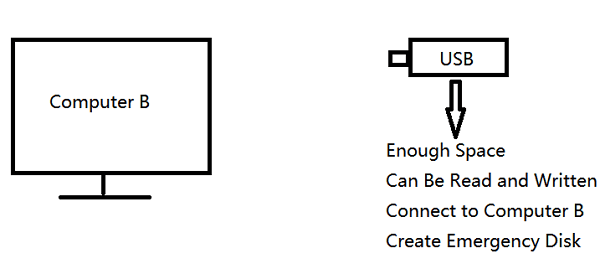
Step 2. Launch and install Qiling Backup on the Computer B.
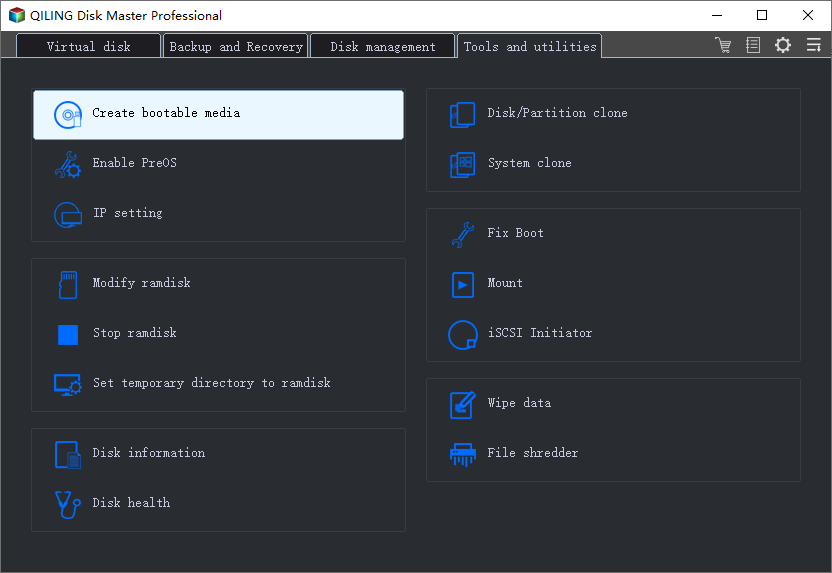
Step 3. Click on "Tools and utilities" and select "Create bootable media".
Step 4. To proceed with the installation of the operating system, you need to select the location where the boot disk will be created, which can be in the form of an ISO file, a bootable USB drive, or a CD/DVD disc.
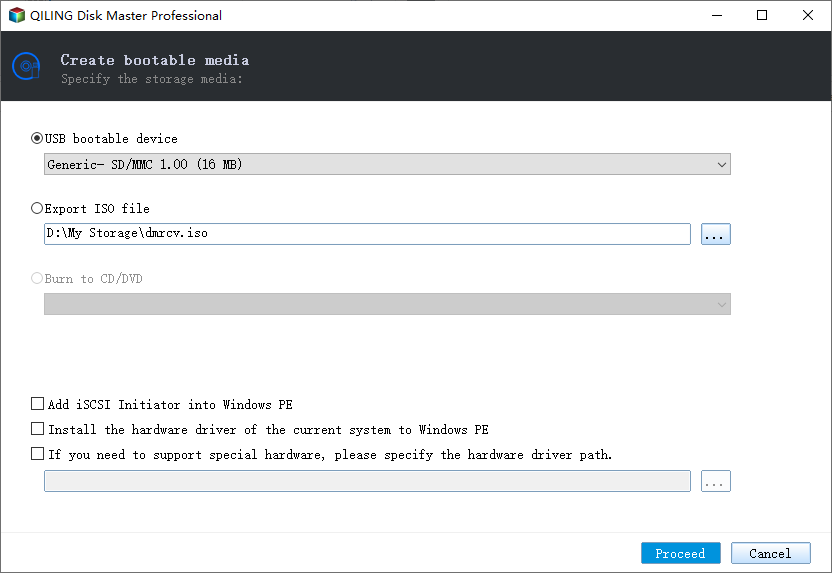
Step 5. Then click "Create" to start.
After creating the WinPE disk, you can reboot your computer and select to boot from the Qiling Backup WinPE Emergency disk when Windows 10 gets stuck in the reset process.
It's recommended to backup all important data and systems before making any changes to your computer system, such as updating to Windows 10 or downgrading to a previous system. Qiling Backup Free is a free and easy-to-use tool that allows you to backup your data and current system.
Solution 2. Run Startup Repair to Fix Windows 10 Reset Stuck Case
1. To download Windows 10 installation files, create a bootable DVD or USB drive by using the Media Creation Tool. This tool can be downloaded from Microsoft's official website.
2. To enable booting from a DVD or USB drive, you need to enter the BIOS settings and adjust the boot order to prioritize the DVD or USB drive over the hard drive. This typically involves pressing a specific key (such as F2, F12, or Del) as the system boots up, then navigating to the boot settings and moving the DVD or USB drive to the top of the boot order.
3. Once you get the chance to boot into the Windows installation interface, choose "Repair your Computer" from the menu.
4. To resolve the issue, go to Settings > Update & Security > Recovery > Restart now under Advanced startup. Then click "Advanced Options" > Click "Troubleshoot" and then click "Start Repair".
Solution 3. Use the Windows Recovery Environment to Repair Windows 10 Stuck Issue
1. To restart your computer in recovery mode, press Windows + R, then select "Shut down or sign out" and keep the SHIFT key pressed while clicking "Restart". This will initiate a restart into recovery mode.
2. To resolve the issue, go to the Troubleshoot menu, select Advanced Options, and then click on Startup Repair.
Follow the on-screen instructions to complete the Startup Repair process. If your Windows 10 is stuck in the resetting process, follow these steps to troubleshoot and resolve the issue. First, try restarting your computer and see if the reset process completes normally.
Solution 4. Reinstall Windows 10 or Revert Windows 10 into the Previous Version
If your Windows 10 is stuck at 8%, 25%, or 99% while resetting, you can try reinstalling Windows 10 or reverting to a previous version to fix the issue and achieve a healthy system.
Related Articles
- How to Fix PS4 Cannot Access System Storage Error Code CE-34335-8
- Fix macOS Sierra 10.12.1 Update Stuck or Fail to Download Error
- [2022 Fixes] How to Fix Your Computer Was Unable to Start
- [Tips] AutoSave Is Greyed Out or Not Working in Office, Word, Excel
- Do I Need a Heatsink for My M.2 SSD [2023 Full Guide]
Learn whether your M.2 SSD needs a heatsink. Compare SSD temperature, workload, motherboard design, and cooling needs before buying one. - Do I Need to Backup OneDrive? [Why & How-to Guide]
OneDrive users should be cautious as the platform is not always secure, and data breaches can occur. To mitigate this, users can create a backup of their OneDrive data using a professional tool like Qiling Disk Master, ensuring their files are safe in case of emergencies.
Products
Articles & Tutorials
- Data Recovery
- Data Backup
- File Recovery
- File Backup
- System Backup and Restore
- Disk and Partition Clone
- Technical articles
- Mobile articles
- Disk Master Help
- Windows Data Recovery Tutorials
- Windows Secure Delete Tutorials
- Windows Partition Management Tutorials
- Windows File Backup and Restore Tutorials
- Windows System Backup and Restore Tutorials
- Windows Disk Backup and Restore Tutorials
- Windows Clone Tutorials