Hogwarts Legacy Cloud Save on Steam/Xbox/PS5
Hogwarts Legacy is a single-The Harry Potter-themed Steam game is a player action role-playing game that immerses players in the magical Wizarding universe. Based on the beloved novel, it offers a real and enchanting gaming experience that has been widely welcomed by users since its release.

Hogwarts Legacy, like other Steam games, syncs and uploads gaming data, including game saves and settings, to Steam Cloud, a cloud storage service. This allows users to access their data on different devices when signed into their Steam account, utilizing the Hogwarts Legacy Cloud Save feature.
How Does Hogwarts Legacy Cloud Save Work on Steam
Hogwarts Legacy cloud save refers to the ability to save your game progress on a remote server, allowing you to access and continue playing from any device with an internet connection. This feature is enabled through the Steam cloud, which stores your game data online, letting you pick up where you left off on a different computer or even from a Steam-linked console.
Most games on Steam, including Hogwarts Legacy, support Cloud service, allowing players to access their game data from any device. To enable Steam Cloud on Hogwarts Legacy, follow these steps:
Step 1. Open the Steam client, and navigate to the Library tab.
Step 2. To find the Hogwarts Legacy game and change its properties, follow these steps: Right-click on the Hogwarts Legacy game icon, and choose the "Properties" option from the context menu. This will open the Properties window for the game, where you can view and edit various settings, such as the game's location, startup options, and more.
Step 3. To enable cloud saving for Hogwarts Legacy on Steam, click on the "GENERAL" tab from the left column and select the "Keep games saves in the Steam Cloud for Hogwarts Legacy" option.
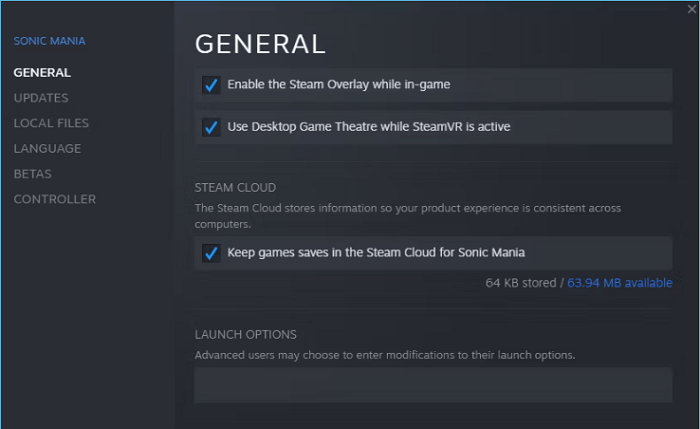
When you enable Steam Cloud for Hogwarts Legacy, your game data will be automatically synced and uploaded to the Steam cloud every time you exit the game. This means that when you start the game again, it will download the saved data from the cloud, allowing you to pick up where you left off.
You may be interested:
How to Access & Download Hogwarts Legacy Cloud Save on Steam
To access and download your saved game data from the Steam Cloud, go to the Steam client, navigate to the 'Cloud' tab in your Library, and select the game for which you want to access the saved data. From there, you can choose to download the entire game data or just a specific save file. If you're having trouble accessing your saved data, you can also try checking your Steam account settings and ensuring that the game is set to sync with the Cloud.
Steam Cloud not only stores game data in the cloud, but also creates a local folder on your computer to save game data. The default local path for this folder varies by device, but can be found at the following locations:
For Windows users: C:/Program Files (x86)/Steam/userdata
For Mac users: ~/Library/Application Support/Steam/userdata
For Linux users: ~/.local/share/Steam/userdata
Each time a file is written from the Steam Cloud, it will be logged in the specified path under the Steam category and named in the "Cloud_log.txt" format.
To download Cloud save files for Hogwarts Legacy, follow these steps. First, ensure you have the necessary permissions and access to the Cloud save files.
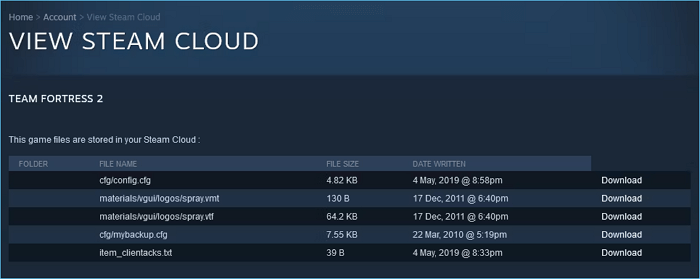
Step 1. Visit the View Steam Cloud page in your browser, and sign in to your Steam account.
Step 2. You'll see a page that displays all your game cloud saves.
Step 3. To find Hogwarts Legacy, press Ctrl+F (cmd+F) on your keyboard to open the search tool, and type "Hogwarts Legacy" to quickly locate it.
Step 4. Click the download button on the right side, and wait for the process to finish.
Hogwarts Legacy Cloud Save on Steam: Pros & Cons
While Hogwarts Legacy's cloud save feature offers great convenience, allowing users to save and access game data without any extra fee, it also comes with its own set of problems as its use becomes more widespread.
After evaluating the actual use of Steam Cloud and incorporating user feedback, we've summarized its advantages and disadvantages. We believe this information will help you make an informed decision based on your specific needs.
Pros
- Automatically save game data
- Playing games cross-devices without losing the game process
- Free cloud storage space for each game
- Easy access to the cloud saves
- Easy recovery of lost game files
Cons
- The game saves may be lost during the sync process, which is not reliable.
- Steam has only a limited ability to solve cloud-related issues
- Data saved online is not entirely secure and is susceptible to hacking or accidental deletion.
- Cloud storage will take up a lot of storage space
- To access your Cloud saves, you need to be connected to the Internet. This allows your game to sync your progress across all your devices.
Backup Hogwarts Legacy Cloud Save to Keep Game Data Safer
Having a cloud save backup of Hogwarts Legacy is a must, as it ensures that your progress is safe and secure in case something goes wrong. This way, you can rest easy knowing that your in-game accomplishments and character development are protected, and you won't lose any progress if you encounter any issues or need to switch devices.
Many Steam Cloud users have reported issues that result in game cloud data loss during synchronization, making it an unreliable backup method.
Cloud storage can be unreliable due to the risk of hacking and data destruction.
Steam has limited ability to solve cloud-related issues, making it difficult to recover lost data, and if it's lost, it can never be recovered, requiring users to start from scratch.
Having a backup of your Steam Cloud saves for Hogwarts Legacy is a wise decision to protect your game data. Qiling Disk Master Pro is a professional backup tool that can create an automatic backup of your cloud saves without losing any data, and also offers features such as customization to make your backup more tailored to your needs.
- The Hogwarts Legacy game allows players to save their game process on a cloud storage service, which provides 250GB of free storage space, allowing them to save and load their game from anywhere.
- It supports scheduled backup, allowing users to set a specific time or frequency for the backup plan to be executed.
- Qiling Disk Master offers backup options such as incremental and differential backup, helping to save time and storage space.
- If your Hogwarts Legacy cloud saves are lost due to an error, Qiling Disk Master can quickly restore them without affecting the game process.
To find and backup your Hogwarts Legacy cloud saves, follow these steps: locate the Hogwarts Legacy cloud save path on your device, then use Qiling Disk Master to back up the saves. The cloud save path may vary depending on the device you're using.
Step 1. To start backup, click the Select backup contents.

Step 2. There are four categories of data backup: File, Disk, OS, and Mail.

Step 3. You'll see a list of local and network files on the left-hand side, where you can select the files to be backed up by expanding the directory.

Step 4. Follow the on-screen instructions to select the desired location for storing the backup.

In the Backup Options section, click Options to encrypt the backup with a password, set the backup schedule, and choose when to start the backup based on a specific event in the Backup Scheme. This allows for a high degree of customization to suit individual needs.

Step 5. Backups can be stored on a local disk, in Qiling's cloud service, or on a network attached storage device (NAS) for convenient and secure data preservation.

Step 6. Qiling Disk Master enables users to back up their data to either a third-party cloud drive or Qiling's own cloud storage, providing a convenient and secure way to safeguard their digital information.
To back up your data to a third-party cloud drive, select Local Drive, scroll down to add Cloud Device, and enter your account information.
Step 7. To start a backup, select Proceed. The backup process will be displayed as a card on the left-hand panel once it has been completed successfully. To manage the backup job in more detail, right-click on it.
Conclusion
The guide to Hogwarts Legacy Cloud save provides a detailed explanation of how it works, how to access and download it, and lists the advantages and disadvantages of Steam Cloud. Additionally, it introduces the option to back up your Hogwarts Legacy cloud save using Qiling Disk Master Pro.
Having a backup of your game data is crucial to prevent data loss and ensure your game progress is secure. Qiling Disk Master provides an automatic and reliable way to back up your Hogwarts Legacy cloud save, giving you peace of mind and protecting your game data.
Hogwarts Legacy Cloud Save FAQs
1. Where does Hogwarts Legacy save files?
The Hogwarts Legacy save files are located by default on the following location:
For Windows users: C:/Program Files (x86)/Steam/userdata
For Mac users: ~/Library/Application Support/Steam/userdata
For Linux users: ~/.local/share/Steam/userdata
2. How does Hogwarts Legacy save?
Enabling the Steam Cloud on Hogwarts Legacy allows the game to automatically sync its data and process to the Steam Cloud service, enabling access to the game process on different devices when using the same Steam account.
3. Can Hogwarts Legacy be played without the Internet?
Hogwarts Legacy is an online game that requires an active Internet connection to be played.
4. Are Hogwarts Legacy games saves stored in the cloud on Xbox?
To set up cloud saves for Hogwarts Legacy on Xbox, you'll need an Xbox Live Gold subscription, a console connected to the Xbox service, and 514GB of storage space on your console. Once you have these in place, you can follow the steps to set up cloud saves on Xbox, which will store your game saves in the cloud and allow you to restore them when needed.
- To access your Xbox storage settings, sign in to your Xbox profile, then click on the "Settings" icon, followed by "System" and finally "Storage".
- The storage media that contains the Hogwarts Legacy game saves is the external hard drive. It is the device that stores the game saves, allowing players to access and manage their saved progress.
- Select Game, and then choose Hogwarts Legacy.
- Then tap Move - Cloud Save Games.
- Choose the option Enable Cloud Saved Games.
Your Hogwarts Legacy game saves on Xbox are saved on Cloud, allowing you to access them from anywhere and on any device with an internet connection.
5. Where is my PS5 store Hogwarts Legacy game saves?
The PS5 console automatically saves your game data if the Auto-Sync feature is enabled, syncing both the console and cloud storage. This feature can be found by navigating to a specific path.
- To access saved data on your PS5, open the console, navigate to Settings, and select "Saved Data and Game/App Settings" from the menu. From there, choose "Saved Data (PS5)" to view and manage your saved game data.
- To save your Hogwarts Legacy cloud saves, go to the game's settings, select "Cloud Storage", and click "Download to Console Storage" to download your saves to your console's storage.
Related Articles
- [Fixed] Ubuntu Format Disk: How to Format Disk on Ubuntu
- How to Clear Recents on Mac Without Losing Data [2023 Guideline]
- [SOLVED] The Operation Cannot Be Performed Because the Message Has Been Changed
- How to Optimize Mac Performance | 8 Proven Ways to Speed Up Slow MacBook Pro
- What Is Error 0x80070570 and How to Fix It
Error 0x80070570: The file or directory is corrupted or unreadable may occur when you delete a corrupt file on your computer. Error 0x80070570 also appears on external hard drive. Learn what is 0x80070570 and how to fix it. - How to Fix Error Code 0x80004005 Windows 10/11 in All Cases
Fix error code 0x80004005 on Windows 10/11 with 8 proven methods. Resolve unspecified errors in file sharing, Windows Update, virtual machines, and more. Step-by-step guide included.
Products
Articles & Tutorials
- Data Recovery
- Data Backup
- File Recovery
- File Backup
- System Backup and Restore
- Disk and Partition Clone
- Technical articles
- Mobile articles
- Disk Master Help
- Windows Data Recovery Tutorials
- Windows Secure Delete Tutorials
- Windows Partition Management Tutorials
- Windows File Backup and Restore Tutorials
- Windows System Backup and Restore Tutorials
- Windows Disk Backup and Restore Tutorials
- Windows Clone Tutorials