Backup Windows XP and Create a Windows XP System Image [Full Guide]
Windows XP was a highly anticipated release from Microsoft in the early 2000s, following the success of Windows 98 and the underwhelming performance of Windows 2000.
Although Windows XP is an older operating system, many people still use it and want to back up their systems. Backing up your Windows XP system not only saves you the hassle of reinstalling it, but also ensures that you don't lose any important data. In this article, we'll explore three ways to back up your Windows XP system, so you can keep your data safe.
Backup Windows XP with Windows Backup Software
The first and most viable option for backing up Windows XP is to use Qiling Backup, which offers a reliable solution for this purpose. Before diving into the details of using this program, it's worth noting that Qiling Backup is a suitable choice for backing up Windows XP due to its capabilities.
This backup tool offers a wide range of impressive backup options, including a unique feature of creating a WinPE Bootable disk and backing up Security Zones, which is not available in other tools. Additionally, it provides a comprehensive set of key features that cater to various user needs.
- To create a WinPE Bootable disk, you can use it to back up files when Windows fails to boot or startup. This disk allows you to access your files and perform backups even when Windows is not functioning properly.
- Store backup into a secure zone called Security Zone, ensuring thorough security from virus attacks by segregating the backup from the rest of the system.
- The hot backup feature enables data backup while the system remains operational, allowing for continuous normal functioning.
- Intelligent backup creates a comprehensive system backup, which is especially suitable for operating systems like Windows XP.
- Offsite copy allows you to backup your data to a targeted location, providing an additional layer of protection and security, in case of a disaster or data loss.
- E-mail notifications allow you to stay updated on backup and data reports, among other things.
The utility is a complete backup solution, not limited to Windows XP, that allows for creating disk/partition backup to recover Windows from a mounted image directly. It also enables thorough and extensive files and system recovery with just a few clicks.
The Windows XP Backup program comes with 250GB of cloud storage, making it an ideal tool for creating a Windows XP backup. To use it, follow these steps:
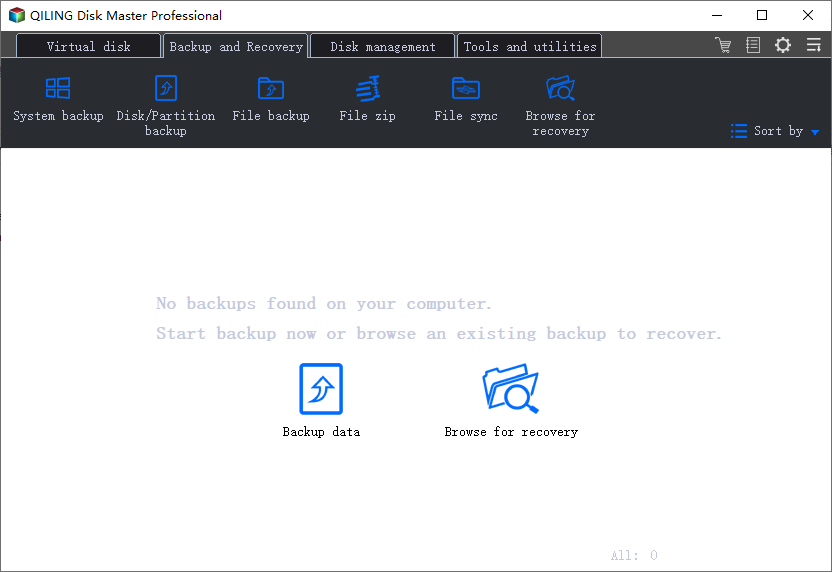
Step 1. Launch Qiling Backup and select "System Backup" on the home page to initiate the backup process.
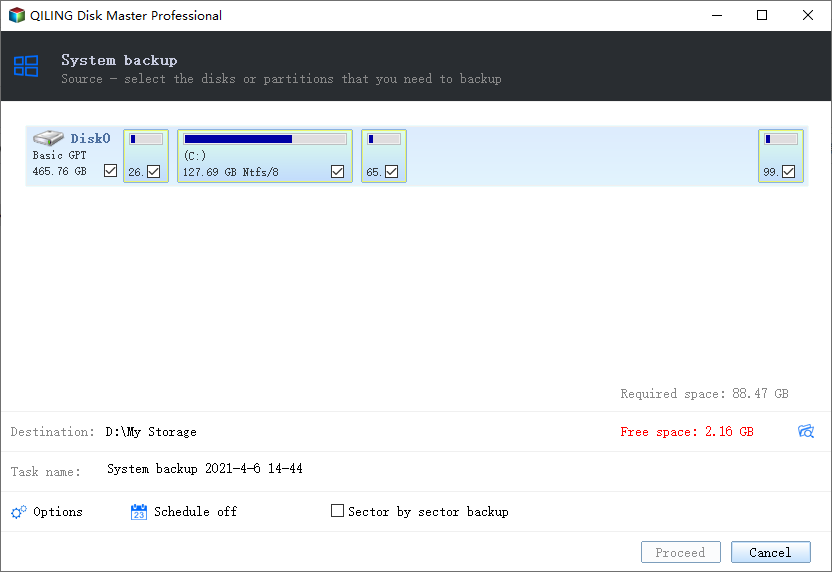
Step 2. The system partition will be automatically selected, and you only need to choose the installation location.
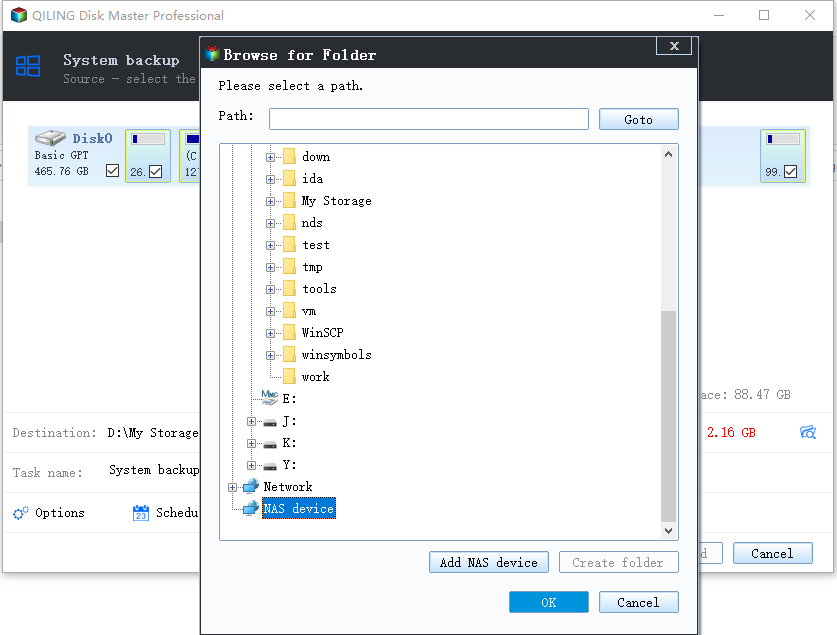
Step 3. You can save backup files to your local drive, cloud storage, or NAS, and even connect an external hard drive to store system backup files.
Step 4. To customize the settings, go to the left bottom and click on "Options". After that, click "Proceed" to start the process.
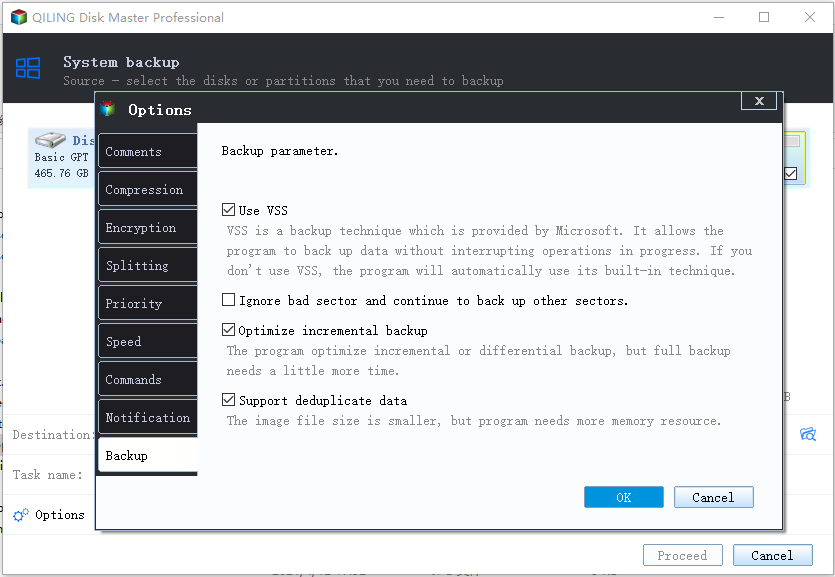
After completing the backup process, you can check the backup status, recover, open, or delete the backup by right-clicking on the backup task in the left panel.

How to Copy or Clone Windows XP OS to HDD/SSD
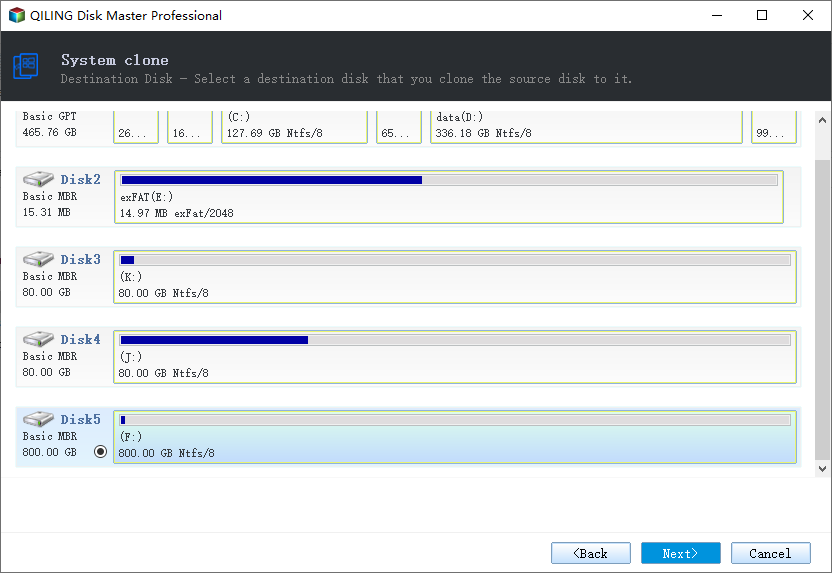
To clone Windows XP to an SSD or HDD using Qiling cloning software, follow these simple steps: First, download and install Qiling on your Windows XP system. Next, connect the target SSD or HDD to your system and ensure it's recognized by the operating system. Then, launch Qiling and select the source drive (your current Windows XP system) and the target drive (the SSD or HDD you want to clone to).
Backup Windows XP with NTBackup Program
Windows NTBackup utility is an in-built application in Windows XP that has been used for creating backups since 1997, providing an alternative option for users.
To back up your Windows XP, you can use the built-in Backup and Restore tool. Simply go to Start, then All Programs, then Accessories, then System Tools, and select Backup. Choose the files and folders you want to back up, and select a location to save the backup.
Step 1. Press Windows + R, then type NTBackup.exe in the run command.
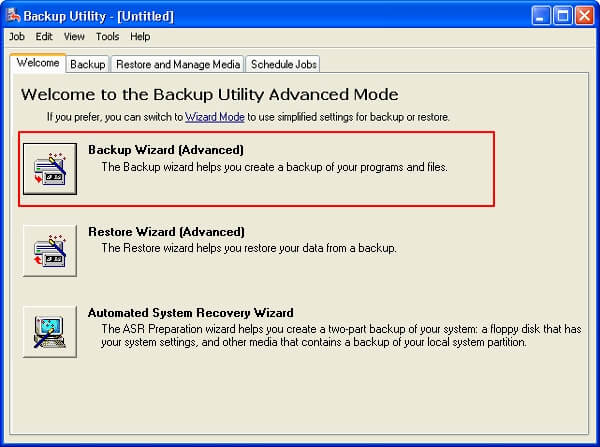
Step 2. Once the backup utility is launched, pick "Backup Wizard Advanced."
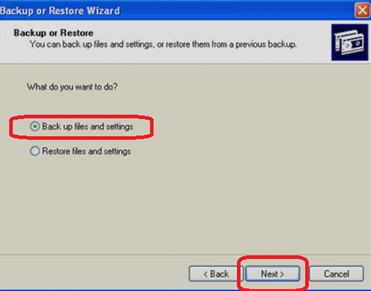
Step 3. Click "Back up files and settings," then click "next."
Step 4. Click on "Let me choose what to back up."
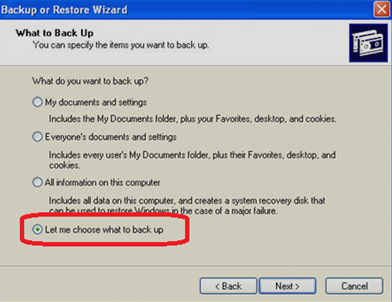
Step 5. Pick the location where you wish to place this backup.
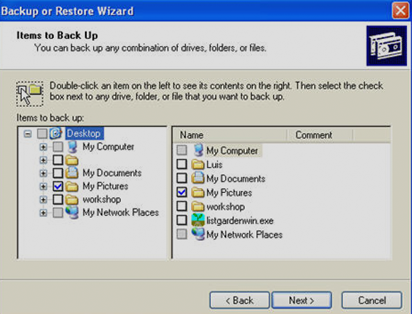
Step 6. To create a backup of your data, connect a USB drive or external hard drive to your computer, and then select it as the destination for your backup. This will transfer your files to the external device, allowing you to easily move them to a safe location.
Step 7. Click "Next" and finalize the backup.
The backup process will place the backup on an external device, allowing recovery using the same steps. Note that if Windows XP files take up 5GB, the backup device should be 8GB or higher.
The extra space allows Windows NTBackup to save additional settings, preferences, and other elements, giving it more headroom to work with when placing files.
Backup Windows XP Using Backup Utility
Windows XP Backup Utility is a tool that allows you to save your Windows XP data. To use it, you'll need to select the right option from the start menu, which may be similar to Windows NTBackup. This utility is a reliable option for backing up your Windows XP system.
Here's how:
Step 1. Open the Start menu and click on "Accessories."
Step 2. Find System tools and click on "backup."
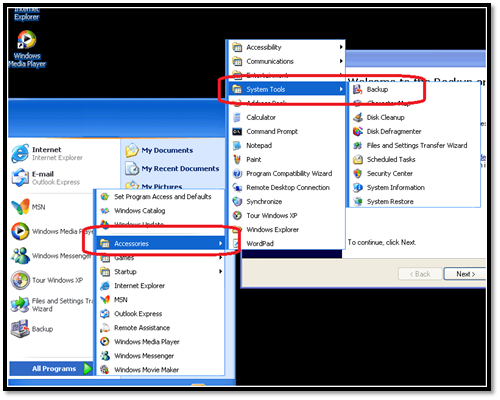
Step 3. Check "Always start in Wizard Mode."
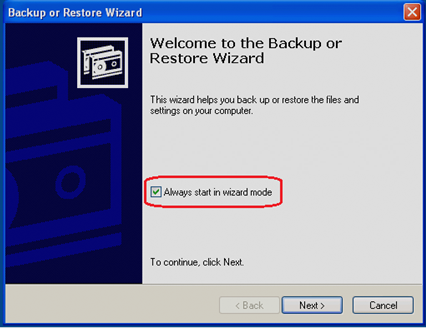
Step 4. Click "Next" when Welcome to the Backup Wizard shows.
Step 5. Click on "Backup everything on this computer."
Step 6. You can backup to another drive or back up to an external device.
Step 7. For that, you'll have to do this:
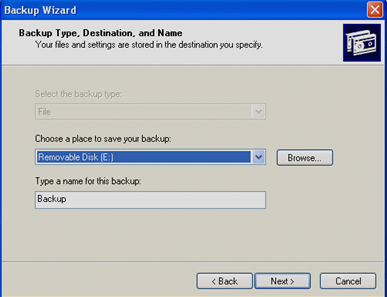
Step 8. The Windows XP backup process will create a backup of your system files, registry, and other important data. The backup will be stored in a file with a .bkf extension at the destination you specified.
To append this backup to a previous one, you can select the "Append this backup to existing backups" option in the advanced settings. This will add the new data to the existing backup file without overwriting previous data.
Step 1. Click on "Advanced options" once the backup finishes.
Step 2. Select "Incremental Type of Backup" in the next window.
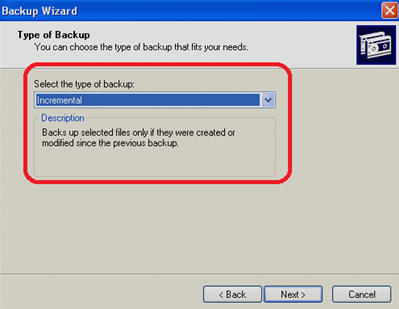
Step 3. Find Verify Data after the backup option.
Step 4. In backup options, pick "Append this backup to existing backups."
Step 5. To backup your Windows XP, click on "Start backup" and then you have successfully backed up your Windows XP.
This feature allows you to merge your current backup with previous ones, eliminating the need for multiple backup files. It also enables automatic scheduling of backups at a specified time, ensuring your data is safely backed up without manual intervention.
To recover your lost data, you can use the Backup Utility's "Restore" feature. This allows you to restore your files from a previous backup, as long as your external device or backup location is connected. If your external device is not plugged in, you won't be able to restore your files, but once you reconnect it, you can start the recovery process again. This means you need to have a reliable and accessible backup location to use this feature effectively.
FAQs on Windows XP Backup
Here are some of the most frequently asked questions about backing up Windows XP, along with their answers.
1. How do I back up my entire Windows computer?
When backing up your Windows XP PC using Backup or NTBackup, make sure to select the entire device when prompted, as only system files or documents are often selected by default, potentially leaving out important system files and settings.
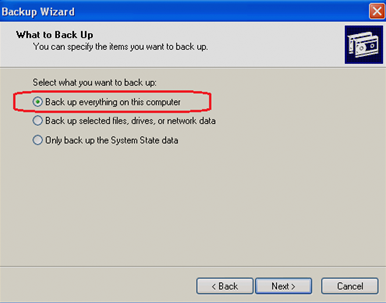
To back up everything on this computer, the process will take more time compared to an incremental backup, which only copies new or changed files, but it will back up your entire PC.
2. How do I create a system image backup in Windows XP?
You can use various programs to create a clone image of your Windows, but we suggest using Qiling Backup Home, which offers better options and is easier to use, ensuring a thorough backup.
This utility allows you to create a Windows clone on an external device or cloud storage, providing an easy way to restore your system in case of a problem. If you have a fast internet connection, you can also back up your files directly to the provided 250GB cloud storage. This way, you can have a safe and efficient recovery process.
3. How do I transfer files from Windows XP to an external hard drive?
When prompted for a location in your Windows XP backup, choose the Removable Disk to ensure your backup is stored on an external hard drive.
You can use Qiling Backup for a thorough backup and recovery, making it easy to restore your files when needed.
4. Can I copy Windows XP from one computer to another?
You can create a system clone using Qiling Backup's Tools option, which allows you to transfer the backup image to another computer with the same tool.
Conclusion
Creating a Windows XP system image or backup can be done in three main ways. However, it's essential to note that the built-in options can be complex and outdated. To ensure a thorough backup, consider using a reliable tool like Qiling Backup Home, which can provide a more efficient and effective solution.
Related Articles
- How to Clone a Bootable Hard Drive in Windows 10/8/7
- 3-Minute Guide | How to Restore Outlook Backup with Ease
- [2 Safe Ways] How to Backup Windows 11 to USB
- Can I Clone BitLocker Encrypted Drive Without Disabling It? Yes! [3 Minutes Guide]
- How to Backup Thunderbird Emails Windows 10 [Latest Tips]
Thunderbird is a widely used email client, but backing up and recovering emails can be a challenge. Fortunately, there are ways to backup Thunderbird email and data on Windows 10, which we'll explore in this article to help users safeguard their important emails and data. - Comparison: Should You Backup to Cloud or Hard Drive
Cloud drives and external hard drives are the most common file backup destinations for users.
Products
Articles & Tutorials
- Data Recovery
- Data Backup
- File Recovery
- File Backup
- System Backup and Restore
- Disk and Partition Clone
- Technical articles
- Mobile articles
- Disk Master Help
- Windows Data Recovery Tutorials
- Windows Secure Delete Tutorials
- Windows Partition Management Tutorials
- Windows File Backup and Restore Tutorials
- Windows System Backup and Restore Tutorials
- Windows Disk Backup and Restore Tutorials
- Windows Clone Tutorials