Ubisoft Game Save Folder (Everything You Need to Know)
What Is a Ubisoft Save Game Folder
Ubisoft offers a range of games through their online platform, including Rocksmith+, Riders Republic, Assassin's Creed Mirage, and more, making it easy to access a variety of games from one place.
Gamers familiar with Ubisoft games may not be aware of the save game features, particularly how to save game progress or locate the Ubisoft save game folder. This can be frustrating, especially when you've invested time and effort into a game.
However, understanding how to save and locate your game progress can be a game-changer (pun intended). In this article, we'll explore the world of Ubisoft save game folders and provide you with the necessary information, along with the best backup and restore tool for Ubisoft games.
How to Locate Your Ubisoft Save Game Folder
After learning about Ubisoft and its role in backing up game files, you may have realized its significance. To use this software fully, however, finding the location of the Ubisoft save game folder is crucial.
This folder contains all the saved data for your games, and knowing where it is will allow you to access and manage your saved games more efficiently.
The process involves locating the Ubisoft save game folder on a Windows PC.
Step 1. To back up your Ubisoft games, start by installing and launching the Ubisoft Connect PC on your system. From here, you can access and play games, and the backup will automatically be stored in the default folder, which is typically located at C:\Program Files (x86)\Ubisoft\Ubisoft Game Launcher\savegames.
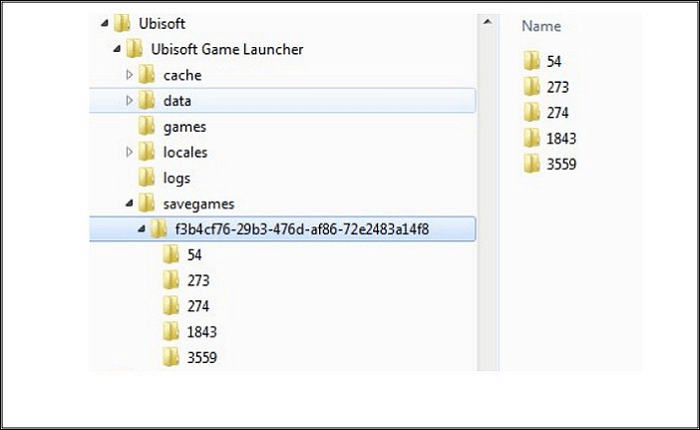
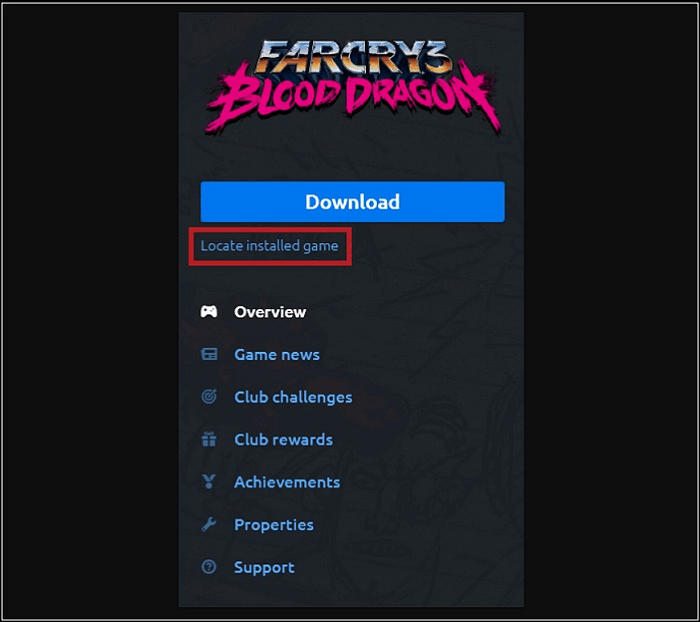
Step 2. To find a specific game ID, go to the "Games" tab in Ubisoft Connect PC, select the game you need to check, and then navigate to the "Properties" section in the side menu. The game ID can be found under the "Local Files" section.
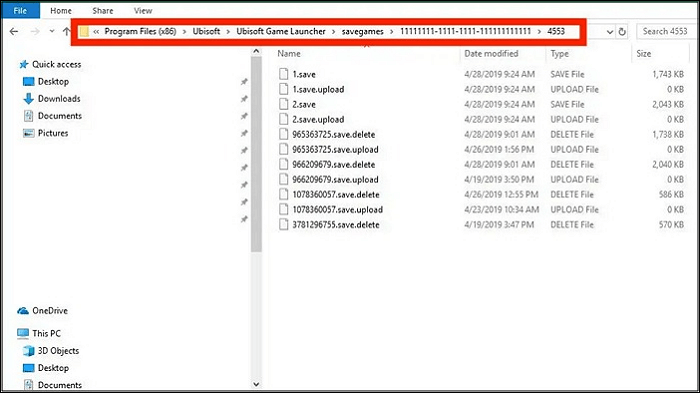
Step 3. To save your Ubisoft game progress, follow the path to the "Ubisoft Game Launcher" and locate the "savegames" folder under your Ubisoft Connect ID Number and Game ID. You can save this file for backup or even copy the entire Ubisoft save game folder and paste it into the Ubisoft Connect installation folder on another system, effectively transferring your game progress.
This allows you to pick up where you left off on another device, making it convenient for players who switch between different gaming setups.
In Ubisoft Connect PC, you can enable or disable Cloud synchronization for supported games in the Settings option from the side menu. This allows you to pick up where you left off on a new system with the same Ubisoft account.
To recover your Ubisoft account and password, go to the Ubisoft account recovery page, enter your email address, and follow the instructions provided. You can also try contacting Ubisoft's customer support team for further assistance.
2 Easy Ways to Recover Ubisoft Account and Password
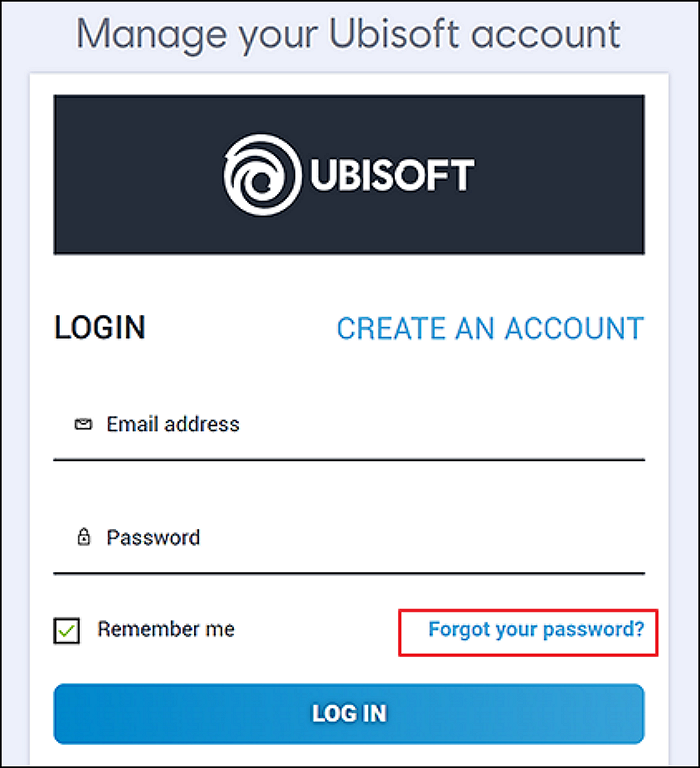
To regain access to your Ubisoft account, you'll need to reset your password through their website or mobile app. This process typically involves clicking on the "Forgot Password" option on the login page, entering your username or email address associated with the account, and following the prompts to create a new password.
How to Backup & Restore Ubisoft Save Game Folder
If your hard drive becomes corrupt or you have a weak internet connection, backing up your Ubisoft games is crucial to retrieve them. In such scenarios, finding a stable and secure tool to do so can be challenging, but considering Qiling Disk Master as an option may be a good idea.
Qiling backup offers a comprehensive backup and restoration solution for Windows and gaming consoles. It allows you to backup not only files, disks, and system partitions, but also the progress of your favorite games, including Minecraft worlds and GTA V files.
Additionally, it enables you to clone your game data and transfer it to various locations, such as local disk, cloud, security zone, and NAS (Network-Attached Storage).
You can easily create or schedule backups (daily, weekly, monthly, event-based) with the software, and it also supports differential and incremental backups. Additionally, you can reinstall Windows without losing your Ubisoft save game folder.
Here are the steps to use Qiling Disk Master:
Step 1. To initiate the backup process, click the "Select backup contents" button.

Step 2. Four data backup categories are listed: File, Disk, OS, and Mail.

Step 3. The left-hand side of the screen displays both local and network files, allowing you to expand the directory to select the files you want to back up.

Step 4. Please follow the on-screen instructions to select the desired storage location for your backup.

To ensure your backup is secure, set it to be encrypted. You can also customize the backup schedule by clicking on "Options" in the "Backup Options" section.
Additionally, you can specify a start time for the backup in the "Backup Scheme" section by clicking on "Options". There are many other customizable options available to explore.

Step 5. You can store the backup file on your computer, in Qiling's cloud service, or on a network-attached storage device (NAS).

Step 6. Qiling Disk Master allows customers to store backup copies of their files on a third-party cloud drive or the company's own cloud storage.
To back up your data on a third-party cloud drive, select Local Drive and scroll down to add Cloud Device, then fill in your account information.
Step 7. Click on Proceed to start a backup, and once the process is complete, the backup will be displayed as a card on the left side of the screen, with further details and options available upon right-clicking.
Final Words
Ubisoft is a gaming company that not only develops and publishes its own games but also offers a premium package featuring well-known titles. This write-up has provided an overview of what Ubisoft is and how to easily locate the Ubisoft save game folder on your system.
If you need to back up Ubisoft games quickly, the Qiling Disk Master tool can be a helpful solution. It allows you to back up and restore game files, and even supports backing up your entire system and hard drive to the Cloud.
This can be a convenient option for those who want to ensure their game data is secure and easily recoverable.
FAQ on Ubisoft Save Game Folder
After learning the process to locate the Ubisoft save game folder, you may have some queries. Let's find them here!
1. Does Ubisoft save game data?
Ubisoft saves game progress on the system or cloud for games available on Connect PC. Users can restore saved files by launching the game with the same Ubisoft account or using the Ubisoft save game folder on their system, but this feature is only available to active subscribers.
2. How do I access Ubisoft cloud save?
If your Ubisoft cloud save is lost, you can usually access it by starting your game with the same Ubisoft account, which will activate the Cloud synchronization feature.
The save files are typically located in the Program Files on your system under the Ubisoft > Ubisoft Game Launcher and savegames folder.
3. How do I restore my Ubisoft save?
To restore a save game file from Ubisoft, copy the Ubisoft save game folder and paste it into the Ubisoft Connect Installation Folder on the system you want to restore, or start the game with your Ubisoft account and check the saved progress.
Related Articles
- Complete Guide to Windows Internet Name Service (WINS)
- Great Discover Virus | Here Is Everything You Should Know
- [Fixed] What/Where Are Temp Files? Should You Delete or Keep Them?
- Fix: Operation Failed with Error 0x0000011b (Windows 10/11)
- How to Reset PS5 Without Losing Data [2 Tested Methods]
Reset PS5 without losing data by choosing the right reset option, backing up game saves, and protecting PlayStation 5 data. - Resolve Outlook Cannot Connect to Server
There are several reasons why Outlook cannot connect to server error occurs. This article will discuss the potential reasons and show you how to Fix Outlook Not Connect to Server Error.
Products
Articles & Tutorials
- Data Recovery
- Data Backup
- File Recovery
- File Backup
- System Backup and Restore
- Disk and Partition Clone
- Technical articles
- Mobile articles
- Disk Master Help
- Windows Data Recovery Tutorials
- Windows Secure Delete Tutorials
- Windows Partition Management Tutorials
- Windows File Backup and Restore Tutorials
- Windows System Backup and Restore Tutorials
- Windows Disk Backup and Restore Tutorials
- Windows Clone Tutorials