Introduction
Outlook may experience issues connecting to the Exchange Server, which can hinder email message sending and receiving functionality.
If you're experiencing issues with Outlook not connecting to the server, this guide can help to fix this problem, try restarting Outlook, checking your internet connection, and ensuring your account settings are correct.
Why Is Outlook Not Connecting to the Server?
Outlook is an email application included with Microsoft 365. Connection problems may occur alongside cases where Outlook stops working or stops responding. Common causes of a server connection failure include:
- Internet Issues
- Faulty OST file
- Corrupt Outlook profile
- Faulty Extensions
- Outdated application
Resolve Outlook Cannot Connect to Server Error
- 1.Restart Your Computer
- 2.Check the Internet Connection
- 3.Reconnect Outlook to Online again
- 4.Check the Microsoft Exchange Server Connection
- 5.Select SSL to Connect to the Microsoft Exchange Server
- 6.Remove or Disable Faulty Add-Ins
- 7.Repair your Outlook Account
- 8.Force Outlook to Rebuild The Data File
- 9.Troubleshoot or Reinstall Outlook
1. Restart Your Computer
Try restarting your computer, which can often resolve minor issues and refresh the operating system by clearing the cache. After the restart, check if you can access Outlook without any problems.
2. Check The Internet Connection
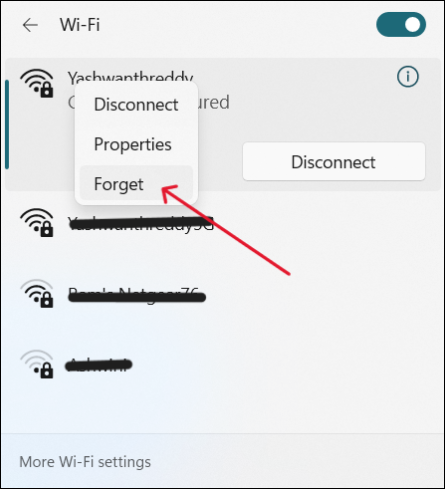
If your Outlook can't connect to the server, it might be due to a faulty internet connection. This could be caused by a problem with your network or slow internet speed. Try reconnecting to the same network by forgetting the connection, and see if Outlook works on another computer with the same internet connection. Make the necessary changes based on the outcome.
Open Wi-To resolve the issue, right-click on your Network, select Forget, and then connect again to see if the problem is resolved.
3. Reconnect Outlook To Online Aagin
If you're experiencing issues reconnecting to Outlook online, it's worth trying to resolve the "Outlook not connecting to server" error, which might help you reconnect successfully.
Steps to do this:
Step 1: Open the Outlook application.
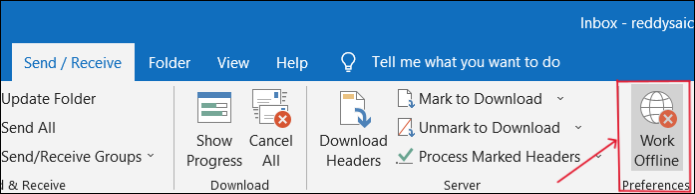
Step 2: Click on Send/Receive tab.
Step 3: Click on Work Offline to reconnect again.
4. Check The Microsoft Exchange Server Connection
If your internet is fine, you can next check Microsoft Exchange Server Connection.
Steps To Check The Exchange Server Connection:
Step 1: Open your Outlook account.
Step 2: To access account settings, go to File > Info > Account Settings > Account Settings in the menu.
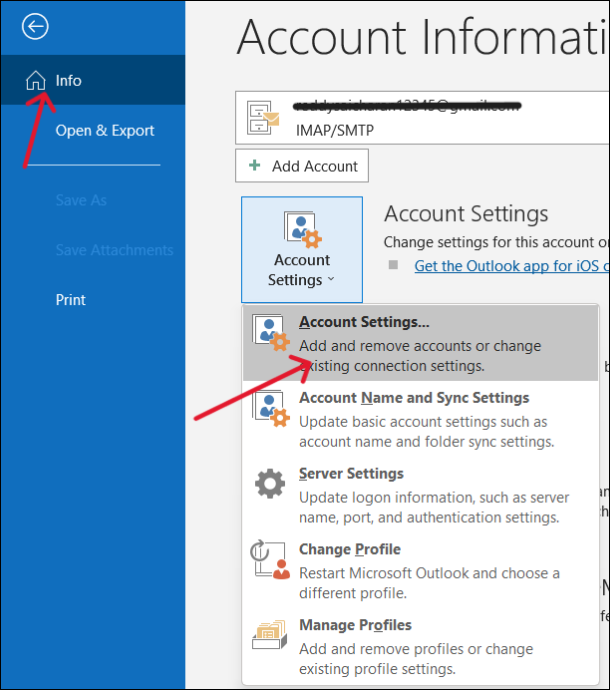
Step 3: Check the icon beside your Exchange account; if there is an issue with the connection, it will be orange, otherwise it will be blue.
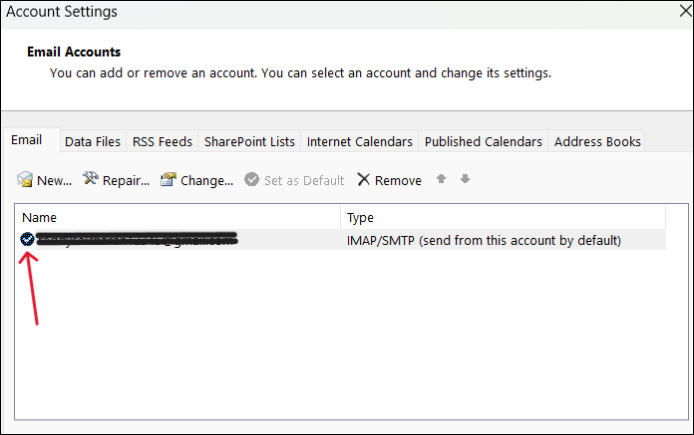
If your Microsoft Exchange Server connection is orange, try rewriting the connection. To do this, go to Settings > Accounts > Add account > Outlook.
5. Select SSL To Connect To The Microsoft Exchange Server
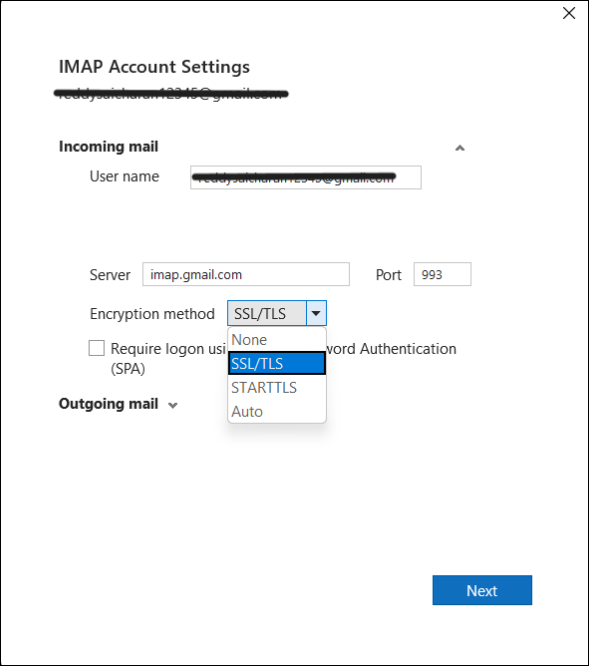
To fix the Outlook cannot connect to server error, you can use the SSL/TLS encryption methods. This involves configuring the Outlook settings to use the correct encryption method, which can vary depending on the server type and version.
Steps to do this:
Step 1: Open the Outlook Application.
Step 2: Go to File > Account Settings > Server Settings.
Step 3: Choose the Encryption Method as SSL/TLS using the dropdown menu.
6. Remove Or Disable Faulty Add-Ins
Faulty or incompatible add-ins on your Outlook may prevent your Outlook profile from connecting to the Microsoft Exchange Server. To resolve this issue, you can remove or disable the problematic add-in by following these steps.
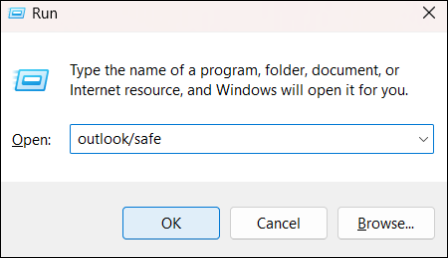
Step 1: To open Outlook in safe mode, press the Windows key + R to open the Run dialog box, type "Outlook/safe" and press OK. This will launch Outlook with only essential components enabled, allowing you to troubleshoot issues or perform tasks without any add-ins or other potentially problematic features.
Step 2: Navigate to File > Options.
Step 3: To access add-ins in Outlook, click on "Add-ins" in the left pane and then click "Go" beside "Manage" to open the add-ins window.
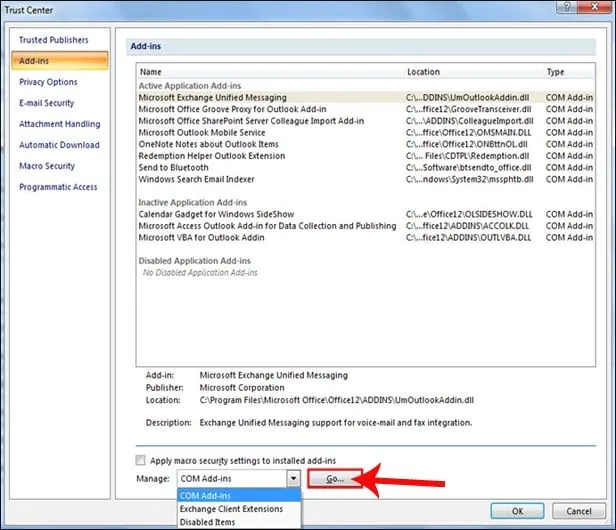
Step 4: Disable all Add-Ins and click OK.
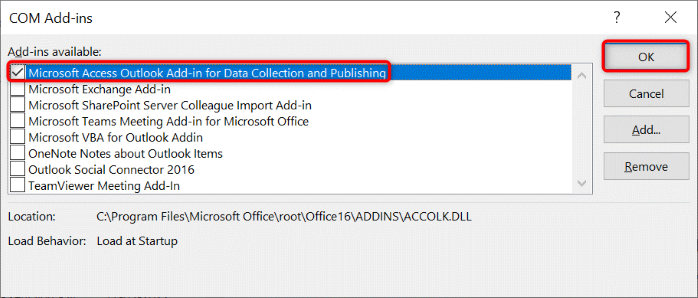
Restart Outlook to see if the errors are resolved. If you wish to keep particular add-ins, you can check them by disabling the faulty ones.
7. Repair Your Outlook Account
To repair your Outlook account, go to the File tab, click on Account Settings, and then click on Account Settings again. From the Account Settings window, select the account you want to repair and click on Repair. If the issue persists, you can try removing and re-adding the account.
Step 1: Open the Outlook application.
Step 2: To access account settings, go to File > Info > Account Settings > Account Settings.
Step 3: Select your account and click repair.
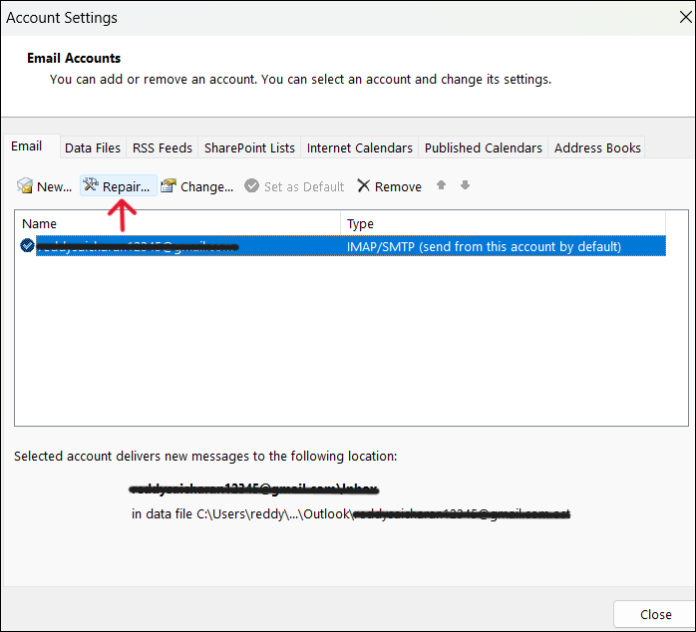
To troubleshoot the issue where Outlook cannot connect to the server, try relaunching the application to see if the problem is resolved. This simple step can sometimes resolve connectivity issues, allowing you to access your email and other features without any problems.
8. Force Outlook To Rebuild The Data File
The mailing app's data is stored in application data files, which can become corrupt or faulty, causing an error when trying to connect to the server. Deleting this file can cause Outlook to consider it as data loss and rebuild the data file from scratch.
Steps To Delete The Data File:
Step 1: To access account settings in the Outlook app, go to File, then select Info, followed by Account Settings, and finally Account Settings.
Step 2: To resolve the issue with the email account, go to the Data Files tab, select the account that's not working, and click on Open File Location.
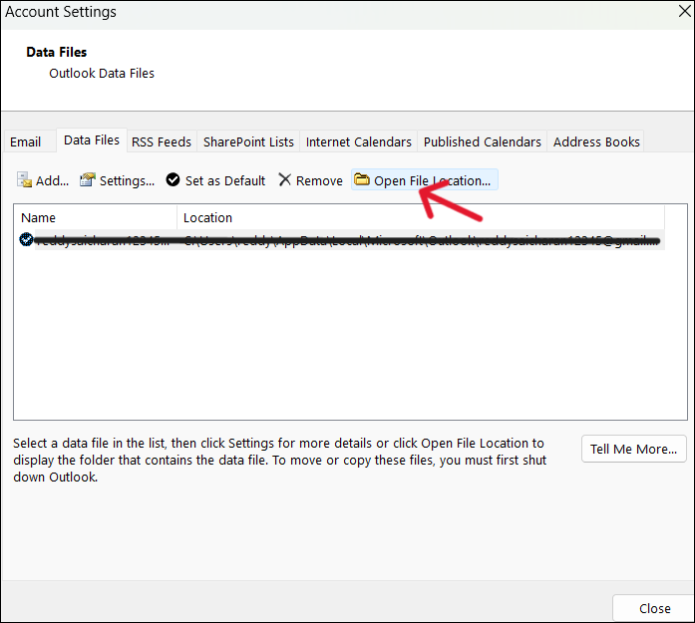
Step 3: You can either rename the file or move it to another location.
Once you've made the necessary changes, relaunch the application, and Outlook will automatically generate a new data file.
9. Troubleshoot Or Reinstall Outlook
If none of the above methods were of no use and you still face the issue, you can try troubleshooting or reinstalling the application, following the steps provided.
Step 1: Press the Windows key + R, type appwiz.cpl, and press OK to open the Programs and Features window.
Step 2: To update Microsoft Office, find it inside the application manager, right-click on it, and select "Change".
Step 3: Choose Repair and hit "Continue."
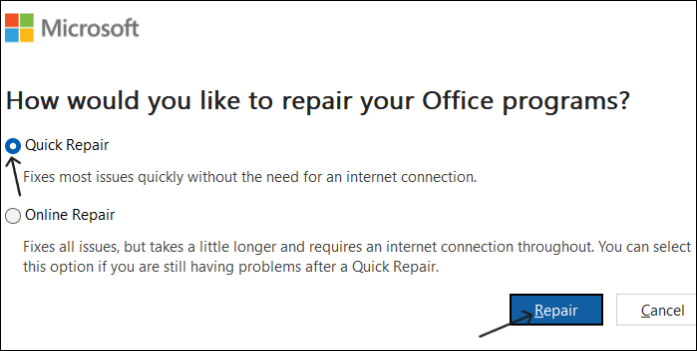
If the problem persists after a repair, you can uninstall and reinstall the program.
Conclusion
The "Outlook Not Connect to Server" error can prevent you from accessing your account and emails. However, some fixes can be tried to resolve the issue and reconnect to the Exchange Server.
If you find this article helpful, share it with your friends and leave a comment about it. If you have any queries regarding the topic, feel free to ask them in the comment box, and do let me know of the future issues you wish to see articles from Qiling.
Related Articles
- How to Reset BIOS to Default Settings in 3 Different Ways
- How to Reinstall macOS in 3 Methods [ Ventura/Monterey/Big Sur Available ]
- What Is the Latest Version of macOS Until 2023 [Ventura]
- Can't Format External Hard Drive? 6 Ways to Help
- [Fixed] External Hard Drive Not Showing Up in Disk Management on Windows 10/11
If your external hard drive isn't being detected by your computer and isn't showing up in disk management, there are several potential reasons and solutions to consider. The drive may not be properly connected or powered, or the USB port may be damaged. - External Hard Drive Temperature Range [Full Guide in 2023]
Learn the safe external hard drive temperature range and how to prevent overheating, slow performance, and possible data loss.
Products
Articles & Tutorials
- Data Recovery
- Data Backup
- File Recovery
- File Backup
- System Backup and Restore
- Disk and Partition Clone
- Technical articles
- Mobile articles
- Disk Master Help
- Windows Data Recovery Tutorials
- Windows Secure Delete Tutorials
- Windows Partition Management Tutorials
- Windows File Backup and Restore Tutorials
- Windows System Backup and Restore Tutorials
- Windows Disk Backup and Restore Tutorials
- Windows Clone Tutorials