[Fixed] External Hard Drive Not Showing Up in Disk Management on Windows 10/11
Your external hard drive is no longer being recognized by your PC. Try unplugging it, waiting a few seconds, and plugging it back in. If that doesn't work, check the disk management again to see if it's still not showing up. If it's still not visible, you might want to try using a different USB port or checking the drive's power cord to make sure it's properly connected. If none of these steps resolve the issue, you might need to format the drive or contact the manufacturer for further assistance.
- question from the Reddit forum
If your external hard drive doesn't show up in Disk Management, it can be difficult and upsetting, especially if you need to access the data stored on it. This issue can occur due to various reasons such as incorrect connections, faulty hardware, or outdated drivers. To resolve this issue, you can try restarting your PC, checking the connection, and updating the disk drivers.
If an external hard drive doesn't disappear in File Explorer, you can find it in Disk Management. However, if an HDD isn't showing up in Disk Management, you may be at a loss and don't know how to deal with it.
External hard drive not showing up in Disk Management on Windows 10/11 can be caused by various reasons such as incorrect drive letter assignment, disk errors, or outdated drivers, and can be resolved by checking the drive letter, running a disk check, updating drivers, and re-enabling the drive in Disk Management.
A Quick Guide:
| Workable Solutions | Step-by-step Troubleshooting |
|---|---|
| Fix 1. Check the Connection | Unplug the HDD and reconnect it, Replace an...Full steps |
| Fix 2. Update Your Drivers | Enter "device manager" in the search bar on...Full steps |
| Fix 3. Reinstall Drivers for Unrecognized External Hard Drive | Go to Device Manager, Select Disk drives, and....Full steps |
| Fix 4. Check the Hard Drive in BIOS | Restart your computer, and press F2/Del key...Full steps |
| Fix 5. Use Hardware and Devices Troubleshooter | Double-click the Control Panel on the desktop...Full steps |
Why External Hard Drive Not Showing Up in Disk Management on Windows 10/11
If your Windows 10 and 11 computer can't detect a connected external hard drive in Disk Management, it may be due to various reasons. The issue could be caused by a faulty external hard drive, a loose connection, or outdated drivers.
- The hard disk is manually hidden on Windows 10/11
- The issue could be caused by a faulty USB interface or cable, leading to an unstable or poor connection. This can result in errors or issues with the device or system connected to the USB port.
- The hard drive is corrupted or damaged
- Outdated hard drive driver
- Incorrect drive letter
The reasons for the "SSD not showing up in Disk Management" error are: the SSD is not properly connected to the motherboard, the SSD is not initialized or formatted, the SSD is damaged or faulty, the SSD is not recognized by the BIOS or UEFI firmware, the Disk Management tool is not functioning correctly, or there is a conflict with other storage devices. These reasons also apply to the "SSD not showing up in Disk Management" error.
How to Repair External Hard Drive Not Showing Up in Disk Management
If your hard drive or USB external hard drive is not showing up in Windows 11, don't worry, there are five practical solutions to fix the issue. You can try each solution one by one: check the Disk Management error, ensure the drive is properly connected, run a disk check, update the drivers, and use the built-in troubleshooter to resolve the problem.
- Notice
- Before troubleshooting your external hard drive, back up its contents to prevent data loss. You can use software like Qiling Disk Master to easily backup your external hard drive to a cloud, another hard drive, or a NAS. This will ensure your data is safe during the troubleshooting process.
Qiling Disk Master Free
- Supports full disk/partition backup of files, programs and operating system
- To safeguard data from a failing hard drive, a significant backup should be taken to prevent data loss. This can be achieved by copying all important files to an external hard drive, cloud storage, or both.
- Makes a bootable rescue media to access a none-bootable
Fix 1. Check the Connection
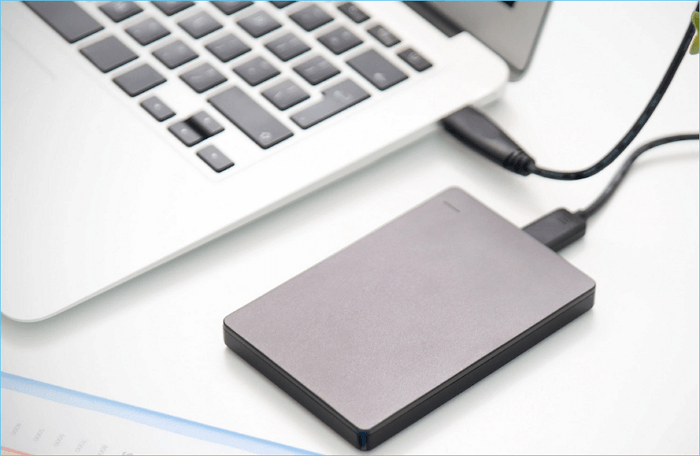
A poor connection between the external hard drive and the Windows computer is often the culprit behind Disk Management's inability to detect the drive. To troubleshoot, start by checking the connection itself, ensuring that the drive is properly plugged in and seated. This simple step can often resolve the issue, allowing Disk Management to successfully detect the external hard drive.
- Unplug the HDD and reconnect it
- Replace another connection cable
- Connect the hard drive to another USB or Type-C interface
Fix 2. Update Your Drivers
If your external hard drive is connected to your computer but still can't be detected in Disk Management, it may be due to outdated drivers or errors within them. Updating your external hard drive drivers can resolve the issue. To do this, follow the steps to update your driver.
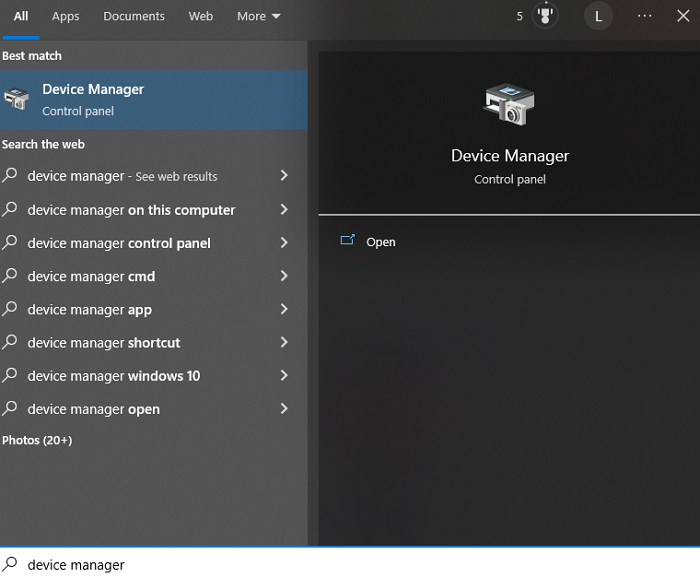
- To open Device Manager, enter "device manager" in the search bar on the taskbar, and select Device Manager to open it.
- Find the Disk drive category, and click the arrow beside it to expand it. This will allow you to view and select the specific subcategory that you need.
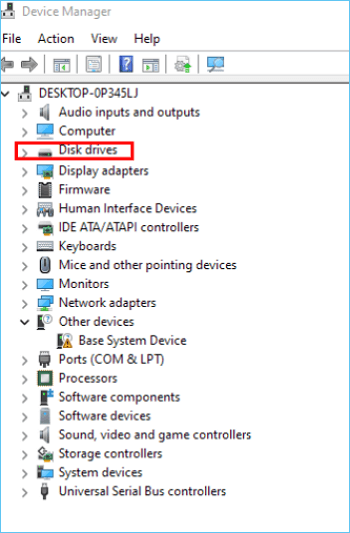
- To fix the issue with the external hard drive, right-click on it, then choose the "Update driver" option from the context menu. This will initiate the process of updating the driver software for the external hard drive, which may resolve the problem.
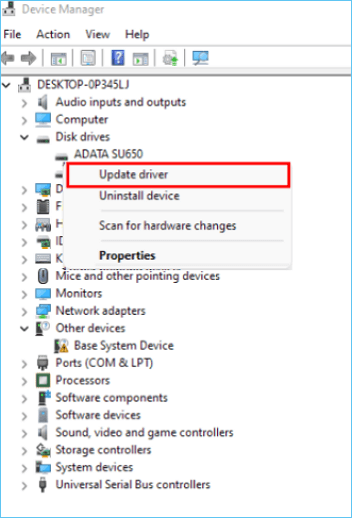
- Once the update process is complete, restart your computer to apply the changes and ensure the new version is installed correctly.
- Check if your external hard disk can be shown in Disk Management.
Fix 3. Reinstall Drivers for Unrecognized External Hard Drive
If the driver update doesn't work, you may need to reinstall the external hard drive driver. To do this, go to the device manager, find the external hard drive, right-click on it, and select "uninstall device". Then, restart your computer and let Windows reinstall the driver. Alternatively, you can also visit the manufacturer's website and download the latest driver for your external hard drive.
- Go to Device Manager
- Select Disk drives and find your external hard disk.
- Right-click on it and choose Uninstall device.
- In the Uninstall device window, click "Uninstall" to continue.
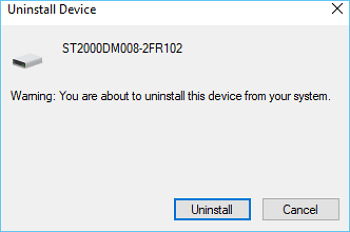
- Restart your computer, and reinstall the hard drive driver.
- Check if the external hard drive can be shown in Disk Management.
Fix 4. Check the Hard Drive in BIOS
Another working solution to find the external hard drive is BIOS, and check if it shows inside BIOS. Follow the steps below to check the external hard drive in BIOS:
- Restart your computer, and press F2/Del key to enter BIOS.
- Go to the "Boot" section in BIOS.
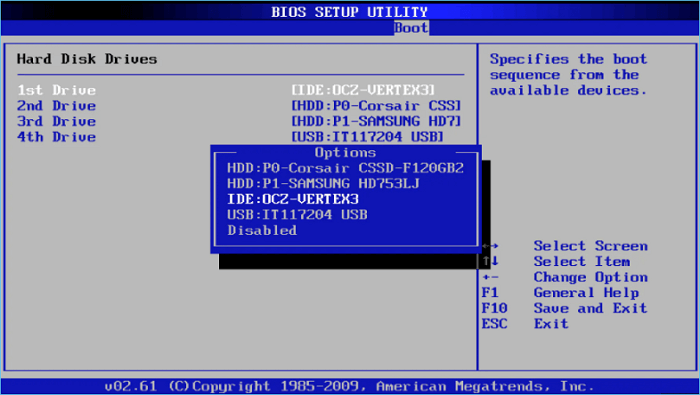
- Check if your external hard drive is listed there.
- If your external hard drive is listed in the boot options, you can try reconnecting it to your Windows 10/11 PC using a different cable or port. This may resolve the issue.
- The BIOS settings' main page should be displayed. If the drive is recognized, it should be listed under the "Storage" section.
- To resolve the issue, locate the external hard drive and ensure that its detection status is set to "Enabled".
- Save the changes, exit the BIOS settings, and check if the external drive shows up in Disk Management.
Fix 5. Use Hardware and Devices Troubleshooter
Windows 10/11 has a built-In Troubleshooter, you can diagnose hardware problems, including external hard drive errors. This tool can help identify and resolve issues with your external hard drive, making it easier to troubleshoot and potentially recover your data.
- Double-click the Control Panel on the desktop to open it.
- Enter "troubleshooter" in the search frame, and choose "Troubleshooting" to open it.

- Select the "Hardware and Sound" option.
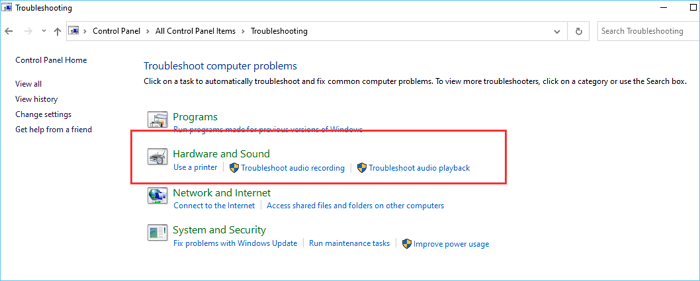
- To transfer files from a computer to an external hard drive, find and click the external hard drive, then follow the guided wizard to finish the process.
Wrapping Up
Here are five solutions to fix the "External hard drive not showing up in Disk Management on Windows 10/11" issue: check the power source and cable, restart the computer, initialize the disk, update disk drivers, assign a drive letter, or format the drive when necessary.
To ensure your data's security, back up the external hard drive using a reliable software like Qiling Disk Master before applying any fixes, which can be done with just a few clicks.
How to Backup Seagate External Hard Drive FAQs
1. Why is my external hard drive not showing up in Disk Management?
External hard disks may not show up in Disk Management due to various factors such as poor connection, system or hardware incompatibility, outdated drivers, incorrect drive letters, or corrupted hard drives.
2. How do I get Windows 10 to recognize my external hard drive?
If your external hard drive isn't being recognized by your Windows 10 computer, try these troubleshooting tips. You can start by checking the power cord and cable connections, ensuring they're securely plugged in.
- Reconnect hard drive
- Use a compatible interface and cable
- Change external drive letter
- Update external hard drive driver
- Enable external hard drive in BIOS
- Run hardware troubleshooter
Related Articles
- How to Save a Picture on Mac/MacBook Air [with 3 Practical Methods]
- Fix Computer Slow after Windows 10 Update | Speed Up PC in 6 Ways
- Solved: System Restore Is Restoring the Registry Windows 11/10/8/7
- Recover Not Showing Up/Disappeared User Folder and Files in Windows 10
- Best External Hard Drive for PS3: Top 7 Picks for 2024
What is the best external hard drive for PS3? We will introduce the best four external hard drives for PlayStation 3, which can help you to choose a better one. - What Are the Best External Hard Drive for PS5 [Pros & Cons]
Discover the best external hard drives for your PS5, upgrading your gaming storage space and enhancing your gaming experience. We'll explore the pros and cons of each option, helping you find the perfect solution for your needs. So, read on and upgrade your gaming setup!
Products
Articles & Tutorials
- Data Recovery
- Data Backup
- File Recovery
- File Backup
- System Backup and Restore
- Disk and Partition Clone
- Technical articles
- Mobile articles
- Disk Master Help
- Windows Data Recovery Tutorials
- Windows Secure Delete Tutorials
- Windows Partition Management Tutorials
- Windows File Backup and Restore Tutorials
- Windows System Backup and Restore Tutorials
- Windows Disk Backup and Restore Tutorials
- Windows Clone Tutorials