Solved: System Restore Is Restoring the Registry Windows 11/10/8/7
System Restore is a Windows utility that can restore settings and system files to a previous state in case of system trouble, serving as a lifesaver for many users by making it easy to troubleshoot issues and restore the system and data.
System Restore, a mechanical process, can be prone to errors despite being easy for users to operate, often resulting in issues such as hanging up during the Initializing, Finished, or Registry Restoring stages.
System Restore is restoring the registry, which is a process that can be caused by various factors, including corrupted system files, malware, or incorrect registry entries. To resolve this issue, users can try running a System File Checker (SFC) scan, checking for malware using an antivirus program, and verifying the integrity of the registry using the Registry Checker tool. Additionally, users can try disabling any recently installed software or drivers and then running System Restore again. If the issue persists, users may need to seek further assistance from a technical support specialist.
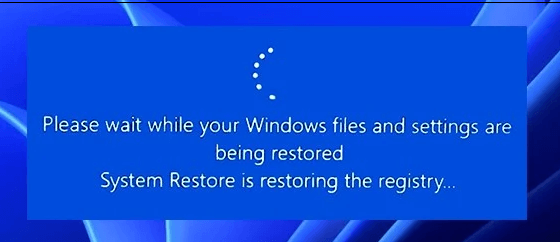
Why Does "System Restore Is Restoring the Registry" Happen
If your System Restore has been stuck on "System Restore is Restoring the Registry" for a long time, there may be something wrong with your PC. This issue can occur due to various reasons, such as a malfunctioning System Restore point, corrupted system files, or a problem with the Windows Registry. To resolve this, you can try restarting your PC, running a System File Checker (SFC) scan, or running a Registry Checker (DISM) scan. If none of these solutions work, you may need to reinstall Windows or seek professional help.
Computer Corruption
System restoration can take several hours to complete, but if System Restore is stuck on the screen for a long time, it may indicate PC corruption caused by hardware failures, software issues, power outages, viruses, or corrupted Windows boot managers.
Bad Sectors
When one or more bad sectors appear on a hard disk, it may fail, resulting in data loss, system freezes, and strange noises. Using System Restore to back up files on a disk can also lead to failure or error due to data loss. To prevent this, you may need to repair bad sectors to ensure System Restore runs smoothly.
Problematic Restore Point
System restore points can be lost if you manually turn off System Restore on Windows, or after updating the operating system, and can also get damaged or corrupted, causing System Restore to get stuck with an error message saying "System Restore is restoring the registry".
If you have other questions about problematic restore points and want to find the appropriate answers and fixes, you can read the following article:

Windows 10/8/7 System Restore Points Not Working
Windows System Restore may become faulty due to various reasons, preventing users from selecting a restore point and restoring their Windows OS to a previous state. This issue can be resolved by checking the system restore points, running the System File Checker, and performing a clean boot to isolate the problem. Additionally, users can try disabling unnecessary startup programs and services, and checking for malware or viruses that might be interfering with System Restore. In some cases, reinstalling Windows or seeking professional help may be necessary.
If you're experiencing issues with "System Restore is restoring the registry", you can make a judgment based on the causes I listed earlier. If you're having problems in practice, don't worry, reading on will provide you with answers and solutions to get you back on track.
How to Fix System Restore Is Restoring the Registry on Windows 11/10/8/7
Some users may encounter a similar issue - "System Restore is restoring the registry", which makes users feel annoyed. But there is no need for you to worry too much. This is not a rare case, and you can quickly fix the Windows 11/10/8/7 System Restore stuck issue with the given solutions in the following.
Before trying the following, it's suggested to wait for more time if there is a mass of data to be restored. It will take a longer time. Three methods can be used:
- Method 1. Perform System Restore to An Errorless Point
- Method 2. Update the Drivers in Safe Mode
- Method 3. Run Some Commands to Perform Advanced Troubleshooting
Method 1. Perform System Restore to An Errorless Point
When System Restore is stuck on "System Restore is restoring registry", you can access the Advanced Startup Options and run System Restore to a previous point where the system was error-free.
Step 1. Press the power button on your device multiple times until the screen comes on and shows the Advanced Startup Options. This will allow you to access the boot menu and potentially resolve any issues with your device.
Step 2. You will see a blue-color interface. Click on the "Advanced options" tab.
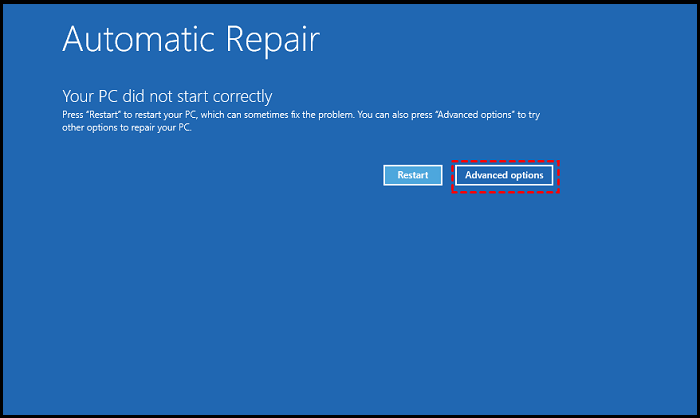
Step 3. To troubleshoot, select the "Troubleshoot" option from the "Choose an option" menu, followed by clicking on "Advanced options".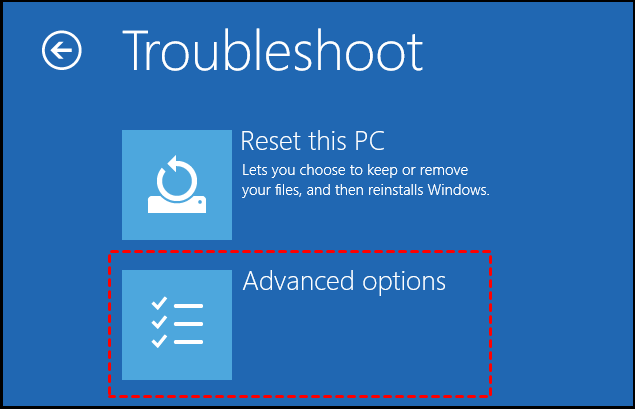
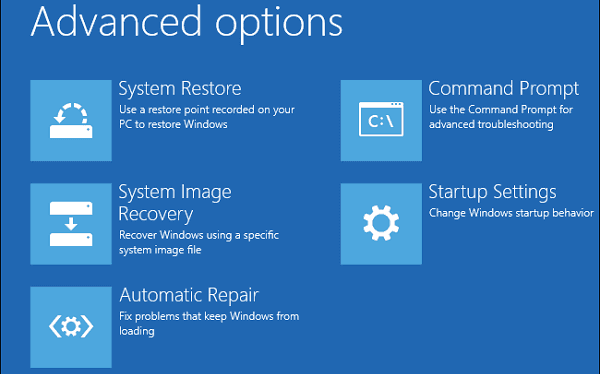
Step 4. Then, you can see several options on the interface. Choose "System Restore".
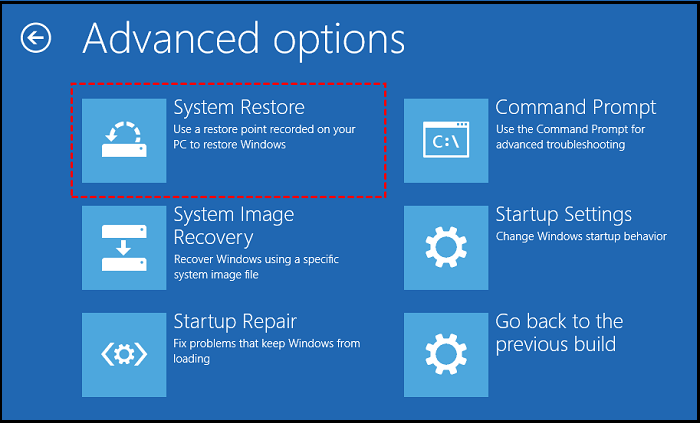
Step 5. Type your Windows account and password, then click "Continue".
Step 6. Choose a restore point and click "Next", then confirm your restore point to complete the process.
Method 2. Update the Drivers in Safe Mode
To resolve the "System Restore is restoring the registry" issue, you can try updating the drivers. This can be done by entering Safe Mode, which provides system configuration access. To enable Safe Mode, you can follow the next steps. By taking these steps, you should be able to resolve the problem and get your system up and running again.
Step 1. To access the "Startup Settings" screen, you'll need to follow the first three steps of method 1, which will take you to the "Advanced options" screen. From there, click on the "Startup Settings" option to proceed.
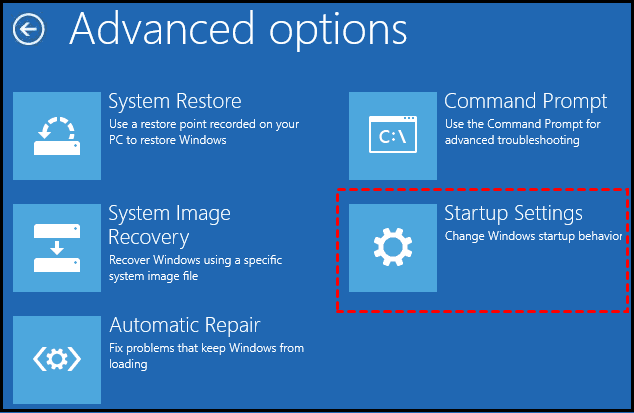
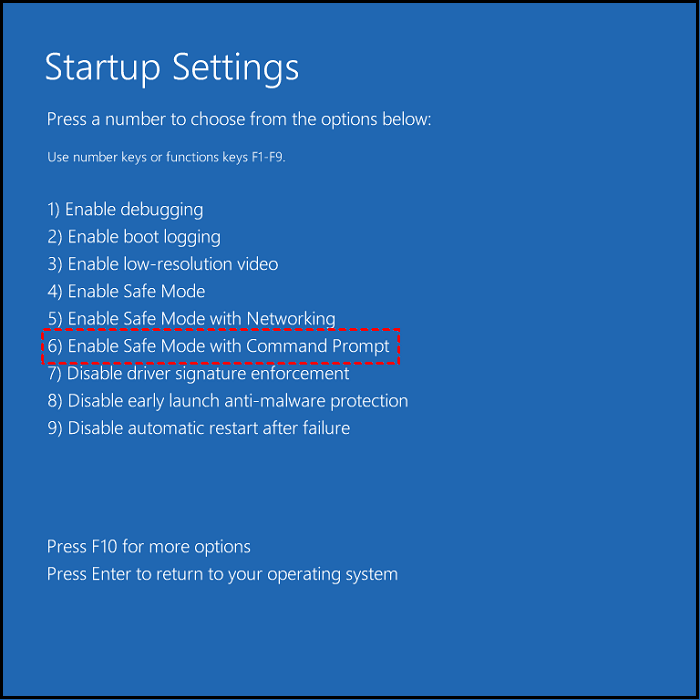
Step 2. To access the Startup Settings in Windows, select the "Enable Safe Mode" or "Enable Safe Mode with Networking" option by pressing the F4 or F5 key, respectively. This will allow you to troubleshoot and resolve issues with your system.

Step 3. When you enter Safe Mode, update the drivers for BIOS, USB, Network, and Bluetooth.
Step 4. Start your PC in normal mode. See if there are any problems with "System Restore is restoring the registry" on System Restore. If you're still having trouble, try starting your PC in safe mode and see if System Restore works then.
Method 3. Run Some Commands to Perform Advanced Troubleshooting
To resolve the issue of System Restore not working, you can try using the Windows prompt command. Run the command prompt as an administrator, type the command "cd %systemroot%\System32\RestoreChk" and press Enter, then type "restore point" and press Enter to show a list of available restore points. If you find a restore point you want to use, type "rstrui.
Step 1. Follow the first three steps of method 1, which will lead you to the "Advanced options" screen. From there, click on "Command Prompt".
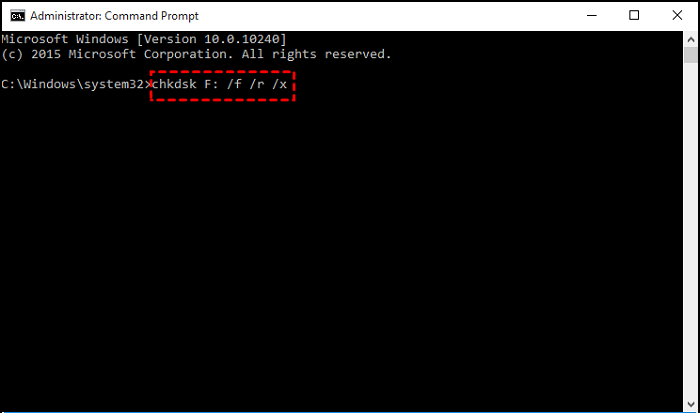
Step 2. To run a check on the C: drive, you will see an "Administrator: Command Prompt" window. You need to copy the command chkdsk C: /f into the window.
Step 3. Open the Command Prompt window again. Copy the command `SFC /scannow` and paste it into the window, then press Enter to run the System File Checker. The process will take a few minutes to complete.
and paste it.
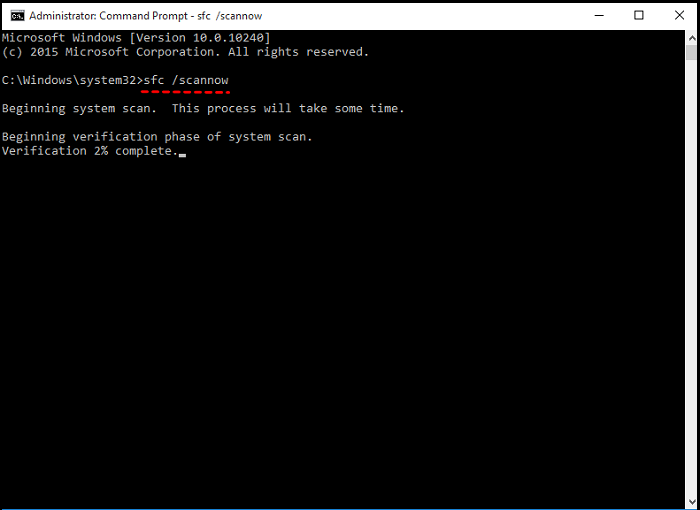
Step 4. To fix the issue, open the Command Prompt window, then copy the commands below into it one by one. After copying each command, press Enter to execute it. Once you've done this, reopen the Command Prompt window.
Dism /Online /Cleanup-Image /ScanHealth
Dism /Online /Cleanup-Image /CheckHealth
Dism /Online /Cleanup-Image /RestoreHealth
Step 5. After a few minutes, check if the problem has been resolved successfully. If it has, you can proceed with your task.
Final Verdict
If you're stuck in a loop when using System Restore to restore the registry, consider trying three methods: performing System Restore to an errorless point, updating drivers in Safe Mode, or running advanced troubleshooting commands. However, be aware that these methods come with risks, as they may delete or overwrite important files and data. To avoid this, it's essential to back up your critical files and restore your operating system before attempting these strategies.
FAQs about System Restore Is Restoring the Registry
Below, we've answered some frequently asked questions about System Restore Is Restoring the Registry.
1. What happens if I interrupt System Restore Windows 10?
If you interrupt System Restore in Windows 10, it can lead to incomplete system file or registry backup restoration, causing the system to get stuck and unable to boot for an extended period.
2. What can I do when System Restore is stuck on restoring files?
If Windows System Restore is stuck on restoring files, try restarting your computer, checking for corrupted system files, or running a System Restore from the Command Prompt, and if that doesn't work, try booting your computer in Safe Mode and then run System Restore from there. If you're still having trouble, you can try running a System File Checker to scan for corrupted system files, or use the built-in Windows tool called System File Checker to scan and replace any corrupted system files. If none of these methods work, you can try reinstalling Windows or seeking professional help from a computer technician.
- Perform System Restore in Safe Mode.
- Run startup repair.
- You can run a system file check.
3. How to fix Windows 11 System Restore taking a long time?
If your System Restore is taking a long time, it may indicate an issue with your PC or the restore process itself. However, it's not uncommon for System Restore to take around 30-45 minutes to complete, and up to 1.5-2 hours if your PC is slow. If it's still stuck, you can try running an SFC scan, attempting a different restore point, or running System Restore in Safe Mode to resolve the issue.
Related Articles
- A File Error Has Occurred While Saving Word Document
- How to Fix Error Code 2003F When Entering Recovery Mode on macOS 13/12/11
- How to Fix Microsoft Excel Has Stopped Working 2007/2010/2013/2016
- How to Factory Reset Laptop Windows 7[2022 Ultimate Guide]
- How to Activate Windows 10 for Free Permanently in 2023
If you want to know how to activate Windows 10 for free, follow the guide below to enjoy its perks permanently. The detailed steps to activate Windows 10 on your PC are available in the guide, allowing you to activate Windows 10 in no time. - How to Fix Active Partition Not Found in Windows [Full Guide]
Are you receiving Active Partition Not Found when you start your Windows PC? Did you recently change one of the storage devices on your PC? Then follow this easy guide where we explain how to fix the problem that delivers active partition not found error.
Products
Articles & Tutorials
- Data Recovery
- Data Backup
- File Recovery
- File Backup
- System Backup and Restore
- Disk and Partition Clone
- Technical articles
- Mobile articles
- Disk Master Help
- Windows Data Recovery Tutorials
- Windows Secure Delete Tutorials
- Windows Partition Management Tutorials
- Windows File Backup and Restore Tutorials
- Windows System Backup and Restore Tutorials
- Windows Disk Backup and Restore Tutorials
- Windows Clone Tutorials